
1. Introduction
This manual provides detailed instructions for the installation, operation, and maintenance of your NUFEBS Q26 Mini Indoor/Outdoor Smart Security Camera. Please read this manual thoroughly before using the product to ensure proper setup and functionality. Keep this manual for future reference.
2. Package Contents
Verify that all items listed below are included in your package. If any items are missing or damaged, please contact customer support.
- NUFEBS Q26 Security Camera
- Magnetic Stand
- Mounting Kit (screws, quick-connect system)
- Power Adapter
- User Manual
3. Product Overview
3.1 Camera Components
Familiarize yourself with the main components of your Q26 camera.

Image 1: Front view of the NUFEBS Q26 Security Camera, highlighting its compact design and key features such as 1080P HD, 2-Way Audio, Magnetic Base, Color Night Vision, Local/Cloud Storage, IP65 Waterproof rating, Motion Detection, and Remote Live Streaming capabilities.
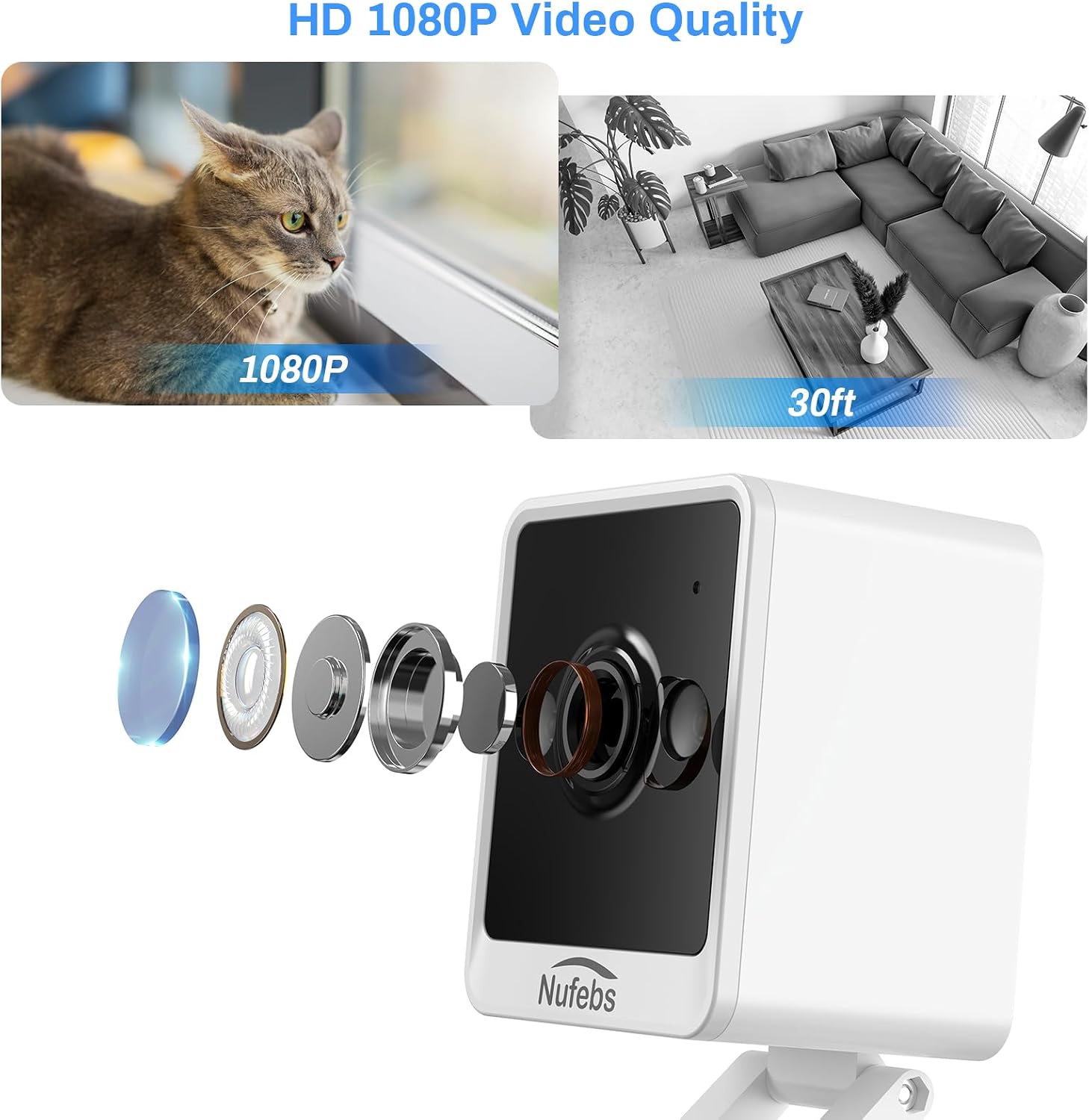
Image 2: An exploded diagram illustrating the internal lens components of the NUFEBS Q26 camera, emphasizing its 1080P HD video quality.
3.2 Key Features
- 1080P HD Video: Provides clear, high-definition video monitoring.
- Color Night Vision: Offers full-color video even in low-light conditions.
- IP65 Weather Resistance: Suitable for both indoor and outdoor installation, protected against dust and water jets.
- Motion and Sound Detection: Sends instant alerts upon detecting activity. Customizable detection zones and sensitivity settings are available.
- Two-Way Audio: Allows for real-time communication through the camera.
- Local and Cloud Storage: Supports local recording via a microSD card (sold separately) and secure cloud recording with a Tris Home subscription.
- Built-in Spotlight and Mini-Siren: Deters intruders with a 40lm spotlight and an audible alarm.
- Magnetic Stand and Wall Mount: Offers flexible placement options.
4. Setup
4.1 Camera Placement and Installation
The Q26 camera can be placed on a flat surface using its magnetic stand or mounted to a wall or ceiling using the included mounting kit.
- Choose a Location: Select a location that provides the desired viewing angle and is within range of your Wi-Fi network and a power outlet. The IP65 rating allows for outdoor installation.
- Magnetic Stand: For flat surfaces, simply attach the camera to the magnetic stand and place it.
- Wall/Ceiling Mount:
- Mark the desired drilling points using the mounting plate as a template.
- Drill pilot holes and insert wall anchors if necessary.
- Secure the mounting plate with screws.
- Attach the camera to the mounting plate using the quick-connect system.

Image 3: Demonstrates the versatility of the NUFEBS Q26 camera, showing it placed on a shelf, mounted on a wall, and inverted on a ceiling, highlighting its compact size and multiple installation options.

Image 4: The NUFEBS Q26 camera mounted outdoors on a tree trunk during rainfall, illustrating its IP65 waterproof rating and suitability for outdoor environments.
4.2 Power Connection
Connect the provided power adapter to the camera's power input port and then plug it into a standard electrical outlet. The camera will power on automatically.
4.3 App Download and Account Creation
- Download the Tris Home app from your smartphone's app store (iOS or Android).
- Open the app and follow the on-screen instructions to create a new account or log in if you already have one.
4.4 Network Connection
- In the Tris Home app, tap the "+" icon to add a new device.
- Select the Q26 camera model from the list.
- Follow the in-app instructions to connect the camera to your Wi-Fi network. This typically involves scanning a QR code displayed on your phone with the camera or entering your Wi-Fi credentials.
- Once connected, the camera's indicator light will change, and the app will confirm successful pairing.
5. Operating Instructions
5.1 Live View
Open the Tris Home app and select your Q26 camera from the device list to access the live video feed. You can view real-time footage from anywhere with an internet connection.

Image 5: A person viewing the live feed from their NUFEBS Q26 camera on a smartphone, demonstrating the remote preview capability even when away from home.
5.2 Recording Options
- MicroSD Card Recording: Insert a microSD card (up to 128GB, not included) into the camera's slot for local storage of video footage. The camera will automatically overwrite the oldest footage when the card is full.
- Cloud Recording: Subscribe to Tris Home cloud services for secure, off-site storage of your recordings, including advanced detection features for persons, packages, pets, and vehicles.
5.3 Motion and Sound Detection
The Q26 camera can alert you to detected motion or sound. Configure these settings within the Tris Home app:
- Enable/Disable Alerts: Turn motion and sound notifications on or off.
- Sensitivity Adjustment: Adjust the detection sensitivity to minimize false alarms.
- Detection Zones: Set specific areas within the camera's view where motion detection should be active.
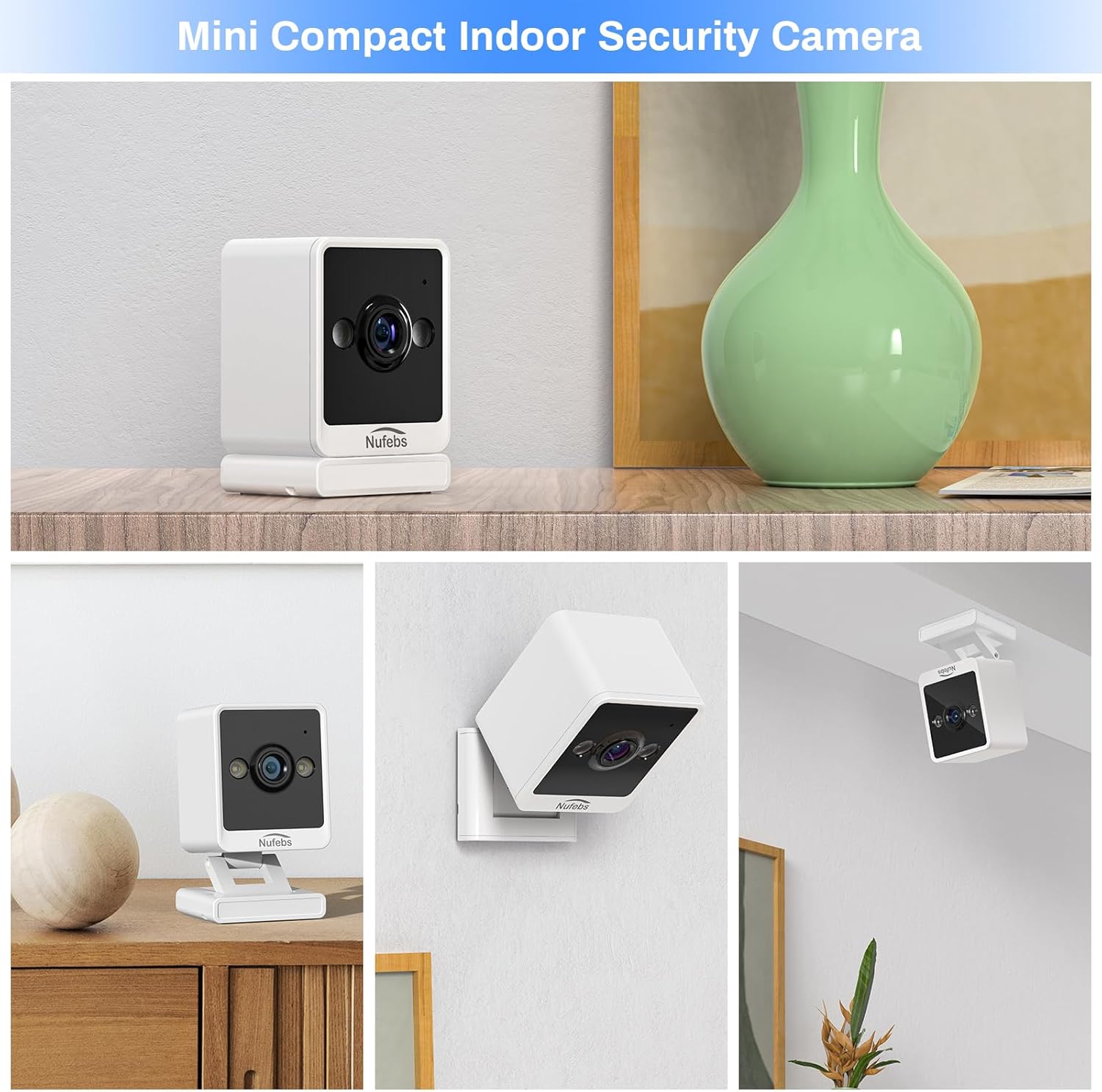
Image 6: A smartphone screen displaying a "Motion detected in channel 1" alert from the Tris Home app, demonstrating the camera's built-in intelligent alarm feature.
5.4 Two-Way Audio
From the live view in the Tris Home app, tap the microphone icon to speak through the camera's speaker. Tap the speaker icon to listen to audio from the camera's microphone.
5.5 Spotlight and Siren
The Q26 features a built-in 40lm spotlight and a mini-siren to deter unwanted visitors. These can be manually activated through the Tris Home app or configured to trigger automatically upon motion detection.

Image 7: The NUFEBS Q26 camera mounted on a wall, with its spotlight actively illuminating the exterior of a house at night, showcasing its deterrent capability.
6. Maintenance
- Cleaning: Use a soft, dry cloth to clean the camera lens and body. Do not use harsh chemicals or abrasive cleaners.
- Firmware Updates: Regularly check the Tris Home app for available firmware updates. Keeping your camera's firmware up-to-date ensures optimal performance and security.
- Power Cycle: If the camera experiences issues, try unplugging it from the power source for 10 seconds and then plugging it back in.
7. Troubleshooting
If you encounter problems with your NUFEBS Q26 camera, refer to the following common issues and solutions:
| Problem | Possible Cause | Solution |
|---|---|---|
| Camera not powering on | No power, faulty adapter, loose connection | Ensure power adapter is securely plugged in. Try a different outlet. Check if the adapter is damaged. |
| Cannot connect to Wi-Fi | Incorrect Wi-Fi password, camera too far from router, router issues, 5GHz network | Verify Wi-Fi password. Move camera closer to router. Restart router. Ensure you are connecting to a 2.4GHz Wi-Fi network. |
| Poor video quality | Weak Wi-Fi signal, dirty lens, low bandwidth | Improve Wi-Fi signal strength. Clean the camera lens. Check internet speed. |
| Motion detection not working | Detection disabled, incorrect sensitivity, detection zones not set | Enable motion detection in the app. Adjust sensitivity. Configure detection zones correctly. |
| Two-way audio not working | Microphone/speaker muted, app permissions | Check audio settings in the app. Ensure app has microphone permissions on your phone. |
8. Specifications
| Feature | Detail |
|---|---|
| Model | Q26 |
| Video Resolution | 1080P HD |
| Night Vision | Color Night Vision |
| Audio | Two-Way Audio |
| Waterproof Rating | IP65 |
| Motion Detection | Yes, with customizable zones and sensitivity |
| Storage Options | MicroSD card (up to 128GB, not included), Cloud Storage (Tris Home subscription required) |
| Connectivity | Wi-Fi (2.4GHz) |
| Special Features | Built-in Spotlight (40lm), Mini-Siren |
9. Warranty and Support
Your NUFEBS Q26 camera comes with a standard manufacturer's warranty. For specific warranty terms and conditions, please refer to the warranty card included in your package or visit the official NUFEBS website. For technical support, troubleshooting assistance, or to report any issues, please contact NUFEBS customer service through the contact information provided on our website or within the Tris Home app.


