
1. Introduction
Thank you for purchasing the FH X26 Wired Gaming Headset. This manual provides essential information for setting up, operating, and maintaining your headset to ensure optimal performance and longevity. Please read this manual carefully before use.
2. Safety Information
- Avoid prolonged listening at high volumes to prevent hearing damage.
- Do not expose the headset to extreme temperatures, humidity, or direct sunlight.
- Keep the headset away from water and other liquids.
- Do not attempt to disassemble or modify the headset. This will void the warranty.
- Clean the headset with a soft, dry cloth only.
3. Package Contents
- FH X26 Wired Gaming Headset
- User Manual
4. Product Overview
The FH X26 headset is designed for gaming, featuring comfortable earcups, an adjustable headband, and an integrated microphone. It includes dynamic RGB lighting for an enhanced aesthetic.

Figure 1: FH X26 Wired Gaming Headset. This image shows the black over-ear headset with its integrated microphone and vibrant RGB lighting on the earcups and headband.

Figure 2: Dynamic RGB Lighting Effect. The headset is displayed on a stand, highlighting its breathing gradient light effect, which adds a vibrant visual element to the gaming experience.

Figure 3: Adaptive Floating Head Beam. This image illustrates the lightweight, soft, and comfortable design of the headset's adjustable headband, suitable for extended wear, especially for users with eyeglasses.
5. Setup
The FH X26 headset connects via a 3.5mm audio jack and a USB cable for RGB lighting.
- Connect Audio: Plug the 3.5mm audio jack into the corresponding port on your PC, PlayStation controller, Xbox controller, Nintendo Switch, or laptop.
- Connect USB (for RGB Lighting): Plug the USB connector into an available USB port on your device. This powers the RGB lighting.
- Adjust Headset: Adjust the adaptive floating head beam to fit comfortably on your head.
- Position Microphone: Adjust the flexible microphone arm to an optimal position for clear communication.
6. Operating Instructions
6.1 Volume Control
Locate the volume control wheel on the left earcup or inline control (if present on the cable). Rotate the wheel to increase or decrease the audio volume.
6.2 Microphone Usage

Figure 4: Omnidirectional High-Definition Microphone. This image highlights the flexible and adjustable microphone, designed for clear real-time communication and equipped with a sponge cover to reduce noise.
The headset features an omnidirectional high-definition microphone. To use the microphone:
- Ensure the microphone is positioned close to your mouth for optimal voice pickup.
- If there is an inline mute switch, ensure it is in the 'unmuted' position.
- Adjust microphone levels in your device's sound settings if necessary.
6.3 RGB Lighting
The RGB lighting is powered by the USB connection. It features a dynamic breathing gradient light effect. The lighting will activate automatically when the USB is connected to a powered port.
7. Maintenance
- Cleaning: Use a soft, dry, lint-free cloth to clean the headset. Do not use abrasive cleaners or solvents.
- Storage: Store the headset in a cool, dry place when not in use. Avoid tangling the cable.
- Earmuffs: The fully enclosed breathable and comfortable earmuffs are designed for long-term comfort and sound insulation. Periodically check them for wear and tear.

Figure 5: Fully Enclosed Breathable and Comfortable Earmuffs. This image shows the design of the earcups, which are made with cool gel to reduce heat accumulation and provide comfort during long gaming sessions, along with excellent sound insulation.
8. Troubleshooting
| Problem | Possible Cause | Solution |
|---|---|---|
| No sound from headset | 3.5mm jack not fully inserted; incorrect audio output selected; volume too low. | Ensure 3.5mm jack is securely connected. Check your device's sound settings to ensure the headset is selected as the output device. Increase volume. |
| Microphone not working | Microphone muted; incorrect audio input selected; microphone sensitivity too low. | Check if the microphone mute switch is off. Ensure the headset microphone is selected as the input device in your sound settings. Adjust microphone sensitivity. |
| RGB lighting not working | USB cable not connected; USB port not providing power. | Ensure the USB cable is securely connected to a powered USB port. Try a different USB port. |
| Sound quality is poor | Loose connection; audio source issue; driver issue. | Check all connections. Test with a different audio source. Update audio drivers on your PC. |
9. Specifications
| Feature | Specification |
|---|---|
| Model | X26 |
| Speaker Size | 50mm |
| Sensitivity | 102±3 dB |
| Impedance | 32Ω±15% |
| Frequency Range | 20Hz-20KHz |
| Microphone Size | 6.0×5.0mm |
| Microphone Sensitivity | -38±3 dB |
| Microphone Impedance | ≤2.2 kΩ |
| Microphone Directionality | Omnidirectional |
| Cable Length | 2.2M±0.15M |
| LED Operating Voltage | DC 5V ± 5% |
| Operating Current | ≤ 180 mA |
| Headset Jack | USB + 3.5mm |
| Color | Black |
| Form Factor | Over-Ear |
| Noise Control | Sound Isolation |
| Connectivity Technology | Wired |

Figure 6: 50mm Custom Drive Unit. This diagram illustrates the internal components of the earcup, highlighting the 50mm speaker driver designed to provide clear audio, capture subtle footsteps, and deliver thrilling sound effects.
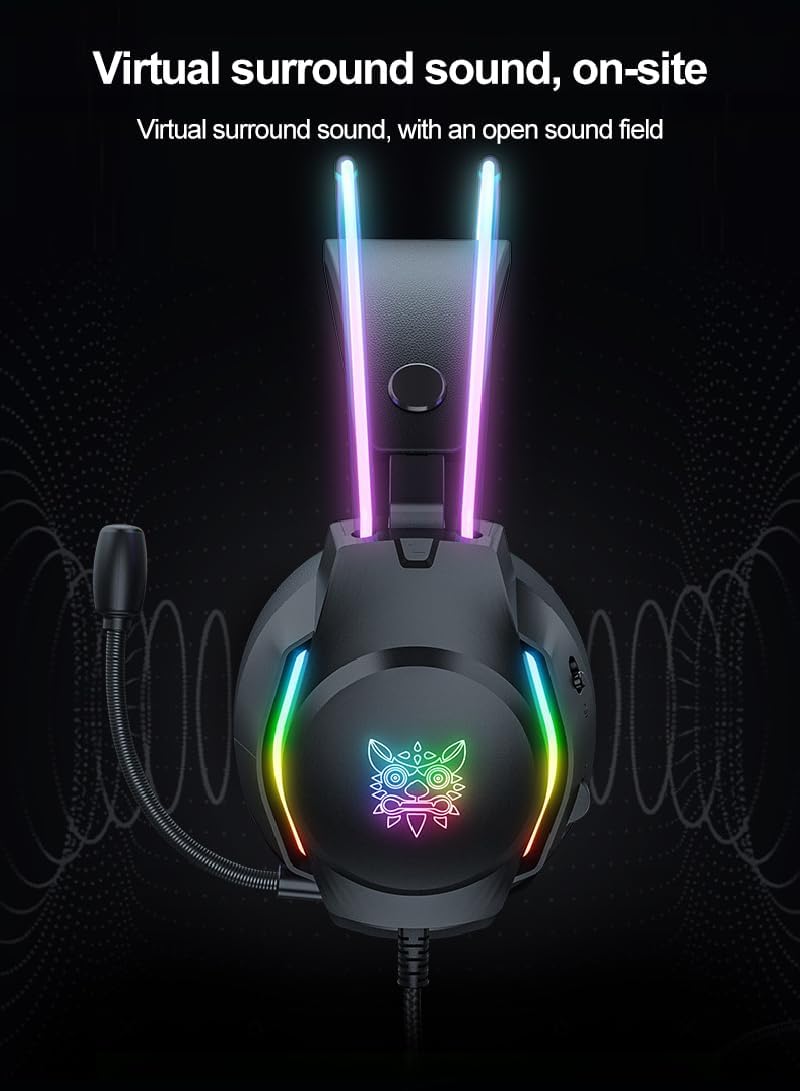
Figure 7: Virtual Surround Sound. This image visually represents the virtual surround sound capability, indicating an open sound field for an immersive gaming experience, allowing precise positional audio.
10. Warranty and Support
This product comes with a standard manufacturer's warranty. For specific warranty terms and conditions, please refer to the documentation provided at the time of purchase or contact your retailer. For technical support or further assistance, please contact the seller or manufacturer directly.