Introduction
This manual provides detailed instructions for the MAIWO M.2 NVMe SSD Docking Station. This device is designed to facilitate easy access and management of data on M.2 NVMe M key SSDs. It supports high-speed data transfer up to 10Gbps, offers versatile data backup solutions, and ensures reliable read-write operations. The dock features a tool-free design for convenient use and broad compatibility with various devices via its USB-C interface.
Package Contents
- MAIWO USB-C Port NVMe Dock
- USB-C to USB-C Cable
Specifications
| Feature | Detail |
|---|---|
| Brand | MAIWO |
| Model Number | USB-C Port NVMe Dock |
| Product Dimensions | 2.36 x 2.36 x 0.55 inches |
| Item Weight | 1.41 ounces (0.04 Kilograms) |
| Color | Black |
| Hardware Interface | USB 3.1 Type C (USB3.2 GEN2x1) |
| Data Transfer Speed | Up to 10Gbps |
| Compatible SSD Type | M.2 NVMe M key SSD (2230, 2242, 2260, 2280, 22110) |
| Max Capacity | 4TB |
| Compatible Devices | PC and other devices with USB-C port |
| Features | UASP, Trim, Tool-Free, Plug and Play, Automatic Sleep, Double Heat Dissipation |
Setup Instructions
Follow these steps to set up your MAIWO USB-C Port NVMe Dock and M.2 NVMe SSD:
- Insert the M.2 NVMe SSD: Gently insert your M.2 NVMe M key SSD into the designated slot on the docking station. The tool-free design ensures a secure fit without additional tools.
- Connect to PC: Use the provided USB-C to USB-C cable to connect the docking station to an available USB-C port on your computer or compatible device.
- Power On: Press the power button on the docking station. The blue indicator light will illuminate, signifying that the device is powered on and ready for use.
- Initialize SSD (if new): If you are using a new SSD, it may need to be initialized and formatted before use. Refer to the 'Initialize SSD' video below for detailed steps.

Image: MAIWO USB-C Port NVMe Dock with an M.2 NVMe SSD inserted, ready for connection.

Image: Demonstrates the tool-free and adjustable switch design for easy SSD installation.

Image: Illustrates compatibility with various M.2 NVMe M key SSD sizes (2230, 2242, 2260, 2280, 22110).
Installation and Initialization Video Guide
Video: Official MAIWO K1698P M.2 NVME Dock installation and SSD initialization guide. This video demonstrates how to insert the SSD, connect the dock to a PC, power it on, and initialize a new SSD for use.
Operating Instructions
Once connected and powered on, your M.2 NVMe SSD will be accessible through your computer's file system. The blue indicator light will flash during read and write operations.
- Data Transfer: Utilize the USB 3.2 Gen2x1 interface for data transfer speeds up to 10Gbps. This dock supports UASP (USB Attached SCSI Protocol) and Trim for optimized performance and efficiency.
- Automatic Sleep Mode: To conserve power and protect the SSD, the docking station will automatically enter sleep mode if unused for 10 minutes. It will reactivate automatically upon detection of activity.
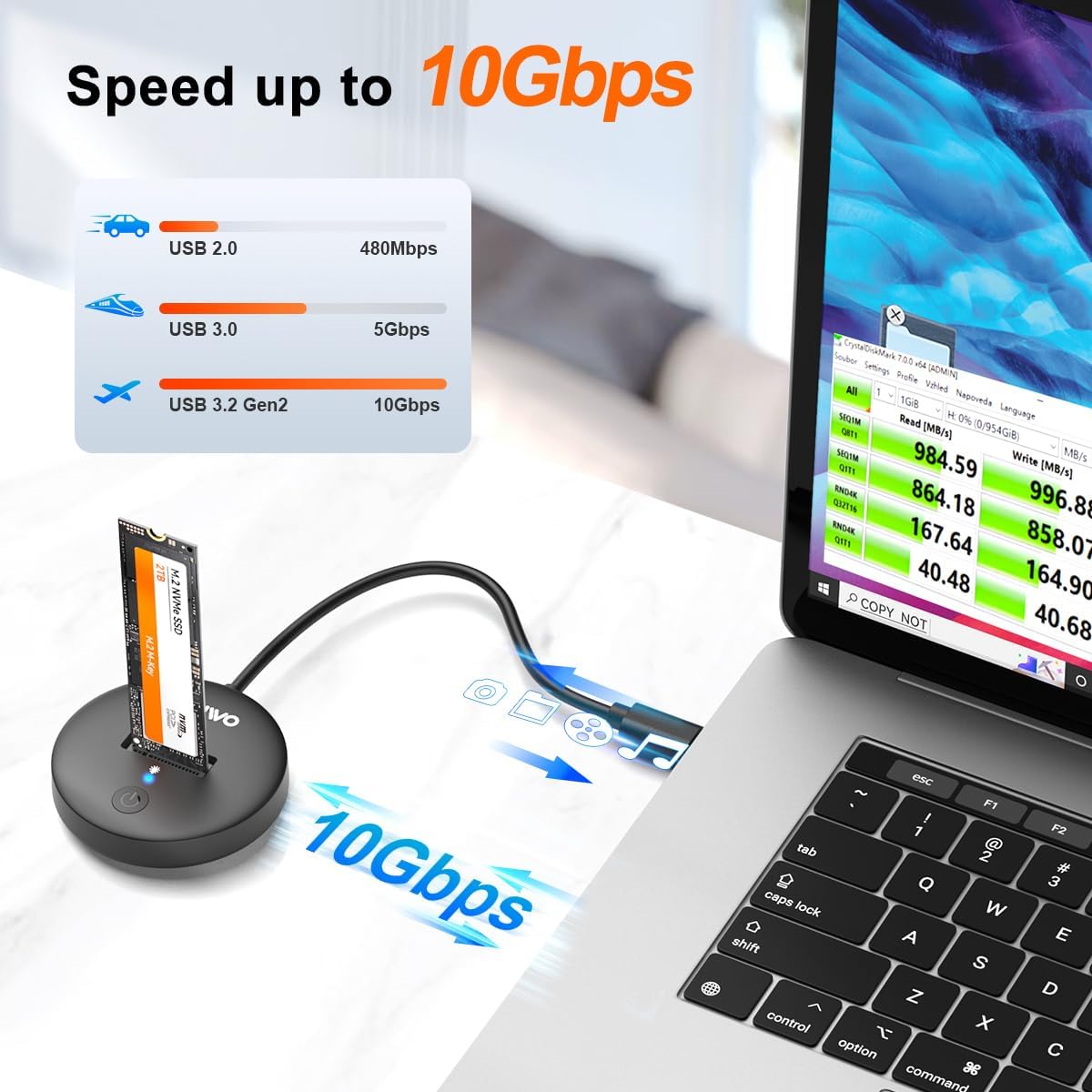
Image: Illustrates the high-speed 10Gbps data transfer capability of the NVMe SSD dock compared to older USB standards.

Image: Shows the automatic sleep mode feature, which activates after 10 minutes of inactivity to save power and protect the SSD.
Maintenance
Proper maintenance ensures the longevity and optimal performance of your docking station and SSD.
- Heat Dissipation: The docking station features double heat dissipation holes and a vertical insertion design to enhance airflow. This helps maintain stable transmission during prolonged use. While the design aids cooling, large data transfers can still generate heat in NVMe SSDs. Allow the SSD to cool down after intensive use before handling.
- Cleaning: Keep the docking station clean and free from dust. Use a soft, dry cloth for cleaning. Avoid liquid cleaners.
- Storage: When not in use, store the docking station in a cool, dry place away from direct sunlight and extreme temperatures.

Image: Highlights the double heat dissipation design, utilizing airflow through ventilation holes for stable operation.
Troubleshooting
If you encounter issues with your MAIWO USB-C Port NVMe Dock, consider the following:
- SSD Not Detected:
- Ensure the SSD is fully and correctly inserted into the dock.
- Verify the USB-C cable is securely connected to both the dock and your computer.
- Confirm the dock's power button is pressed and the blue indicator light is on.
- For new SSDs, ensure it has been initialized and formatted through your operating system's Disk Management utility (refer to the video in the Setup section).
- Try connecting the dock to a different USB-C port or another computer to rule out port or system-specific issues.
- Check if your M.2 SSD is NVMe M key. This dock is not compatible with SATA or B+M key SSDs.
- Slow Data Transfer:
- Ensure your computer's USB-C port supports USB 3.2 Gen2x1 (10Gbps) speeds. Older USB versions will result in slower transfers.
- Verify that your operating system and drivers are up to date.
- Avoid transferring many small files simultaneously, as this can reduce overall transfer speed.
- Intermittent Disconnections:
- Ensure the cable is not loose or damaged. Try a different USB-C cable if available.
- Avoid placing the dock in areas with excessive vibration or movement.
Warranty and Support
MAIWO is committed to providing professional, secure, and efficient data storage solutions. For any product-related inquiries, technical assistance, or warranty claims, please contact MAIWO customer support through the official channels provided at the point of purchase or on the MAIWO website. Please retain your proof of purchase for warranty validation.


