
1. Introduction
This manual provides essential information for the installation, operation, and maintenance of your CHICIRIS TF-100 Electric Scooter Throttle and Display. This unit is designed to integrate with KUGOO M4 electric scooters, offering comprehensive control and monitoring functionalities. Please read this manual thoroughly before installation and use to ensure proper function and safety.
2. Product Features
- Integrated USB Charging: A discreet USB port on the back of the display allows for convenient charging of external devices while riding.
- Durable and Waterproof Construction: Crafted from robust ABS material, ensuring high toughness and waterproof performance for long-lasting use in various weather conditions.
- Comprehensive Display Functionality: Provides real-time information including speed, gear, power level, riding mode, and indicator lights, enhancing rider awareness.
- Effortless Installation: Features a 6-pin waterproof connector for direct and simple connection to compatible scooter controllers.
- Optimized for KUGOO M4: Specifically designed to ensure compatibility and seamless integration with KUGOO M4 electric scooters.
3. Specifications
| Attribute | Detail |
|---|---|
| Brand | CHICIRIS |
| Model Name | TF-100 |
| Voltage | 48V |
| Connector Type | 6 Pin Waterproof Connector |
| Applicable Handlebar Diameter | Approx. 22.2mm (0.9in) |
| Unit Dimensions (L x W) | Approx. 125x112mm (4.9x4.4in) |
| Cable Length | Approx. 30 cm (11.8 in) |
| Material | ABS |
| Package Weight | Approx. 0.12 Kilograms |
4. Setup and Installation
The CHICIRIS TF-100 display is designed for straightforward installation. Follow these steps:
- Ensure your electric scooter is powered off before beginning installation.
- Locate the appropriate mounting position on your scooter's handlebar. The clamp is designed for handlebars with a diameter of approximately 22.2mm (0.9in).
- Securely attach the TF-100 display unit to the handlebar using the provided fasteners. Ensure it is positioned for easy visibility and access to the thumb throttle.
- Connect the 6-pin waterproof connector from the TF-100 display to the corresponding port on your scooter's controller. Ensure the connection is firm and secure to prevent water ingress.
- Once connected, power on your scooter to verify the display functionality.

Image: Wiring diagram for the 6-pin waterproof connector. This diagram illustrates the pin assignments: Red (positive electrode), Black (negative electrode), White (Electric lock 2), Blue (Electric lock 1), Green (Signal transmission), Yellow (Signal reception).
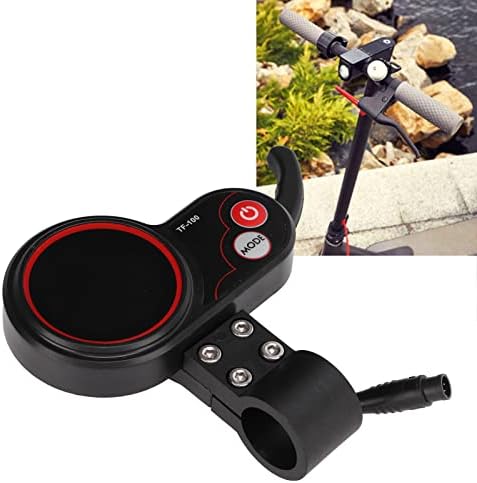
Image: The CHICIRIS TF-100 display unit shown mounted on a scooter handlebar, indicating its applicable handlebar diameter of 22.2mm (0.9in).

Image: The CHICIRIS TF-100 display unit positioned alongside a KUGOO M4 electric scooter, highlighting its compatibility.
5. Operating Instructions
After successful installation, operate the TF-100 display and throttle as follows:
- Power On/Off: Press and hold the power button (usually marked with a power symbol) to turn the display unit on or off.
- Throttle Control: Use the thumb throttle lever to control the speed of your electric scooter. Apply gentle pressure to accelerate and release to decelerate.
- Mode Selection: Press the 'MODE' button to cycle through different riding modes or display information as available on your scooter's system.
- Monitoring Display: The LCD screen will show various parameters such as current speed, selected gear, battery power level, and other indicator lights. Refer to your scooter's main manual for specific interpretations of all display icons.
- USB Charging: To charge a device, connect it to the USB port located on the back of the display unit. Ensure the scooter is powered on for the USB port to function.

Image: A close-up view of the CHICIRIS TF-100 Electric Scooter Throttle and Display, showing the power and mode buttons, and the thumb throttle lever.
6. Maintenance
Regular maintenance helps ensure the longevity and optimal performance of your TF-100 display and throttle.
- Cleaning: Wipe the display and throttle unit with a soft, damp cloth. Avoid using abrasive cleaners or solvents that could damage the plastic or electronic components.
- Inspection: Periodically check all connections, especially the 6-pin waterproof connector, to ensure they are secure and free from corrosion or damage. Inspect the handlebar clamp for tightness.
- Water Exposure: While the unit is waterproof, avoid prolonged submersion or high-pressure water jets directly on the display.
7. Troubleshooting
If you encounter issues with your TF-100 display and throttle, consider the following:
- Display Not Powering On: Ensure the 6-pin connector is fully and correctly seated. Check the scooter's main power supply and battery charge.
- Error Codes (e.g., E-6, E10): These codes typically indicate a communication fault or incompatibility.
- Verify that the TF-100 display is compatible with your specific scooter model (e.g., KUGOO M4). Incompatibility with other scooter brands or models can lead to error codes.
- Re-check the 6-pin connection for any loose pins or damage.
- Consult your scooter's main user manual for specific error code definitions and troubleshooting steps.
- Throttle Not Responding: Check the connection of the 6-pin cable. Ensure the throttle lever moves freely without obstruction.
- USB Charging Not Working: Confirm the scooter is powered on. Check the USB cable and the device being charged.
If problems persist after attempting these steps, contact customer support.
8. Warranty Information
This CHICIRIS product is covered by a standard manufacturer's warranty against defects in materials and workmanship. The warranty period typically begins from the date of purchase. Please retain your proof of purchase for warranty claims. For specific terms and conditions, refer to the warranty card included with your product or contact CHICIRIS customer service.
9. Customer Support
For technical assistance, troubleshooting guidance, or warranty inquiries, please contact CHICIRIS customer support through the retailer where the product was purchased or visit the official CHICIRIS website for contact information. When contacting support, please have your product model (TF-100) and purchase details ready.