
1. Introduction
This manual provides essential information for the safe and efficient use of your CUBOT P80 smartphone. Please read it carefully before using the device and keep it for future reference.
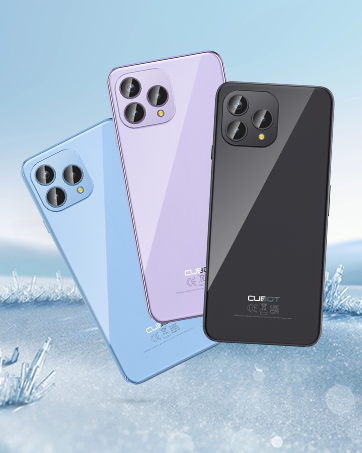
The CUBOT P80 is available in multiple color options.
2. What's in the Box
Verify that all items are present in your product package:
- CUBOT P80 Smartphone
- Phone protective case
- Phone protection film (pre-applied or separate)
- Charger (9V2A)
- USB Cable (Type-C)
- Type-C headphone
- SIM pin ejector tool
- Quick Start Guide
- Compliance regulation document

Included accessories with the CUBOT P80 smartphone.
3. Device Layout and Physical Features
The CUBOT P80 features a sleek design with a 6.58-inch FHD+ display and a triple camera system on the rear.
Dimensions and Weight
- Thickness: 9.75 mm
- Weight: 217 g

The CUBOT P80's slim profile and lightweight design.
Fingerprint Scanner
The device includes a side-mounted fingerprint scanner for secure and quick unlocking.

Fingerprint sensor location for convenient unlocking.
4. Setup
Inserting SIM Cards and TF Card
The CUBOT P80 supports dual SIM functionality or one SIM card with a TF (microSD) card for expanded storage.
- Locate the SIM tray on the side of the phone.
- Insert the SIM ejector tool into the small hole next to the tray and press firmly until the tray pops out.
- Place your Nano SIM card(s) and/or TF card into the designated slots on the tray. Ensure the gold contacts are facing down.
- Carefully push the tray back into the phone until it is flush with the device body.

SIM and TF card installation options.
Initial Power On
Press and hold the power button located on the side of the device until the CUBOT logo appears. Follow the on-screen instructions to complete the initial setup, including language selection, Wi-Fi connection, and Google account login.
5. Operating Instructions
Android 13 Operating System
The CUBOT P80 runs on Android 13, offering a user-friendly interface, enhanced privacy controls, and access to the Google Play Store for applications.

Overview of the Android 13 operating system.
Display Features
The device features a 6.58-inch FHD+ Capacitive Touch Screen with a resolution of 2408x1080 pixels, 400 nits peak brightness, and a 20:9 aspect ratio.

Key features of the CUBOT P80 display.
6. Camera Features
The CUBOT P80 is equipped with an AI Quad Camera System on the rear and a high-resolution front camera.
Camera Specifications
- Main Camera: 48MP
- Front Camera: 24MP
- Macro Camera: 2MP

The CUBOT P80's AI Quad Camera System.
Main Camera
The 48MP main camera captures images with high detail and clarity.

High-resolution capture with the 48MP main camera.
Front Camera
The 24MP front camera is designed for clear selfies and video calls, featuring beauty modes.

Selfie capabilities of the 24MP front camera.
Macro Camera
The 2MP macro lens allows for detailed close-up photography of small objects.

Detailed close-up shots with the 2MP macro camera.
Multiple Camera Modes
The camera application includes various modes such as Night View, Portrait, and Panorama to enhance your photography experience.

Explore various photography modes.
7. Connectivity
Network and Wi-Fi
The CUBOT P80 supports Dual 4G Dual VoLTE for cellular connectivity and 2.4/5GHz Dual Wi-Fi for stable and faster internet access.
- GSM: 850/900/1800/1900MHz
- WCDMA: B1/2/4/5/6/8/19
- FDD: B1/2/3/4/5/7/8/12/13/17/18/19/20/26/28A/28B/66
- TDD: 38/39/40/41
Cellular and Wi-Fi network support.
NFC and GPS
The device includes Multifunctional NFC for cash-free mobile payments and supports GPS, GLONASS, and Galileo for accurate global satellite positioning.
NFC for payments and advanced GPS for navigation.
8. Battery and Charging
The CUBOT P80 is equipped with a 5200mAh battery, providing extended usage times. It supports 18W fast charging and OTG (On-The-Go) functionality.
- Standby: Up to 26 days
- Calls: Up to 29 hours
- Music Playback: Up to 26 hours
- Video Playback: Up to 7 hours

Battery life and charging features.
9. Storage and Performance
The CUBOT P80 is powered by an MT8788 Octa-core processor and features ample memory and storage.
- Processor: MediaTek MT8788 Octa-core (12nm process, 2.0 GHz clock speed)
- RAM: 8GB + 8GB Expansion RAM (total 16GB)
- Internal Storage (ROM): 256GB
- Expandable Storage: Up to 1TB via TF card

Processor and memory details.

RAM expansion technology for enhanced performance.

Internal and expandable storage options.
10. Important Notices
Carrier Compatibility
The CUBOT P80 smartphone does not support AT&T, Cricket, or Verizon networks in the United States. Please confirm your carrier's compatibility before purchasing or using this device.

Important information regarding network compatibility.
11. Specifications
| Feature | Specification |
|---|---|
| Model Number | P80-schwarz-US |
| Operating System | Android 13.0 |
| Processor | MediaTek MT8788 Octa-core |
| RAM | 16 GB (8GB + 8GB Expansion) |
| Internal Storage | 256 GB |
| Expandable Storage | Up to 1TB (TF Card) |
| Screen Size | 6.58 Inches |
| Resolution | 1920 x 1080 (FHD+) |
| Main Camera | 48MP |
| Front Camera | 24MP |
| Macro Camera | 2MP |
| Battery Capacity | 5200 mAh |
| Charging | 18W Fast Charging |
| Connectivity | 4G LTE, Dual SIM, Wi-Fi (2.4/5GHz), NFC, Bluetooth |
| Navigation | GPS, GLONASS, Galileo |
| Audio Jack | 3.5 mm |
| Dimensions | 9.29 x 7.17 x 1.81 inches (Package) |
| Item Weight | 7.7 ounces |
12. Troubleshooting
Common Issues and Solutions
- Device not powering on: Ensure the battery is charged. Connect the phone to the charger and wait a few minutes before attempting to power on again.
- Poor network signal: Check SIM card insertion. Ensure you are within your carrier's coverage area. Note that the CUBOT P80 is not compatible with AT&T, Cricket, or Verizon.
- Applications crashing: Clear the cache of the problematic app (Settings > Apps > [App Name] > Storage > Clear Cache). If the issue persists, try reinstalling the app or performing a factory reset (backup data first).
- Battery draining quickly: Reduce screen brightness, close unused apps running in the background, disable unnecessary notifications, and limit location services.
- Fingerprint scanner not working: Ensure your finger is clean and dry. Re-register your fingerprints in the security settings.
13. Warranty and Support
For warranty information and technical support, please refer to the official CUBOT website or contact your retailer. Keep your proof of purchase for warranty claims.
Online Resources:
- Visit the CUBOT Store on Amazon for product information and updates.
14. Product Video Overview
Official product video showcasing the CUBOT P80's features and design.


