
1. Introduction
Thank you for choosing the Jeecoo A30 Wired Computer Speaker Bar. This manual provides essential information for setting up, operating, and maintaining your speaker bar to ensure optimal performance and longevity. Please read these instructions carefully before use.
What's in the Box
- Jeecoo A30 PC Speaker Bar (with integrated USB power cable and 3.5mm AUX audio cable)
2. Features
- Compact Design: The Jeecoo A30 features a simple and modern design, ideal for desktop setups. Dimensions: 13.78 x 2.56 x 2.56 inches.
- Clear Audio: Equipped with two 5W powerful driver units, providing clear and loud audio with well-balanced highs, mids, and enhanced bass.
- Easy Volume Control: A large dial allows for convenient volume adjustment and power on/off.
- Broad Compatibility: Connects via 3.5mm AUX for audio input and USB for power, compatible with various PCs, laptops, desktops, tablets, and smartphones. (Note: Not compatible with Xbox).
- Portability: Weighing 1.2 lbs (560 grams), it is suitable for both office/home use and portable outdoor activities.

Image: The Jeecoo A30 Wired Computer Speaker Bar, showcasing its sleek black design and integrated cables.

Image: An exploded view of the Jeecoo A30 speaker bar, highlighting its two 5W powerful driver units for clear and balanced audio with enhanced bass.
3. Setup
Follow these steps to connect your Jeecoo A30 speaker bar to your device:
- Connect USB Power: Plug the USB-A cable from the speaker bar into an available USB port on your computer, laptop, or a certified 5V/1A USB power adapter. This provides power to the speaker.
- Connect 3.5mm AUX Audio: Plug the 3.5mm AUX cable from the speaker bar into the headphone jack or audio output port of your device (PC, laptop, tablet, smartphone).
- Power On: Rotate the large volume dial clockwise until you hear a click or see an indicator light, turning the speaker on.
- Adjust Volume: Continue rotating the dial clockwise to increase the volume.
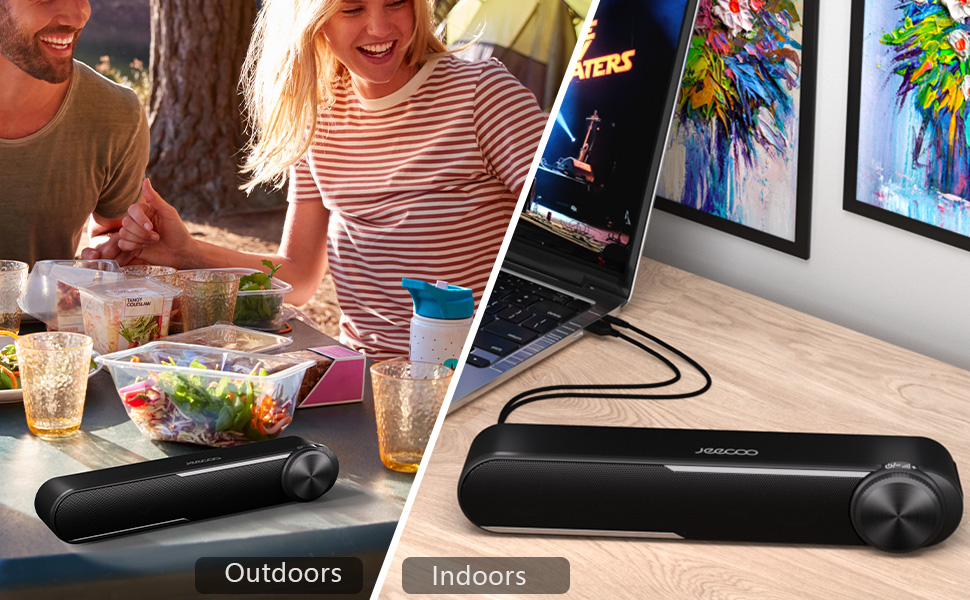
Image: Diagram showing how to connect the USB cable for power and the 3.5mm AUX cable for audio input to a laptop.
Video: Official Jeecoo video demonstrating the connection of the A30 Computer Speaker Bar with 3.5mm AUX input to a laptop.
4. Operation
Volume Control and Power
The Jeecoo A30 features a large, integrated dial for convenient control:
- Power On/Increase Volume: Rotate the dial clockwise. The speaker will power on with a click, and continued rotation will increase the volume.
- Decrease Volume/Power Off: Rotate the dial anti-clockwise. The volume will decrease, and continued rotation past the minimum volume will power off the speaker with a click.

Image: A close-up of the large volume dial on the Jeecoo A30, illustrating how to rotate it clockwise to increase volume and anti-clockwise to decrease volume or power off.
5. Specifications
| Feature | Detail |
|---|---|
| Model Name | Jeecoo A30 |
| Speaker Type | Soundbar |
| Connectivity Technology | Auxiliary (3.5mm Jack) |
| Power Source | USB (Corded Electric) |
| Input Voltage | 5 Volts |
| Speaker Maximum Output Power | 10 Watts (5W x 2) |
| Audio Output Mode | Stereo |
| Surround Sound Channel Configuration | 2.0 |
| Speaker Size | 2 Inches (Woofer Diameter) |
| Audio Driver Type | Dynamic Driver |
| Signal-to-Noise Ratio | 65 dB |
| Frequency Response (Max) | 18 KHz |
| Impedance | 4 Ohms |
| Product Dimensions (D x W x H) | 2.56" x 13.78" x 2.56" |
| Item Weight | 1.2 Pounds (560 grams) |
| Material | Plastic |
| Color | Black |
| Mounting Type | Tabletop Mount |
| Compatible Devices | PC Laptops, Desktop Computers, Macbook Air/Pro, iMac, iPad, Smartphones, Tablets |
| Special Feature | PC Speaker Bar with Clear Audio & Enhanced Bass |
6. Troubleshooting
If you encounter any issues with your Jeecoo A30 speaker bar, please refer to the following common troubleshooting steps:
- No Power:
- Ensure the USB power cable is securely connected to a powered USB port or a 5V/1A USB adapter.
- Rotate the volume dial clockwise to ensure the speaker is powered on.
- No Sound:
- Verify that the 3.5mm AUX audio cable is fully inserted into both the speaker bar and your device's audio output jack.
- Check the volume level on both the speaker bar (using the dial) and your connected device.
- Ensure your device's audio output is set to the correct output (e.g., "Headphones" or "External Speakers").
- Test the speaker with a different audio source or device to rule out device-specific issues.
- Distorted Sound / Static:
- Reduce the volume on both the speaker bar and your connected device. High volume levels can sometimes cause distortion.
- Ensure all cable connections are secure.
- Avoid placing the speaker near sources of electromagnetic interference (e.g., Wi-Fi routers, power adapters).
- Test with a different audio source or cable if possible.
7. Maintenance
To maintain the performance and appearance of your speaker bar:
- Clean the speaker with a soft, dry cloth. Do not use liquid cleaners or aerosols.
- Avoid exposing the speaker to excessive moisture, heat, or direct sunlight.
- Do not attempt to disassemble or repair the speaker yourself, as this will void the warranty.
8. Warranty and Support
The Jeecoo A30 Wired Computer Speaker Bar comes with a limited warranty. For detailed warranty information, product support, or technical assistance, please contact Jeecoo customer service through the retailer where you purchased the product or visit the official Jeecoo website.
Please retain your proof of purchase for warranty claims.


