
RisoPhy PC404A
RisoPhy 60 Percent Mechanical Gaming Keyboard User Manual
Model: PC404A
Introduction
Welcome to the RisoPhy 60 Percent Mechanical Gaming Keyboard user manual. This guide provides detailed instructions to help you set up, operate, and customize your new keyboard. Designed for both gaming and productivity, this keyboard combines striking aesthetics with high performance.
The RisoPhy keyboard features a unique gradient blue design, transitioning from light to deep blue, complemented by vibrant RGB lighting effects. Its fade-resistant PBT matte keycaps ensure comfort and durability.
Package Contents
Upon unboxing your RisoPhy Mechanical Gaming Keyboard, please ensure all the following items are included:
- 1 x RisoPhy PC404A Mechanical Keyboard
- 1 x User Manual
- 1 x Type-C Cable
- 1 x Keycap Puller
- 1 x Switch Puller
- 6 x Replace Switches

The package includes the RisoPhy PC404A Mechanical Keyboard, a user manual for detailed instructions, a Type-C cable for connectivity, a keycap puller for easy keycap removal, a switch puller for hot-swappable switch replacement, and six additional switches for future customization or replacement.
Setup
To set up your RisoPhy Mechanical Gaming Keyboard, follow these simple steps:
- Unpack the keyboard and all accessories from the box.
- Connect the provided USB Type-C cable to the Type-C port on the keyboard.
- Plug the USB-A end of the cable into an available USB port on your computer (Laptop, PC, Windows, Mac OS, PS-4 compatible).
- The keyboard is plug-and-play and should be recognized by your operating system automatically.
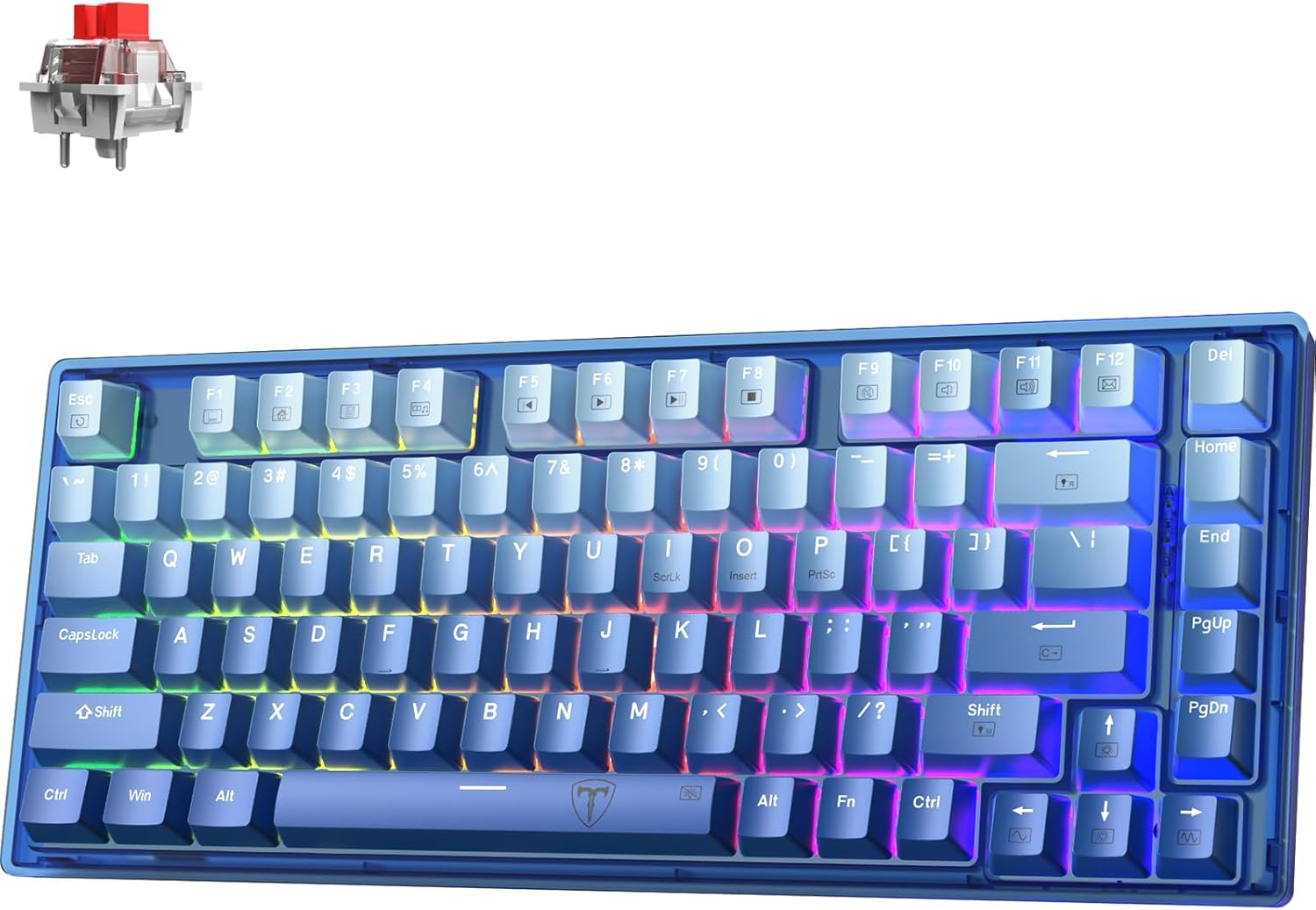
The keyboard's compact 75% form factor with 82 keys, including dedicated FN function keys and arrow keys, saves desktop space while providing full-sized gaming keyboard functionality. Its portable design is ideal for travel.
Operating Instructions
Hot-Swappable Switches
The RisoPhy keyboard features hot-swappable linear red switches, allowing for easy customization of your typing experience without soldering. The high-quality PCB supports both 3-pin and 5-pin switches.

To replace a switch:
- Gently pull the keycap off using the keycap puller.
- Use the switch puller to carefully grip and pull the switch straight up from the PCB.
- Align the pins of the new switch with the holes on the PCB and press firmly until it clicks into place.
- Reattach the keycap.
Dynamic Per-Key RGB Illumination
The keyboard offers 16.8 million RGB lighting effects and 20 different lighting modes. Each key's illumination can be customized individually, or you can set a single-color effect. Lighting can also be turned off to conserve power.
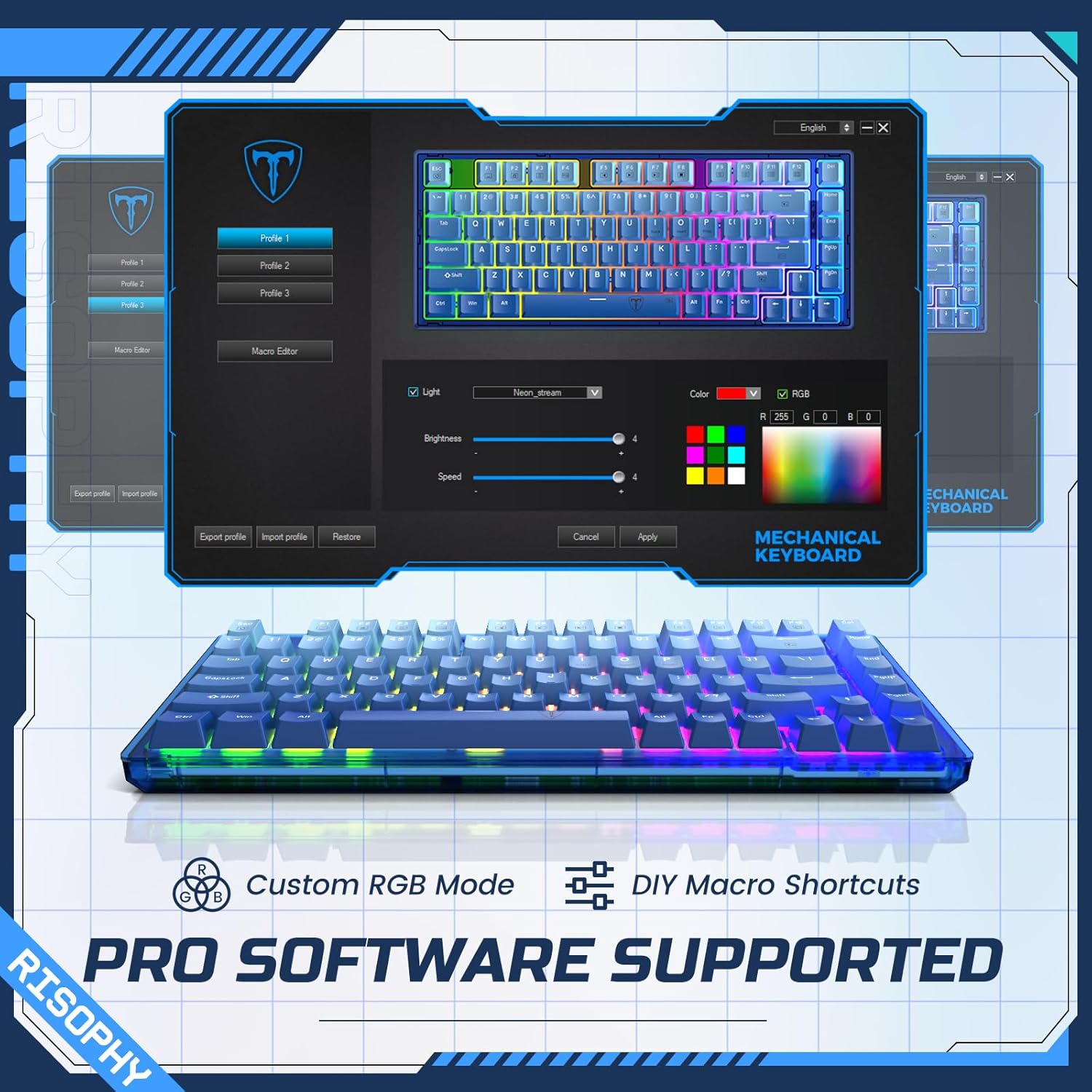
To cycle through lighting modes: Press FN + Right Shift.
To adjust brightness: Press FN + Up/Down Arrow.
To adjust pattern speed: Press FN + Left/Right Arrow.
Macro Recording & Driver Support
Expand your customization options with the available driver software. This software allows you to design new patterns and effects, customize keyboard RGB modes, lighting colors, macro settings, and key functions for increased efficiency in work and gaming.
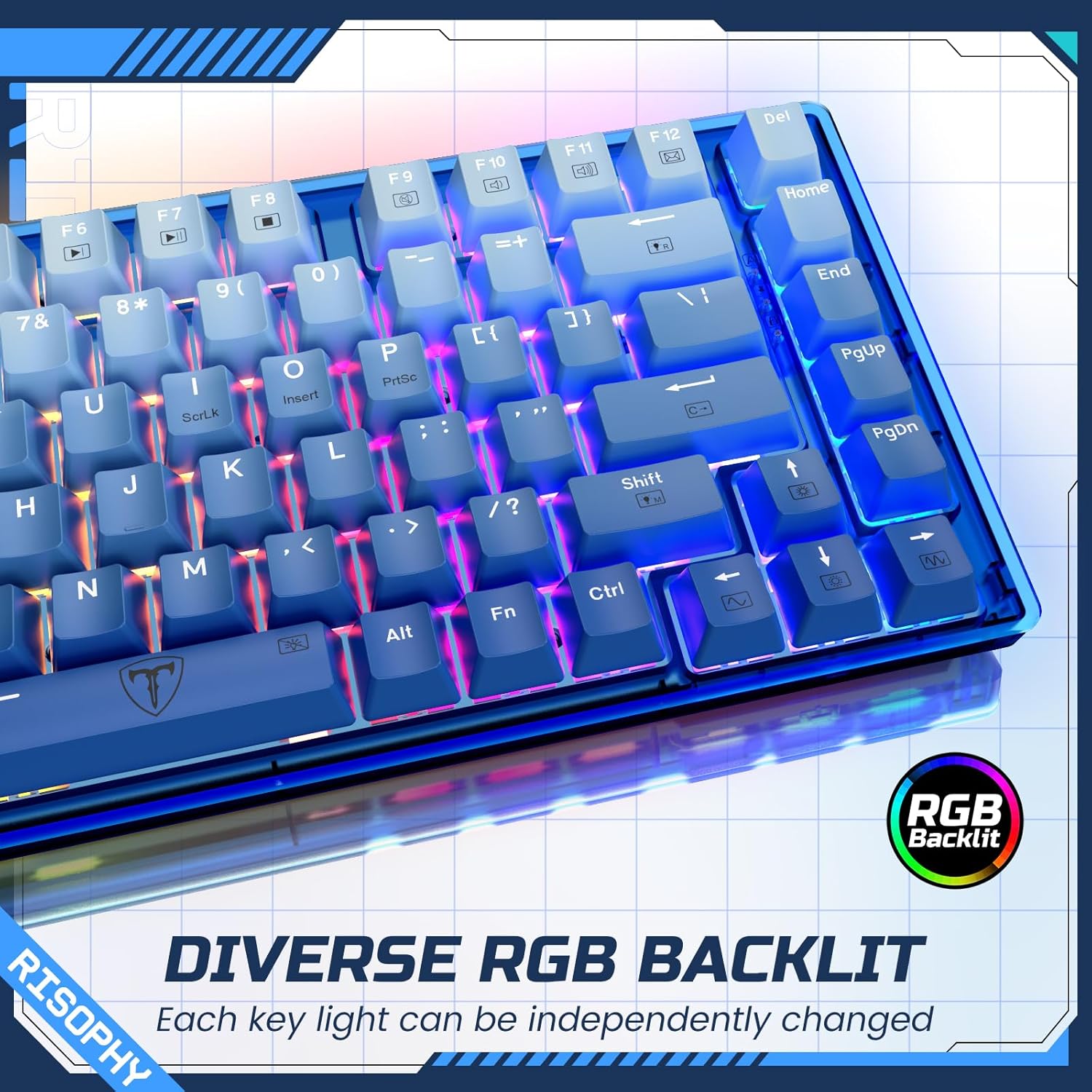
The driver software link can be found in the user manual (PDF version available for download), enabling you to easily customize your settings. This allows for advanced personalization beyond on-board controls.
Maintenance
To ensure the longevity and optimal performance of your RisoPhy keyboard, regular maintenance is recommended:
- Cleaning Keycaps: Use a soft, damp cloth to wipe down the PBT keycaps. For deeper cleaning, remove keycaps using the provided puller and wash them with mild soap and water. Ensure they are completely dry before reattaching.
- Cleaning Under Keycaps: Periodically remove keycaps and use compressed air to clear dust and debris from around the switches.
- Cable Care: Avoid sharp bends or excessive pulling on the USB-C cable to prevent damage.
- Storage: When not in use, store the keyboard in a clean, dry environment away from direct sunlight and extreme temperatures.
Troubleshooting
If you encounter any issues with your RisoPhy keyboard, please refer to the following common troubleshooting steps:
- Keyboard Not Responding:
- Ensure the USB-C cable is securely connected to both the keyboard and your computer.
- Try plugging the keyboard into a different USB port on your computer.
- Restart your computer.
- RGB Lights Not Working:
- Ensure the lighting is not turned off (refer to Operating Instructions for RGB control).
- Check if the keyboard driver software is installed correctly and update it if necessary.
- Keys Not Registering:
- Carefully remove the keycap and switch for the affected key. Inspect for any debris or bent pins on the switch.
- Try replacing the switch with one of the spare switches provided.
- Macro Functions Not Working:
- Ensure the RisoPhy driver software is installed and updated.
- Verify that your macro settings are correctly configured within the software.
For further assistance, please contact RisoPhy customer support.
Specifications
| Feature | Detail |
|---|---|
| Brand | RisoPhy |
| Model Number | PC404A |
| Layout | 60 Percent (82 Keys, 75% Form Factor) |
| Switches | Hot-Swappable Linear Silent Red Switches (3/5-pin compatible) |
| Keycaps | Blue PBT Keycaps (Gradient Blue) |
| Backlighting | RGB (16.8 million colors, 20 lighting modes) |
| Connectivity | Wired (USB-C) |
| Compatible Devices | Laptop, PC, Windows, Mac OS, PS-4 |
| Item Weight | 1.65 pounds |
| Package Dimensions | 13.54 x 6.42 x 1.85 inches |
Warranty and Support
RisoPhy is committed to providing high-quality products and excellent customer service.
- Warranty: This product comes with a 2-year warranty.
- Defective Products: In case of defective products, RisoPhy offers free replacement.
- Customer Support: For any inquiries or assistance, 24/7 customer help is available. Please refer to the contact information provided in the official user manual PDF or on the RisoPhy brand store.
The full user manual in PDF format is available for download from the product's Amazon page for more detailed information and driver software links.
Related documentsPC404A

Ask a question about this manual
Ask about setup, troubleshooting, compatibility, parts, safety, or missing instructions. Manuals+ will review the question and use this page’s manual context to help answer it.