
Product Overview
The Akko MOD 007B PC Mechanical Gaming Keyboard offers a compact 75% layout with a gasket-mounted design for a comfortable typing experience. It features versatile multi-device connectivity, hot-swappable switches, and customizable RGB backlighting.

Image: Top-down view of the Akko MOD 007B PC Mechanical Gaming Keyboard in white with blue legends.
Key Features
- 75% Layout: Compact design with function row and multi-media rotary encoder for productivity.
- Multi-Device & Wireless: Connects via Bluetooth 5.0, 2.4Ghz (with receiver), and Wired Type-C modes. Features a 3000mAh battery.
- Premium Gasket Mount: Provides a soft and cushioned typing experience with isolated PCB and plate system.
- Hot-Swappable: Equipped with premium gaming 5-pin hot-swappable sockets, allowing easy switch replacement.
- Programmable & RGB Backlit: All keys can be re-mapped via Akko Cloud Driver. Features built-in and side-LED RGB backlighting with customizable effects.
Package Contents
Ensure all items are present upon unboxing:
- Akko MOD 007B PC Mechanical Gaming Keyboard
- USB-C Coiled Cable
- Keycap Puller
- Switch Puller
- Extra Akko CS Piano Switches (5 pieces)
- Novelty Animal Theme Keycaps (Blue on White)
- User Manual

Image: A set of blue novelty keycaps with various animal designs, included for customization.
Setup Guide
1. Wired Connection
- Locate the USB-C port on the back of the keyboard.
- Connect the supplied USB-C coiled cable to the keyboard's USB-C port.
- Plug the USB-A end of the cable into an available USB port on your computer.
- The keyboard should be automatically recognized by your operating system.

Image: Close-up of the detachable USB-C port on the keyboard for convenient connection.
2. Wireless Connection (Bluetooth & 2.4Ghz)
The keyboard supports Bluetooth 5.0 and 2.4Ghz wireless modes for multi-device flexibility.
- Refer to the user manual for specific instructions on switching between wired, Bluetooth, and 2.4Ghz modes, and for pairing procedures.
- For 2.4Ghz mode, ensure the wireless receiver (dongle) is plugged into your computer.

Image: Diagram illustrating the keyboard's multi-device connectivity options including Bluetooth, 2.4Ghz wireless, and USB-C wired modes.
3. Driver Installation (Akko Cloud Driver)
To unlock full customization options for key re-mapping and RGB lighting effects, download and install the Akko Cloud Driver from the official Akko website.
Operating Instructions
1. Rotary Encoder Functionality
The rotary encoder, located in the top right corner, provides convenient control over multimedia functions:
- Rotate: Adjusts system volume (clockwise to increase, counter-clockwise to decrease).
- Press: Mutes/unmutes audio.
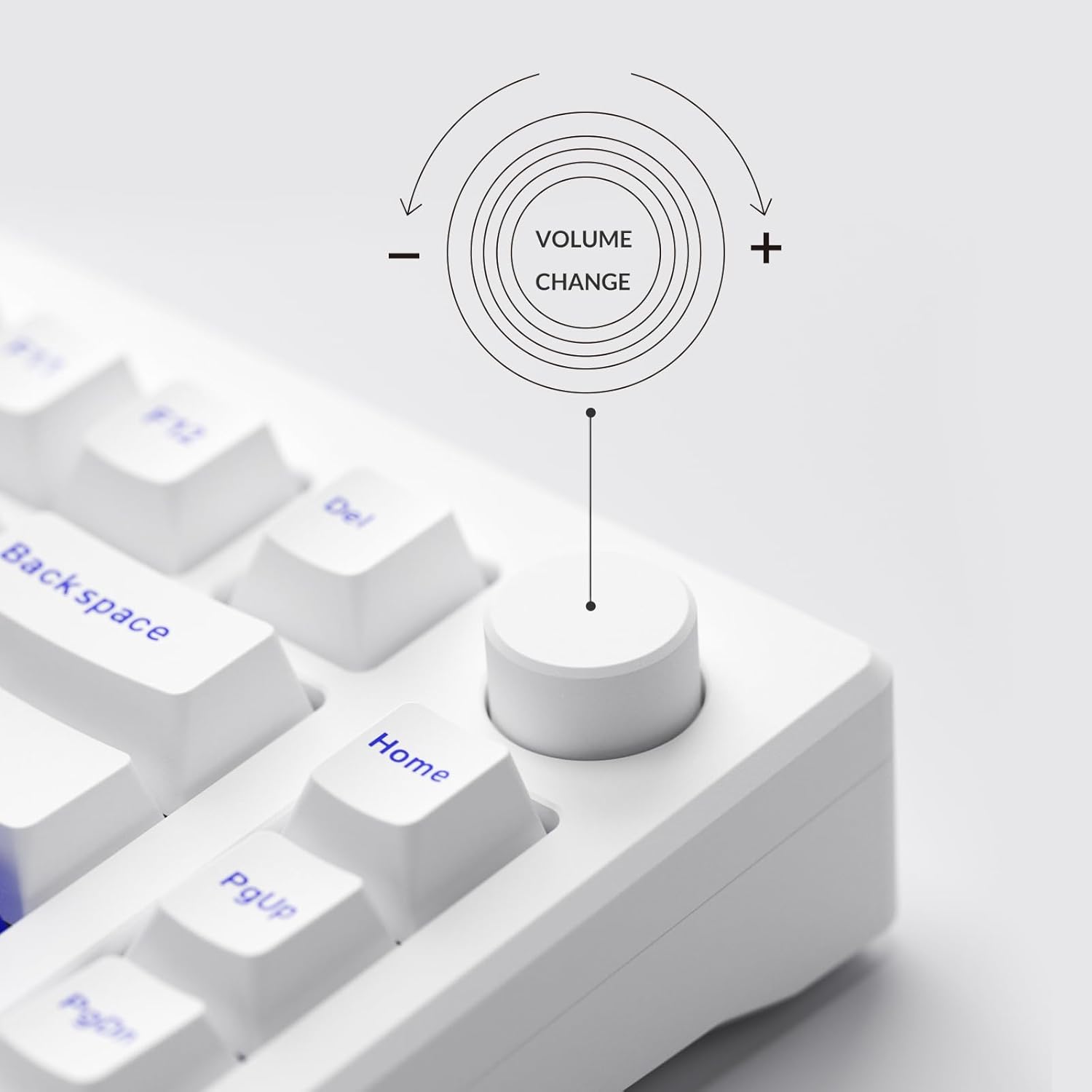
Image: Close-up of the rotary encoder on the keyboard, used for volume control and muting.
2. RGB Lighting Customization
The keyboard features built-in and side-LED RGB backlighting. Use the Akko Cloud Driver software to customize lighting effects, colors, and brightness. Per-key RGB is supported for advanced personalization.
3. Hot-Swapping Switches
The Akko MOD 007B PC keyboard is hot-swappable, allowing you to change switches without soldering. This is useful for customizing typing feel or replacing malfunctioning switches.
- Carefully remove the keycap using the provided keycap puller.
- Use the switch puller to gently grip the switch from the top and bottom, then pull it straight up to remove.
- Align the pins of the new switch with the holes on the PCB and press firmly until it clicks into place. Ensure pins are not bent.
- Replace the keycap.

Image: Close-up view of the keyboard's hot-swappable sockets, compatible with both 3-pin and 5-pin switches.
4. Customizing Keycaps
Use the provided keycap puller to easily remove and replace keycaps, including the novelty animal-themed keycaps, to personalize your keyboard's appearance.
Maintenance
- Cleaning: Regularly clean the keyboard with a soft, dry cloth. For deeper cleaning, remove keycaps and use compressed air to clear debris.
- Switch & Keycap Care: Handle switches and keycaps gently during removal and installation to prevent damage.
- Storage: When not in use, consider covering the keyboard with the clear dust cover provided in the packaging to protect it from dust and spills.
Troubleshooting
- Keyboard Not Responding:
- Ensure the USB-C cable is securely connected to both the keyboard and the computer.
- If using wireless, check battery level and ensure the correct mode (Bluetooth/2.4Ghz) is selected and paired.
- Try connecting to a different USB port or computer to rule out port issues.
- RGB Lighting Issues:
- Verify that the Akko Cloud Driver is installed and updated.
- Check lighting settings within the software.
- Keys Not Registering:
- For hot-swappable switches, ensure the switch is fully seated and its pins are not bent. Try re-seating or replacing the switch.
- Clean any debris under the keycap or switch.
Specifications
| Brand | Akko |
| Model Number | 707 |
| Product Dimensions | 13.11 x 5.79 x 1.26 inches |
| Item Weight | 3.43 pounds |
| Connectivity Technology | Bluetooth, 2.4G, USB-C |
| Keyboard Description | Gaming |
| Special Feature | Ergonomic |
| Color | Blue on White |
| Number of Keys | 75 |
| Keyboard Backlighting | RGB |
| Battery | 1 Lithium Ion battery required (3000mAh) |
Official Product Videos
Warranty and Support
For warranty information, technical support, or any product-related inquiries, please refer to the official Akko website or contact Akko customer service directly. Keep your purchase receipt for warranty claims.
Visit the official Akko Store: Akko Store on Amazon


