
Maxfree MX-X2
Maxfree X2 11.6" Triple Portable Laptop Monitor User Manual
Model: MX-X2
Introduction
Thank you for choosing the Maxfree X2 11.6" Triple Portable Laptop Monitor. This device is designed to enhance your productivity by providing an extended display solution for your laptop. It features a 1080P FHD IPS display with a 60Hz refresh rate, offering vibrant visuals and a wide viewing experience. This manual will guide you through the setup, operation, maintenance, and troubleshooting of your new monitor.
Product Overview
The Maxfree X2 is a triple portable monitor system designed to attach to laptops ranging from 13" to 17.3" in size. It includes two 11.6-inch screens that extend your laptop's display, providing a multi-screen workstation.
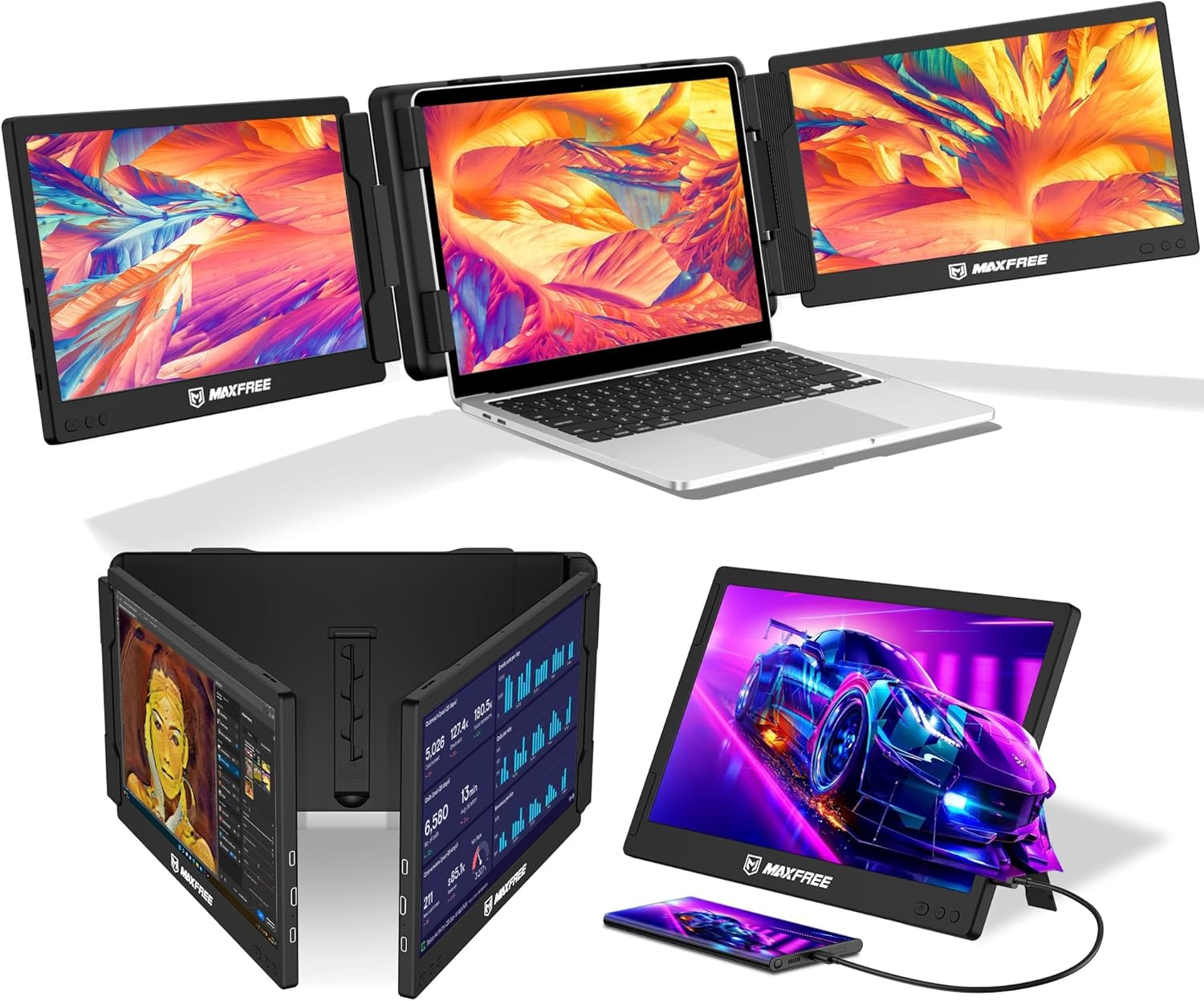
Figure 1: Maxfree X2 Triple Portable Laptop Monitor in use, displaying vibrant content across three screens.
Key features include:
- Enhanced Visual Experience: 1080P FHD resolution, 60Hz refresh rate, IPS screen technology with 75% NTSC color gamut.
- Seamless Compatibility: Supports Mac OS, Windows, Android, Switch, Xbox, PS5, and other hardware.
- Streamlined Connectivity: Includes USB-A to USB-C, USB-C, and HDMI cables for easy connections.
- Innovative Design: Revolutionary structure for stability, improved airflow, and detachable screens for versatile usage.
Package Contents
Please verify that all items are present in the package:
- Maxfree X2 Triple Portable Laptop Monitor Unit
- USB-C to USB-C Cables (x2)
- USB-C to USB-A Cables (x2)
- HDMI to Mini HDMI Cables (x2)
- Storage Bag (x1)
- User's Manual (x1)
- User's Guide (x1)

Figure 2: Included accessories and documentation with the Maxfree X2 monitor.
Setup Instructions
1. Attaching the Monitor to Your Laptop
- Carefully unfold the Maxfree X2 unit.
- Position the central clamp of the monitor extender over the top edge of your laptop screen. Ensure it is securely seated and centered.
- Adjust the side screens to extend outwards from your laptop. The screens can rotate up to 270 degrees for optimal viewing angles.

Figure 3: Adjusting the independent rotation of each screen.
2. Connecting to Your Laptop
The Maxfree X2 offers flexible connectivity options.
- Using Type-C Cables (Recommended for power and video):
If your laptop's Type-C port can provide 5V/2A power supply, connect the X2 to your laptop using the provided Type-C cables. This single cable solution can transmit both video and power.

Figure 4: Connecting via Type-C cables for power and video.
- Using Type-C and HDMI Cables (If laptop Type-C cannot supply enough power):
If your laptop cannot provide sufficient power via its Type-C port, connect the X2 using a Type-C cable for video signal and an HDMI cable for additional power or video. You may need to use an external power adapter (not included) if the laptop's USB-A ports cannot provide enough power.

Figure 5: Connecting via Type-C and HDMI cables.
Note: When using a Mac OS laptop with M1/M2 chips, the X2's dual display function is not supported; only single display is supported.
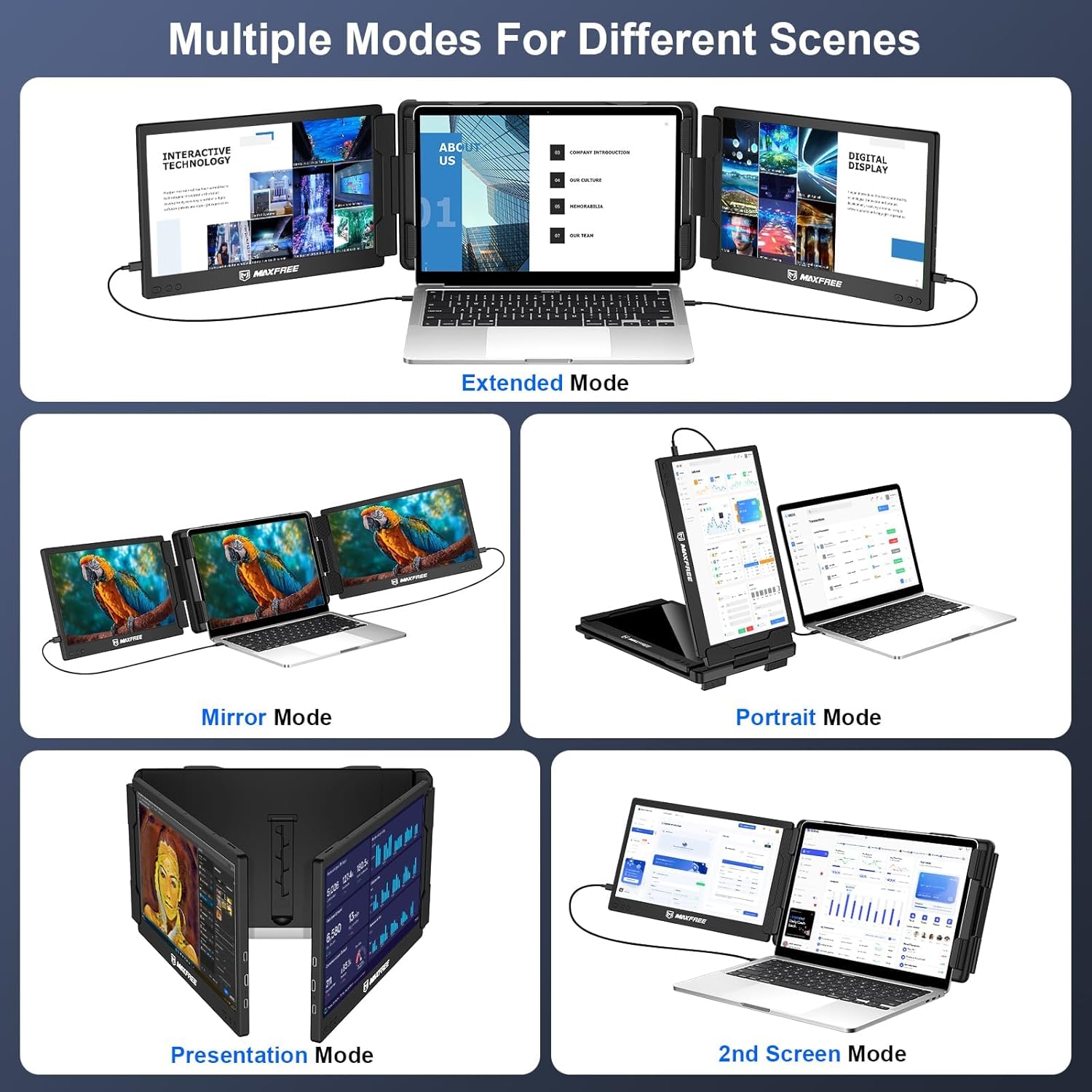
Figure 6: Overview of the monitor's connectivity ports.
Operating Instructions
Display Modes
The Maxfree X2 supports various display modes to suit your needs:
- Extended Mode: Extends your desktop across all three screens, providing maximum workspace.

Figure 7: Extended Mode for increased productivity.
- Mirror Mode: Duplicates your laptop's display onto the external screens.
- Portrait Mode: Allows one or both external screens to be rotated vertically for specific applications.
- Presentation Mode: The external screens can be rotated to face an audience for presentations.

Figure 8: Presentation Mode for collaborative viewing.
- 2nd Screen Mode: Use only one of the external screens as an additional display.
To switch between display modes, use your operating system's display settings. For Windows, right-click on the desktop and select "Display settings." For Mac OS, go to System Preferences > Displays.
Maintenance
Proper maintenance ensures the longevity of your Maxfree X2 monitor.
- Cleaning: Use a soft, lint-free cloth to clean the screen and exterior. Do not use abrasive cleaners or solvents. For stubborn marks, slightly dampen the cloth with water.
- Storage: When not in use, fold the monitor and store it in the provided storage bag to protect it from dust and scratches.
- Handling: Avoid dropping the device or subjecting it to strong impacts. Do not place heavy objects on top of the monitor.
- Temperature: Operate and store the monitor within recommended temperature ranges to prevent damage.
Troubleshooting
| Problem | Possible Cause | Solution |
|---|---|---|
| No display on external screens. |
|
|
| Screens flicker or display unstable image. |
|
|
| Only one screen works on Mac OS M1/M2. |
|
|
Specifications
| Feature | Detail |
|---|---|
| Model Number | MX-X2 |
| Screen Size | 11.6 inches (each screen) |
| Resolution | 1920 x 1080 (FHD 1080p) |
| Refresh Rate | 60Hz |
| Panel Type | IPS |
| Aspect Ratio | 16:9 |
| Color Gamut | 75% NTSC |
| Brightness | 220 cd/m² |
| Connectivity | USB-C (Full Featured), HDMI (Mini HDMI) |
| Compatible Laptop Size | 13" - 17.3" |
| Product Dimensions | 12.95 x 7.48 x 1.74 inches |
| Item Weight | 3.5 pounds |
Warranty and Support
For warranty information and technical support, please refer to the official Maxfree website or contact their customer service.
- Official User Guide (PDF): Download PDF
- Maxfree Store: Visit Maxfree Store on Amazon
The product comes with a standard return policy of 30 days for refund/replacement, as per Amazon's policy. For specific warranty details, please consult the documentation provided with your purchase or the manufacturer's website.
Related documentsMX-X2


Ask a question about this manual
Ask about setup, troubleshooting, compatibility, parts, safety, or missing instructions. Manuals+ will review the question and use this page’s manual context to help answer it.