
ONN 100012589
ONN 32-Inch Class HD (720P) LED Smart TV User Manual
Model: 100012589
Introduction
This manual provides essential information for the setup, operation, and maintenance of your ONN 32-Inch Class HD (720P) LED Smart TV. Please read this manual thoroughly before using your television to ensure proper functionality and safety.
What's in the Box
Upon unboxing, please verify that all components are present and undamaged.
- ONN 32-Inch Class HD (720P) LED Smart TV
- Remote Control
- TV Stands (2)
- Screws for TV Stands
- Power Cord
- Quick Start Guide
- Optical-out
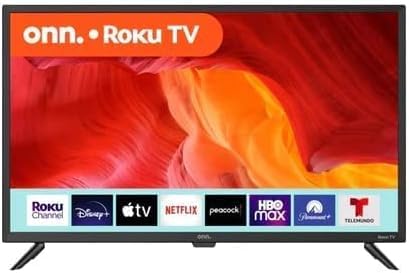
Image: Front view of the ONN 32-inch Roku TV, showcasing its display and integrated Roku platform.
Setup
Attaching the TV Stands
- Carefully place the TV screen-down on a soft, clean surface to prevent scratches.
- Align each stand with the corresponding screw holes on the bottom of the TV.
- Secure the stands using the provided screws.
Wall Mounting (Optional)
This TV is VESA mount compatible (200 x 200 mm). For wall mounting, consult a professional installer and refer to the wall mount kit's instructions. Ensure the TV stands are removed before wall mounting.
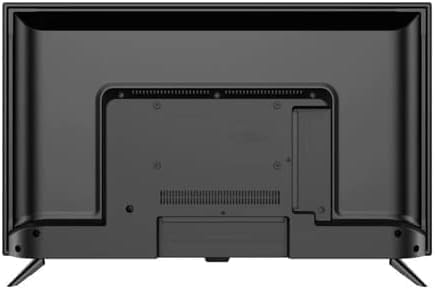
Image: Rear view of the ONN 32-inch TV, highlighting the VESA mounting points and connectivity options.
Connecting Peripherals
The TV features multiple connectivity options:
- HDMI: 3 ports for connecting devices like Blu-ray players, game consoles, or cable boxes.
- Composite: 1 port for older devices.
- USB: 1 port for media playback.
- Optical: 1 port for digital audio output to soundbars or home theater systems.
- Coaxial/Cable: 1 port for antenna or cable TV connection.
- LAN: 1 port for wired internet connection.
- Headphone: 1 port for private listening.
Initial Power On and Network Setup
- Connect the power cord to the TV and then to a power outlet.
- Press the power button on the remote control or the TV.
- Follow the on-screen instructions to select your language, country, and connect to your Wi-Fi network or wired LAN.
- Activate your Roku account or create a new one to access smart TV features.
Operating the TV
Remote Control Functions

Image: The ONN Roku TV remote control, used for navigating the smart TV interface.
The included remote control allows full navigation of the Roku TV interface. Key buttons include:
- Power Button: Turns the TV on or off.
- Directional Pad (D-Pad): Navigates menus and selects items.
- OK Button: Confirms selections.
- Home Button: Returns to the Roku Home screen.
- Back Button: Goes back to the previous screen.
- Volume Up/Down: Adjusts audio volume.
- Mute Button: Mutes or unmutes audio.
- Dedicated App Buttons: Quick access to popular streaming services.
Roku Smart TV Features
Your ONN TV is powered by Roku, providing access to a wide range of streaming content.
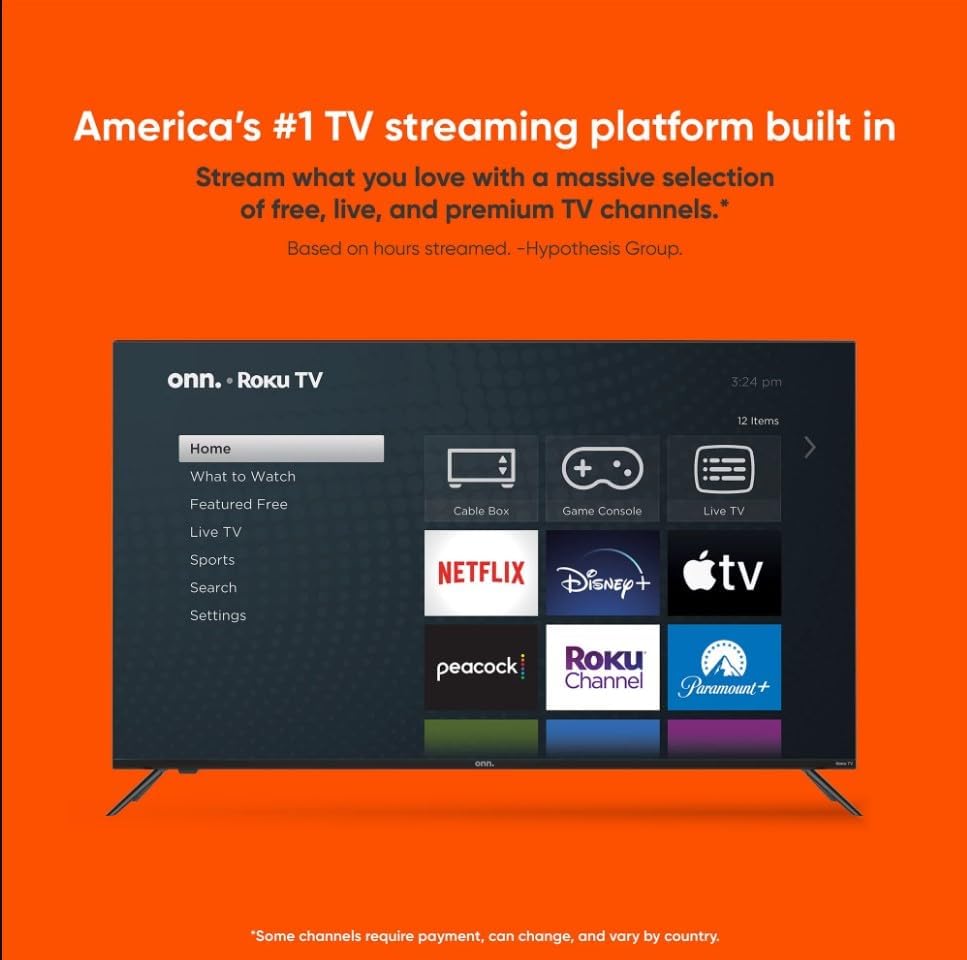
Image: The Roku TV home screen, displaying available streaming channels and input selections.
- Home Screen: Customizable interface with access to streaming channels, input sources, and settings.
- Streaming Channels: Access thousands of free and paid streaming channels, including Netflix, Disney+, Prime Video, and more.
- Search: Use the search function to find movies, TV shows, actors, and channels across various services.
- Mobile App: Download the free Roku mobile app for iOS or Android to control your TV, use voice search, enjoy private listening, or cast media from your phone.

Image: The Roku mobile app interface on smartphones, demonstrating remote control, search, and voice command features.
Voice Assistant Compatibility
The TV is compatible with popular voice assistants, including Amazon Alexa and Google Home, allowing for hands-free control.

Image: Compatibility with various voice assistants and smart home platforms.
Maintenance
- Screen Cleaning: Use a soft, lint-free cloth specifically designed for electronics. Do not use harsh chemicals or abrasive materials.
- General Cleaning: Wipe the TV casing with a soft, dry cloth.
- Ventilation: Ensure proper airflow around the TV. Do not block ventilation openings.
- Power Off: Always unplug the TV from the power outlet before cleaning or if it will be unused for an extended period.
Troubleshooting
| Problem | Possible Cause | Solution |
|---|---|---|
| No Power | Power cord not securely connected; Power outlet not active. | Check power cord connection; Test outlet with another device. |
| No Picture / Black Screen | Incorrect input source selected; Device not powered on or connected properly. | Press the Home button on the remote and select the correct input; Ensure external devices are on and cables are secure. |
| No Sound | Volume muted or too low; External audio system not configured correctly. | Unmute or increase volume; Check audio settings and connections to external sound systems. |
| Cannot Connect to Wi-Fi | Incorrect password; Router issues; TV too far from router. | Verify Wi-Fi password; Restart router; Move TV closer to router or use a wired connection. |
| Remote Control Not Working | Dead batteries; Obstruction between remote and TV. | Replace batteries; Remove any obstructions; Ensure line of sight to TV's IR receiver. |
Specifications
| Feature | Detail |
|---|---|
| Model Number | 100012589 |
| Screen Size | 32 Inches |
| Display Technology | LED-LCD |
| Resolution | 720p HD |
| Refresh Rate | 60 Hz |
| Aspect Ratio | 16:9 |
| Connectivity | 3 HDMI, 1 Composite, 1 USB, 1 Optical, 1 Coaxial/Cable, 1 LAN, Headphone |
| Smart Features | Roku Smart TV, Mobile App Control, Works with Alexa & Google Assistant |
| VESA Mount Compatible | 200 x 200 mm |
| Item Weight | 5.8 Pounds |
| Product Dimensions (L x W x H) | 31"D x 6"W x 21"H |
| On-mode power consumption | 50 watts |
| Visible screen diagonal | 32" / 82 cm |

Image: Dimensional overview of the ONN 32-inch TV.
Warranty and Support
This product is sold as "Amazon Renewed." Please refer to the Amazon Renewed program terms and conditions for specific warranty and return policy details. Typically, Amazon Renewed products come with a 90-day return policy.
For technical support or further assistance, please visit the official ONN or Roku support websites, or contact Amazon Renewed customer service.
- Amazon Renewed Return Policy: Learn more about Amazon Renewed
Related documents100012589


Ask a question about this manual
Ask about setup, troubleshooting, compatibility, parts, safety, or missing instructions. Manuals+ will review the question and use this page’s manual context to help answer it.