
Introduction
This manual provides essential instructions for the setup, operation, maintenance, and troubleshooting of your ONN 43-Inch Class 4K LED Smart TV. This Roku Smart TV offers access to over 500,000 movies and TV episodes through various streaming services, all accessible via a customizable home screen. It features 4K UHD resolution, HDR10 support, and integrated Wi-Fi connectivity. The package also includes a wall mount for flexible installation options.
Important Safety Information
Please read all safety instructions before operating your TV. Keep this manual for future reference.
- Do not expose the TV to rain or moisture to prevent fire or electric shock.
- Do not block ventilation openings. Ensure adequate space around the TV for proper airflow.
- Use only attachments/accessories specified by the manufacturer.
- Unplug the TV during lightning storms or when unused for long periods.
- Refer all servicing to qualified service personnel.
- Keep small parts and packaging materials away from children.
Setup
What's in the Box
Verify that all components are present in your package:
- ONN 43-Inch 4K LED Smart TV
- TV Stand (if not using wall mount)
- Remote Control (batteries not included)
- Power Cord
- Wall Mount Kit
- Quick Start Guide
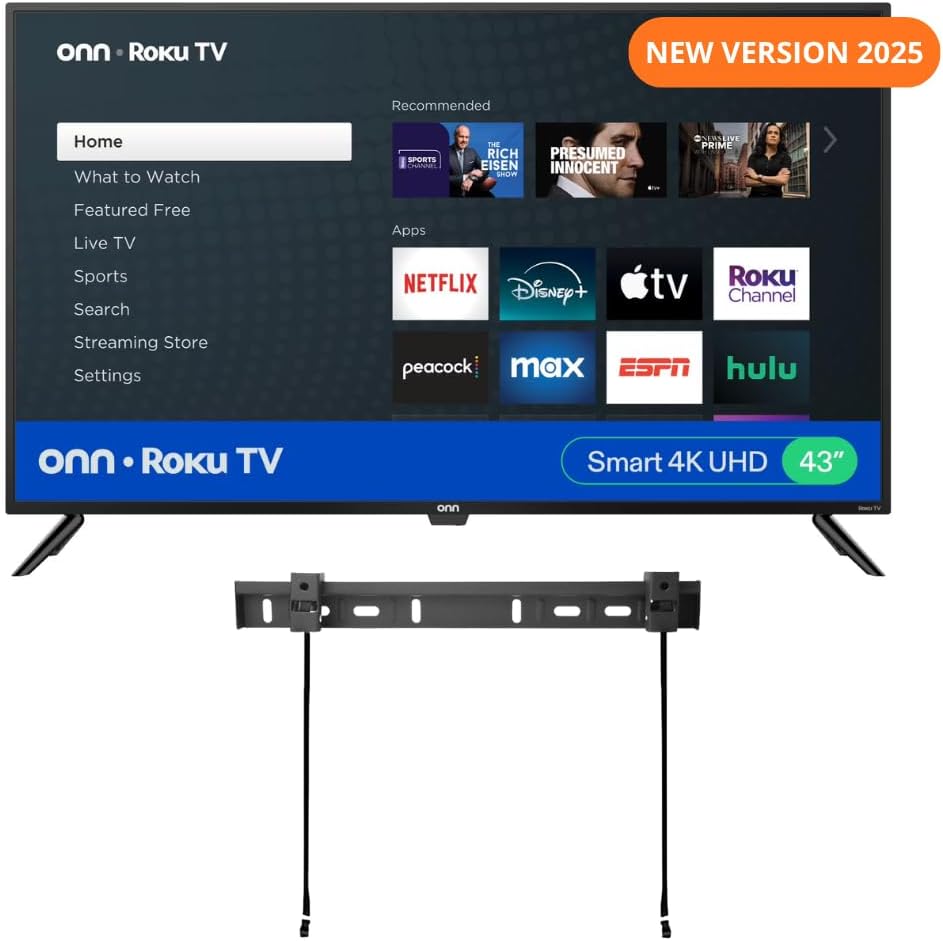
Image: ONN 43-Inch Roku TV with included wall mount and stand.

Image: Detailed view of the wall mount components, including brackets, screws, and level.
Wall Mounting the TV
The included wall mount allows for a secure and space-saving installation. Follow these general steps. Refer to the specific wall mount instructions for detailed guidance.
- Identify Mounting Location: Choose a sturdy wall capable of supporting the TV's weight.
- Install Wall Bracket: Secure the wall bracket to the wall using appropriate hardware for your wall type (wood studs, concrete, etc.). Use a level to ensure it is straight.
- Attach TV Brackets: Fasten the TV brackets to the back of your ONN TV.
- Mount TV: Carefully lift the TV and hook the TV brackets onto the wall bracket. Ensure the TV is securely seated.

Image: Diagram illustrating the process of attaching the TV to the wall mount.

Image: Infographic detailing the features of the ultra-slim TV wall mount, including capacity and distance from wall.
Connecting Peripherals
Your ONN TV offers various connection ports for external devices:
- HDMI (x3): For high-definition devices like Blu-ray players, game consoles, or cable/satellite boxes.
- Composite (AV): For older devices with red, white, and yellow RCA cables.
- USB (x1): For connecting USB storage devices to view photos or play media.
- Optical (Digital Audio Out): For connecting to a soundbar or home theater system.
- Coaxial/Cable (RF): For connecting an antenna or cable TV feed.
- Headphone: For private listening with wired headphones.
Operating Instructions
Initial Power On and Roku Setup
After connecting the power cord, press the power button on the remote or TV. The TV will guide you through the initial setup process:
- Language Selection: Choose your preferred language.
- Network Connection: Connect to your home Wi-Fi network. You will need your network name (SSID) and password.
- Roku Account Setup: Follow the on-screen prompts to create or link a Roku account. This is required to access streaming channels.
- Channel Installation: Select and install your favorite streaming channels.

Image: The Roku TV home screen displaying various streaming app icons and navigation options.
Smart Features and Voice Control
Your ONN Roku TV integrates smart features for enhanced usability:
- Roku Mobile App: Download the free Roku mobile app for iOS or Android to control your TV, use voice search, enjoy private listening with headphones, or cast media from your phone.

Image: Screenshots of the Roku mobile app showing remote control, search, and voice command interfaces.
- Voice Assistants: The TV is compatible with Amazon Alexa, Google Assistant, and Apple HomeKit. Use voice commands to find content, launch channels, or switch inputs.

Image: Logos indicating compatibility with Apple AirPlay, Apple Home, Amazon Alexa, and Google Home.
Picture and Sound Settings
Access the TV's settings menu to adjust picture and sound to your preference.
- 4K UHD: Experience lifelike color, texture, and detail with 4K Ultra High Definition resolution.

Image: Visual representation of 4K UHD display quality, highlighting vibrant colors and detail.
- HDR10: High Dynamic Range 10 technology enhances viewing with vivid colors and improved contrast.

Image: A split image demonstrating the difference between HDR10 and Standard Dynamic Range, showcasing richer colors and contrast.
- Dolby Audio: Enjoy superior sound quality through the built-in 8W speakers, enhanced by Dolby Audio technology.
Maintenance
Proper care ensures the longevity of your TV.
- Cleaning the Screen: Gently wipe the screen with a soft, dry, lint-free cloth. For stubborn marks, use a screen cleaner specifically designed for TVs, applied to the cloth, not directly to the screen.
- Cleaning the Cabinet: Use a soft, dry cloth to wipe the TV cabinet. Avoid using abrasive cleaners or solvents.
- Ventilation: Ensure the ventilation openings on the back of the TV are not blocked to prevent overheating.
- Power Cord: Regularly check the power cord for any damage. If damaged, discontinue use and contact support.
Troubleshooting
If you encounter issues with your TV, refer to the following common solutions:
| Problem | Possible Solution |
|---|---|
| No Power | Ensure the power cord is securely plugged into both the TV and a working electrical outlet. Try a different outlet. |
| No Picture, But Has Sound | Check the input source. Press the 'Input' or 'Source' button on your remote to cycle through inputs. Ensure external devices are powered on and connected correctly. |
| No Sound, But Has Picture | Check the volume level and ensure the TV is not muted. If using external audio, verify connections and settings. |
| Remote Not Working | Replace the batteries in the remote control. Ensure there are no obstructions between the remote and the TV's IR sensor. |
| Wi-Fi Connection Issues | Restart your router and modem. Go to the TV's network settings and try reconnecting to your Wi-Fi network. Ensure the password is correct. |
Specifications
Detailed technical specifications for the ONN 43-Inch Class 4K LED Smart TV, Model 100012584:
| Feature | Detail |
|---|---|
| Brand | ONN |
| Model Number | 100012584 |
| Screen Size | 43 Inches (110 cm diagonal) |
| Display Technology | LED |
| Resolution | 4K UHD (Ultra High Definition) |
| Refresh Rate | 60 KHz |
| Aspect Ratio | 16:9 |
| Connectivity Technology | Ethernet, HDMI (x3), RF, USB (x1), Wi-Fi |
| Special Features | Works with Alexa & Google Assistant, Roku Smart TV |
| Speaker Type | Built-In (2 x 8W speakers with Dolby Audio) |
| Product Dimensions (with stand) | 10"D x 38"W x 24"H (approx.) |
| Item Weight | 17.36 pounds (approx.) |
| Voltage | 1.1E+2 Volts (AC) |
| Wattage | 16 watts |
Warranty and Support
Warranty Information
This product is sold as an Amazon Renewed item. Amazon Renewed products are backed by the Amazon Renewed Guarantee. Please refer to the Amazon Renewed Guarantee policy on the Amazon website for details regarding coverage, duration, and claims process. This typically includes a 90-day replacement or refund guarantee if the product does not work as expected.
Customer Support
For technical assistance, troubleshooting beyond this manual, or warranty claims, please contact the retailer or the Amazon Renewed support team. You can typically find contact information on your purchase invoice or on the Amazon Renewed product page.
For general information about Roku TV features and services, visit the official Roku support website: support.roku.com


