
ONN 100012587
ONN 65-Inch Class 4K UHD Smart LED TV User Manual
Model: 100012587
Introduction
This manual provides essential information for setting up, operating, and maintaining your ONN 65-Inch Class 4K UHD 2160p LED Smart TV. Designed for an immersive viewing experience, this TV offers lifelike color, texture, and detail with 4K Ultra High Definition. It integrates smart features, allowing you to stream movies, TV episodes, news, sports, and music from your favorite apps, or connect via cable, satellite, or HDTV antenna.
What's In The Box
- ONN 65-Inch Class 4K UHD Smart LED TV
- TV Stand (2 pieces)
- Remote Control (not explicitly listed but typically included)
- Power Cord (not explicitly listed but typically included)
- Quick Start Guide (not explicitly listed but typically included)
Setup
Proper setup ensures optimal performance and safety for your new television. Please follow these steps carefully.
1. Attaching the TV Stand
If you plan to place your TV on a flat surface, attach the included stand feet. Ensure the TV is placed on a soft, clean surface (like a blanket) to prevent screen damage during installation.
- Carefully place the TV face-down on a soft, flat surface.
- Align each stand foot with the corresponding screw holes on the bottom of the TV.
- Securely fasten the stand feet using the provided screws.

Figure 1: Front view of the ONN 65-inch Roku TV, showcasing its sleek design and the intuitive home screen interface with popular streaming applications.
2. Wall Mounting (Optional)
If you prefer to wall mount your TV, you will need a compatible VESA wall mount (sold separately). Refer to the wall mount's instructions for proper installation. Ensure the wall mount can support the weight and size of your 65-inch TV.

Figure 2: Illustration of an ultra-slim TV wall mount, demonstrating how it holds the television securely and its minimal profile against the wall. This type of mount can hold up to a 75-inch TV with a capacity of 66 lbs, maintaining a distance of 25 mm from the wall.
3. Connecting Peripherals
Connect your devices such as cable boxes, gaming consoles, or DVD players to the available HDMI, USB, or AV ports on the back of the TV. Ensure all connections are secure.
Operating Your ONN Roku TV
Your ONN TV features the Roku TV operating system, providing a user-friendly interface for accessing content.
1. Powering On and Initial Setup
Plug in the TV and press the power button on the remote control. Follow the on-screen instructions to connect to your Wi-Fi network and activate your Roku account. This process will guide you through channel scanning and app installation.
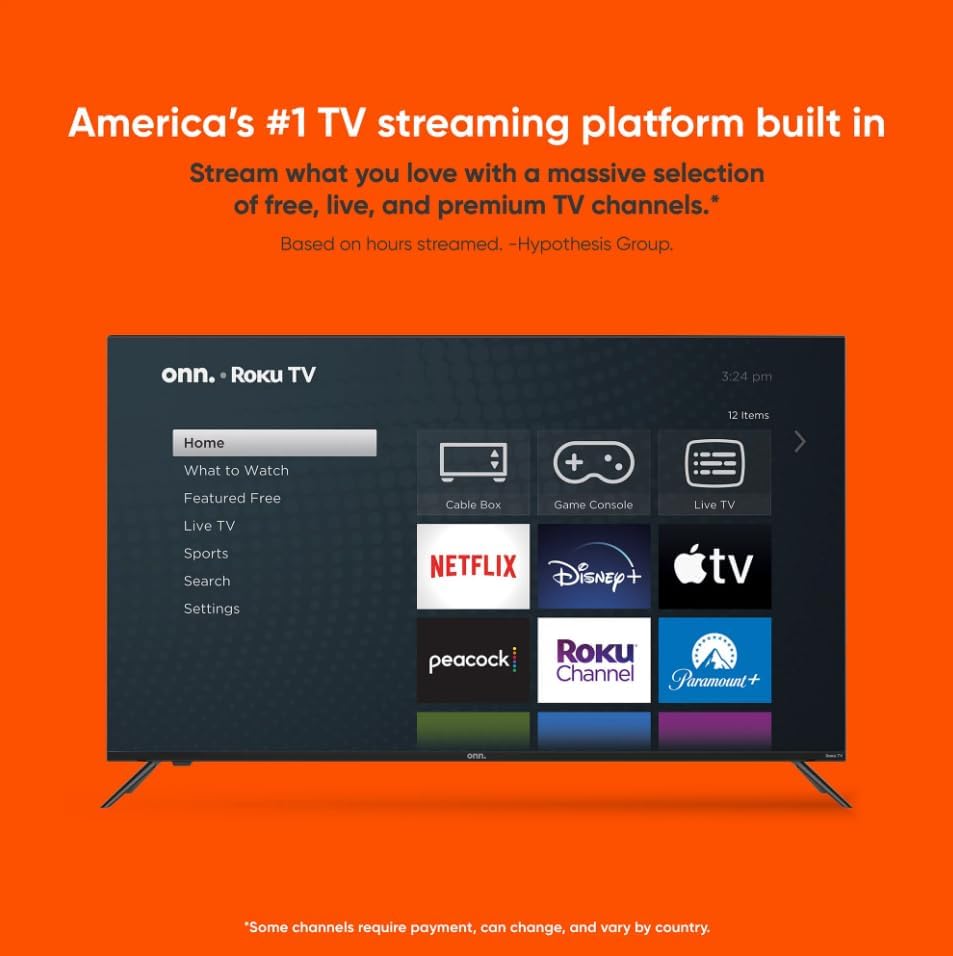
Figure 3: The ONN Roku TV home screen, illustrating the integrated streaming platform that allows access to a wide selection of free, live, and premium TV channels.
2. Navigating the Home Screen
The home screen provides quick access to your installed streaming channels, input selections (HDMI, AV, Live TV), and settings. Use the directional pad on your remote to navigate and the OK button to select.
3. Streaming Content
Access popular streaming services like Netflix and YouTube directly from the home screen. You can also download additional apps from the Streaming Store.

Figure 4: An angled view of the ONN Roku TV, highlighting the vibrant display and the array of pre-installed and accessible streaming applications, offering diverse entertainment options.
4. Using Voice Assistants
Your TV is compatible with Alexa and Google Assistant. Easily control your TV, play entertainment, and more using hands-free voice commands through a compatible voice assistant device.

Figure 5: This image illustrates the TV's compatibility with popular voice assistants and smart home ecosystems, including Apple AirPlay, Apple Home, Amazon Alexa, and Google Home, enabling convenient voice control.
5. Roku Mobile App
Control your ONN Roku TV with the free Roku mobile app for iOS or Android. The app allows for quick search, voice control, private listening through headphones, or casting photos/videos from your phone.

Figure 6: Screenshots of the Roku mobile app on smartphones, demonstrating its functionality as a remote control, a search interface, and a platform for voice commands, enhancing user interaction with the TV.
6. Picture Quality Features
Experience superior visuals with 4K UHD resolution and HDR10 compatibility. 4K UHD brings out lifelike color, texture, and detail, while HDR10 technology elevates your viewing experience with vivid colors and nearly infinite contrast.
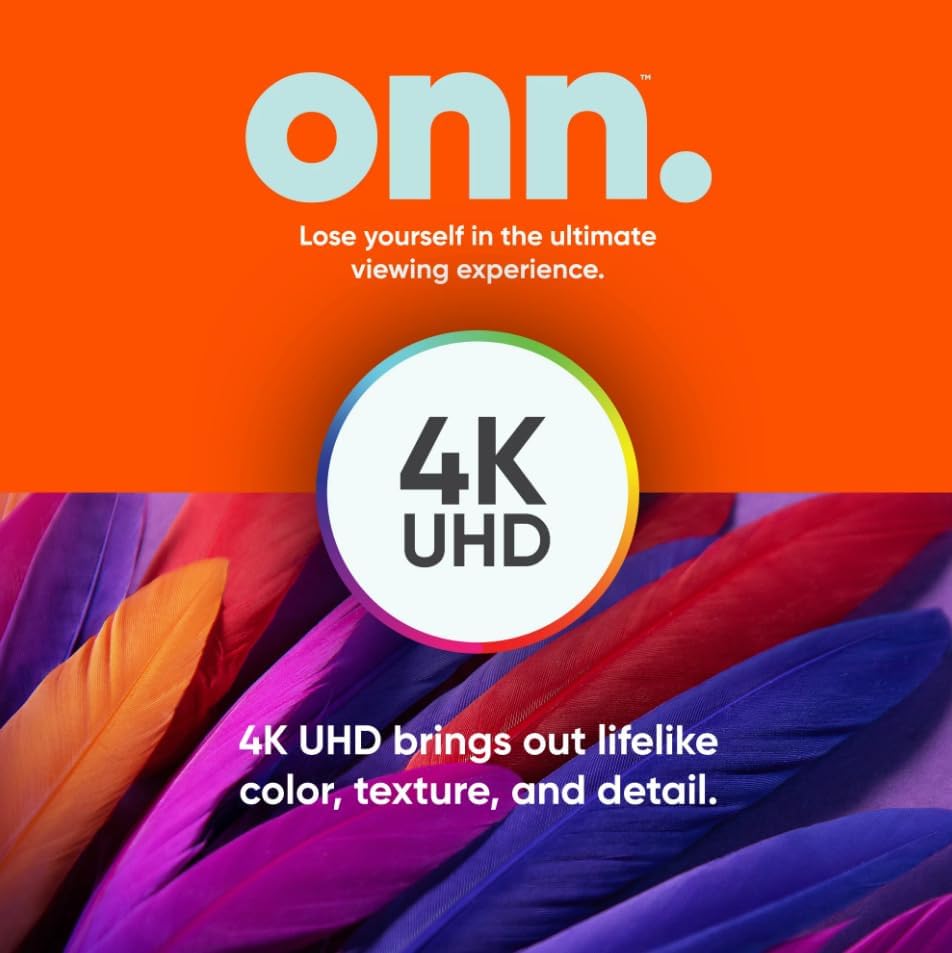
Figure 7: A visual representation emphasizing the 4K UHD capability of the TV, promising lifelike color, texture, and detail for an enhanced viewing experience.

Figure 8: This image illustrates the impact of HDR10 High Dynamic Range technology, showcasing a comparison between standard dynamic range and the richer, more vibrant colors and enhanced contrast provided by HDR10.
Maintenance
Regular maintenance helps prolong the life of your TV and ensures optimal viewing quality.
- Cleaning the Screen: Gently wipe the screen with a soft, lint-free cloth. For stubborn marks, slightly dampen the cloth with water or a screen-specific cleaning solution. Avoid harsh chemicals.
- Cleaning the Frame: Use a soft, dry cloth to wipe the TV frame and stand.
- Ventilation: Ensure the TV's ventilation openings are not blocked. Allow adequate space around the TV for proper airflow.
- Power Off When Not in Use: Turn off the TV when not in use to conserve energy and extend component lifespan.
Troubleshooting
If you encounter issues with your TV, refer to the following common solutions:
| Problem | Solution |
|---|---|
| No Power | Ensure the power cord is securely plugged into both the TV and a working electrical outlet. Try a different outlet. |
| No Picture/Sound | Check all cable connections (HDMI, AV, etc.) to external devices. Ensure the correct input source is selected on the TV. |
| Cannot find correct input for DVD/external device (e.g., labeled "Roku" instead of "AV") | Navigate to the input selection on the home screen. Select the input that corresponds to your connected device. If the label is incorrect (e.g., "Roku" for an AV input), you can rename it in the TV's settings menu for easier identification. |
| Remote Control Not Working | Replace the batteries in the remote control. Ensure there are no obstructions between the remote and the TV's IR sensor. |
| Wi-Fi Connection Issues | Restart your Wi-Fi router. Go to the TV's network settings and try reconnecting to your Wi-Fi network. |
Specifications
| Feature | Detail |
|---|---|
| Brand | ONN |
| Model Name | 100012587 |
| Display Technology | LED |
| Resolution | 4K UHD (2160p) |
| Refresh Rate | 60 Hz |
| Special Feature | Flat, HDR Compatible |
| Connectivity Technology | HDMI, USB, Wi-Fi |
| Aspect Ratio | 16:9 |
| Supported Internet Services | Netflix, YouTube (and other Roku channels) |
| Voice Assistant Compatibility | Alexa, Google Assistant |
| Color | Black |
| Dimensions (approx.) | 44" (W) x 25.5" (H) x 3.1" (D) - without stand |

Figure 9: Approximate dimensions of the ONN 65-inch TV, indicating its width, height, and depth for placement and installation planning.
Related documents100012587


Ask a question about this manual
Ask about setup, troubleshooting, compatibility, parts, safety, or missing instructions. Manuals+ will review the question and use this page’s manual context to help answer it.