
1. Introduction
The Buff HUB Remote for Canon is a wireless trigger designed to mount onto your camera's hot shoe, enabling wireless firing of flash units. It sends a firing signal to all compatible flash units equipped with CyberSync receivers or transceivers. Simply match the frequencies across all components for seamless operation.
This remote is unique in the Buff line for providing High-Speed Sync (HSS) and Through-The-Lens (TTL) capabilities when used with the LINK800WS flash unit. It also facilitates connection between your flash units and the Paul C. Buff, Inc. App, offering enhanced control from your smartphone.
Key features include a wireless working range of up to 350 feet via radio frequency (2.4 GHz band), a locking wheel hot shoe contact, the ability to wirelessly fire an indefinite number of lights, 16 selectable frequencies, and a rechargeable lithium-ion battery with reduced power draw during sleep mode for extended life. It is compatible with all CyberSync Receivers and Transceivers (CSR, CSRB, CSR+, CSRB+, and CSXCV).
2. Product Overview
The Buff HUB Remote is a compact device designed for intuitive control of your Canon camera and compatible flash units.
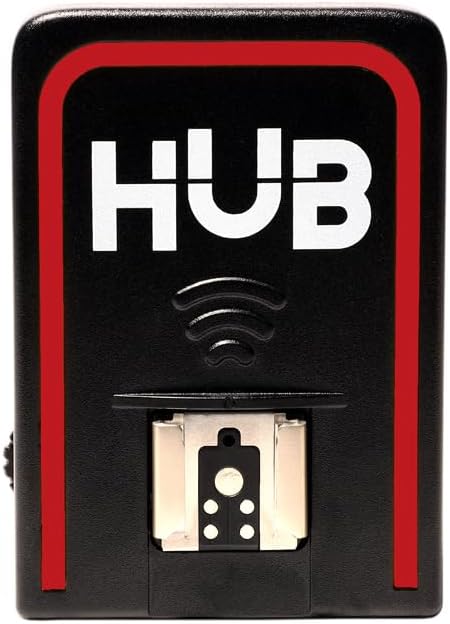
Image: The Buff HUB Remote for Canon, a compact wireless trigger.
2.1 Remote Control Buttons and Switches
The remote features several controls for camera operation:
- Shutter Button: Press halfway to autofocus, press fully to trigger the shutter for a still photo or start/stop video recording.
- AF Button: Triggers autofocus, similar to a half-press of the shutter button. Useful for waking the camera from sleep mode.
- W/T Buttons: These buttons are typically used for zoom functions on compatible power zoom lenses.
- Mode Switch: A toggle switch on the side allows you to select between still photo mode (indicated by a single dot) and video recording mode (indicated by a video camera icon). There is also a 2-second delay option for still photos.
Video: This video provides an overview of the Canon BR-E1 Bluetooth remote, demonstrating its buttons and functions, including shutter, autofocus, and mode selection. Note: While this video features a Canon BR-E1, the operational principles for a Bluetooth remote with Canon cameras are similar to the Buff HUB Remote.
3. Setup
3.1 Battery Installation
The Buff HUB Remote uses a CR2032 coin cell battery. To install or replace the battery, locate the battery compartment on the remote, typically secured by a small screw. Use a precision screwdriver to open the compartment, insert the new battery with the positive (+) side facing up, and then securely close the compartment.
3.2 Camera Pairing
To pair the Buff HUB Remote with your Canon camera:
- Turn on your Canon camera.
- Navigate to the camera's menu system.
- Locate the Wi-Fi/Bluetooth connection settings.
- Ensure Bluetooth settings are enabled.
- In the camera's shooting menu (often indicated by a camera icon), find the Remote control option.
- Change the Remote control setting from 'Disable' to 'Enable'.
- The camera should now be discoverable for pairing with the remote.
4. Operating the Buff HUB Remote
4.1 Basic Operation
Once paired, the remote can control your camera's basic functions:
- Taking Photos: With the mode switch set to still photo mode, press the shutter button on the remote. The camera will autofocus (if enabled) and then capture a photo.
- Recording Video: Switch the mode to video recording. Press the shutter button to start recording, and press it again to stop.
- Autofocus: Use the dedicated AF button to initiate autofocus without triggering the shutter.
4.2 App Integration: Buff Flash Control App
The Buff HUB Remote can connect to the Buff Flash Control App for advanced control of compatible flash units.
- Download the App: Search for "Buff Flash Control" in your device's app store and install it.
- Enable Bluetooth: Ensure Bluetooth is enabled on both your smartphone and the Buff HUB Remote.
- Pairing: Open the app and follow the on-screen prompts to search for and pair with your HUB Remote. You may need to enter the serial number found on the HUB or its packaging.
- Select Frequency: Once connected, select a frequency in the app. This frequency must match the frequency set on your flash units. For multiple lights, ensure each is on a different channel.
- Flash Unit Control: The app will display cards for each connected flash unit. You can adjust flash power, toggle modeling lights, and change various settings.
- Settings: Within the app, you can rename flash units, select Model Modes (Off, Independent, Track, Full Power), set Recycle Indicator preferences (None, Audio, Model, Both), toggle Slave Cell functionality, and choose between Action or Color modes for flash duration.
- Firmware Updates: The app will notify you if a firmware update is available for your HUB Remote or connected flash units. It is recommended to keep firmware updated for optimal performance.
- Creating Setups: You can create and save custom lighting setups within the app, allowing for quick recall of specific light configurations.
Video: This video demonstrates the features and functionality of the Buff Flash Control App, including how to connect the HUB Remote, manage flash units, adjust settings, and create custom lighting setups.
5. Specifications
| Feature | Detail |
|---|---|
| Model Number | HUB-C |
| Brand | Buff |
| Compatible Devices | Canon Cameras, CyberSync Receivers, CyberSync Transceivers |
| Connectivity Technology | Bluetooth (2.4 GHz band) |
| Wireless Range | Up to 350 feet |
| Number of Frequencies | 16 |
| Battery Type | Rechargeable Internal Lithium-ion Battery |
| Charging Time | 2 hours via USB-C |
| Continuous Use (Bluetooth enabled) | 12+ hours |
6. Troubleshooting
If you encounter issues with your Buff HUB Remote, consider the following:
- No Connection: Ensure the remote's battery is charged and correctly installed. Verify that Bluetooth is enabled on both your camera and the remote, and that the remote control function is enabled in your camera's menu.
- Lost Connection (App): If the app indicates a lost connection (light name turns red with a hazard icon), check for issues such as power, distance, placement, or interference. Try changing the HUB frequency in the app. You can also try re-scanning active channels or all channels within the app.
- Firmware: If experiencing technical difficulties, check for and install any available firmware updates for your HUB Remote and flash units via the Buff Flash Control App.
- Range Issues: Ensure there are no obstructions between the remote and the camera/flash units. Avoid covering the Bluetooth icon on the remote, as this is where the transmitter is located and can shorten the range.
7. Warranty and Support
The Buff HUB Remote for Canon comes with a 2-Year Factory Warranty. For further support or inquiries, please contact Paul C. Buff, Inc., the manufacturer.

