
HODO HD185D-3
HODO 14-in-1 USB C Dual Screen Docking Station User Manual
Model: HD185D-3
Introduction
Thank you for choosing the HODO 14-in-1 USB C Dual Screen Docking Station. This versatile hub is designed to expand the connectivity of your USB-C or Thunderbolt 3 enabled laptop, providing a comprehensive solution for multiple displays, high-speed data transfer, network connectivity, and power delivery. Please read this manual carefully to ensure proper setup and optimal performance.
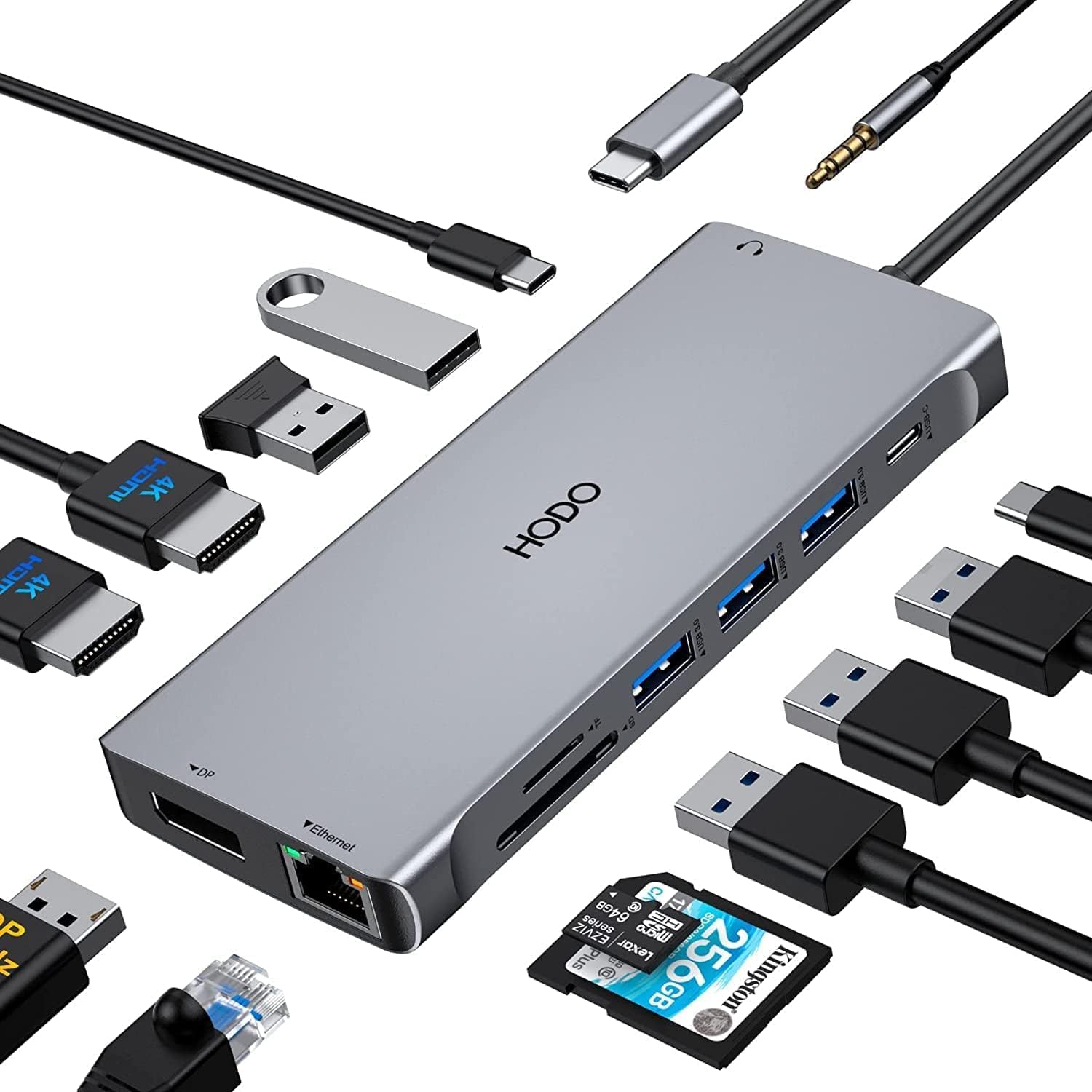
Image: The HODO 14-in-1 USB C Dual Screen Docking Station, showcasing its compact design and various connected peripherals like HDMI cables, USB drives, and an SD card.
Product Overview
The HODO 14-in-1 USB C Docking Station offers a wide array of ports to enhance your productivity:
- 2 x HDMI Ports: For connecting external displays.
- 1 x DisplayPort: For connecting an additional external display.
- 3 x USB 3.0 Ports: For high-speed data transfer up to 5Gbps.
- 2 x USB 2.0 Ports: For connecting peripherals like keyboards and mice.
- 1 x USB Type-C Data Transfer Port: Up to 5Gbps data transfer.
- 1 x SD Card Reader: For SD, SDHC, SDXC cards.
- 1 x TF Card Reader: For Micro SD, Micro SDHC, Micro SDXC cards.
- 1 x Gigabit Ethernet Port (RJ45): For stable wired network connection up to 1Gbps.
- 1 x 3.5mm Audio/Mic Jack: For headphones, speakers, or microphones.
- 1 x 100W Power Delivery (PD) Port: For charging your laptop (up to 87W safety output).
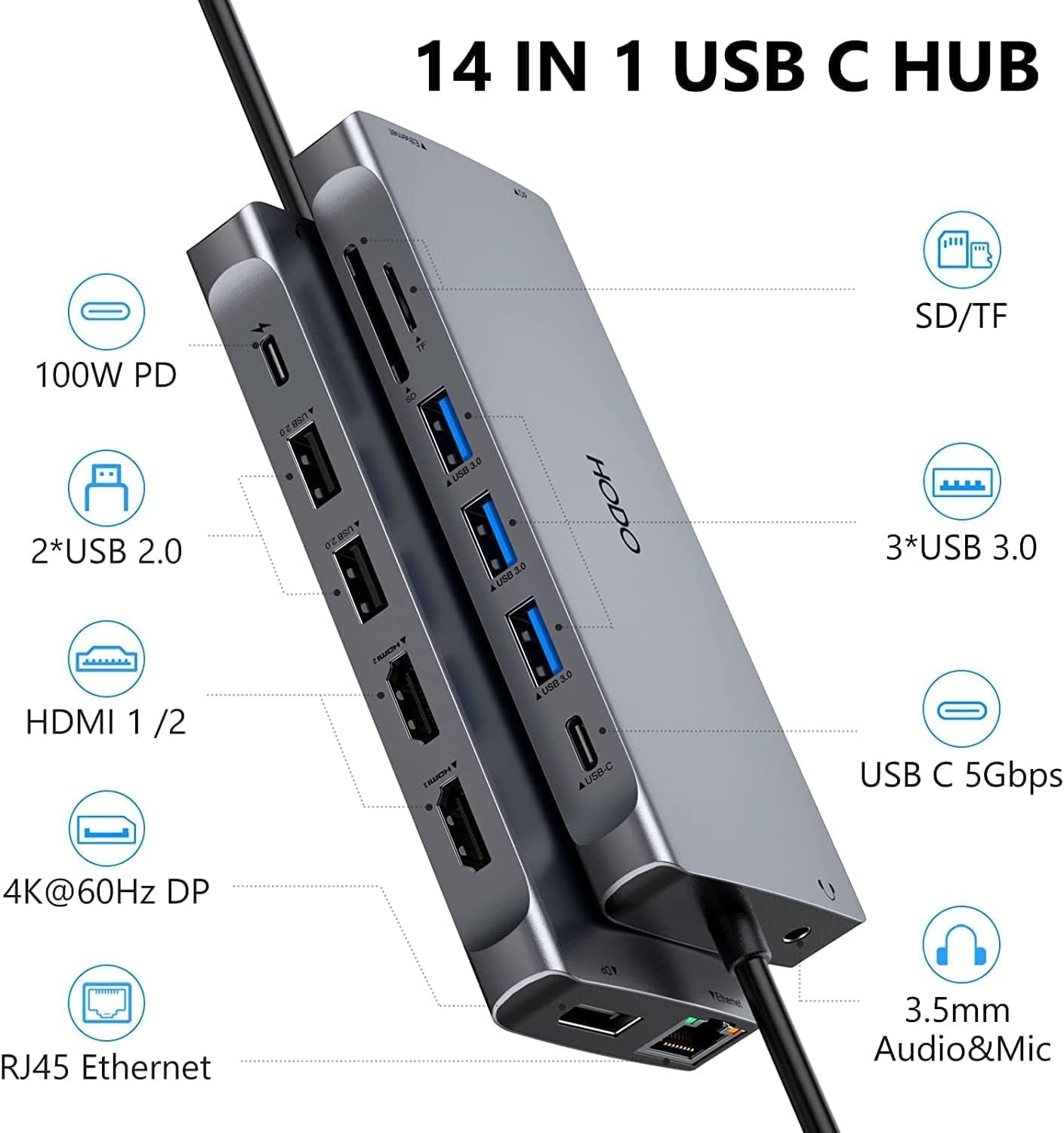
Image: A detailed diagram illustrating the HODO docking station from a side view, with labels pointing to each of its 14 ports, including USB, HDMI, DisplayPort, Ethernet, SD/TF card slots, and power delivery.
Compatibility
For full functionality of the HODO docking station, your laptop's USB-C port must support Power Delivery, DisplayPort Alt Mode, and Data Transfer. This is often indicated by a DP or Thunderbolt icon next to the USB-C port.

Image: A visual guide demonstrating different USB-C port protocols (Data only, Data+Power Delivery, Data+Displayport Alt, Data+Power Delivery+Displayport Alt, Thunderbolt 3/4) and their compatibility with the HODO docking station, indicating which protocols support full functionality.
Note: If your laptop's USB-C port only supports data transfer, display output and power delivery functions of the docking station will not work.
Setup Guide
- Connect Power (Optional but Recommended): Connect your laptop's original power adapter (or a compatible 65W+ PD charger) to the 100W PD USB-C port on the docking station. This will charge your laptop and provide stable power to all connected peripherals.
- Connect to Laptop: Plug the integrated USB-C cable of the docking station into a full-featured USB-C or Thunderbolt 3 port on your laptop.
- Connect Displays:
- Connect your HDMI monitors to the HDMI 1 and HDMI 2 ports.
- Connect your DisplayPort monitor to the DP port.
Ensure your monitors are powered on and set to the correct input source (HDMI/DisplayPort).
- Connect Peripherals: Plug in your USB devices (keyboard, mouse, external hard drives, USB drives) into the available USB 3.0 and USB 2.0 ports.
- Connect Network: For a stable wired internet connection, connect an Ethernet cable from your router/modem to the RJ45 Gigabit Ethernet port on the docking station.
- Connect Audio: If desired, plug your headphones or speakers into the 3.5mm audio/mic jack.
- Insert SD/TF Cards: Insert your SD or TF cards into the respective card reader slots for data access.
The docking station is plug-and-play for most operating systems, requiring no additional driver installation.
Operating Instructions
Display Configuration
The HODO docking station supports single, dual, and triple display configurations. Performance may vary based on your laptop's specifications and operating system.
Windows OS Display Modes:
- Single Display:
- HDMI1: Up to 4K@60Hz
- HDMI2: Up to 4K@30Hz
- DisplayPort: Up to 4K@60Hz
- Dual Display:
- HDMI1 + HDMI2: 4K@60Hz + 1080p@60Hz or 4K@29Hz + 2K@59Hz
- HDMI1 + DP: 4K@60Hz + 4K@60Hz (if supported by laptop)
- HDMI2 + DP: 4K@30Hz + 4K@60Hz (if supported by laptop)
- Triple Display:
- HDMI1 + HDMI2 + DP: All displays will output at 1080p@60Hz.

Image: A comprehensive table detailing the maximum resolutions achievable for single, dual, and triple display configurations using HDMI and DisplayPort outputs from the docking station.

Image: Visual examples of graphics settings for both Windows and Mac operating systems, illustrating how to configure displays in Mirror Mode and Extend Mode with multiple monitors connected to the docking station.
Mac OS Display Modes:
Mac OS does not support Multi-Stream Transport (MST) mode. Therefore, all external monitors connected to the docking station will display the same content (mirror mode) or an extended desktop that mirrors the primary external display (non-mirror mode).
- Mirror Mode: All connected displays (including the MacBook screen) will show the same content.
- Non-Mirror Mode: The MacBook screen will be extended, and all external monitors will mirror each other, showing a single extended desktop.

Image: A visual representation of Mac OS multiple display configurations, showing both Non-mirror Mode (where the laptop screen is extended and external monitors mirror each other) and Mirror Mode (where all screens display identical content).
Data Transfer
The docking station provides various USB ports and card readers for efficient data transfer:
- USB 3.0 Ports: Up to 5Gbps for fast transfer of large files.
- USB 2.0 Ports: Up to 480Mbps, suitable for keyboards, mice, and other low-bandwidth devices.
- SD/TF Card Slots: Up to 104MB/s for quick access to photos and videos from memory cards.

Image: A graphic illustrating the different data transfer speeds supported by the docking station's ports, including SD/TF slots (104MB/s), USB 2.0 (480MB/s), and USB 3.0 (5Gbps).
Power Delivery (PD)
The 100W PD port allows you to charge your laptop while using the docking station. It provides up to 87W of safe charging power to your connected laptop. Ensure your laptop's USB-C port supports Power Delivery.

Image: A visual representation of the power delivery function, showing 100W power input to the docking station and 85W power output to the connected laptop, alongside the audio jack and Ethernet port.
Ethernet and Audio
- Gigabit Ethernet: Provides a stable and fast wired network connection up to 1Gbps, ideal for online gaming, streaming, and large file downloads.
- 3.5mm Audio/Mic Jack: Supports both audio output and microphone input, allowing you to connect headphones, speakers, or a headset.
Maintenance
- Keep the docking station in a dry environment and away from direct sunlight.
- Avoid exposing the device to extreme temperatures.
- Do not disassemble the device. Unauthorized disassembly voids the warranty.
- Clean the surface with a soft, dry cloth. Do not use liquid cleaners or aerosols.
- Ensure proper ventilation around the device during operation.
Troubleshooting
- Q: No display output or flickering screen.
- A:
- Ensure your laptop's USB-C port supports DisplayPort Alt Mode.
- Check all cable connections (USB-C to laptop, HDMI/DP to monitors).
- Try a different HDMI/DP cable.
- Ensure monitors are set to the correct input source.
- Restart your laptop and reconnect the docking station.
- For Mac OS, remember that MST mode is not supported; external displays will mirror each other.
- Q: Laptop is not charging.
- A:
- Ensure your laptop's USB-C port supports Power Delivery.
- Verify that your power adapter is connected to the PD port on the docking station and is sufficient wattage (65W or higher recommended).
- Try using your laptop's original power adapter.
- Q: USB devices are not recognized.
- A:
- Ensure the docking station is properly connected to your laptop.
- Try connecting the USB device to a different USB port on the docking station.
- If it's a high-power device, ensure the docking station is receiving sufficient power via the PD port.
- Q: Ethernet connection is unstable or not working.
- A:
- Check the Ethernet cable connection to both the docking station and your router/modem.
- Ensure your laptop's network settings are configured for a wired connection.
- Try a different Ethernet cable.
Specifications
| Feature | Description |
|---|---|
| Model Number | HD185D-3 |
| Ports | 2x HDMI, 1x DisplayPort, 3x USB 3.0, 2x USB 2.0, 1x USB Type-C (Data), 1x SD, 1x TF, 1x RJ45 Gigabit Ethernet, 1x 3.5mm Audio/Mic, 1x 100W PD USB-C |
| HDMI Output | HDMI1: Up to 4K@60Hz; HDMI2: Up to 4K@30Hz |
| DisplayPort Output | Up to 4K@60Hz |
| USB 3.0 Data Transfer Rate | Up to 5Gbps |
| USB 2.0 Data Transfer Rate | Up to 480Mbps |
| SD/TF Card Reader Speed | Up to 104MB/s |
| Ethernet Speed | 10/100/1000 Mbps (Gigabit) |
| Power Delivery | Up to 100W input, 87W output to laptop |
| Compatibility | Laptops with full-featured USB-C (DisplayPort Alt Mode + Power Delivery + Data) or Thunderbolt 3/4 ports. |
Warranty and Support
HODO products come with a standard manufacturer's warranty. For detailed warranty information, technical support, or customer service inquiries, please refer to the contact information provided with your product packaging or visit the official HODO website.
Please retain your proof of purchase for warranty claims.
Related Documents - HD185D-3
 |
HODO 6-in-1 Docking Station for Steam Deck Product Manual User manual for the HODO 6-in-1 Docking Station, detailing its features, connection guide, specifications, and troubleshooting for the Steam Deck, iPads, and Android phones. |
 |
HODO 14-in-1 USB-C Hub Instruction Manual Instruction manual for the HODO 14-in-1 USB-C Hub, detailing its features, interfaces, and usage for expanding laptop capabilities. |
 |
HODO 6 IN 1 USB C Docking Station Compatibility Guide Find out if your laptop is compatible with the HODO 6-in-1 USB C Docking Station. This guide lists compatible and incompatible USB-C port types and provides extensive laptop model compatibility information from major brands like Dell, HP, Lenovo, and more. |
 |
LIONWEI Dual DisplayPort USB-C Docking Station: Product Manual & Specifications Comprehensive product manual for the LIONWEI Dual DisplayPort USB-C Laptop Docking Station. Features, specifications, performance, setup guides, and troubleshooting. |
 |
WAVLINK WL-UG69PD24 USB-C Triple 4K Docking Station User Guide Comprehensive user guide for the WAVLINK WL-UG69PD24 USB-C Triple 4K Universal Docking Station. Learn about its features, setup, driver installation for Windows and Mac, display configurations, and troubleshooting FAQs. |
 |
WAVLINK WL-UG63PD25 USB-C Triple Display Universal Docking Station Quick Start Guide This guide provides instructions for setting up and using the WAVLINK WL-UG63PD25 USB-C Triple Display Universal Docking Station, including driver installation for Windows and macOS, display configurations, and troubleshooting tips. |