
1. Introduction
This manual provides detailed instructions for the setup, operation, and maintenance of your KiiBoom Phantom 81 V2 Mechanical Gaming Keyboard. Please read this manual thoroughly before using the product to ensure optimal performance and longevity.

Image: The KiiBoom Phantom 81 V2 Mechanical Gaming Keyboard, showcasing its transparent design and RGB backlighting.
2. Package Contents
Verify that all items are present in the package:
- KiiBoom Phantom 81 V2 Mechanical Gaming Keyboard
- USB Cable
- Keycap Puller
- Switch Puller (often integrated with keycap puller)
- Extra Switches (typically 2)
3. Key Features
The KiiBoom Phantom 81 V2 keyboard incorporates several advanced features:
- 75% Layout: Compact design retaining essential keys.
- Transparent Acrylic Frame: Durable and aesthetically unique.
- Gasket Mount Design: Enhances typing feel and sound.
- PC Mounting Plate: Optimized for flexibility and sound profile.
- Full-key Hot-swappable PCB: Allows for easy switch replacement without soldering.
- South-facing RGB LEDs: Provides vibrant backlighting with reduced glare.
- Triple Mode Connectivity: Supports Type-C Wired, Bluetooth 5.0, and 2.4GHz wireless connections.
- Rechargeable Battery: 4000mAh capacity for extended wireless use.
- Compatibility: Fully compatible with Mac and Windows operating systems.

Image: An overview graphic highlighting the KiiBoom Phantom 81 V2's main features including 75% layout, tri-mode, hot-swappable, gasket-mounted, PC plate, plate-mounted stabilizers, south-facing RGB, and acrylic design.

Image: A detailed exploded diagram illustrating the internal gasket structure of the KiiBoom Phantom 81 V2 keyboard, showing components like the metal knob, acrylic top case, switches, PC plate, sandwich cotton, switch pad, PCB, acrylic bottom case, metal nameplate, and keyboard pads.

Image: A close-up of the KiiBoom Phantom 81 V2 keyboard highlighting its transparent acrylic case and PC keycaps with an ASA profile, showcasing the clear design.
4. Setup
4.1 Initial Charging
Before first use, connect the keyboard to a USB power source using the provided USB-C cable. The keyboard will charge automatically. A full charge is recommended for optimal battery life.
4.2 Connectivity Modes
The Phantom 81 V2 supports three connection modes:
- Type-C Wired Mode: Connect the USB-C cable directly to your computer. Switch the mode selector on the back of the keyboard to "USB".
- Bluetooth 5.0 Mode:
- Switch the mode selector on the back of the keyboard to "BT".
- Press Fn + 1, Fn + 2, or Fn + 3 to select a Bluetooth profile. The indicator light will flash, indicating pairing mode.
- On your device (computer, tablet, smartphone), search for Bluetooth devices and select "KiiBoom Phantom 81".
- Once connected, the indicator light will stop flashing.
- 2.4GHz Wireless Mode:
- Switch the mode selector on the back of the keyboard to "2.4G".
- Insert the 2.4GHz USB receiver into an available USB port on your computer.
- Press Fn + 4. The keyboard will automatically connect to the receiver. The indicator light will stop flashing once connected.

Image: A close-up of the KiiBoom Phantom 81 V2's side, showing the USB-C port and the physical switches for selecting between USB, Win/Mac, Bluetooth, and 2.4G wireless modes.
4.3 Operating System Compatibility
The keyboard is compatible with both Windows and macOS. Use the dedicated switch on the back of the keyboard to select the appropriate operating system mode (WIN/MAC) for optimal key mapping.

Image: A visual representation of the KiiBoom Phantom 81 V2 keyboard being used with various operating systems, including macOS, Windows, and Android, indicating broad compatibility.
5. Operating Instructions
5.1 RGB Backlighting Control
The Phantom 81 V2 features south-facing RGB LEDs for customizable backlighting. Use the following key combinations to adjust the lighting effects:
- Fn + \ |: Toggle Backlight Mode
- Fn + DEL: Toggle Backlight Direction
- Fn + ↑: Brightness +
- Fn + ↓: Brightness -
- Fn + →: Speed +
- Fn + ←: Speed -

Image: A diagram illustrating the key combinations for controlling the south-facing RGB backlights on the KiiBoom Phantom 81 V2 keyboard, including mode, direction, brightness, and speed adjustments.
5.2 Surrounding Sidelights Control
The keyboard also features customizable sidelights. Use the following key combinations to adjust them:
- Fn + P: Toggle Sidelight Mode
- Fn + B: Toggle Sidelight Color
- Fn + X: Sidelight Brightness +
- Fn + Z: Sidelight Brightness -
- Fn + V: Sidelight Speed +
- Fn + C: Sidelight Speed -

Image: A diagram illustrating the key combinations for controlling the surrounding sidelights on the KiiBoom Phantom 81 V2 keyboard, including mode, color, brightness, and speed adjustments.
5.3 Multifunctional Knob
The knob located on the top right of the keyboard provides quick access to media controls and can be customized:
- Rotate clockwise: Volume +
- Rotate counter-clockwise: Volume -
- Press: Mute/Unmute
- Long Press: Customizable Functions (refer to software for configuration)

Image: A close-up of the KiiBoom Phantom 81 V2's multifunctional knob, detailing its functions for volume control, mute, and customizable options.
5.4 Checking Battery Power
To check the current battery level, press Fn + Backspace. The indicator lights will display the approximate battery percentage.

Image: A diagram showing how to check the battery power of the KiiBoom Phantom 81 V2 keyboard by pressing Fn+Backspace, with visual indicators for 20%, 50%, and 100% charge levels.
5.5 Hot-Swappable Switches
The Phantom 81 V2 features a full-key hot-swappable PCB, allowing you to change mechanical switches without soldering. This keyboard is compatible with both 3-pin and 5-pin mechanical switches.
- Use the provided keycap puller to carefully remove the desired keycap.
- Use the provided switch puller to gently grasp the switch from its top and bottom clips. Pull straight up to remove the switch from the PCB.
- Align the pins of the new switch with the holes on the PCB. Ensure the pins are straight to avoid bending.
- Press the new switch firmly into place until it clicks.
- Re-attach the keycap.

Image: A close-up view of the KiiBoom Phantom 81 V2 keyboard with a keycap and switch removed, demonstrating the hot-swappable PCB plate compatible with 3-pin or 5-pin mechanical switches.

Image: A hand using a switch puller tool to remove a switch from the KiiBoom Phantom 81 V2 keyboard, illustrating the hot-swappable feature.
Different switch types offer varying typing experiences:
- KiiBoom Pink Switch: Linear type, Actuation Force: 38±15gf, Bottom Force: 42±15gf, Total Travel: 3.80±0.2mm, Pre Travel: 1.6±0.4mm.
- KiiBoom Purple Switch: Linear type, Actuation Force: 45±15gf, Bottom Force: 55±15gf, Total Travel: 3.80±0.2mm, Pre Travel: 1.6±0.4mm.
- KiiBoom Crystal Switch: Linear type, Actuation Force: 55±15gf, Bottom Force: 60±15gf, Total Travel: 3.60±0.2mm, Pre Travel: 1.6±0.4mm.

Image: A close-up of KiiBoom Purple Switches, illustrating their transparent design.

Image: A close-up of KiiBoom Pink Switches, illustrating their transparent design.

Image: A close-up of KiiBoom Crystal Switches, illustrating their transparent design.
5.6 Software Customization
Advanced customization for key remapping, macro creation, and lighting effects can be achieved through the dedicated KiiBoom software. Please visit the official KiiBoom website to download the latest software version for your keyboard model.
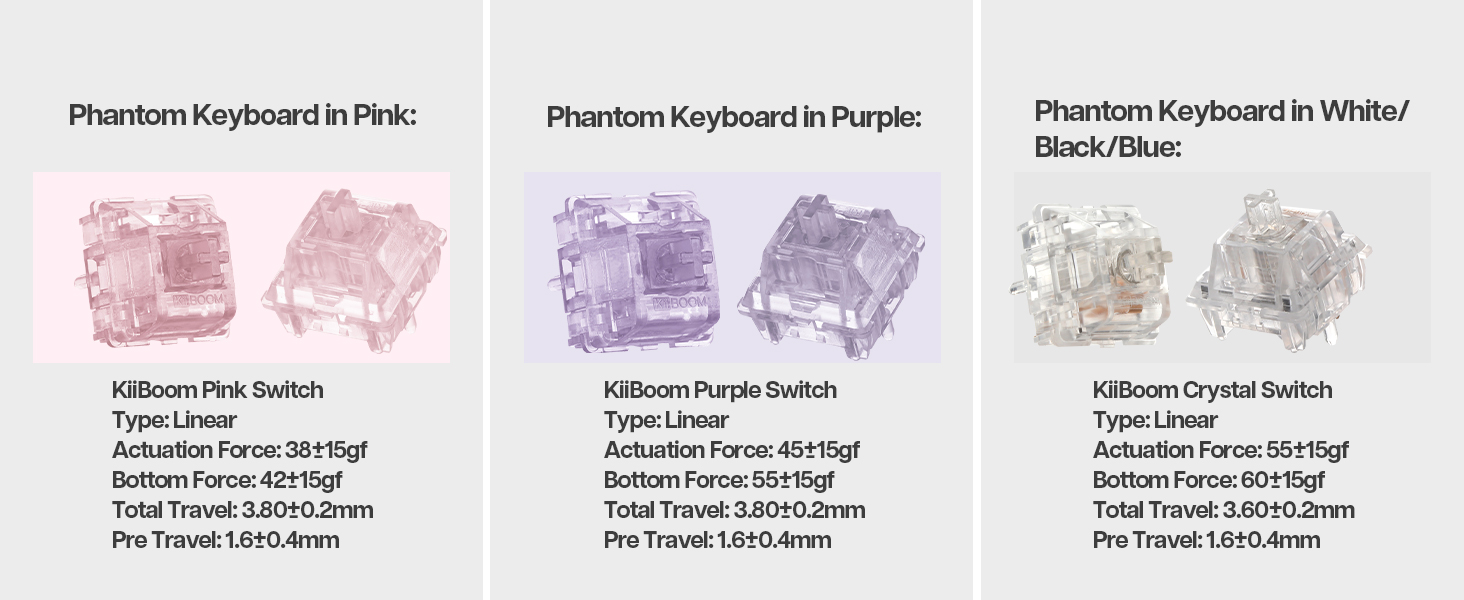
Image: A laptop screen displaying the KiiBoom software interface for customizing key settings, lighting, and other functions of the Phantom 81 V2 keyboard.
6. Maintenance
6.1 Cleaning
- Keycaps: Use the keycap puller to remove keycaps. Clean them with a mild soap solution and a soft cloth. Ensure they are completely dry before reattaching.
- Keyboard Body: Use a soft, lint-free cloth, slightly dampened with water or a mild cleaning solution, to wipe the acrylic body. Avoid abrasive materials or harsh chemicals.
- Between Keys: Use compressed air to remove dust and debris from between the switches.
6.2 General Care
- Avoid exposing the keyboard to extreme temperatures, direct sunlight, or high humidity.
- Do not spill liquids on the keyboard. If a spill occurs, immediately disconnect power and allow it to dry completely before attempting to use it again.
- Handle with care to prevent drops or impacts that could damage the transparent acrylic.
7. Troubleshooting
| Issue | Possible Solution |
|---|---|
| Keyboard not responding in wireless mode. |
|
| RGB lighting not working or incorrect. |
|
| Keys not registering or double-typing. |
|
| Battery drains quickly. |
|
8. Specifications
| Feature | Detail |
|---|---|
| Model | Phantom 81 V2 |
| Layout | 75% |
| Connectivity | 2.4Ghz Wireless, Bluetooth 5.0, USB-C Wired |
| Battery Capacity | 4000mAh (V2 version) |
| Backlighting | South-facing RGB |
| Hot-swappable | Yes, compatible with 3-pin/5-pin mechanical switches |
| Case Material | Acrylic |
| Plate Material | Polycarbonate (PC) |
| Item Weight | 4.53 pounds (approx. 2.05 kg) |
| Package Dimensions | 16.61 x 10.91 x 2.91 inches |
| Compatible Devices | Gaming Console, Laptop, PC, Smartphone, Tablet |
9. Warranty and Support
For warranty information and technical support, please refer to the official KiiBoom website or contact their customer service directly. Keep your proof of purchase for any warranty claims.
Official KiiBoom Website: KiiBoom Store on Amazon (for general brand information and potential support links).


