
ZAGG Bluetooth
ZAGG Pro Keyboard 15 Mid-Size Wireless Charging Desktop Keyboard User Manual
Model: Bluetooth | Brand: ZAGG
1. Introduction
This manual provides instructions for the ZAGG Pro Keyboard 15 Mid-Size Wireless Charging Desktop Keyboard. This keyboard is designed to offer an efficient and comfortable typing experience across multiple devices and operating systems.

Figure 1: ZAGG Pro Keyboard 15 Mid-Size Wireless Charging Desktop Keyboard.
Key features include Qi-compatible wireless charging, multi-device pairing for up to three devices, and broad compatibility with Windows, macOS, iOS, ChromeOS, and Android operating systems. Its ergonomic design aims to reduce typing fatigue.
Video 1: Official ZAGG video demonstrating the wireless charging and multi-device capabilities of the keyboard.
2. Setup
2.1. Package Contents
Verify that your package contains the following items:
- ZAGG Pro Keyboard 15 Mid-Size
- USB-C Charging Cable
- Quick Start Guide
2.2. Initial Charging
Before first use, it is recommended to fully charge your keyboard. The keyboard offers two charging methods:
- Qi-Compatible Wireless Charging: Place the keyboard on a Qi-compatible wireless charging pad. The keyboard will begin charging automatically.
- USB-C Charging: Connect the included USB-C charging cable to the keyboard's USB-C port and to a power source.

Figure 2: The ZAGG Pro Keyboard 15 charging wirelessly on a Qi-compatible pad.

Figure 3: USB-C port for wired charging of the keyboard.
A full charge provides up to three months of use, based on regular usage of up to 8 hours per day.
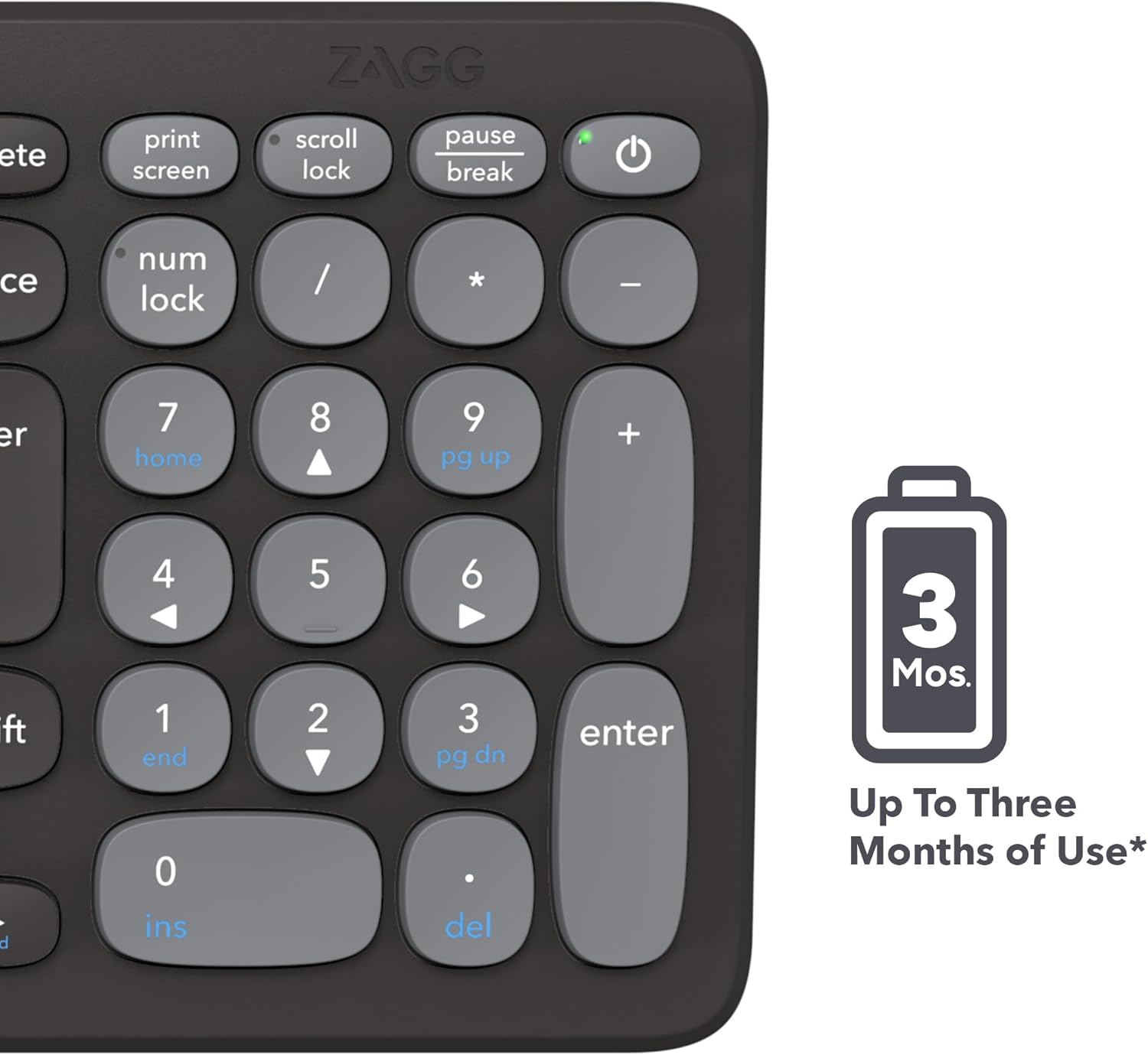
Figure 4: The keyboard's long-lasting battery provides extended usage.
2.3. Powering On/Off
Locate the power button on the top right of the keyboard. Press and hold to power on or off.
2.4. Multi-Device Bluetooth Pairing
The ZAGG Pro Keyboard 15 can be paired with up to three devices simultaneously. Follow these steps to pair your devices:
- Ensure the keyboard is powered on.
- Press and hold one of the Bluetooth pairing keys (F1, F2, or F3) for three seconds until the LED indicator above the key begins to flash, indicating pairing mode.
- On your device (Windows, macOS, iOS, ChromeOS, or Android), navigate to the Bluetooth settings.
- Select "ZAGG Pro Keyboard 15" from the list of available devices.
- Follow any on-screen prompts to complete the pairing process.
- Repeat for up to two additional devices using the remaining Bluetooth pairing keys.

Figure 5: The keyboard supports various operating systems for versatile use.
3. Operation
3.1. Typing Experience
The keyboard features an ergonomic design with optimal keystroke length and spacing, providing a comfortable and efficient typing experience. The keys are designed to reduce typing fatigue during extended use.

Figure 6: Close-up of hands demonstrating the optimized typing experience.
3.2. Switching Between Devices
Once paired, you can switch between your connected devices by simply pressing the corresponding Bluetooth pairing key (F1, F2, or F3). The keyboard will automatically connect to the selected device.
3.3. Function Keys and Multimedia Controls
The top row of keys serves as both function keys (F1-F12) and multimedia controls. To use the multimedia controls (e.g., volume, play/pause), press the Fn key simultaneously with the desired multimedia key. To use the standard function keys, press them directly.
4. Maintenance
4.1. Cleaning
To clean your keyboard, gently wipe the surface with a soft, damp, lint-free cloth. Avoid using harsh chemicals or abrasive materials that could damage the finish or keys.
4.2. Battery Care
To maximize battery life, avoid exposing the keyboard to extreme temperatures. Recharge the battery when the low battery indicator appears. Regular charging helps maintain battery health.
5. Troubleshooting
5.1. Keyboard Not Connecting
- Ensure the keyboard is powered on and fully charged.
- Verify Bluetooth is enabled on your device.
- Try re-pairing the keyboard by holding down one of the F1-F3 keys until the LED flashes, then re-selecting it in your device's Bluetooth settings.
- Ensure the keyboard is within the effective range of your device's Bluetooth connection.
5.2. Charging Issues
- If using wireless charging, ensure the keyboard is correctly positioned on a Qi-compatible charging pad.
- If using USB-C charging, ensure the cable is securely connected to both the keyboard and the power source. Try a different USB-C cable or power adapter if issues persist.
6. Specifications
| Brand | ZAGG |
| Model | Bluetooth |
| Hardware Platform | PC |
| Operating System Compatibility | Android, Chrome OS, Windows, iOS, iPadOS, macOS |
| Connectivity Technology | Bluetooth, USB-C |
| Power Source | Battery Powered (Li-polymer) |
| Battery Life | Up to three months (based on 8 hours/day use) |
| Charging | Qi-compatible Wireless Charging, USB-C |
| Special Feature | Ergonomic Design, Multi-Device Pairing |
| Color | Black |
| Item Weight | 1.6 ounces |
| Product Dimensions (LxWxH) | 15 x 15 x 15 inches (Note: This dimension may refer to packaging or a specific aspect, actual keyboard dimensions may vary) |
7. Warranty and Support
For warranty information and customer support, please refer to the official ZAGG website or the documentation included with your product. Keep your proof of purchase for warranty claims.
Related documentsBluetooth


Ask a question about this manual
Ask about setup, troubleshooting, compatibility, parts, safety, or missing instructions. Manuals+ will review the question and use this page’s manual context to help answer it.