
Speedlink SL-680016-BK
TAUROX Gaming Mouse User Manual
Model: SL-680016-BK | Brand: Speedlink
1. Introduction
The TAUROX gaming mouse is designed to provide precise and responsive control for an enhanced gaming experience. With an impressive sensor resolution of up to 7,200 DPI and customizable features, it adapts to various gaming styles.
Key Features
- High-precision sensor with up to 7,200 DPI for accurate tracking.
- Two integrated DPI switches for on-the-fly sensitivity adjustment.
- 5 configurable buttons for personalized control and macros.
- Lightweight design (135 grams with cable) for comfortable extended use.
- Customizable RGB lighting to personalize your gaming setup.
- Durable fabric-covered cable with 1.8-meter length for flexibility.
- USB-A connection for easy and universal compatibility.

Image: The TAUROX Gaming Mouse showcasing its multi-coloured LED lighting and ergonomic design.
2. Package Contents
Please ensure all items are present in the package:
- TAUROX Gaming Mouse
- Configuration Software (downloadable or included)

Image: Front view of the TAUROX Gaming Mouse retail packaging, highlighting key features.
3. Setup Guide
3.1 Connecting the Mouse
Connect the USB-A connector of the TAUROX Gaming Mouse to an available USB port on your computer. The mouse is plug-and-play for basic functionality.
3.2 Software Installation
For full utilization of all functions, including macro programming and advanced customization, the installation of the dedicated configuration software is necessary. This software is typically provided via a download link or included on a small disc. Refer to the product packaging or Speedlink's official website for the download location.
Image: Side of the product box indicating the need for configuration software.
4. Operating Your TAUROX Gaming Mouse
4.1 DPI Adjustment
The TAUROX Gaming Mouse features two integrated DPI switches located behind the scroll wheel. Use these buttons to cycle through different sensitivity levels (up to 7,200 DPI) to match your gaming style or task requirements. The current DPI setting may be indicated by the mouse's LED lighting color, depending on software configuration.

Image: Screenshot of the Speedlink software's 'Performance' tab, showing DPI control settings.
4.2 Programmable Buttons
The mouse is equipped with 5 configurable buttons. These buttons can be assigned various functions, including keyboard macros, multimedia controls, or specific in-game actions, using the configuration software. Launch the software and navigate to the 'Button' or 'Macro' section to customize these settings.
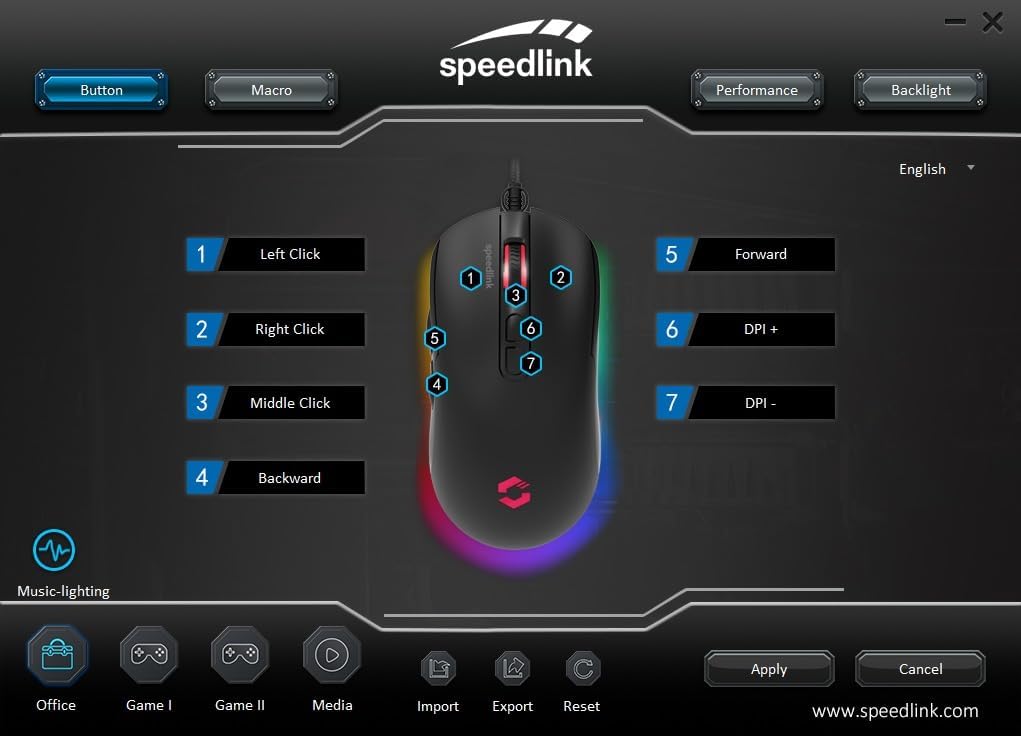
Image: Screenshot of the Speedlink software's 'Button' tab, illustrating the mapping of the mouse's 7 buttons.
4.3 RGB Lighting
The TAUROX Gaming Mouse features multi-coloured RGB lighting that can be customized through the configuration software. You can select from various lighting effects, colors, and brightness levels to match your personal preference or gaming setup. Access the 'Backlight' section in the software to adjust these settings.

Image: Screenshot of the Speedlink software's 'Backlight' tab, showing options for customizing the mouse's RGB lighting effects.
5. Maintenance
To ensure the longevity and optimal performance of your TAUROX Gaming Mouse, follow these maintenance guidelines:
- Cleaning: Use a soft, dry cloth to clean the mouse surface. For stubborn dirt, a slightly damp cloth can be used, but ensure no liquid enters the mouse. Avoid abrasive cleaners.
- Cable Care: Avoid sharp bends, kinks, or excessive pulling on the cable. Store the cable neatly when not in use to prevent damage.
- Sensor Maintenance: Keep the optical sensor on the underside of the mouse clean and free from dust or debris to ensure accurate tracking.
6. Troubleshooting
If you encounter issues with your TAUROX Gaming Mouse, consider the following:
- Mouse Not Responding: Ensure the USB cable is securely connected to your computer. Try plugging the mouse into a different USB port.
- Inaccurate Tracking: Clean the optical sensor on the bottom of the mouse. Ensure you are using the mouse on a suitable surface (e.g., a mouse pad).
- Software Issues: If the configuration software is not functioning correctly, try reinstalling it. Ensure your operating system is up to date.
- Buttons Not Working: Check the button assignments in the configuration software to ensure they are correctly configured.
- Lighting Not Working: Verify the RGB lighting settings in the configuration software.
For persistent issues, refer to the support section on the Speedlink website.
7. Technical Specifications
| Feature | Specification |
|---|---|
| Product Dimensions | 4.92 x 2.48 x 0.04 inches (125x63x40 mm LxWxH) |
| Item Weight | 5.7 ounces (135 grams with cable) |
| Model Number | SL-680016-BK |
| Brand | Speedlink |
| Color | Black |
| Connectivity Technology | USB-A (Wired) |
| Special Features | Programmable Buttons, Multi-coloured LED Lighting |
| Movement Detection Technology | Optical |
| DPI Resolution | Up to 7,200 DPI (adjustable) |
| Cable Length | 1.8 meters |
| Manufacturer | Speedlink |
8. Safety Instructions and Compliance
8.1 Important Safety Instructions
Please note that the failure to observe these instructions can cause product damage, explosion, fire and/or electric shock!
- Only use the devices as indicated in the user guide. Do not open or repair them.
- Do not expose the devices to liquids, heat or cold.
- Do not use the devices in a damp environment. Clean the device with a dry cloth.
- Keep the devices and all loose parts away from children, pets and unauthorized persons.
- Only use the devices with the appropriate provided accessories.
- Disconnect cables from the devices if they will not be used for a long time. When disconnecting by cables, don't pull on the cord but on the plug.
- Don't use the cables in any way other than mentioned in the user guide. Don't bend, cut, extend, knot or step on them.
- Don't insert any foreign objects into the openings of the device.
- If the devices are damaged in any way or get too hot, stop using them immediately.
- Take caution when using devices that emit radio signals if you have a pacemaker or are dependent on other sensitive electronic aids.
Safety instructions in further languages: www.speedlink.com
8.2 Warning Symbols and Markings
Extended use of input devices may cause health problems such as discomfort or pain. As such, take regular breaks and consult a doctor if problems persist.
8.3 FCC Statement
This equipment has been tested and found to comply with the limits for a Class B digital device, pursuant to part 15 of the FCC Rules. These limits are designed to provide reasonable protection against harmful interference in a residential installation. This equipment generates, uses and can radiate radio frequency energy and, if not installed and used in accordance with the instructions, may cause harmful interference to radio communications. However, there is no guarantee that interference will not occur in a particular installation. If this equipment does cause harmful interference to radio or television reception, which can be determined by turning the equipment off and on, the user is encouraged to try to correct the interference by one or more of the following measures:
- Reorient or relocate the receiving antenna.
- Increase the separation between the equipment and receiver.
- Connect the equipment to an outlet on a circuit different from that to which the receiver is connected.
- Consult the dealer or an experienced radio/TV technician for help.
This device complies with part 15 of the FCC Rules. Operation is subject to the following two conditions: (1) This device may not cause harmful interference, and (2) this device must accept any interference received, including interference that may cause undesired operation.
Note: Modifications to this product will void the user's authority to operate this equipment.
8.4 Conformity Notice
IMPORTER/MANUFACTURER: Zocherl Media GmbH, Im Dorf 5, 29303 Hemslingen, GERMANY
Phone: +49 4267 9341 0
PRODUCT DETAILS:
Type No.: SL-680016-BK
Product description: TAUROX Gaming Mouse, black
THE PRODUCT COMPLIES WITH THE FOLLOWING DIRECTIVES:
EMC: 2014/30/EU
RoHS: 2011/65/EU
For a full declaration of conformity, the latest user guide, FAQ or further information, please visit: www.speedlink.com
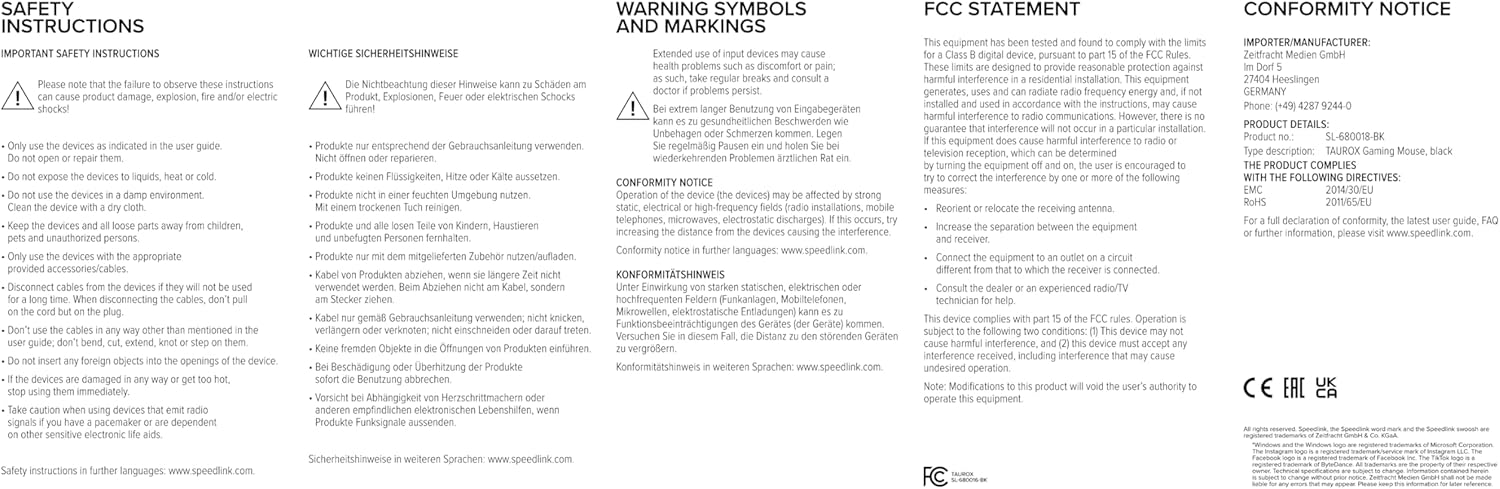
Image: Product packaging displaying various certifications and multilingual product names.
9. Warranty and Support
For warranty information, technical support, frequently asked questions (FAQs), and the latest user guides, please visit the official Speedlink website:
Ask a question about this manual
Ask about setup, troubleshooting, compatibility, parts, safety, or missing instructions. Manuals+ will review the question and use this page’s manual context to help answer it.