
1. Introduction
The Synido TempoPAD is a portable USB MIDI beat pad controller designed for music production. It features responsive pads, assignable controls, and broad compatibility to enhance your creative workflow.
2. What's in the Box
- Synido TempoPAD MIDI Controller
- USB Cable
- User Manual
- MIDI Out Cable (1/8" TRS to 5-pin DIN)
- USB-C to USB-A Adapter

Image: The Synido TempoPAD MIDI Controller shown with its durable carrying bag, USB-C to USB-A adapter, USB-A to USB-C cable, and MIDI Out cable.
3. Product Overview
3.1. Practical MIDI Drum Pad Controller
The TempoPAD features 16 responsive beat pads for music production, 12 buttons, and 4 assignable knobs. It includes 3 banks, allowing for up to 48 pad assignments, and offers 4 levels of velocity sensitivity to suit various playing styles.
3.2. RGB Beat Pads
The 16 thick, soft silicone pads are fully customizable for triggering dynamic drumming, sampling, effects, and other MIDI commands. The pads feature full-range RGB backlighting, which can be tailored to your setup. Note: Pad 14 does not light up in keyboard mode.
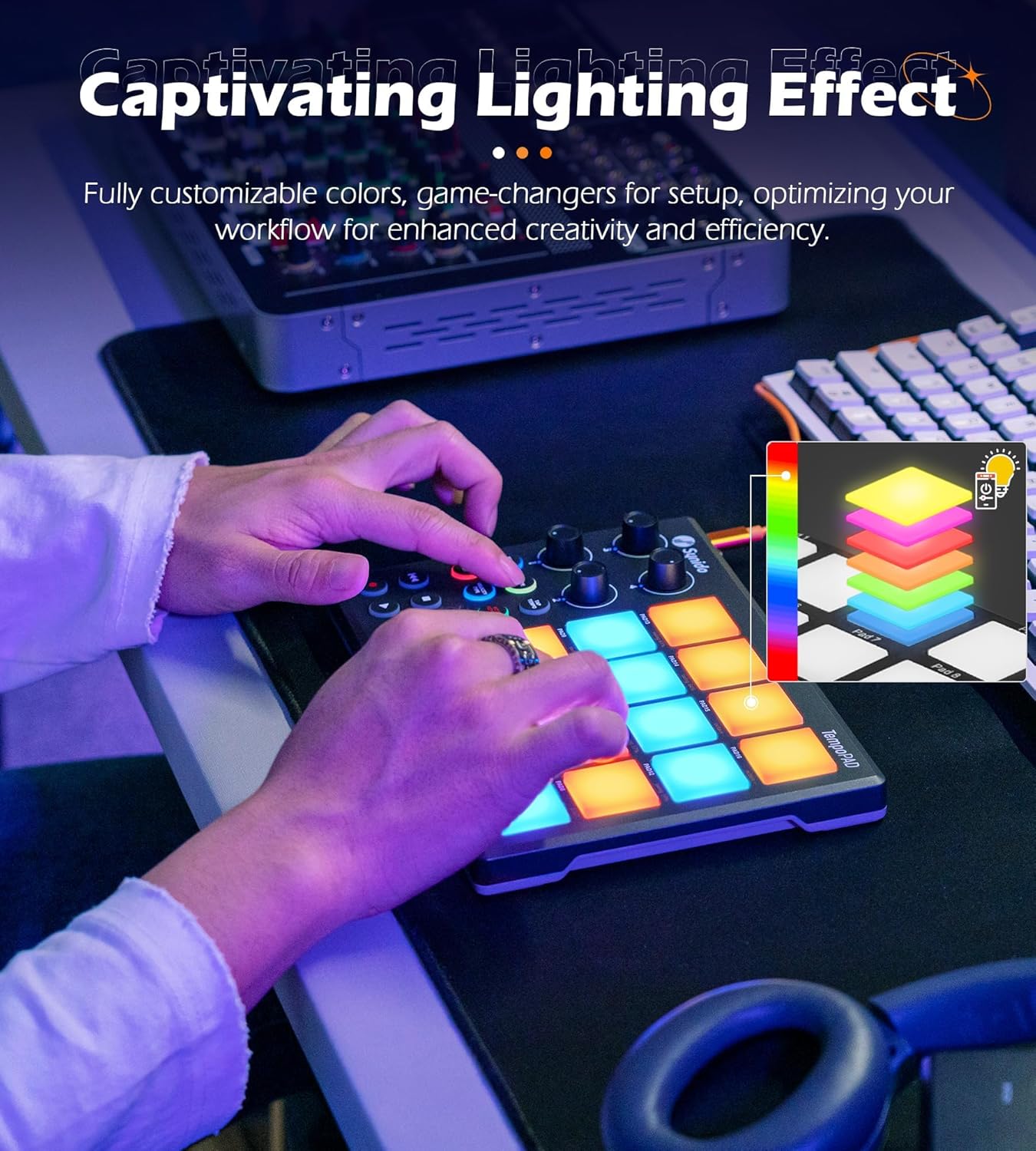
Image: A user's hands playing the RGB backlit pads of the Synido TempoPAD, demonstrating the customizable lighting effects.
4. Connectivity
4.1. Easy Plug & Play
The TempoPAD connects via a Type-C port for fast and stable data transmission and power supply. An additional DC-5V port is available for reliable power when connecting to iPads or iPhones, ensuring uninterrupted creativity without battery concerns. A MIDI Out port (cable included) allows connection to external synthesizers or vintage MIDI equipment.

Image: A close-up side view of the Synido TempoPAD, highlighting the MIDI Out, DC-5V, and USB-C ports with an orange USB-C cable connected.
4.2. Connection Guide
For optimal compatibility with iPad/iPhone, an OTG cable may be required (sold separately).
Video: This video provides a step-by-step guide on how to connect the Synido TempoPAD MIDI Controller to various devices, including computers, phones, and tablets, detailing the use of USB-C and MIDI Out ports.
5. Operating the TempoPAD
5.1. Pad and Knob Banks
The TempoPAD features 3 banks for both pads and knobs, allowing you to switch between different sets of assignments. This expands the functionality, providing access to up to 48 unique pad assignments and multiple knob configurations.
5.2. Velocity Sensitivity
The pads offer 4 levels of velocity sensitivity (Normal, Hard, Light, Fixed), allowing for expressive performance based on how hard you strike the pads.

Image: A diagram illustrating the four different velocity curves (Normal, Hard, Light, Fixed) available for the TempoPAD's pads, demonstrating how touch sensitivity translates to sound output.
5.3. Note Repeat Function
The Note Repeat button allows for automatic re-triggering of notes at a set rate, which can be adjusted using the Shift button in combination with specific pads or knobs. This feature is useful for creating rhythmic patterns and rolls.
Video: This video provides a step-by-step guide on how to set up and use the Synido TempoPAD with an iPad, including MIDI mapping of pads and knobs, enabling velocity, and utilizing the note repeat function within the Koala Sampler app.
6. Customization and Software
The Synido TempoPAD is compatible with popular DAW software such as Ableton Live, FL Studio, Logic Pro X, Pro Tools, Cubase, Studio One, Reason, GarageBand, Reaper, and BandLab. It includes an editor for remapping and layout customization, and parameter adjustments can be made through its dedicated app for swift setup and seamless music production.

Image: The Synido TempoPAD connected to a computer displaying a MIDI editor software interface, allowing for customization of controls.
6.1. Important Note on Sound Production
This MIDI pad is a controller and does not have a built-in speaker or produce any sound on its own. It requires connection to a computer, phone, or tablet running music software via USB to generate sound.

Image: A diagram showing the Synido TempoPAD connected to a laptop via USB, with the laptop then connected to external speakers, illustrating the signal flow for sound production.


