
1. Introduction
This manual provides detailed instructions for the UBOTIE Wireless Green Keyboard. This full-size keyboard features scissor-switch keys for a quiet and responsive typing experience, round keycaps, and dual-mode connectivity (Bluetooth and 2.4GHz wireless) for versatile use across multiple devices.
2. Package Contents
- UBOTIE Wireless Green Keyboard
- USB Nano Receiver
- User Manual (this document)
3. Product Overview
The UBOTIE Wireless Green Keyboard is designed for comfort and efficiency. It features a full-size layout with a numeric keypad, round keycaps, and a slim profile. The keyboard supports connection to up to three devices simultaneously via its dual-mode wireless capabilities.

Figure 3.1: Top view of the UBOTIE Wireless Green Keyboard, showcasing its full-size layout and round keycaps.

Figure 3.2: Overview of the keyboard's dimensions, power switch, battery compartment, and USB receiver storage.
Key Features:
- Scissor-Switch Keys: Provides a smooth, responsive, and quiet typing experience.
- Round Keycaps: Unique design for comfortable typing and reduced noise.
- Dual-Mode Connectivity: Connects via 2.4GHz USB receiver or Bluetooth (BT1, BT2).
- Slim and Lightweight Design: Easy to transport and saves desk space.
- Power Switch: Located on the back to conserve battery life.
4. Setup
4.1 Battery Installation
- Locate the battery compartment on the underside of the keyboard.
- Open the battery cover.
- Insert one AAA battery, ensuring correct polarity.
- Close the battery cover securely.
4.2 Powering On/Off
Slide the power switch, located on the back of the keyboard, to the 'ON' position to power on the device. Slide it to 'OFF' when not in use to conserve battery.

Figure 4.1: Location of the independent power switch on the keyboard.
4.3 Connecting via 2.4GHz USB Receiver
- Ensure the keyboard is powered on.
- Remove the USB Nano Receiver from its storage slot in the battery compartment.
- Plug the USB Nano Receiver into an available USB port on your computer or compatible device.
- Press the 2.4G key on the keyboard. The corresponding indicator light will illuminate red, indicating a successful connection.
4.4 Connecting via Bluetooth
The keyboard supports two separate Bluetooth connections (BT1 and BT2).
- Ensure the keyboard is powered on.
- Press and hold either the BT1 or BT2 key for 3-5 seconds until the corresponding indicator light (green for BT1, blue for BT2) starts flashing rapidly. This indicates the keyboard is in pairing mode.
- On your device (PC, Mac, smartphone, tablet), open Bluetooth settings and search for new devices.
- Select "UBOTIE Keyboard" (or similar name) from the list of available devices.
- Follow any on-screen prompts to complete the pairing process. The indicator light will stop flashing and remain solid when connected.
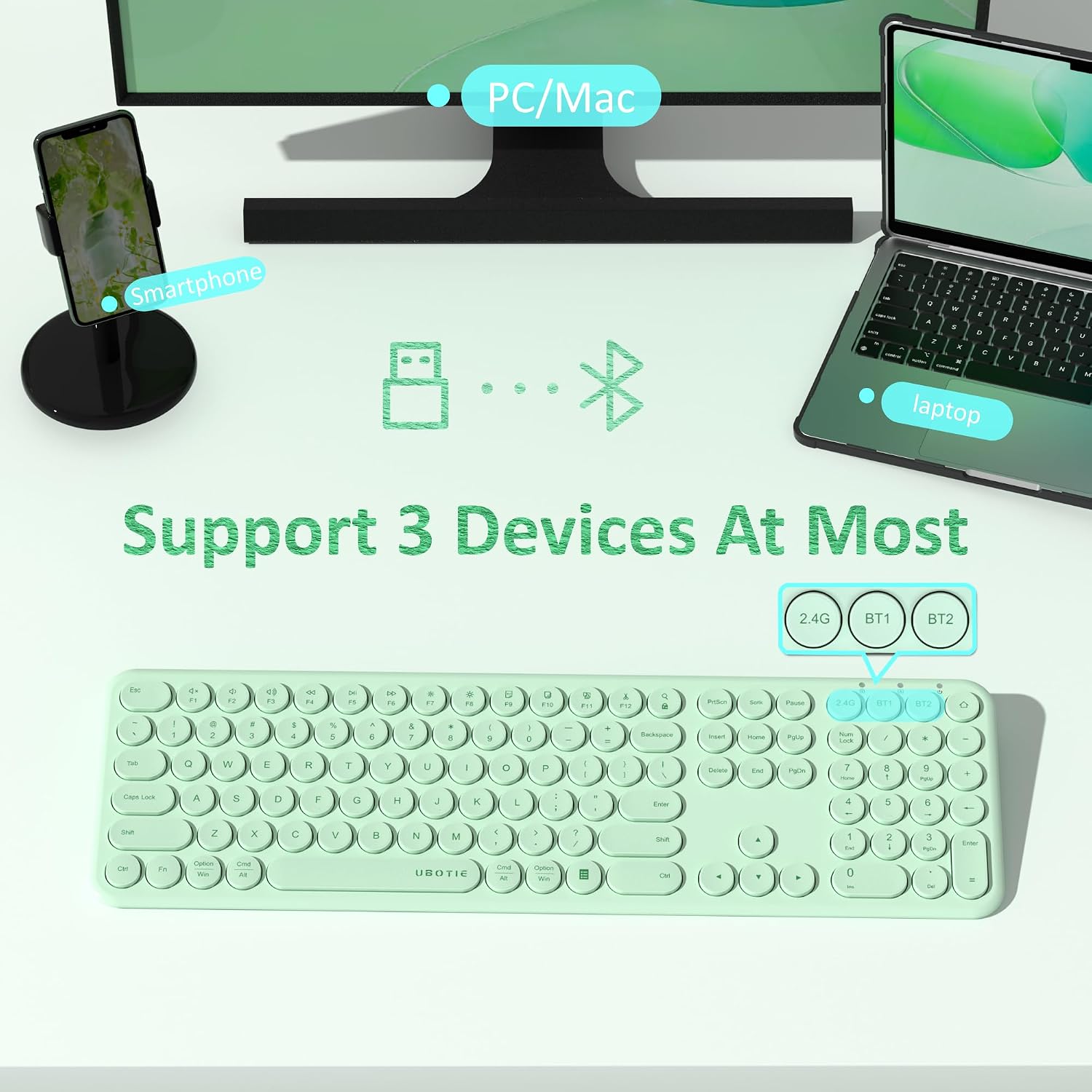
Figure 4.2: Keyboard keys for 2.4G, BT1, and BT2 connections.

Figure 4.3: Indicator lights for 2.4G (red), BT1 (green), and BT2 (blue) connection modes.
4.5 Switching Between Connected Devices
Once multiple devices are paired, you can switch between them by pressing the corresponding connection key:
- Press 2.4G to switch to the device connected via the USB receiver.
- Press BT1 to switch to the first Bluetooth-connected device.
- Press BT2 to switch to the second Bluetooth-connected device.
5. Operating Instructions
5.1 Basic Typing
The keyboard functions as a standard QWERTY keyboard. Simply type as you normally would. The scissor-switch mechanism ensures a comfortable and quiet typing experience.
Video 5.1: Demonstration of the keyboard's quiet typing experience. The video shows a user typing on the keyboard, highlighting the minimal sound produced by the keys.
Video 5.2: Further demonstration of the quiet key presses, emphasizing the low noise level during use.
5.2 Function Keys
The top row of keys includes various function keys (F1-F12) that can perform multimedia controls and system functions. These functions may vary slightly depending on your operating system (Windows, Android, iOS, Mac OS).

Figure 5.1: The keyboard is compatible with Windows, Android, iOS, and Mac OS devices.
6. Maintenance
6.1 Cleaning the Keyboard
- Power off the keyboard before cleaning.
- Use a soft, lint-free cloth slightly dampened with water or a mild cleaning solution.
- Avoid excessive moisture and do not spray cleaners directly onto the keyboard.
- For debris between keys, use compressed air.
6.2 Battery Replacement
When the keyboard's performance degrades or it stops responding, it may be time to replace the AAA battery. Follow the battery installation steps in Section 4.1.
7. Troubleshooting
7.1 Keyboard Not Responding
- Ensure the keyboard is powered on.
- Check the battery level and replace if necessary.
- Verify the correct connection mode (2.4G, BT1, or BT2) is selected.
- For 2.4GHz connection, ensure the USB receiver is securely plugged into your device. Try a different USB port.
- For Bluetooth connection, ensure Bluetooth is enabled on your device and the keyboard is paired. Try re-pairing the keyboard.
- Restart your device.
7.2 Intermittent Connection
- Move the keyboard closer to your device to reduce interference.
- Avoid placing the keyboard near other wireless devices that may cause interference (e.g., Wi-Fi routers, other Bluetooth devices).
- Ensure the battery has sufficient charge.
8. Specifications
| Feature | Description |
|---|---|
| Brand | UBOTIE |
| Model | B0CB82ZFW9 |
| Connectivity Technology | Bluetooth, 2.4GHz Wireless |
| Keyboard Description | Wireless and Bluetooth Slim Quiet keyboard |
| Compatible Devices | Gaming Console, Laptop, PC, Projector, Smartphone |
| Number of Keys | 111 |
| Switch Type | Scissor-switch |
| Keyboard Layout | QWERTY |
| Power Source | Battery Powered (1x AAA) |
| Material | Plastic or Plastic-Aluminum Composite |
| Color | Green |
9. Warranty and Support
9.1 Warranty Information
This UBOTIE Wireless Green Keyboard comes with a 1-year warranty from the date of purchase. The warranty covers manufacturing defects and malfunctions under normal use. It does not cover damage caused by misuse, accidents, unauthorized modifications, or normal wear and tear.
9.2 Customer Support
For any questions, technical assistance, or warranty claims, please contact UBOTIE customer support. Refer to the product packaging or the official UBOTIE website for the most current contact information.

