
Introduction
This user manual provides detailed instructions for the operation and maintenance of your MOBI Connect Smart 4 in 1 Wi-Fi Air Purifier & Humidifier. This device is designed to improve indoor air quality by purifying and humidifying the air, offering a healthier and more comfortable living environment. Please read this manual thoroughly before use to ensure proper function and safety.

Image: The MOBI Connect Smart 4 in 1 Wi-Fi Air Purifier & Humidifier, a compact white cylindrical device with a light band and control panel.
Important Safety Information
To reduce the risk of fire, electric shock, or injury, always follow basic safety precautions when using this appliance.
- Always place the device on a firm, level surface.
- Do not block air inlets or outlets.
- Keep the device away from water and moisture.
- Unplug the device before cleaning or maintenance.
- Do not use the device if the power cord or plug is damaged.
- Keep out of reach of children and pets.
- Only use original MOBI replacement filters.
Product Overview
Familiarize yourself with the components and controls of your air purifier and humidifier.
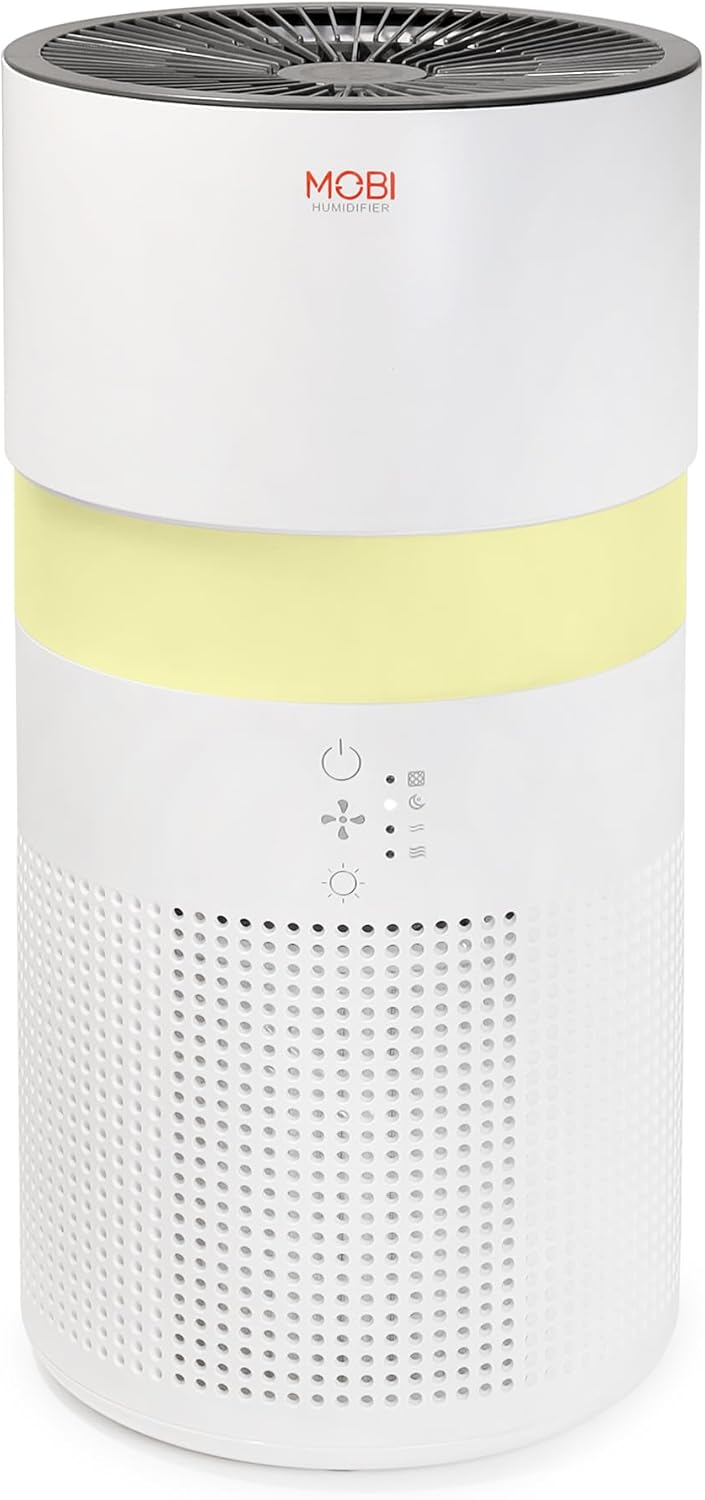
Image: A close-up view of the control panel on the MOBI Air Purifier, showing power, fan speed, light, and humidifier icons.
Control Panel Features:
- Power Button: Turns the unit on/off and activates pairing mode.
- Fan Speed Indicator: Displays current fan speed (Sleep, Medium, High).
- Humidifier Indicator: Shows humidifier status.
- Light Mode Button: Cycles through light modes (Off, Gradient, Fixation).
- Filter Replacement Indicator: Illuminates when filter replacement is needed.
Setup Guide
Follow these steps to set up your MOBI Connect Smart 4 in 1 Wi-Fi Air Purifier & Humidifier and connect it to the MOBI Smart App.
Initial Setup:
- Unpack the device and remove all packaging materials.
- Ensure the filter is correctly installed inside the unit. Refer to the 'Maintenance' section for filter installation.
- Place the device on a stable, flat surface.
- Plug the power adapter into the device and then into a wall outlet. The device will enter pairing mode, indicated by a red blinking LED.
App Connection:
- Download the MOBI Smart App from your device's app store.
- Open the app and sign up for an account if you don't have one.
- Accept all requested permissions (Bluetooth, Location, Notifications) for full functionality.
- On the app's home screen, tap 'Add Device' or the '+' icon in the top right corner.
- The app will search for nearby devices. If your device is blinking red, it should appear in the 'Discovering devices' area. Tap 'Add'.
- If not automatically discovered, select 'Mobi Air Purifier' from the 'Add Manually' list.
- Enter your 2.4GHz Wi-Fi network username and password. (Note: 5GHz networks are not supported).
- Follow the on-screen instructions to activate the device for pairing. If the red LED is not blinking, press and hold the power button until it starts blinking.
- Once the device is blinking red, tap 'Finish network configuration' and then 'Next' in the app.
- The app will connect to the device. Once connected, tap the blue button with the white plus sign next to 'MOBI Smart Air Care 4 IN 1' and then 'Done' in the top right corner.
Video: A detailed guide on how to connect and set up the MOBI Smart 4-in-1 Air Purifier & Humidifier using the MOBI Smart App, including app permissions, device discovery, Wi-Fi setup, and pairing instructions.
Operating Instructions
Control your MOBI Connect Smart 4 in 1 Wi-Fi Air Purifier & Humidifier using the physical buttons on the device or through the MOBI Smart App.
Using the Device Buttons:
- Power On/Off: Press the power button once to turn the unit on or off.
- Adjust Fan Speed: Press the fan speed button to cycle through Sleep, Medium, and High settings.
- Control Night Light: Press the light button to cycle through Off, Gradient (color flow), and Fixation (single color) modes.
- Humidifier Function: Press the humidifier button to activate or deactivate the humidification feature.
Using the MOBI Smart App:
The app provides comprehensive control and additional features.
- Switch: Power the device on or off remotely.
- Wind Speed: Select Sleep, Medium, or High wind speed options.
- Countdown Timer: Set a timer for 2, 4, or 6 hours for automatic shut-off.
- Settings: Access advanced options:
- UV Disinfection: Enable or disable the UV disinfection feature.
- Reset Filter: Reset the filter life indicator after replacing the filter.
- Light Mode: Choose between Off, Gradient (cycling colors), or Fixation (select a single color).
- Schedule: Create custom schedules for when the device should turn on or off.
- Smart Home Integration: Monitor your home's air quality and integrate with other MOBI Smart devices.
- Aromatherapy Pad: Add essential oils to the designated pad to diffuse scents into the air.

Image: The MOBI Air Purifier showcasing its 7 color-changing LED night light feature, adding ambiance to any room.

Image: The MOBI Air Purifier next to a smartphone displaying the MOBI Smart App interface, highlighting smart home control features.
Maintenance
Regular maintenance ensures optimal performance and extends the lifespan of your device.
Filter Replacement:
The MOBI Connect Smart 4 in 1 Wi-Fi Air Purifier & Humidifier uses a 3-stage filtration system (Pre-Filter, Carbon, and HEPA filter). The filter replacement alert will notify you when it's time to change the filter.

Image: A visual representation of the 3-stage HEPA filtration system, showing the layers of the filter.
- Unplug the device from the power outlet.
- Remove the bottom cover of the unit.
- Carefully remove the old filter.
- Insert the new MOBI replacement filter, ensuring it is seated correctly.
- Replace the bottom cover.
- Plug the device back in.
- In the MOBI Smart App, go to 'Settings' and select 'Reset Filter' to reset the filter life indicator.

Image: The MOBI Air Purifier with a new filter, illustrating the filter replacement alert system.
Cleaning the Device:
- Wipe the exterior of the device with a soft, damp cloth. Do not use abrasive cleaners.
- Clean the water tank regularly to prevent mineral buildup and mold growth. Use a mild detergent and rinse thoroughly.
- Ensure all parts are completely dry before reassembling and using the device.
Troubleshooting
If you encounter issues with your device, refer to the following common problems and solutions.
| Problem | Possible Cause | Solution |
|---|---|---|
| Device does not turn on. | Not plugged in; power outlet issue; damaged cord. | Ensure power cord is securely plugged in. Test outlet with another device. Check for cord damage. |
| Device not connecting to Wi-Fi. | Incorrect Wi-Fi password; 5GHz network; device not in pairing mode. | Verify Wi-Fi password. Ensure you are connecting to a 2.4GHz network. Press and hold power button to enter pairing mode (red blinking LED). |
| Air quality not improving. | Dirty filter; incorrect fan speed; room size too large. | Check filter indicator and replace if necessary. Increase fan speed. Ensure device is suitable for your room size. |
| Humidifier not producing mist. | Water tank empty; humidifier function off; mineral buildup. | Refill water tank. Activate humidifier function via app or button. Clean water tank and humidifier components. |
Specifications
| Feature | Detail |
|---|---|
| Product Dimensions | 6.5"D x 6.5"W x 13"H (6.5 x 6.5 x 13 inches) |
| Item Model Number | 70692 |
| Weight | 3 Pounds |
| Color | White |
| Floor Area Coverage | Up to 350 Square Feet |
| Filtration System | 3-Stage (Pre-Filter, Activated Carbon, HEPA) |
| Humidifier Type | Forced-air water tank method |
| Night Light | 7 Unique LED Colors, Adjustable Modes (Off, Gradient, Fixation) |
| Noise Level | 24dB (Sleep Mode) |
| Air Circulation Rate | 5x per hour |
| Connectivity | Wi-Fi (2.4GHz required) |
| Certifications | UL Certified, RoHS Certified |
| Wattage | 680 watts |
Warranty and Support
MOBI products are designed with quality and reliability in mind. For warranty information and customer support, please refer to the official MOBI website or contact their customer service directly.
For frequently asked questions (FAQ) and feedback, you can also access these sections within the MOBI Smart App under the device settings.


