
Introduction
The Yale Assure Lock 2 YRD410-BLE-BSP is a Bluetooth-enabled smart deadbolt designed for secure and convenient home access. This lock features a push-button keypad for keyless entry, integrates with the Yale Access App for remote management, and includes advanced features like Auto-Lock with DoorSense®.
This manual provides comprehensive instructions for the installation, operation, and maintenance of your Yale Assure Lock 2, ensuring optimal performance and security.
Package Contents
Before beginning installation, verify that all components listed below are present in your package.

Image: All components included in the Yale Assure Lock 2 YRD410-BLE-BSP package. This includes the exterior keypad assembly, interior module, deadbolt mechanism, strike plate, mounting hardware (various screws), a physical key, and batteries.
- Exterior Keypad Assembly
- Interior Module Assembly
- Deadbolt Latch
- Strike Plate
- Mounting Screws and Hardware
- Physical Keys (2)
- AA Batteries (4)
- Installation Guide
Setup and Installation
Proper installation is crucial for the optimal performance and security of your Yale Assure Lock 2. Follow these general steps. Refer to the detailed installation guide included in your package for specific instructions and templates.
- Prepare Door: Ensure your door is properly prepped for a deadbolt. This typically involves drilling holes for the deadbolt and the lock cylinder if not already present.
- Install Deadbolt Latch: Insert the deadbolt latch into the door edge and secure it with screws. Ensure the latch bolt faces the correct direction.
- Install Exterior Keypad: Route the cable from the exterior keypad through the door and position the keypad on the exterior side.
- Install Interior Mounting Plate: Secure the interior mounting plate to the door, aligning it with the exterior keypad and deadbolt.
- Connect Cables and Install Interior Module: Connect the cable from the exterior keypad to the interior module. Mount the interior module onto the mounting plate and secure it with screws.
- Install Batteries: Insert the four AA batteries into the interior module's battery compartment.
- Test Lock Operation: Manually test the deadbolt with the physical key and ensure smooth operation.
- Download Yale Access App: Download the Yale Access App from your smartphone's app store.
- Calibrate and Configure: Follow the in-app instructions to calibrate your lock, set up user codes, and enable features like Auto-Lock and DoorSense®.
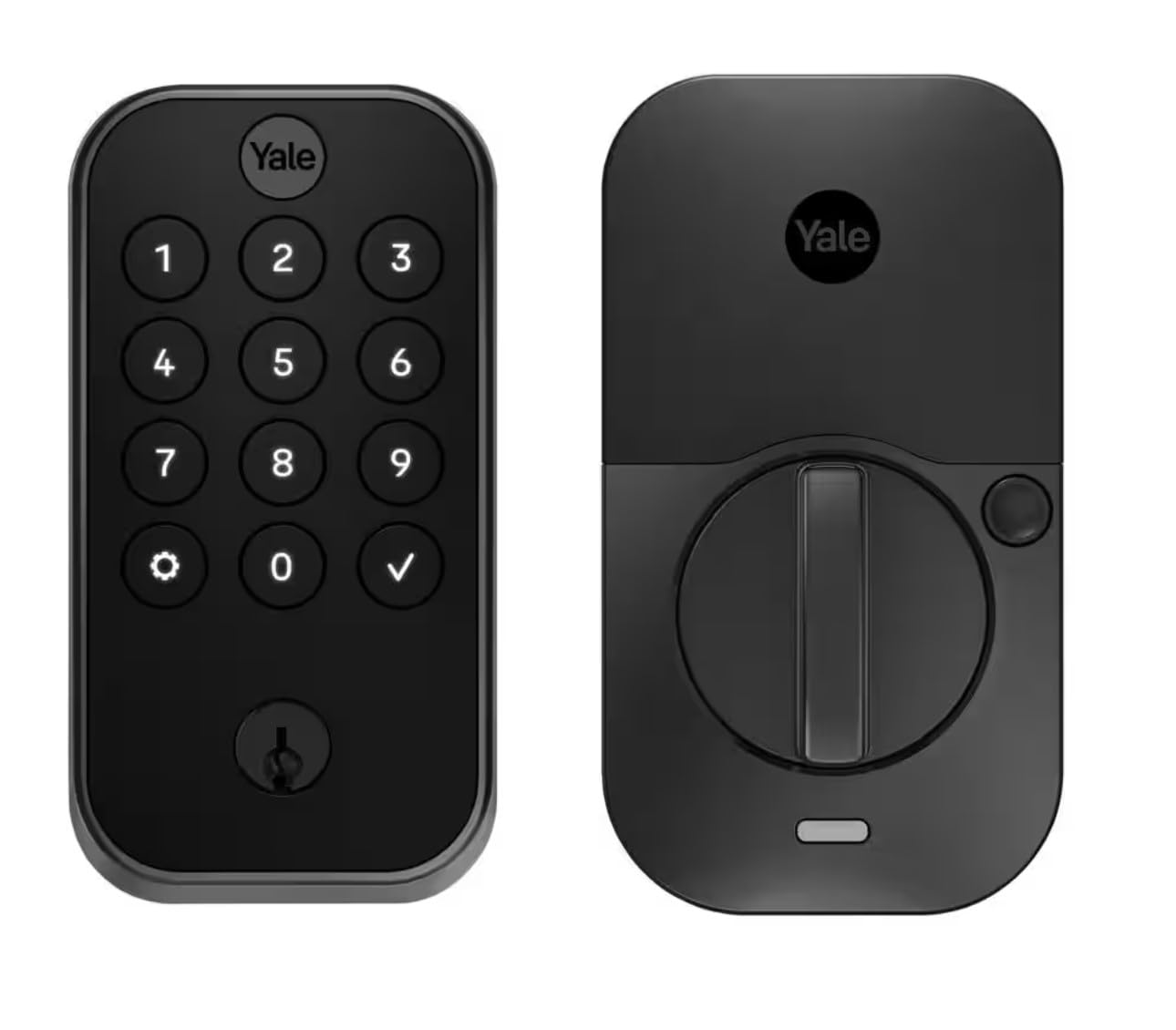
Image: A side profile view of the Yale Assure Lock 2, illustrating how the deadbolt mechanism integrates with the door frame and strike plate when installed. This image highlights the secure engagement of the deadbolt.
Note: For remote access features beyond Bluetooth range, a Yale Wi-Fi Smart Module (sold separately) is required.
Operating Instructions
Unlocking the Door
- Using the Keypad: Enter your 4-8 digit master or user code on the keypad, then press the checkmark (✓) button. The deadbolt will retract.
- Using the Yale Access App: Open the Yale Access App on your smartphone. Select your lock and tap the unlock icon.
- Auto-Unlock: If enabled in the Yale Access App, the lock can automatically unlock as you approach your door with your smartphone.
- Physical Key: Insert the physical key into the keyhole on the exterior keypad and turn to unlock.

Image: A user's hand interacting with the push-button keypad of the Yale Assure Lock 2, demonstrating the process of entering an access code to unlock the deadbolt.
Locking the Door
- One-Touch Locking: Press any button on the keypad for 3 seconds.
- Using the Yale Access App: Open the Yale Access App on your smartphone. Select your lock and tap the lock icon.
- Auto-Lock with DoorSense®: If enabled, the lock will automatically extend the deadbolt after a set period once DoorSense® detects the door is closed.
- Physical Key: Insert the physical key into the keyhole on the exterior keypad and turn to lock.
- Interior Thumbturn: Rotate the thumbturn on the interior module to extend the deadbolt.

Image: A close-up view of a hand inserting and turning a physical key into the keyhole located on the exterior keypad of the Yale Assure Lock 2, illustrating the manual override function.
Managing Access Codes
Access codes are managed through the Yale Access App. You can create, modify, and delete user codes, as well as set schedules for temporary access.
- Master Code: The master code is used to access programming features. It should be kept confidential.
- User Codes: Up to 250 user codes can be created via the Yale Access App.
- Temporary Codes: Generate codes that are valid for a specific duration or number of uses.
Maintenance
Battery Replacement
The Yale Assure Lock 2 uses four (4) AA alkaline batteries. When battery power is low, the lock will provide an audible and visual low battery warning. Replace all four batteries simultaneously with new, high-quality alkaline batteries.
- Remove the battery cover from the interior module.
- Remove the old batteries.
- Insert four new AA alkaline batteries, ensuring correct polarity.
- Replace the battery cover.
Cleaning
Clean the lock's exterior surfaces with a soft, damp cloth. Avoid using abrasive cleaners, solvents, or chemical sprays, as these can damage the finish and electronic components.
Troubleshooting
- Lock Not Responding: Check battery levels. Replace batteries if low. Ensure the lock is properly installed and aligned.
- Keypad Not Working: Verify batteries are installed correctly. If the keypad is unresponsive, try a factory reset (refer to the Yale Access App or full installation guide).
- Codes Not Working: Ensure the correct code is being entered. Check the Yale Access App to verify user codes are active and not expired.
- Auto-Lock Not Engaging: Verify DoorSense® is properly calibrated in the Yale Access App. Ensure the door is fully closed and aligned with the strike plate.
- Bluetooth Connectivity Issues: Ensure your smartphone's Bluetooth is enabled. Try restarting your phone and the Yale Access App. Move closer to the lock.
For more detailed troubleshooting or persistent issues, consult the Yale Access App's help section or visit the official Yale support website.
Specifications
| Brand | Yale |
| Model Number | YRD410-BLE-BSP |
| Lock Type | Keypad Deadbolt |
| Special Feature | Push Button |
| Connectivity Protocol | Bluetooth |
| Material | Suede (finish type) |
| Item Dimensions (L x W x H) | 1 x 1 x 1 inches |
| Item Weight | 4 Pounds |
| Power Source | 4 AA Batteries |
Warranty and Support
For information regarding product warranty, please refer to the warranty card included with your product or visit the official Yale website. For technical support, troubleshooting assistance, or to contact customer service, please visit www.yalehome.com/us/en/support or refer to the contact information provided in your product documentation.


