
1. Introduction
Welcome to the Aveek 4 Channel Pro Powered Amplifier Audio Mixer user manual. This device integrates a power amplifier, audio mixer, and dual wireless microphones into a single unit, designed for various audio applications including karaoke, live streaming, and small performances. This manual provides essential information for safe and effective operation of your new audio mixer.
2. Safety Information
- Read all instructions carefully before use.
- Keep this manual for future reference.
- Do not expose the unit to rain, moisture, or extreme temperatures.
- Ensure proper ventilation to prevent overheating.
- Use only the provided power adapter.
- Do not attempt to repair or modify the unit yourself. Refer all servicing to qualified personnel.
- Avoid listening at high volume levels for extended periods to prevent hearing damage.
3. Package Contents
Please check that all items are present in your package:
- Aveek 4 Channel Pro Powered Amplifier Audio Mixer
- 2 x Wireless Microphones (with rechargeable batteries)
- Power Adapter
- USB Cable
- User Manual (this document)
- Other accessories as specified on packaging
4. Product Overview
The Aveek 4 Channel Pro mixer features a compact design with comprehensive controls for various audio sources and outputs.
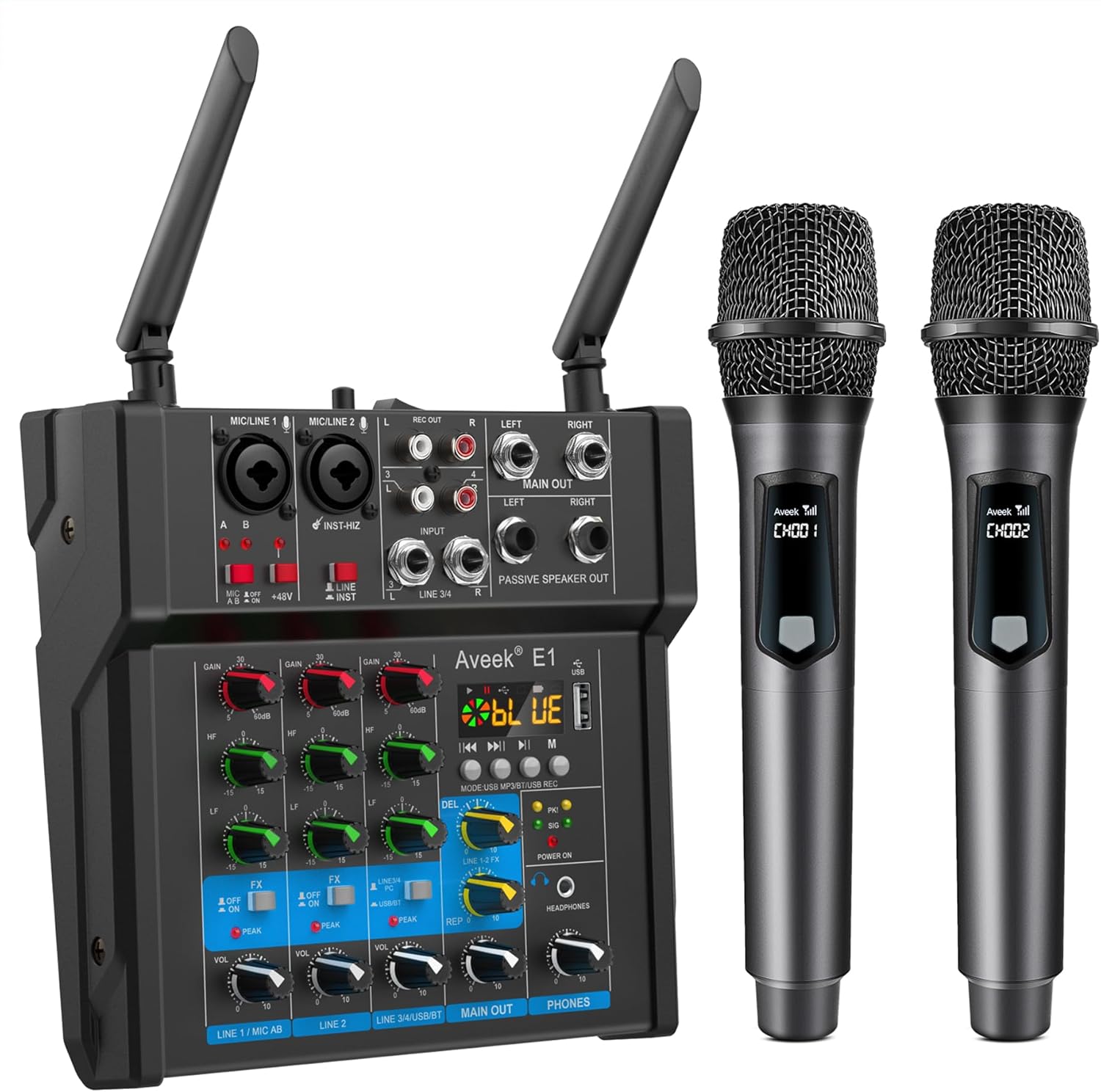
Figure 4.1: Front view of the Aveek 4 Channel Pro Powered Amplifier Audio Mixer with included wireless microphones.

Figure 4.2: Detailed diagram of the mixer's input and output interfaces, including connections for microphones, musical instruments, passive speakers, and various media devices.
4.1. Control Panel Features
- MIC/LINE Inputs (Channels 1-2): XLR/TRS combo jacks for microphones or line-level instruments.
- GAIN Knobs: Adjust input sensitivity for each channel.
- HF/LF (EQ) Knobs: High and Low frequency equalization for each channel.
- FX Knobs: Send level to the built-in effects processor (Echo/Delay).
- VOL Knobs: Adjust the volume level for each channel.
- 48V Phantom Power: Button to enable +48V phantom power for condenser microphones on XLR inputs.
- INST-HiZ Switch: For high-impedance instruments like guitars.
- LINE Inputs (Channels 3-4): 1/4" TRS and RCA stereo inputs for line-level devices.
- MP3/USB/REC Section: Controls for USB playback, recording, Bluetooth, and Type-C audio.
- MAIN OUT: RCA and 1/4" TRS outputs for connecting to external amplifiers or recording devices.
- PASSIVE SPEAKER OUT: Speaker terminals for direct connection to passive speakers.
- PHONES: 3.5mm headphone jack for monitoring.
- POWER ON/OFF: Main power switch.
5. Setup
5.1. Power Connection
- Ensure the mixer's power switch is in the OFF position.
- Connect the provided power adapter to the DC 15V input on the rear panel of the mixer.
- Plug the power adapter into a suitable electrical outlet.
5.2. Wireless Microphone Setup

Figure 5.1: Wireless microphones being charged. Each microphone has a rechargeable battery, providing 5-6 hours of working time after 3-4 hours of charging.
- Charge the wireless microphones using the provided charging cable. A full charge takes approximately 3-4 hours and provides 5-6 hours of operation.
- Turn on the wireless microphones. They will automatically pair with the mixer's built-in receiver.
- Ensure the mixer's antennas are upright for optimal reception. The effective transmission range is up to 60 meters (200 feet) in open spaces.
5.3. Connecting Passive Speakers

Figure 5.2: The Aveek mixer connected to passive speakers, demonstrating its built-in power amplifier capable of driving 6-inch, 8-inch, or 10-inch passive speakers with a maximum output of 150W x 2 (RMS 40W x 2).
- Connect your passive speakers (6-inch, 8-inch, or 10-inch recommended) to the "PASSIVE SPEAKER OUT" terminals on the mixer using appropriate speaker cables.
- Ensure correct polarity (+ to + and - to -) for each speaker.
- The mixer's built-in power amplifier provides 150W x 2 peak power (RMS 40W x 2) and can directly drive these speakers without an additional amplifier.
6. Operation
6.1. Basic Mixing Controls
- Gain Adjustment: Use the GAIN knob for each channel to set the input level. Adjust until the PEAK indicator flashes only occasionally.
- Equalization (EQ): Use the HF (High Frequency) and LF (Low Frequency) knobs to shape the tone of each channel.
- Effects (FX): Turn the FX knob to send a portion of the channel's signal to the built-in Echo/Delay effect. Adjust the overall effect level and parameters in the MP3/USB/REC section.
- Channel Volume: Use the VOL knob for each channel to balance the levels of different inputs.
- Main Output Volume: Adjust the MAIN OUT volume knob to control the overall output level to your speakers or recording device.
- Headphone Monitoring: Plug headphones into the PHONES jack and adjust the PHONES volume knob to monitor the mix.
6.2. USB Playback and Recording

Figure 6.1: The mixer's USB interface allows for playing music from a USB flash drive or recording the mixed audio directly to a USB flash drive.
- Insert a USB flash drive into the USB port in the MP3/USB/REC section.
- Use the controls (Play/Pause, Next/Previous, Mode) to navigate and play audio files from the USB drive.
- To record, select the recording mode (refer to the display) and press the record button. The mixed audio will be saved to the USB drive.
- Note: USB playback, Bluetooth playback, and stereo channel input cannot be used simultaneously. Only one of these three functions can be active at a time.
6.3. Bluetooth Wireless Connection
- Press the MODE button in the MP3/USB/REC section until "BLUE" appears on the display, indicating Bluetooth mode.
- On your mobile device (smartphone, tablet, computer), search for Bluetooth devices and select "Aveek E1" to pair.
- Once connected, you can stream audio wirelessly from your device to the mixer. Use the mixer's controls (Play/Pause, Next/Previous) or your device's controls to manage playback.
- Note: Bluetooth works within approximately 1.5 feet for optimal connection.
6.4. Type-C Audio Interface for PC/Phone
- Connect your computer or mobile phone to the mixer's Type-C USB port using a Type-C to USB cable.
- The mixer will be recognized as an audio input/output device by your computer or phone.
- You can use this connection for audio input (e.g., playing backing tracks from your computer) or for audio output (e.g., recording your mix directly to your computer).
- Note: For mobile phones, an OTG connector may be required.
6.5. 48V Phantom Power
The mixer provides +48V phantom power on its XLR inputs for condenser microphones.
- Ensure all volume levels are turned down before activating phantom power.
- Connect your condenser microphone to an XLR input.
- Press the +48V PHANTOM POWER button to supply power. The indicator light will illuminate.
- Only use phantom power with microphones that require it. Dynamic microphones do not need phantom power and can be damaged if connected incorrectly while phantom power is active.
7. Connectivity Options
7.1. Connecting to a Smart TV for Karaoke

Figure 7.1: Connection methods for integrating the mixer with a Smart TV for karaoke. Method 1 uses RCA directly, while Method 2 requires a digital-to-analog audio converter for TVs without RCA outputs.
You can connect the mixer to your Smart TV to create a karaoke system:
- Method 1 (TV with RCA Output): Connect the TV's RCA audio output directly to the mixer's RCA stereo input.
- Method 2 (TV without RCA Output): If your TV lacks an RCA output, you will need a digital-to-analog audio converter. Connect the TV's digital audio output (e.g., Optical or Coaxial) to the converter, then connect the converter's RCA output to the mixer's RCA stereo input.
- Ensure your TV's audio settings are configured to output sound to external speakers.
7.2. Connecting to a Desktop Computer for Recording

Figure 7.2: Setup for recording audio from the Aveek mixer to a desktop computer using a 3.5mm to 2 RCA cable. The computer requires a 3.5mm LINE IN port.
To record your mix to a desktop computer:
- Connect the mixer's MAIN OUT (RCA) to your computer's 3.5mm LINE IN port using a 3.5mm to 2 RCA cable.
- Open your preferred recording software on the computer.
- Select the computer's Line In as the audio input source in your recording software.
- Note: A desktop computer cannot record without a 3.5mm LINE IN port.
8. Maintenance
- Cleaning: Use a soft, dry cloth to clean the mixer's surface. Do not use liquid cleaners or solvents.
- Storage: When not in use, store the mixer in a cool, dry place away from direct sunlight and extreme temperatures.
- Cable Care: Avoid bending or crimping cables excessively. Disconnect cables by pulling the plug, not the cable itself.
- Battery Care (Wireless Mics): For optimal battery life, fully charge the microphones before long periods of disuse and recharge them periodically.
9. Troubleshooting
| Problem | Possible Cause | Solution |
|---|---|---|
| No sound output from speakers. |
|
|
| Wireless microphones not working. |
|
|
| Bluetooth connection issues. |
|
|
| Audio distortion or feedback. |
|
|
10. Specifications
| Feature | Detail |
|---|---|
| Brand | Aveek |
| Model Number | 4 Channel Pro |
| Number of Channels | 4 |
| Power Output (Amplifier) | 150W x 2 (Peak), 40W x 2 (RMS) |
| Speaker Impedance | 4-8 Ohms |
| Phantom Power | +48V |
| Wireless Microphone Range | Up to 60m (200ft) in open space |
| Wireless Microphone Battery Life | 5-6 hours (after 3-4 hours charge) |
| Connectivity Technology | Bluetooth, USB, Type-C |
| Bluetooth Version | 5.0 |
| Power Source | Corded Electric (DC 15V) |
| Item Weight | 2 Kilograms (4.4 pounds) |
| Package Dimensions | 14.21 x 11.3 x 3.31 inches |
11. Warranty and Support
Aveek products are designed for reliability and performance. For warranty information, technical support, or service inquiries, please refer to the contact information provided with your purchase or visit the official Aveek website.
Extended protection plans are available for purchase separately. Please refer to your retailer for details.

