
1. Introduction
Thank you for choosing the Baseus 35W USB C GaN5 Power Strip. This device is a versatile 7-in-1 charging station designed to power multiple electronic devices simultaneously. It features 3 AC outlets, 2 USB-C ports, and 2 USB-A ports, offering a total power output of 35W for fast charging and a 4000W power strip capacity. Equipped with advanced GaN5 technology and smart digital protection, it ensures efficient and safe charging for your laptops, tablets, smartphones, and other electronic gadgets.
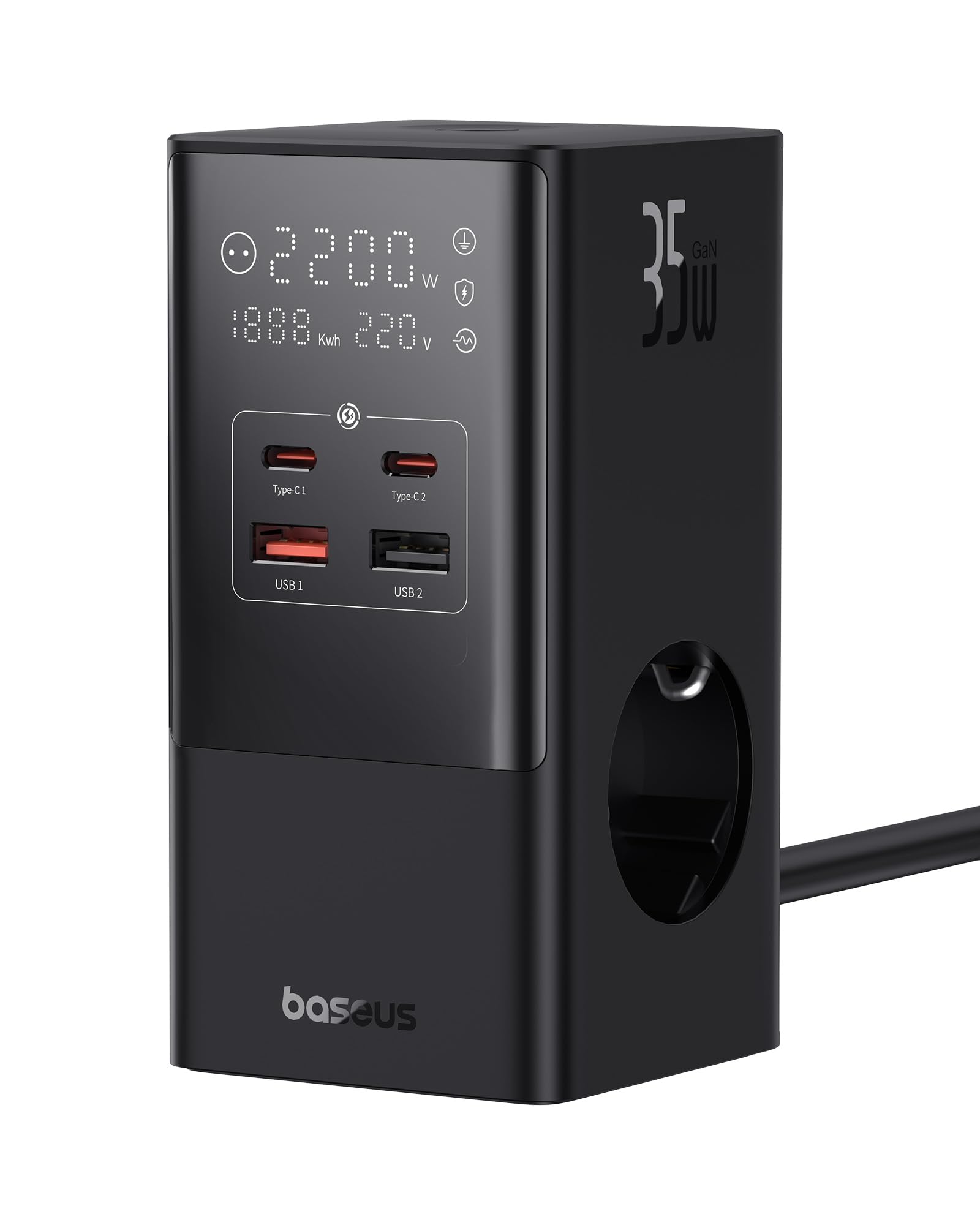
Image 1.1: The Baseus 7-in-1 Charging Station in use, illustrating its multiple ports and compact design.
2. Safety Instructions
Please read and understand all safety instructions before using this product. Failure to follow these instructions may result in electric shock, fire, or serious injury.
- Do not exceed the maximum load of 4000W for the AC outlets.
- This device is equipped with 1200J surge protection and lightning protection. However, avoid using it during thunderstorms.
- Do not disassemble, modify, or repair the device yourself. Contact qualified service personnel for assistance.
- Keep the device away from water, moisture, and high temperatures.
- Ensure the power plug is fully inserted into the wall socket.
- Do not use the device if the cable or plug is damaged.
- Keep out of reach of children.
- The device features a 0.1-second automatic short-circuit shutdown to protect connected devices from overcurrent, overvoltage, and undervoltage.

Image 2.1: Illustration of the 1200J Surge & Lightning Protection feature, highlighting enhanced safety.
3. Package Contents
Verify that all items are present in the package:
- 1 x Baseus 35W USB C GaN5 Power Strip
- 1 x User Manual
- 1 x Warranty Card
- 1 x Nano Adhesive Pad
4. Product Features
The Baseus 35W USB C GaN5 Power Strip offers a comprehensive charging solution with multiple advanced features:
- 7-in-1 Charging Station: Equipped with 3 AC power outlets, 2 USB-C ports, and 2 USB-A ports to charge up to 7 devices simultaneously.
- 35W PD Fast Charging: Utilizes GaN5 technology for efficient and rapid charging of compatible devices, such as MacBooks, iPads, and iPhones.
- 4000W Power Strip: Provides robust power delivery for various appliances and electronics.
- Smart Digital Display: A unique digital screen monitors real-time charging information, including power, current, and charging status.
- Comprehensive Safety Protections: Features 1200J surge protection, lightning protection, and 9 additional safety measures to safeguard your devices from current fluctuations and potential hazards.
- 0.1s Automatic Short-Circuit Shutdown: Industry-leading rapid shutdown mechanism to protect devices from damage due to short circuits or overloads.
- Automatic Power Split (BPS 2.0): Intelligently distributes power across connected USB ports for optimized charging efficiency.
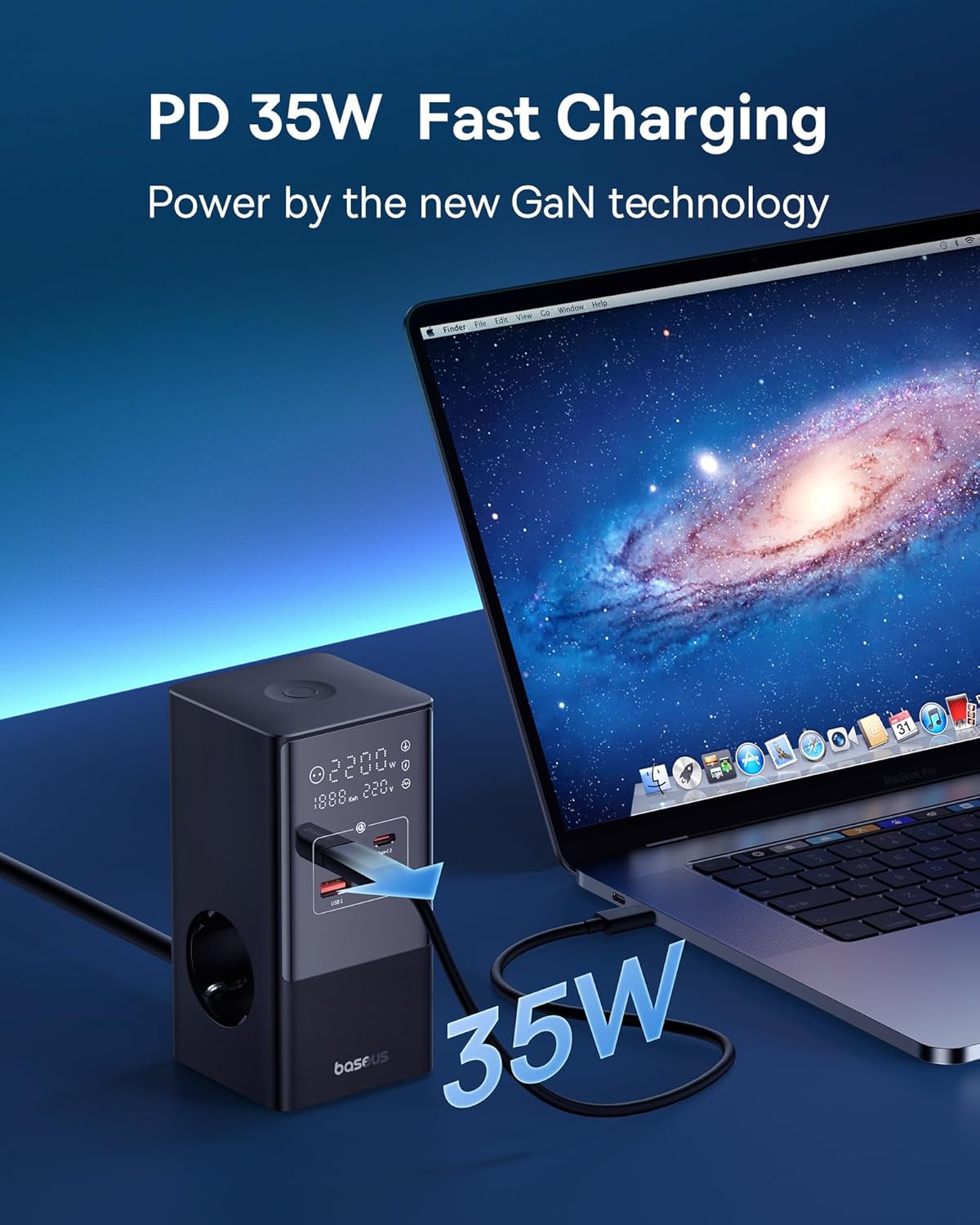
Image 4.1: The power strip providing 35W PD fast charging to a MacBook Pro.

Image 4.2: Visual representation of the Automatic Split Power feature, ensuring optimal power distribution.

Image 4.3: Digital Smart Protection actively eliminating potential hazards compared to standard power strips.
5. Setup
- Unpack the Device: Carefully remove the power strip and all accessories from the packaging.
- Choose a Location: Place the power strip on a stable, flat surface, away from direct sunlight, heat sources, and moisture. Ensure adequate ventilation.
- Connect to Power: Plug the power strip's main cable into a grounded wall outlet.
- Optional: Secure with Nano Adhesive Pad: If desired, use the provided nano adhesive pad to secure the power strip to a surface. Ensure the surface is clean and dry before application.
- Connect Devices: Plug your electronic devices into the available AC outlets, USB-C ports, or USB-A ports.
6. Operating Instructions
6.1 Using AC Outlets
- Insert the power plugs of your devices into the 3 AC outlets.
- Ensure that the total power consumption of all connected AC devices does not exceed 4000W.
6.2 Using USB Charging Ports
- Connect your USB-C compatible devices to the 2 USB-C ports for fast charging.
- Connect your USB-A compatible devices to the 2 USB-A ports.
- The power strip will automatically detect the connected device and deliver optimal charging current.
6.3 Understanding the Digital Display
The integrated digital display provides real-time feedback on the power strip's status:
- Working Status Display: Shows the current power output (W) and voltage (V).
- Digital Protection Indication: Indicates active protection features.
- Grounded Indication: Confirms proper grounding for safety.

Image 6.1: The smart digital display providing real-time charging status and safety indicators.
7. Maintenance
- Cleaning: Disconnect the power strip from the wall outlet before cleaning. Use a soft, dry cloth to wipe the surface. Do not use liquid cleaners or aerosols.
- Storage: When not in use for extended periods, unplug the device and store it in a cool, dry place.
- Inspection: Periodically check the power cord and plug for any signs of damage. If damage is found, discontinue use and contact customer support.
8. Troubleshooting
If you encounter issues with your Baseus Power Strip, refer to the following common problems and solutions:
| Problem | Possible Cause | Solution |
|---|---|---|
| No power to connected devices. | Power strip not plugged in; wall outlet not working; device's power switch off; internal safety mechanism triggered. | Ensure the power strip is securely plugged into a live wall outlet. Check if the wall outlet works with another device. Verify connected devices are switched on. Unplug all devices, wait a few minutes, and plug them back in. |
| Slow charging via USB ports. | Cable issue; device not supporting fast charging; multiple devices drawing high power simultaneously. | Use a high-quality, fast-charging compatible USB cable. Ensure your device supports PD fast charging. If many devices are connected, the power may be distributed, reducing individual port speed. Try charging fewer devices. |
| Digital display is off or flickering. | Loose connection; internal fault. | Ensure the power strip is firmly plugged into the wall outlet. If the issue persists, discontinue use and contact customer support. |
| Power strip feels hot. | Overload; poor ventilation. | Reduce the number of connected devices, especially high-power ones. Ensure the power strip has adequate airflow and is not covered. If it remains excessively hot, unplug immediately. |
9. Specifications
| Brand | Baseus |
| Model | CCGAN35-S3ACE |
| Color | Black |
| AC Outlets | 3 |
| USB Ports | 2 x USB-C, 2 x USB-A (Total 4 USB ports) |
| Max AC Power Output | 4000W |
| Max USB Power Output | 35W (Total) |
| Voltage | 230V |
| Max Current | 17.39 Amperes |
| Surge Protection Rating | 1200 Joules |
| Material | Plastic |
| Dimensions (L x W) | 6.6 x 6.6 centimeters |
| Weight | 519 Grams |
| Compatible Devices | MacBook Pro/Air, XPS, ThinkPad, MateBook, iPhone 15/14/13/12 series, iPad Pro/Air/Mini, Galaxy S/Tab series, Pixel, Redmi, Xiaomi, and other USB-C/USB-A powered devices. |
10. Warranty and Customer Support
This product comes with a warranty. Please refer to the included Warranty Card for specific terms and conditions regarding coverage and duration. For technical support, troubleshooting assistance, or warranty claims, please contact Baseus customer service through their official website or the retailer where the product was purchased.
For further information, you may visit the official Baseus store: Baseus Official Store