
1. Introduction
The GeekTale F02-01 Fingerprint Door Lock offers advanced keyless entry solutions for your home. This smart deadbolt combines multiple access methods including fingerprint recognition, a digital keypad, Bluetooth app control, and traditional backup keys. Designed for ease of use and enhanced security, this manual will guide you through the installation, setup, and daily operation of your new smart lock.
Key features include:
- 4-in-1 Keyless Entry: Fingerprint, Passcode, Bluetooth App, and Backup Keys.
- Enhanced Security: 6-digit keypad for accurate input and anti-peep passcode function.
- Smart Control: Manage users, create temporary passcodes, set auto-locking times, and view access logs via the mobile application.
- Easy Installation: Wireless setup designed to fit most standard US doors.
2. Package Contents
Before beginning installation, please ensure all components are present:
- GeekTale F02-01 Smart Deadbolt (Exterior and Interior Assemblies)
- Mounting Hardware
- Strike Plate
- Latch Bolt
- Backup Keys
- Installation Guide (this document)
Note: 4 AA batteries are required for operation and are not included in the package.
3. Installation Guide
The GeekTale F02-01 is designed for straightforward, wireless installation, replacing most existing front door locks. Please follow these steps carefully.
3.1 Door Compatibility
Ensure your door meets the following specifications:
- Door Thickness: 1-3/8" to 2-1/8" (35mm to 54mm)
- Backset: 2-3/4" or 2-3/8" (70mm or 60mm)
- Door Hole Diameter: 2-1/8" (54mm)

Image: This diagram illustrates the compatible door dimensions, including thickness, backset, and bore hole diameter, for both left-handed and right-handed door installations.

Image: A detailed technical drawing showing various measurements for the lock components and their placement on a door, ensuring proper fit.
3.2 Installation Steps
For a visual guide to installation, please refer to the video below. The process involves removing your existing lock, installing the new latch bolt, mounting the exterior and interior assemblies, and connecting the power cable.
Video: This video demonstrates the installation process for the GeekTale Smart Deadbolt and Smart Knob, showing how to replace a traditional door knob with the smart lock components.
- Remove Existing Lock: Unscrew and remove your current deadbolt and door knob.
- Install Latch Bolt: Insert the new latch bolt into the door edge, ensuring the correct backset (60mm or 70mm).
- Mount Exterior Assembly: Place the exterior keypad assembly onto the door, feeding the cable through the door hole.
- Mount Interior Assembly: Connect the cable from the exterior assembly to the interior assembly. Secure the interior assembly to the door using the provided screws.
- Install Batteries: Insert 4 AA batteries into the battery compartment of the interior assembly.
- Test Operation: Manually test the lock and unlock mechanism to ensure smooth operation.
4. Initial Setup and User Management
After installation, configure your lock for keyless entry using the mobile app, fingerprints, and passcodes.
4.1 App Pairing and Management
The smart lock can be controlled and managed via a dedicated mobile application.
- Download App: Search for the GeekTale app in your smartphone's app store and install it.
- Create Account: Register for a new account or log in if you already have one.
- Add Device: Follow the in-app instructions to add your F02-01 smart lock. Ensure Bluetooth is enabled on your phone.

Image: A smartphone screen displaying the GeekTale app, illustrating options for managing users, creating codes, viewing access logs, setting auto-lock, mute mode, and low battery alerts.

Image: A visual representation of the mobile application's interface, highlighting features for managing user access and reviewing the lock's activity log.
4.2 Fingerprint Registration
The lock can store up to 50 unique fingerprints.
- Access Fingerprint Menu: In the app, navigate to the fingerprint management section.
- Add Fingerprint: Follow the on-screen prompts to register your fingerprint by placing your finger on the sensor multiple times from different angles.
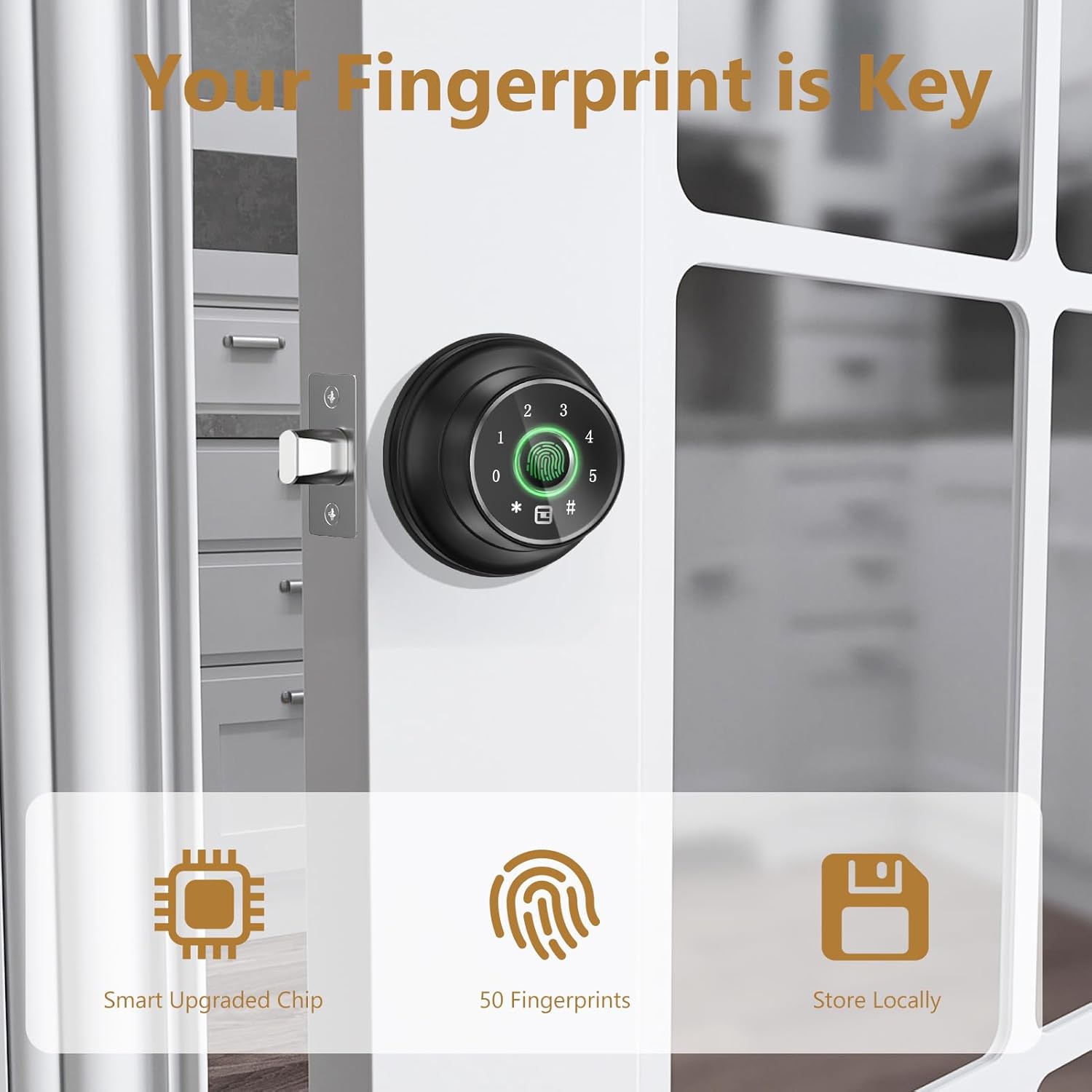
Image: A close-up view of the smart lock's fingerprint sensor, emphasizing its role in keyless entry and the lock's ability to store multiple fingerprints locally.
4.3 Passcode Creation
You can create up to 20 passcodes for various users.
- Access Passcode Menu: In the app, navigate to the passcode management section.
- Create Passcode: Enter your desired 6-digit passcode. You can set temporary or permanent codes.

Image: A screenshot of the mobile app demonstrating how to create and manage temporary access codes for the smart lock, suitable for guests or service providers.
5. Operating Instructions
The GeekTale F02-01 offers multiple convenient ways to lock and unlock your door.
5.1 Unlocking the Door
You can unlock the door using any of the following methods:
- Fingerprint: Place your registered finger on the fingerprint sensor. The lock will unlock if the fingerprint is recognized.
- Passcode: Enter your 6-digit passcode on the keypad, then press the '#' key.
- Anti-Peep Passcode: To prevent others from seeing your code, you can enter random digits before or after your actual passcode. For example, if your code is 001122, you can enter 555001122333.
- Bluetooth App: Open the GeekTale app on your smartphone and tap the unlock icon when within Bluetooth range.
- Backup Key: In case of emergency or battery depletion, use the physical backup key to unlock the door.

Image: This image highlights the four primary ways to access the GeekTale smart lock: fingerprint, Bluetooth app, keypad, and traditional key, emphasizing quick and versatile entry.

Image: The smart lock's keypad is shown with an example of an anti-peep passcode, where random digits are entered before and after the actual PIN to obscure it from onlookers.
5.2 Locking the Door
You can lock the door using the following methods:
- Auto-Lock: The lock can be configured via the app to automatically lock after a set period (5-60 seconds) once the door is closed.
- One-Touch Lock: Press the '#' key on the keypad to manually lock the door.
- Bluetooth App: Open the GeekTale app on your smartphone and tap the lock icon.

Image: The smart lock is depicted on a door, with an arrow indicating the automatic locking mechanism, demonstrating the auto-lock and one-touch lock functionalities.
5.3 Mute Mode
To operate the lock quietly, activate Mute Mode through the mobile application. This will silence all lock sounds.

Image: The smart lock is shown on a door with a sleeping person in the background, indicating the mute mode feature for silent operation, configurable via the app.
5.4 Smart Home Integration (Optional)
For remote unlock, voice control, and instant unlock notifications, a separate gateway device is required. This gateway allows integration with smart home systems like Alexa and Google Assistant.

Image: This image displays the smart lock alongside a smart plug, illustrating its compatibility with remote unlock, voice control (Alexa, Google Assistant), and instant notifications when connected to a separately purchased gateway.
6. Maintenance
6.1 Battery Replacement
The lock is powered by 4 AA batteries. When the battery level is low, you will receive a low battery alert via the app. To replace the batteries:
- Remove the battery cover on the interior assembly.
- Replace the old batteries with 4 new AA batteries, ensuring correct polarity.
- Replace the battery cover.

Image: The smart lock's interior assembly is shown, highlighting the emergency power port and indicating a low battery notification, reminding users to replace the 4 AA batteries.
6.2 Emergency Power Port
If the batteries completely run out before you can replace them, an emergency power port (USB-C) is available on the exterior assembly. Connect a portable power bank to temporarily power the lock and gain entry.
6.3 Cleaning
Wipe the lock's surface with a soft, dry cloth. Avoid using abrasive cleaners or solvents, as these can damage the finish and electronic components.
7. Troubleshooting
If you encounter issues with your GeekTale F02-01 smart lock, please refer to the following common problems and solutions:
- Lock not responding: Check battery levels and replace if necessary. Ensure the lock is properly installed and all cables are connected.
- Fingerprint not recognized: Ensure your finger is clean and dry. Try re-registering your fingerprint in the app.
- Passcode not working: Double-check the passcode entry. Ensure the passcode is active and has not expired (for temporary codes).
- App connection issues: Ensure Bluetooth is enabled on your phone and you are within range of the lock. Try restarting the app or your phone.
- Lock mechanism grinding: This may indicate an obstruction or misalignment during installation. Re-check the installation steps, particularly the latch bolt and strike plate alignment.
If problems persist, please contact customer support for further assistance.
8. Product Specifications
| Feature | Specification |
|---|---|
| Model Name | F02-01 |
| Brand | GeekTale |
| Lock Type | Biometric Deadbolt |
| Material | Aluminum |
| Color | Black |
| Dimensions (L x W x H) | 2.95 x 2.16 x 5.31 inches |
| Item Weight | 1.92 pounds |
| Connectivity Protocol | Bluetooth |
| Control Method | App, Touch |
| Power Source | 4 AA Batteries (not included) |
| Fingerprint Capacity | Up to 50 |
| Passcode Capacity | Up to 20 |
| Special Features | Fingerprint Deadbolt, Keypad, App Control, Auto Lock, Emergency Power Port |
9. Warranty and Customer Support
GeekTale is committed to providing quality products and customer satisfaction. Your GeekTale F02-01 Fingerprint Door Lock comes with a standard manufacturer's warranty. For specific warranty details, please refer to the product packaging or contact customer service.
If you have any questions, require technical assistance, or experience issues with your product, please do not hesitate to contact our localized After-Sales Customer Service. We are dedicated to resolving your questions and ensuring your satisfaction.
For support, please visit the GeekTale store or use the contact information provided with your product.


