
mucar CDE900 ELITE
MUCAR CDE900 Elite OBD2 Scanner User Manual
Model: CDE900 ELITE
1. Introduction
The MUCAR CDE900 Elite is an advanced On-Board Diagnostics II (OBD2) scanner designed for comprehensive vehicle diagnostics and maintenance. This tool provides access to four core vehicle systems (Engine, Transmission, ABS, SRS), offers 28 essential reset services, and includes full OBD2 functions. Featuring a user-friendly 4-inch touchscreen, Android 8.1 operating system, and lifetime free software updates, the CDE900 Elite is suitable for both professional technicians and DIY enthusiasts seeking to maintain vehicle reliability.

Image 1.1: MUCAR CDE900 Elite Diagnostic Tool Overview.
2. Key Features
The MUCAR CDE900 Elite offers a robust set of features to assist with vehicle diagnostics:
- 4-System Diagnostics: Comprehensive scanning for Engine (ECM), Transmission (TCM), Anti-lock Braking System (ABS), and Supplemental Restraint System (SRS). This includes reading and clearing fault codes, displaying live data, and generating diagnostic reports.
- 28 Reset Services: Access to various maintenance and reset functions such as Oil Reset, Electronic Parking Brake (EPB) Reset, Diesel Particulate Filter (DPF) Regeneration, ABS Bleeding, Battery Management System (BMS) Reset, Injector Coding, Steering Angle Sensor (SAS) Calibration, Throttle Adaptation, and Airbag Reset. Note: Compatibility for specific services may vary by vehicle model and year. Please verify compatibility before purchase.
- Full OBD2 Functions: Supports all 10 OBD2 test modes, including Read/Clear Diagnostic Trouble Codes (DTCs), Live Data Stream, Freeze Frame Data, I/M Readiness, O2 Sensor Test, On-board Monitor Test, EVAP System Test, and Vehicle Information.
- Advanced Hardware: Powered by Android 8.1 with a 1.3GHz Quad-Core CPU, 2GB RAM, and 32GB ROM (expandable). Features a 4-inch LCD touchscreen (800x480 resolution) and a 1500mAh Lithium-Ion battery.
- Connectivity: Built-in Wi-Fi and Bluetooth 5.0 for software updates and online features.
- Smart Functions: AutoVIN for automatic vehicle identification, DTC Repair Guide, Online Support (AI-GPT), and the ability to generate professional diagnostic reports.
- FCA AutoAuth: Provides secure access to FCA vehicle diagnostics.
- Lifetime Free Software Updates: Ensures the tool remains current with the latest vehicle models and diagnostic capabilities without annual fees.
- Extensive Vehicle Coverage: Supports most 12V passenger cars (OBD2 compliant) from American, European, and Asian manufacturers.

Image 2.1: The MUCAR CDE900 Elite scanner's main interface.

Image 2.2: Overview of MUCAR CDE900 Elite's core functionalities.
3. Setup Guide
3.1. Unboxing and Initial Inspection
Carefully unpack the MUCAR CDE900 Elite scanner. Verify that all components are present:
- 1 x CDE900 Elite Diagnostic Tool
- 1 x OBD2 Extension Cable (approximately 1.2 meters / 4 feet)
- 1 x Type-C Charging Cable
3.2. Charging the Device
Before first use, ensure the device is fully charged. Connect the Type-C charging cable to the scanner's Type-C interface (5V-1.2A) and to a suitable power adapter. The charging indicator will show the charging status.
3.3. Powering On and Initial Configuration
- Press and hold the Power/Screen Lock button to turn on the device.
- Follow the on-screen prompts to select your preferred language and time zone.
- Connect the device to a Wi-Fi network for software updates. Navigate to Settings > Wi-Fi and select your network.
3.4. Software Update
It is highly recommended to update the software immediately after connecting to Wi-Fi to ensure you have the latest features and vehicle compatibility. Navigate to the Update section on the main menu and download all available updates.

Image 3.1: Physical layout and ports of the MUCAR CDE900 Elite.
4. Operating Instructions
4.1. Connecting to a Vehicle
- Locate the vehicle's OBD2 port, typically under the dashboard on the driver's side.
- Connect the OBD2 extension cable to the scanner and then to the vehicle's OBD2 port.
- Turn the vehicle's ignition to the ON position (engine off or running, depending on the test).
4.2. Performing a Diagnostic Scan
- From the main menu, select Diagnose.
- The scanner will attempt to automatically identify the vehicle using AutoVIN. If unsuccessful, you may need to manually select the vehicle make, model, and year.
- Choose the desired diagnostic function: OBDII for standard OBD2 functions, or specific system diagnostics like Engine, Transmission, ABS, or SRS.
- Follow the on-screen instructions to perform the scan. The tool will read fault codes, display live data streams, and provide other relevant information.
- To clear fault codes, select the Clear DTCs option after reviewing the codes.

Image 4.1: The 4-system diagnostic capabilities of the CDE900 Elite.
4.3. Using Reset Services
From the main menu, select Reset to access the 28 maintenance functions.
- Select the specific reset service you wish to perform (e.g., Oil Reset, EPB Reset).
- Follow the detailed on-screen instructions for the chosen service. These steps are crucial for successful completion and may vary by vehicle.
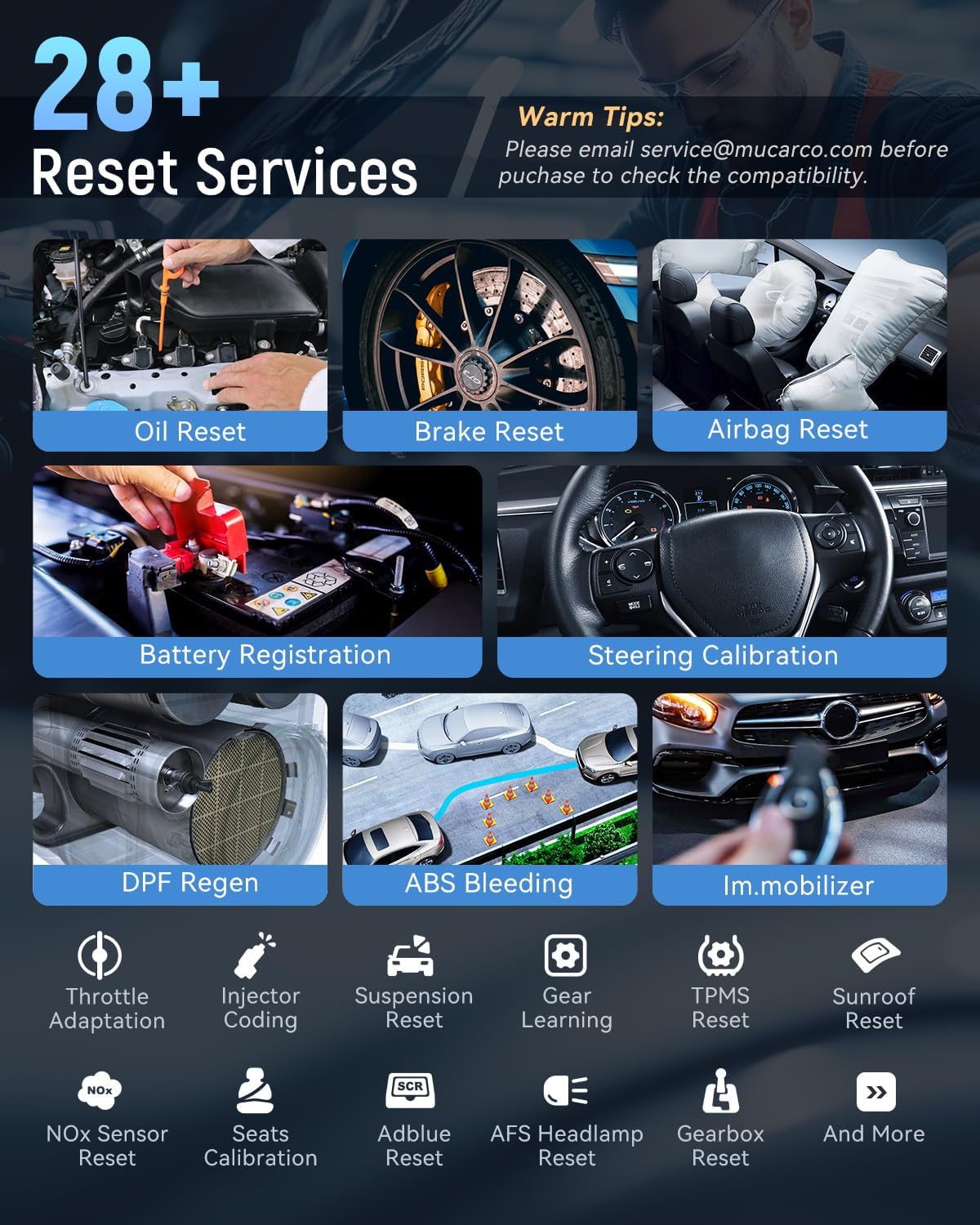
Image 4.2: Examples of 28+ Reset Services available.
4.4. Live Data Stream and Diagnostic Reports
- Live Data: During a diagnostic session, you can view real-time sensor data in both graph and text formats. The tool supports displaying multiple data streams simultaneously for comparative analysis.
- Diagnostic Reports: After a scan, the device can generate a comprehensive diagnostic report. These reports can be saved, printed, or shared via email for record-keeping or client communication.

Image 4.3: Full Live Data Stream display on the CDE900 Elite.

Image 4.4: Example of a Professional Diagnostic Report.
5. Maintenance
5.1. Software Updates
Regularly check for and install software updates via Wi-Fi. Updates provide new features, bug fixes, and expanded vehicle coverage. Navigate to the Update section on the main menu to perform a one-touch update.

Image 5.1: One-Touch Update feature for software maintenance.
5.2. Cleaning and Storage
- Clean the device with a soft, damp cloth. Avoid using abrasive cleaners or solvents.
- Store the scanner in a dry, cool environment, away from direct sunlight and extreme temperatures.
- Ensure the OBD2 cable is neatly coiled to prevent damage.
5.3. Battery Care
To prolong battery life, avoid fully discharging the device frequently. Charge the battery when the low battery indicator appears. If storing for an extended period, charge the battery to approximately 50%.
6. Troubleshooting
| Problem | Possible Cause | Solution |
|---|---|---|
| Device does not power on. | Low battery; device malfunction. | Charge the device fully. If problem persists, contact support. |
| Cannot connect to vehicle. | OBD2 cable not properly connected; vehicle ignition off; vehicle not OBD2 compliant. | Ensure cable is secure. Turn ignition to ON. Verify vehicle compatibility. |
| Touchscreen is unresponsive or laggy. | Temporary software glitch; environmental factors. | Restart the device. Use physical buttons for navigation if needed. Ensure screen is clean and dry. |
| Language selection screen reappears repeatedly. | Software configuration issue. | Perform a device reset (refer to settings for reset option). |
| Specific diagnostic or reset function is not available. | Vehicle incompatibility; additional software package required. | Verify vehicle compatibility for the specific function. Note that some advanced diagnostic functions beyond standard OBD2 may require additional software packages. |
| Error codes are displayed but not understood. | Lack of familiarity with specific DTCs. | Utilize the built-in DTC Repair Guide or the online search function (if connected to Wi-Fi) to look up code definitions and potential causes. |
If you encounter issues not listed here or require further assistance, please use the FEEDBACK icon on the device to submit a report, or contact customer support.
7. Technical Specifications
- Model: CDE900 ELITE
- Operating System: Android 8.1
- CPU: 1.3GHz Quad-Core Processor
- RAM: 2GB
- ROM: 32GB (Expandable via Micro SD card)
- Display: 4-inch LCD Touchscreen (800x480 resolution)
- Battery: 1500mAh Lithium Ion
- Connectivity: Wi-Fi, Bluetooth 5.0, Type-C (5V-1.2A)
- OBD2 Cable Length: 1.2 meters (4 feet)
- Item Weight: Approximately 1.41 pounds (0.64 kg)
- Package Dimensions: Approximately 10.67 x 6.61 x 1.54 inches (27.1 x 16.8 x 3.9 cm)
- Supported Languages: 20+ languages

Image 7.1: Hardware specifications of the CDE900 Elite.
8. Warranty Information
The MUCAR CDE900 Elite comes with a 1-Year Warranty from the date of purchase. This warranty covers manufacturing defects and malfunctions under normal use. Please retain your proof of purchase for warranty claims. For detailed warranty terms and conditions, refer to the official MUCAR website or contact customer support.
9. Customer Support
For technical assistance, product inquiries, or warranty claims, please utilize the following support channels:
- Online Feedback: Use the FEEDBACK icon within the device software to submit detailed reports of any issues or suggestions. This allows for speedy troubleshooting and remote assistance from MUCAR mechanics.
- Email Support: Contact MUCAR customer service directly via email at service@mucarco.com.
- Hotline Technical Support: Refer to the official MUCAR website for available hotline numbers and operating hours.
Related documentsCDE900 ELITE


Ask a question about this manual
Ask about setup, troubleshooting, compatibility, parts, safety, or missing instructions. Manuals+ will review the question and use this page’s manual context to help answer it.