
Bofypoo DC311-AF
Bofypoo FHD 1080P 36MP Kids Vlogging Camera User Manual
Model: DC311-AF
1. Introduction
This user manual provides detailed instructions for the Bofypoo FHD 1080P 36MP Kids Vlogging Camera, Model DC311-AF. This compact and portable digital camera is designed for teens and beginners, offering high-resolution photos and videos with various creative features.
Package Contents
Please verify that all items are present in your package:
- Bofypoo FHD 1080P 36MP Digital Camera (Pink)
- 2 x Rechargeable Batteries
- 32GB Memory Card
- USB Cable
- Wrist Strap
- Neck Cord
- User Manual
- Camera Bag/Pouch
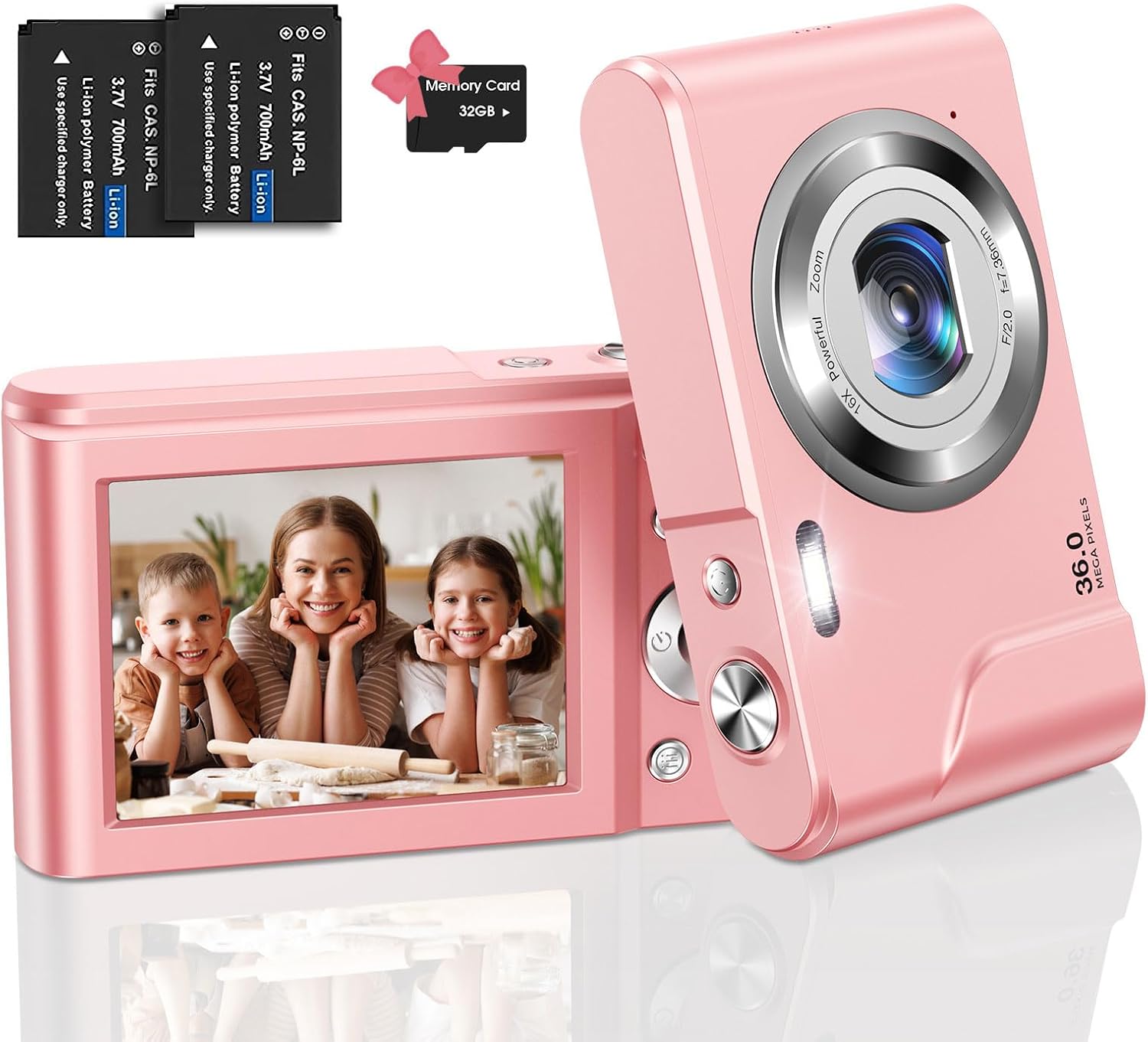
Image: The Bofypoo digital camera in pink, shown with two batteries and a 32GB memory card.

Image: An overview of Bofypoo digital cameras, highlighting their suitability for children and various color options.
2. Safety Information
- Do not expose the camera to water or moisture. This product is not water resistant.
- Avoid dropping the camera or subjecting it to strong impacts.
- Keep the camera away from extreme temperatures (hot or cold).
- Do not attempt to disassemble or repair the camera yourself. Contact customer support for assistance.
- Use only the specified batteries and charging accessories.
- Keep out of reach of very young children to prevent choking hazards from small parts.
3. Setup
3.1 Battery Installation
- Locate the battery compartment cover on the bottom of the camera.
- Slide the cover latch to open the compartment.
- Insert the rechargeable battery into the compartment, ensuring the correct polarity (match the + and - symbols).
- Close the battery compartment cover until it clicks securely into place.
3.2 Memory Card Installation
The camera supports SD memory cards up to 32GB. A 32GB memory card is included.
- Locate the memory card slot, usually next to the battery compartment or on the side.
- Insert the 32GB memory card into the slot with the gold contacts facing down, until it clicks into place.
- Important: When using the memory card for the first time, it is recommended to format it using the camera's menu settings. This ensures optimal compatibility and performance.
3.3 Initial Charging
Before first use, fully charge the battery.
- Connect the camera to a power source using the provided USB cable.
- The charging indicator light will illuminate. It will turn off or change color once charging is complete.

Image: Visual guide for battery installation (top row) and activating webcam mode (bottom row).

Image: The camera connected for charging and a visual representation of inserting the memory card.
4. Operating Instructions
4.1 Power On/Off
Press and hold the power button (usually marked with Ⓞ) for a few seconds to turn the camera on or off.
4.2 Taking Photos
- Turn on the camera.
- Frame your shot using the LCD screen.
- Press the Shutter button (usually on top) to capture the photo.
4.3 Recording Videos
- Turn on the camera.
- Switch to video mode (refer to your camera's specific mode button or menu).
- Press the Record button (often marked with a red dot) to start recording. Press again to stop.
- The camera supports 1080P high-resolution video recording.

Image: A visual representation of the camera's 36MP image and 1080P video resolution capabilities.
4.4 Zoom Function
The camera features 16X digital zoom. Use the W/T (Wide/Telephoto) button to zoom in or out on your subject.

Image: Illustration of the 16X digital zoom feature and continuous shooting mode.
4.5 Special Features
- Fill Light: The built-in fill light assists in taking high-quality photos in low-light conditions. Activate it via the camera settings.
- Anti-shake Function: Helps to reduce blur caused by camera movement, resulting in clearer images.
- Self-Timer: Set a delay (2s/5s/10s) before the photo is taken, allowing you to join the shot.
- Continuous Shoot: Capture multiple photos in quick succession.
- Face Detection & Smile Capture: The camera can detect faces and automatically capture a photo when a smile is detected.
- Filter Effects & Painting Styles: Experiment with 20 filter effects and 8 painting styles to add artistic touches to your photos.
- Pause Feature: Pause video recording and resume without creating a new file, simplifying editing.

Image: Demonstrates the effect of the fill light in dark environments and the anti-shake function for clearer images.

Image: Highlights various photo styles and the camera's compact, portable design.

Image: Illustrates the self-timer function, smile detection, and beauty mode for enhanced photos.

Image: Shows examples of various image filter effects that can be applied to photos.
4.6 Webcam Mode
The camera can be used as a webcam for video calls or live streaming.
- Connect the camera to your computer using the USB cable.
- Turn on the camera.
- On the camera screen, select "PC Camera" or "Webcam" mode when prompted. If not prompted, navigate through the camera's menu to find this option.
- Your computer should recognize the camera as a webcam. You can then select it in your video conferencing or streaming software.
5. Maintenance
- Cleaning: Use a soft, dry cloth to clean the camera body. For the lens, use a specialized lens cleaning cloth and solution. Do not use abrasive cleaners.
- Storage: Store the camera in a cool, dry place away from direct sunlight and excessive dust. Remove the battery if storing for extended periods.
- Battery Care: Fully charge batteries before long-term storage. Avoid completely draining batteries regularly to prolong their lifespan.
6. Troubleshooting
| Problem | Possible Cause | Solution |
|---|---|---|
| Camera does not turn on. | Battery is low or not installed correctly. | Charge the battery. Ensure the battery is inserted with correct polarity. |
| Cannot take photos/record videos. | Memory card is full, not inserted, or not formatted. | Delete some files, insert memory card, or format the memory card (backup data first). |
| Images are blurry. | Camera shake, dirty lens, or subject too close/far. | Use anti-shake function, clean the lens, ensure proper distance to subject. |
| Camera freezes. | Temporary software glitch. | Remove and reinsert the battery to reset the camera. |
| Webcam mode not working. | Incorrect mode selected or driver issue. | Ensure "PC Camera" mode is selected on the camera. Try a different USB port or restart your computer. |
7. Specifications
| Feature | Detail |
|---|---|
| Brand | Bofypoo |
| Model Name | DC311-AF |
| Maximum Webcam Image Resolution | 36 MP |
| Video Resolution | 1080p |
| Digital Zoom | 16x |
| Image Stabilization | Digital |
| Screen Size | 2.4 Inches |
| Display Type | LCD |
| Memory Storage Capacity | 32 GB (SD Card) |
| Photo Sensor Technology | CMOS |
| Battery Type | Lithium Ion |
| Connectivity Technology | USB |
| Special Features | Fill Light, Anti-shake, Self-timer, Continuous Shoot, Face Detection, Smile Capture, Filter Effects, Pause Feature |
| Form Factor | Compact |
| Color | Pink |
8. Warranty and Support
This product typically comes with a manufacturer's warranty. Please refer to the warranty information included in your product packaging for specific terms and conditions. For technical support, troubleshooting assistance, or warranty claims, please contact Bofypoo customer service through the retailer where the product was purchased or refer to the contact information provided in your product documentation.
Manufacturer: Bofypoo
Model Number: DC311-AF
UPC: 755560203285
Related documentsDC311-AF

Ask a question about this manual
Ask about setup, troubleshooting, compatibility, parts, safety, or missing instructions. Manuals+ will review the question and use this page’s manual context to help answer it.