
THOMSON 50UA5S13
THOMSON 50UA5S13 50-inch 4K UHD Smart Android TV User Manual
1. Introduction
Welcome to the user manual for your new THOMSON 50UA5S13 50-inch 4K UHD Smart Android TV. This manual provides essential information for setting up, operating, and maintaining your television. Please read it thoroughly to ensure optimal performance and safe use of your device.
Your THOMSON TV offers a stunning 4K UHD display, providing four times the detail of Full HD. It features the Android TV operating system, granting access to a vast array of applications, intelligent voice control via Google Assistant, and seamless content streaming with Chromecast built-in. Enjoy immersive audio with Dolby Audio technology and versatile content reception through its integrated triple tuner (DTT, cable, or satellite).

Figure 1: Front view of the THOMSON 50UA5S13 4K UHD Smart Android TV displaying various streaming app icons.
2. Safety Information
Before operating your television, please read all safety instructions carefully. Keep this manual for future reference.
- Power Supply: Ensure the TV is connected to a power outlet with the correct voltage as indicated on the product label.
- Ventilation: Do not block ventilation openings. Allow adequate space around the TV for proper airflow to prevent overheating.
- Placement: Place the TV on a stable, level surface. Avoid placing it in direct sunlight, near heat sources, or in environments with high humidity or dust.
- Water and Moisture: Do not expose the TV to rain or moisture. Do not place objects filled with liquids, such as vases, on the TV.
- Cleaning: Unplug the TV before cleaning. Use a soft, dry cloth. Do not use liquid or aerosol cleaners.
- Servicing: Do not attempt to service the TV yourself. Refer all servicing to qualified service personnel.
3. Package Contents
Verify that all items are present in the package:
- THOMSON 50UA5S13 50-inch 4K UHD Smart Android TV
- Remote Control (Premium backlit)
- Power Cable
- TV Stand (2 pieces) and Screws
- Warranty Card
- Quick Start Guide (may be included separately)
4. Physical Setup
4.1 Attaching the TV Stand
- Carefully place the TV face down on a soft, clean surface to prevent screen damage.
- Align the stand pieces with the corresponding slots on the bottom of the TV.
- Secure the stands using the provided screws. Ensure they are tightened firmly.
4.2 Wall Mounting (Optional)
This TV supports VESA wall mounts with a 200x200 pattern. A wall mount bracket is not included and must be purchased separately. Follow the instructions provided with your wall mount bracket for proper installation. Ensure the wall can support the weight of the TV and the mount.
4.3 Dimensions and Placement
Consider the TV's dimensions for optimal placement in your viewing area.

Figure 2: Diagram showing the dimensions of the THOMSON 50UA5S13 TV: 112 cm width, 69 cm height (with stand), 26 cm depth (with stand).
5. Connections
Connect your TV to various external devices using the ports located on the back and side panels.

Figure 3: Illustration of the back panel ports including HDMI, LAN, USB, Audio Out, Satellite, Antenna, AV In, and Common Interface.
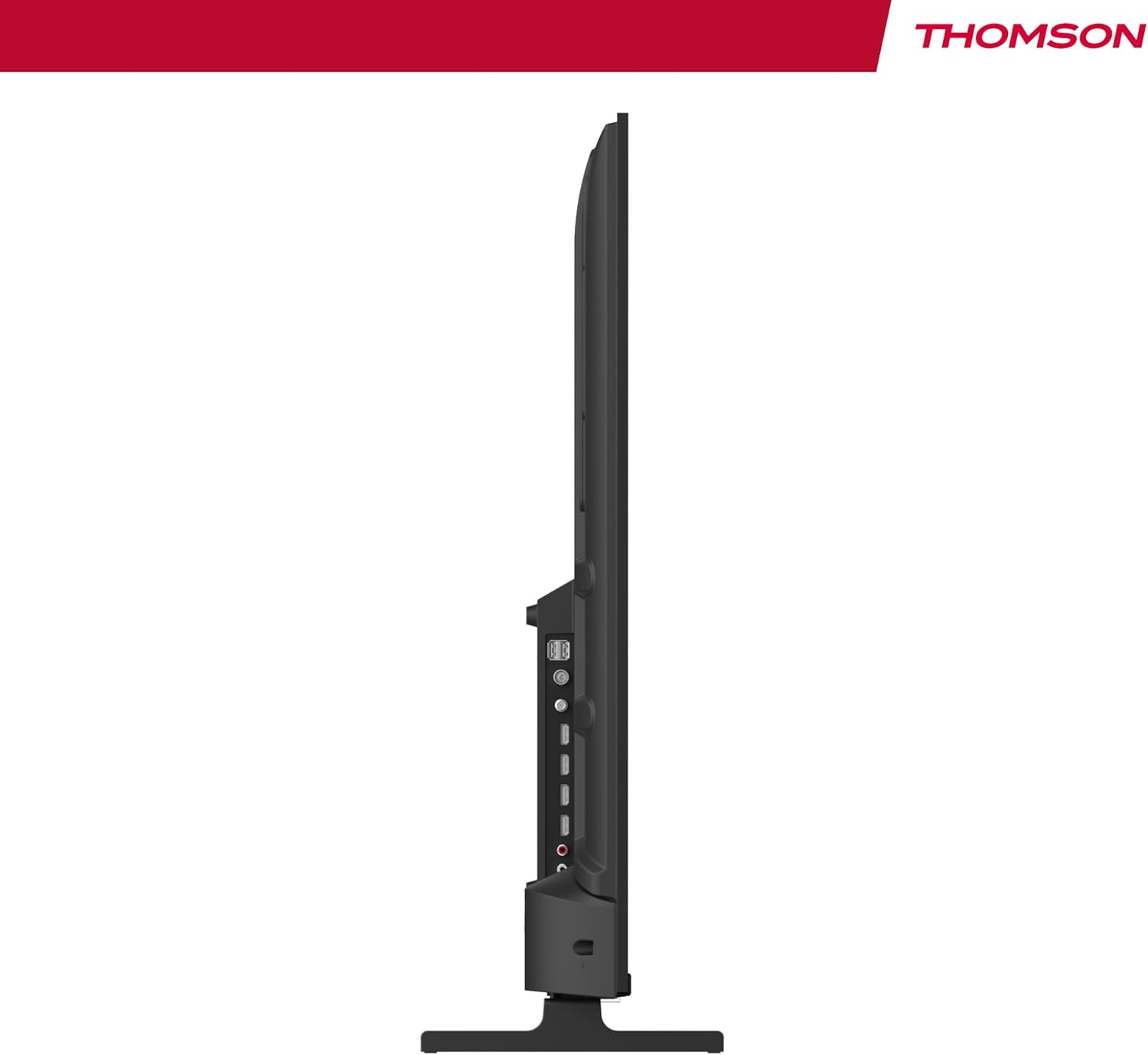
Figure 4: Side profile view of the TV, showing accessible ports on the side.
- Power: Connect the power cable to the TV and a wall outlet.
- Antenna/Cable/Satellite: Use the appropriate input for your broadcast signal (DTT, cable, or satellite).
- HDMI (x4): Connect external devices such as Blu-ray players, game consoles, or set-top boxes.
- USB (x2): Connect USB storage devices for media playback.
- LAN: Connect an Ethernet cable for a wired internet connection.
- Audio Out (Digital Optical): Connect to an external sound system for enhanced audio.
- AV In: Connect older devices using composite video and stereo audio cables.
- Common Interface (CI+): Insert a CI+ module and smart card for encrypted digital services.
- Bluetooth: Pair wireless headphones, speakers, or other compatible Bluetooth devices.
6. Initial Setup and Android TV
6.1 First-Time Power On
- After connecting all necessary cables, plug the TV into a power outlet.
- Press the power button on the remote control or on the TV.
- Follow the on-screen prompts to select your preferred language.
6.2 Network Setup
Connect your TV to the internet for access to Android TV features and apps.
- Wi-Fi: Select your Wi-Fi network from the list and enter the password.
- Wired (LAN): If you connected an Ethernet cable, the TV should automatically detect the wired connection.
6.3 Google Account Sign-in
Sign in with your Google Account to access the Google Play Store, Google Assistant, and personalized recommendations.
6.4 Channel Scanning
After network setup, the TV will guide you through scanning for available channels based on your antenna, cable, or satellite connection.
7. Operating Your TV
7.1 Remote Control
The premium backlit remote control allows easy navigation, even in low light. Key features include:
- Power Button: Turns the TV on or off.
- Navigation Buttons: For menu navigation.
- Volume/Channel Buttons: Adjust volume and change channels.
- Google Assistant Button: Activates voice control.
- Favorites Button: Quickly launch your designated favorite application.
- App Shortcut Buttons: Direct access to popular streaming services.
7.2 Android TV Features
Your THOMSON TV runs on Android TV, providing a smart and intuitive user experience.

Figure 5: The Android TV home screen displaying various applications and content recommendations.
- Applications: Access over 400,000 movies and TV shows from apps like Netflix, Prime Video, Disney+, YouTube, Spotify, and Apple TV.
- Google Assistant: Use your voice to control the TV, search for content, get answers, and manage smart home devices. Simply press the Google Assistant button on your remote and speak your command.

Figure 6: A user interacting with the Google Assistant via the TV remote control.
- Chromecast built-in: Wirelessly stream movies, music, and videos from compatible smartphones, tablets, or computers directly to your TV.
7.3 Picture Settings
Optimize your viewing experience with advanced picture technologies:
- 4K UHD: Enjoy ultra-high definition resolution with 8 million pixels for incredibly detailed and precise images.
- HDR (High Dynamic Range) & Dolby Vision: These technologies enhance contrast, brightness, and color accuracy, providing a more realistic and vibrant picture.

Figure 7: Visual comparison illustrating the enhanced detail of 4K UHD (3840x2160) over Full HD (1920x1080).

Figure 8: Comparison showing the improved contrast and color depth with Dolby Vision compared to Standard Dynamic Range (SDR).
7.4 Sound Settings
Experience dynamic and immersive audio:
- Dolby Audio / Dolby Atmos: Creates a rich, room-filling sound experience. (Note: Dolby Atmos requires compatible sound equipment).

Figure 9: Visual representation of Dolby Atmos sound creating an immersive audio experience around viewers.
8. Maintenance
8.1 Cleaning the TV
- Always unplug the TV before cleaning.
- Use a soft, lint-free cloth to gently wipe the screen and TV body.
- For stubborn marks, lightly dampen the cloth with water or a specialized screen cleaner (ensure it's safe for TV screens) and wipe gently. Never spray liquid directly onto the screen.
8.2 Software Updates
Your Android TV may receive periodic software updates to improve performance and add new features. Ensure your TV is connected to the internet to receive these updates. You can usually check for updates in the TV's settings menu.
9. Troubleshooting
If you encounter issues with your TV, refer to the following common solutions:
| Problem | Possible Solution |
|---|---|
| No power | Check if the power cable is securely plugged into the TV and the wall outlet. Try a different outlet. |
| No picture/sound | Ensure the correct input source is selected. Check cable connections to external devices. For sound, check volume levels and external audio system connections. |
| Remote control not working | Check or replace the batteries. Ensure there are no obstructions between the remote and the TV's IR sensor. |
| Cannot connect to Wi-Fi | Ensure your Wi-Fi router is on and working. Re-enter the Wi-Fi password. Try restarting the TV and router. |
| Slow performance or apps | Close unused applications. Clear cache for problematic apps in settings. Restart the TV. Ensure a stable internet connection. |
10. Specifications
Detailed technical specifications for the THOMSON 50UA5S13 TV:
| Feature | Specification |
|---|---|
| Brand | Thomson |
| Model Number | 50UA5S13 |
| Screen Size | 50 Inches (126 cm) |
| Display Technology | UHD (LED LCD) |
| Resolution | 3840 x 2160 (4K UHD) |
| Refresh Rate | 60 Hz |
| Special Features | Flat Screen, Android TV, Google Assistant, Chromecast built-in, HDR, Dolby Vision, Dolby Audio |
| Connectivity | Bluetooth, Wi-Fi, 4x HDMI, 2x USB, LAN, Digital Optical Audio Out, AV In, CI+ |
| Tuner | Triple Tuner (ATSC for Antenna, Cable, Satellite) |
| Sound Configuration | 2.0 |
| Dimensions (L x W x H) | 111.1 x 26 x 69.2 cm (with stand) |
| Weight | 8.5 kilograms |
| VESA Wall Mount | 200x200 mm (mount not included) |
| Energy Efficiency Class | E |
For detailed energy information, please refer to the EU EPREL database:
EPREL Product Information Sheet

Figure 10: The EU Energy Label for the THOMSON 50UA5S13 TV, indicating its energy efficiency class and consumption.
11. Warranty and Support
Your THOMSON 50UA5S13 TV comes with a full 3-year manufacturer's warranty, demonstrating its reliability and quality. For warranty claims or technical support, please refer to the warranty card included in your package or visit the official THOMSON support website for your region. Keep your proof of purchase for warranty validation.
Related documents50UA5S13


Ask a question about this manual
Ask about setup, troubleshooting, compatibility, parts, safety, or missing instructions. Manuals+ will review the question and use this page’s manual context to help answer it.