
1. Introduction
The MINIX RIC SR35-4 is a fanless industrial Android player designed for reliable, high-performance operation in a wide range of commercial and industrial applications. This device is ideal for digital signage, point-of-sale (POS) systems, interactive kiosks, menu boards, corporate lobby information displays, and various industrial control scenarios. Its robust design and comprehensive connectivity options ensure stable and efficient performance in demanding environments.
This manual provides detailed instructions for setting up, operating, maintaining, and troubleshooting your MINIX RIC SR35-4 player. Please read this manual thoroughly before using the device to ensure proper installation and functionality.

Figure 1: MINIX RIC SR35-4 Fanless Industrial Android Player
2. Package Contents
Verify that all items listed below are included in your package. If any items are missing or damaged, please contact your retailer or MINIX support.
- MINIX RIC SR35-4 Industrial Android Player
- 12V/3A Power Adapter (with US/EU/UK pin options)
- User Manual
3. Product Overview
3.1 Front Panel I/O

Figure 2: Front Panel Layout
- COM Ports (RS-232): 6 x COM ports for connecting industrial serial devices.
- USB 2.0 Ports: 2 x USB 2.0 ports for connecting peripherals such as keyboards, mice, or barcode scanners.
- Power Button: Used to power the device on or off.
3.2 Rear Panel I/O
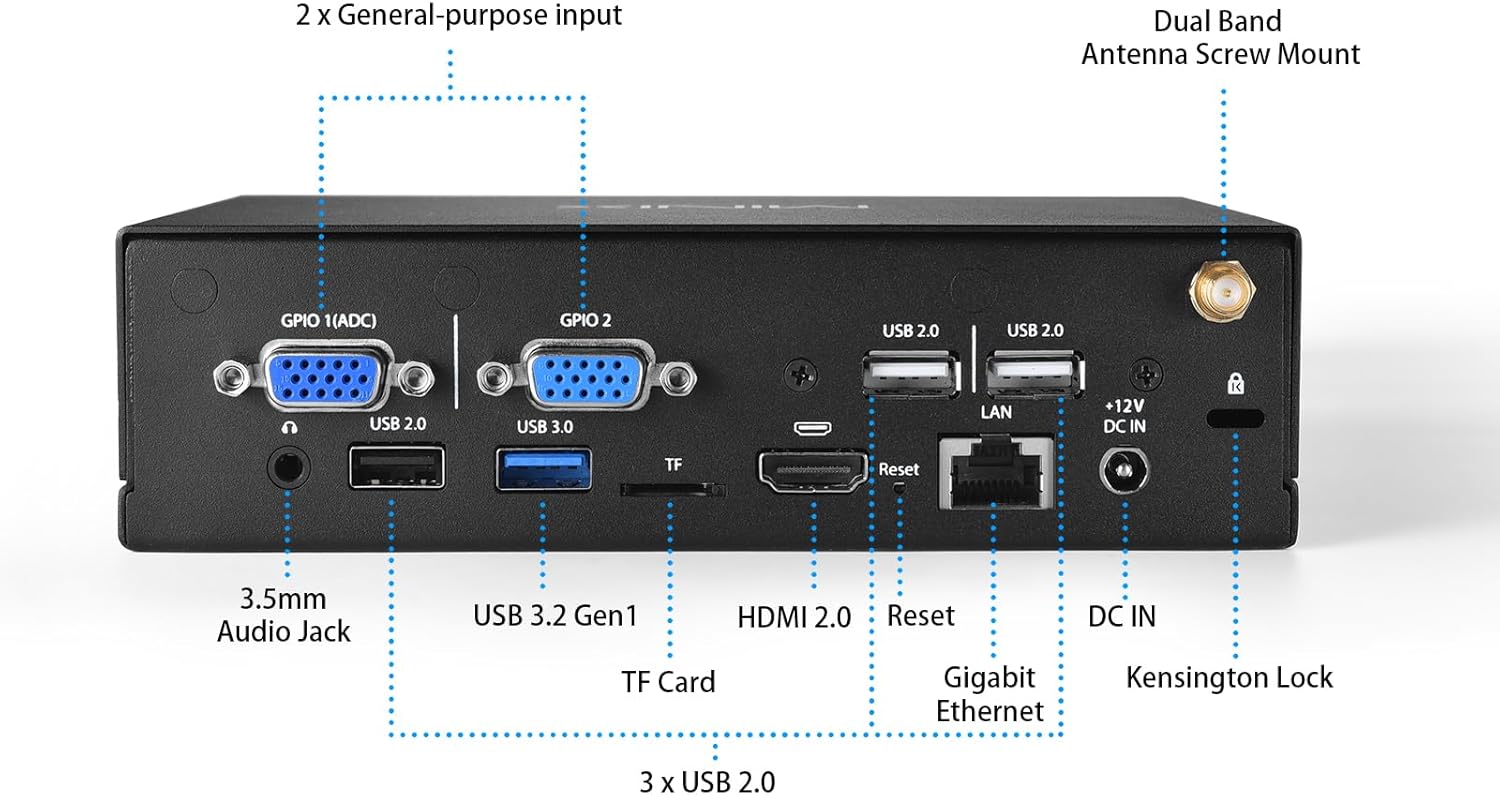
Figure 3: Rear Panel Layout
- GPIO Ports: 2 x General Purpose Input/Output ports for custom industrial control.
- USB 2.0 Ports: 3 x USB 2.0 ports for additional peripheral connections.
- USB 3.0 Port: 1 x USB 3.0 port for high-speed data transfer.
- TF Slot: For inserting a TF (MicroSD) card to expand storage.
- LAN Port: Gigabit Ethernet (10/100/1000 Mb/s) for wired network connection.
- HDMI 2.0 Port: For connecting to a 4K display at 60Hz.
- 3.5mm Audio Jack: For audio output.
- DC-In Power Connector: For connecting the 12V/3A power adapter.
- Kensington Lock Slot: For securing the device physically.
- Dual Band Antenna Screw Mount: For attaching external Wi-Fi/Bluetooth antennas.
3.3 Internal I/O and Components

Figure 4: Internal Motherboard View
- Speaker Pin Header: 1 x 4-pin header for connecting an internal speaker (4Ω/15W or 8Ω/5W).
- MIPI DSI Pin Header: For connecting a MIPI DSI display.
- SIM Slot: For inserting a SIM card when using an optional 4G/5G module.
- Internal USB 2.0 Pin Headers: 7 x USB 2.0 ports available via pin headers for internal connections.
- RJ11 Cash Register Pin Header: For connecting to a cash register.
- M.2 2242/3042 Key-B Slot: For installing an optional 4G/5G mobile network module.
- LVDS Pin Header: For connecting an LVDS display.
- EDP Pin Header: For connecting an EDP display.
4. Setup Instructions
Follow these steps to set up your MINIX RIC SR35-4 player.
- Connect Power: Connect the provided 12V/3A power adapter to the DC-In port on the rear panel of the device, then plug the adapter into a power outlet.
- Connect Display: Connect your display device to the HDMI 2.0 port on the rear panel. For LVDS, EDP, or MIPI DSI displays, connect them to the respective pin headers internally. The device supports dual display configurations such as HDMI+LVDS, HDMI+EDP, EDP+LVDS, or EDP+MIPI.
- Connect Peripherals: Connect your USB devices (keyboard, mouse, barcode scanner, etc.) to the available USB 2.0 and USB 3.0 ports on the front and rear panels. Connect any RS-232 serial devices to the COM ports on the front panel.
- Network Connection: For a wired network, connect an Ethernet cable to the LAN port on the rear panel. For wireless connectivity, ensure the external Wi-Fi/Bluetooth antennas are securely attached to the screw mounts on the rear panel.
- Optional 4G/5G Module (if applicable): If you plan to use a 4G/5G mobile network, install a compatible M.2 2242/3042 Key-B module into the internal M.2 slot and insert a SIM card into the internal SIM slot. Refer to the module's specific installation guide for detailed steps.
5. Operating Instructions
5.1 Power On/Off
- Power On: Press the power button on the front panel. The device will boot up automatically.
- Power Off: Press and hold the power button for a few seconds until the power-off options appear on the screen (if using Android), then select 'Power Off'. Alternatively, a short press may initiate a graceful shutdown depending on OS configuration. For a forced shutdown, press and hold the power button for approximately 10 seconds.
- Auto Power On: The device supports an auto power-on feature, which can be configured in the system settings to automatically power on when electricity is supplied.
- Wake On LAN (WOL): The device supports Wake On LAN, allowing it to be powered on remotely via the network. This feature may require configuration in the system BIOS or OS settings.
5.2 Operating System
The MINIX RIC SR35-4 comes with pre-rooted firmware and supports Android 11 and Linux operating systems. Basic navigation and application management will depend on the specific OS installed and its configuration.
5.3 Dual Display Configuration
The player supports simultaneous output to two displays using various combinations:
- HDMI + LVDS
- HDMI + EDP
- EDP + LVDS
- EDP + MIPI
Configuration for extended or mirrored display modes can typically be managed within the operating system's display settings.
5.4 Network Connectivity
- Wired LAN: Connect an Ethernet cable to the LAN port for a stable wired network connection.
- Wi-Fi/Bluetooth: The onboard module provides wireless connectivity. Configure Wi-Fi settings through the operating system's network menu.
- 4G/5G Mobile Network (Optional): If an optional module is installed, configure mobile data settings via the operating system.
6. Maintenance
6.1 Cleaning
To maintain optimal performance and longevity, keep the device clean. Use a soft, dry cloth to wipe the exterior. Avoid using liquid cleaners or sprays directly on the device. Ensure no dust accumulates in the ventilation areas.
6.2 Environmental Conditions
The MINIX RIC SR35-4 is designed for industrial use with specific environmental tolerances:
- Operating Temperature: -10°C to 50°C (14°F to 122°F)
- Storage Temperature: -20°C to 70°C (-4°F to 158°F)
- Humidity: 10% to 90% (non-condensing)
Operating the device outside these ranges may affect performance and reliability.
6.3 Firmware Updates
Periodically check the official MINIX website for firmware updates. Keeping your device's firmware up-to-date ensures optimal performance, security, and access to new features. Follow the instructions provided with the firmware update package carefully.
7. Troubleshooting
If you encounter issues with your MINIX RIC SR35-4, refer to the following common troubleshooting steps:
- No Power: Ensure the power adapter is securely connected to both the device and a working power outlet. Verify the power outlet is active. Try a different power adapter if available and compatible.
- No Display Output: Check the HDMI cable connection to both the device and the display. Ensure the display is powered on and set to the correct input source. Try a different HDMI cable or display. If using internal display headers (LVDS, EDP, MIPI DSI), verify connections and configurations.
- Network Connection Issues: For wired LAN, check the Ethernet cable and router/switch status. For Wi-Fi, ensure antennas are connected, Wi-Fi is enabled in the OS, and the correct network is selected with the correct password. For 4G/5G, ensure the module is correctly installed, SIM card is active, and mobile data is enabled in the OS.
- Peripheral Not Recognized: Try connecting the peripheral to a different USB or COM port. Ensure the peripheral has any necessary drivers installed (if required by the OS). Restart the device.
- System Unresponsive: If the device becomes unresponsive, perform a forced shutdown by pressing and holding the power button for approximately 10 seconds. Then, power it back on.
If the problem persists after trying these steps, please contact MINIX support.
8. Technical Specifications
| Feature | Specification |
|---|---|
| Brand | MINIX |
| Model Number | SR35-4A |
| Processor | Rockchip RK3568 Quad Cortex-A55 |
| Graphics | Mali-G52 GPU |
| Memory | 4GB LPDDR4 |
| Storage | 64GB eMMC 5.1 |
| Operating System | Android 11, Linux |
| Video Output | 1 x HDMI 2.0 (4K@60Hz), 1 x LVDS (by pin header, 4K@30Hz), 1 x EDP (by pin header, 1080p@60Hz), 1 x MIPI DSI (by pin header) |
| Dual Display Support | HDMI+LVDS, HDMI+EDP, EDP+LVDS, EDP+MIPI |
| Network | Gigabit (10/100/1000 Mb/s) LAN, Onboard Wi-Fi/BT module, Optional 4G/5G via M.2 slot |
| Audio | 1 x 3.5mm Audio Jack, 1 x Speaker by pin header |
| Front Panel I/O | 6 x COM Ports (RS-232), 2 x USB 2.0 |
| Back Panel I/O | 2 x GPIO Ports, 3 x USB 2.0, 1 x USB 3.0, 1 x TF slot, 1 x LAN port, 1 x HDMI 2.0 port, 1 x 3.5mm audio jack, 1 x DC-In Power Connector |
| Internal I/O | 1 x Speaker by pin header, 1 x MIPI DSI (by pin header), 1 x SIM Slot, 7 x USB 2.0 (by pin header), 1 x RJ11 cash register by pin header, 1 x M.2 2242/3042 Key-B for 4G/5G |
| Power Supply | 12V/3A Power Adapter |
| Operating Temperature | -10°C ~ 50°C |
| Storage Temperature | -20°C ~ 70°C |
| Humidity | 10%~90% (non-condensing) |
| Dimensions | 6.42 x 5 x 2 inches (16.3 x 12.7 x 5.08 cm) |
| Weight | 1.76 pounds (0.8 kg) |
9. Warranty and Support
9.1 Warranty Information
MINIX products are designed for reliability and durability. This product comes with a standard manufacturer's warranty. Please refer to the warranty card included in your package or visit the official MINIX website for detailed warranty terms and conditions.
9.2 Customer Support
For technical assistance, product inquiries, or maintenance service, please use the following methods:
- Amazon Support: If purchased through Amazon, log in to your Amazon account, navigate to "Your Account" > "Your Orders", and select "Ask Product Question" for this item.
- Official Website: Visit the official MINIX website for offline maintenance service, FAQs, and additional support resources.


