
1. Introduction
This manual provides detailed instructions for the installation, operation, and maintenance of your ciciglow TX-1200 Dual-Band PCIe WiFi Card. This device integrates high-speed Wi-Fi connectivity and Bluetooth 4.0 into your desktop computer, enhancing your wireless experience.
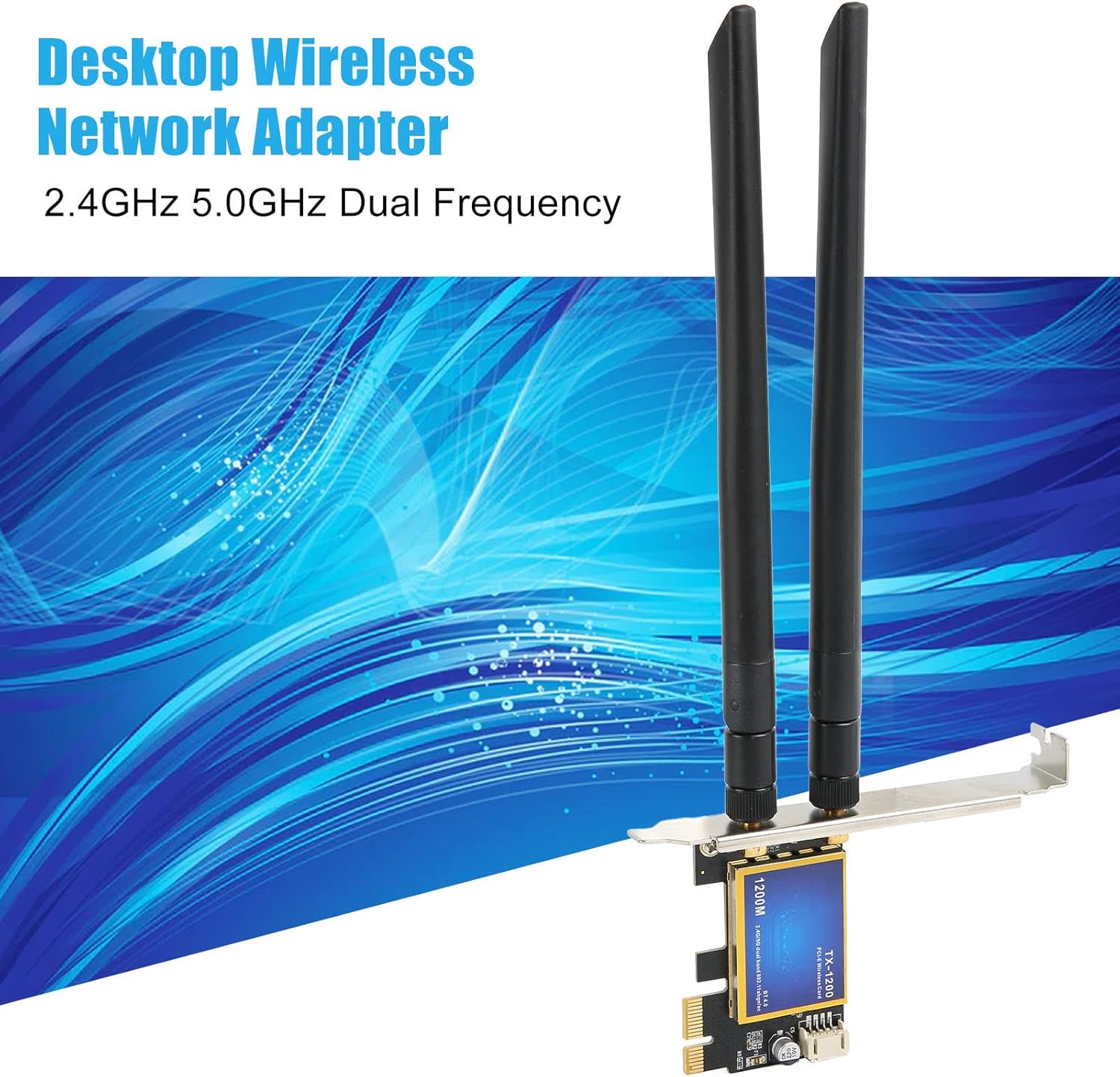
Image: The ciciglow TX-1200 Dual-Band PCIe WiFi Card, featuring two external antennas, designed for desktop computers to provide 2.4GHz and 5.0GHz dual-frequency wireless connectivity.
2. Product Features
- Dual-Band Connectivity: Supports IEEE 802.11ac wireless standards, operating on both 2.4 GHz and 5.0 GHz frequencies for flexible network connections.
- High-Speed Performance: Achieves wireless speeds up to 1200 Mbps (300 Mbps on 2.4 GHz and 867 Mbps on 5 GHz).
- Bluetooth 4.0: Integrated Bluetooth 4.0 for connecting wireless peripherals such as keyboards, mice, and headphones.
- Wide Wireless Range: Equipped with two high-gain external antennas to enhance Wi-Fi signal reception, providing extended coverage and improved stability.
- Broad Compatibility: Compatible with Windows 7, Windows 8, and Windows 10 operating systems. Designed for desktop computers with a PCI Express interface (PCIE 1X, 4X, or 16X slots).
- Plug and Play: Designed for easy installation and immediate use, though driver installation may be required for optimal performance.

Image: The wireless card emphasizing its 1200Mbps speed capability and compatibility with Windows 7, 8, and 10 operating systems.
3. Package Contents
Please verify that all items are present in the package:
- 1 x PCIe WiFi Card (Model TX-1200)
- 2 x External Antennas
- 1 x Bluetooth Adapter Cable (USB header cable)
- 1 x Mounting Screw

Image: A complete view of the package contents, including the PCIe WiFi card, two antennas, the Bluetooth adapter cable, and a mounting screw.
4. Setup Guide
4.1 Pre-Installation Checklist
- Ensure your computer is powered off and unplugged from the wall outlet.
- Open your computer case.
- Locate an available PCI Express slot (PCIE 1X, 4X, or 16X) on your motherboard.
- Have a Phillips head screwdriver ready.
4.2 Hardware Installation
- Carefully insert the PCIe WiFi card into an available PCI Express slot on your motherboard. Ensure it is seated firmly.
- Secure the card to the computer case using the provided mounting screw.
- Attach the two external antennas to the connectors on the back of the PCIe card by screwing them clockwise until snug.
- Connect the small end of the Bluetooth adapter cable to the designated header on the PCIe card.
- Connect the other end of the Bluetooth adapter cable to an available 9-pin USB 2.0 header on your motherboard. Refer to your motherboard manual for the exact location of the USB 2.0 headers.
- Close your computer case and reconnect all cables.

Image: The PCIe WiFi card shown installed in a desktop computer's PCI Express slot, illustrating its compatibility with PCIE 1X, 4X, and 16X interfaces.

Image: A detailed view of the card's connectors, including the antenna ports and the Bluetooth adapter cable header.
4.3 Driver Installation
For Windows 7, 8, and 10, the card is generally plug and play for basic Wi-Fi functionality. However, for optimal performance and Bluetooth functionality, it is recommended to install the latest drivers. Drivers can typically be found on the manufacturer's website or on an included driver CD (if applicable).
Note on Model Variations: Please be aware that new and old models of this product may be shipped randomly. Both types offer the same core functionality.
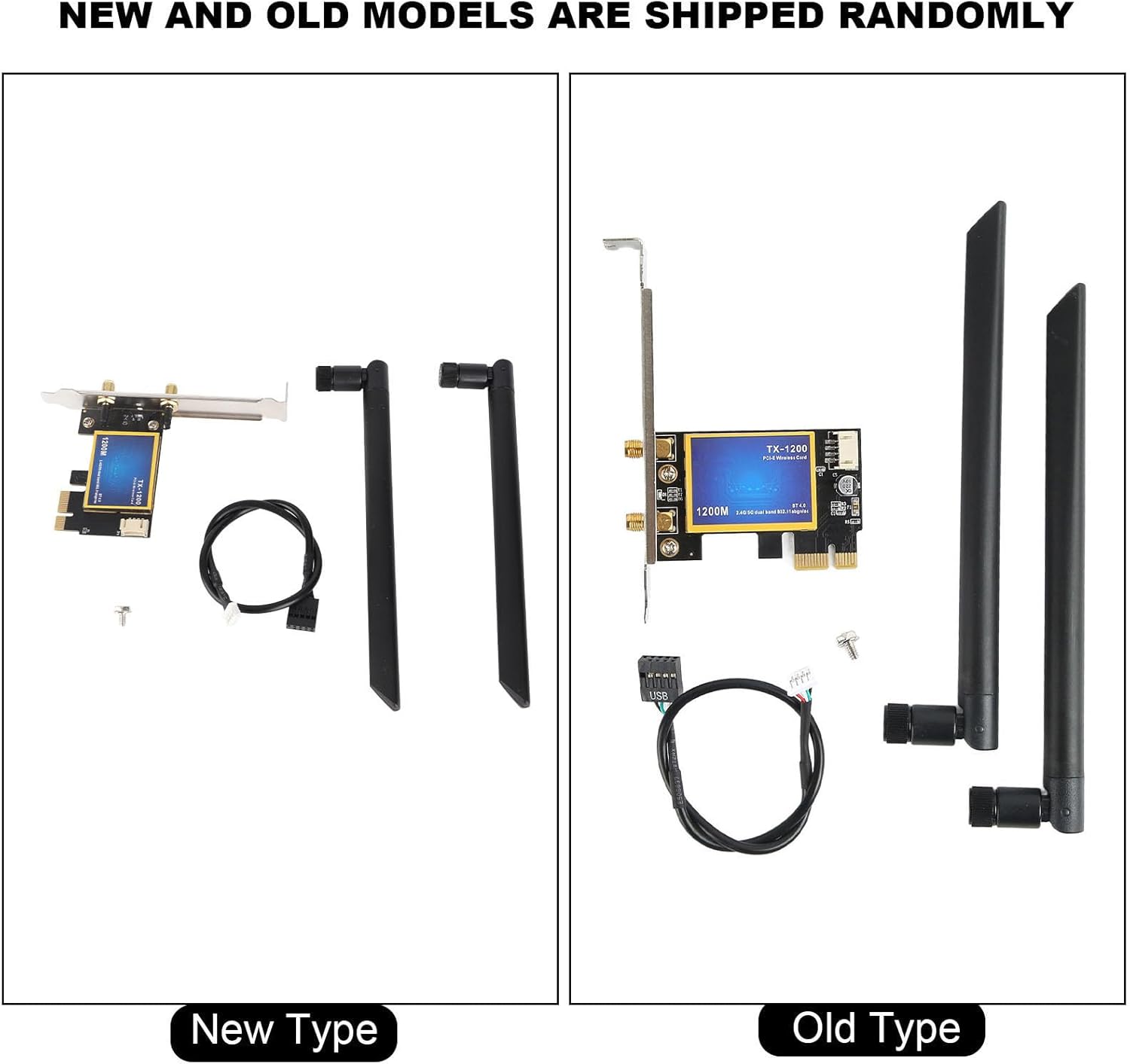
Image: A visual comparison between the 'New Type' and 'Old Type' models of the ciciglow TX-1200 card, showing slight design differences but identical functionality.
5. Operating Instructions
5.1 Connecting to Wi-Fi
- After successful installation and driver setup, power on your computer.
- In Windows, click on the Wi-Fi icon in the system tray (usually bottom-right corner).
- Select your desired Wi-Fi network from the list of available networks.
- Enter the network security key (password) if prompted.
- Click "Connect".
5.2 Pairing Bluetooth Devices
- Ensure your Bluetooth device is in pairing mode.
- In Windows, go to Settings > Devices > Bluetooth & other devices.
- Toggle Bluetooth to "On" if it's not already.
- Click "Add Bluetooth or other device" and select "Bluetooth".
- Select your device from the list and follow the on-screen prompts to complete pairing.
6. Maintenance
- Keep your computer's interior clean to ensure proper airflow around the card.
- Ensure antennas are securely attached and positioned for optimal signal reception.
- Periodically check for updated drivers on the manufacturer's website to ensure the best performance and compatibility.
7. Troubleshooting
7.1 No Wi-Fi Connection
- Check Physical Installation: Ensure the card is firmly seated in the PCIe slot and the antennas are securely attached.
- Driver Installation: Verify that the correct drivers are installed. Reinstall if necessary.
- Windows Settings: Ensure Wi-Fi is enabled in Windows settings.
- Router Issues: Restart your Wi-Fi router.
7.2 No Bluetooth Functionality
- Bluetooth Cable: Confirm the Bluetooth adapter cable is correctly connected to both the PCIe card and an active USB 2.0 header on your motherboard.
- Driver Installation: Ensure Bluetooth drivers are installed.
- Windows Settings: Verify Bluetooth is enabled in Windows settings.
- Device Pairing: Ensure your Bluetooth device is in pairing mode and within range.
7.3 Slow Wi-Fi Speeds
- Antenna Position: Adjust antenna orientation for better signal reception.
- Router Distance: Move closer to your Wi-Fi router or ensure there are no major obstructions.
- Frequency Band: Try connecting to the 5 GHz band if your router supports it, as it generally offers higher speeds with less interference.
- Interference: Minimize interference from other electronic devices.
8. Specifications
| Brand | ciciglow |
| Model Number | TX-1200 (Internal: ciciglowy4d73e15i0) |
| Hardware Interface | Bluetooth 4.0, PCI Express |
| Compatible Devices | Desktop Computer |
| Data Transfer Protocol | IEEE 802.11ac |
| Data Transfer Rate | 1200 Megabits per second (2.4GHz 300Mbps, 5GHz 867Mbps) |
| Compatible Operating System Family | Windows (7, 8, 10) |
| Number of Products | 1 |
| Manufacturer | ciciglow |
| Country of Origin | China |
| Product Type Name | PowerLAN Adapters |
| ASIN | B0CB1VVNK2 |
9. Warranty and Support
9.1 Warranty Information
This product comes with a manufacturer's warranty for 90 days from the date of purchase. Please retain your proof of purchase for warranty claims.
9.2 Technical Support
For technical assistance or further inquiries, please refer to the ciciglow official website or contact their customer support channels. Ensure you have your product model number (TX-1200) and purchase details ready when seeking support.