
1. Introduction
Thank you for choosing the IMILAB C20 Pro Home Security Camera. This manual provides detailed instructions for setting up, operating, and maintaining your camera to ensure optimal performance. The C20 Pro offers 2K crystal clear images, 360° free rotation, infrared night vision, human detection, and two-way audio communication for comprehensive home monitoring.

Figure 1.1: IMILAB C20 Pro Home Security Camera
Please read this manual thoroughly before use and retain it for future reference.
2. Package Contents
Upon unpacking, please verify that all the following items are included:
- IMILAB C20 Pro Home Security Camera
- Power Adapter
- USB Cable
- Wall Mounting Accessories (screws, wall plugs)
- User Manual
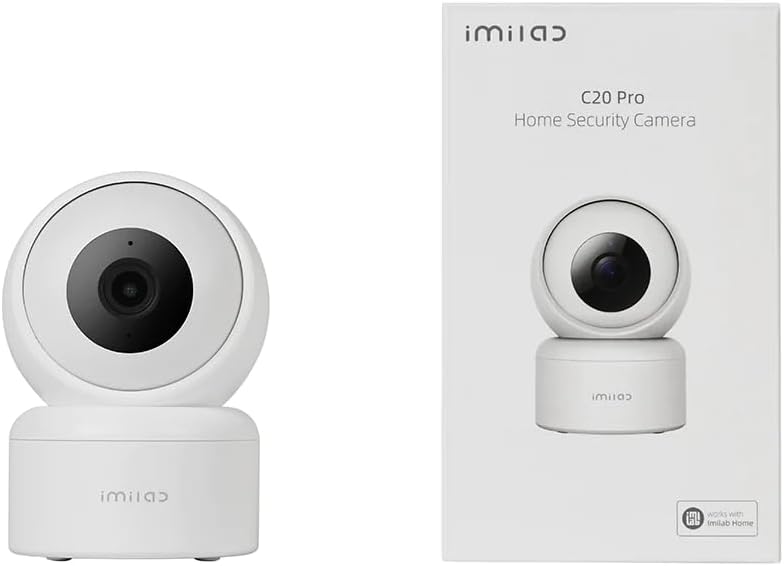
Figure 2.1: Camera and typical packaging contents. Actual packaging may vary.
3. Product Overview
Familiarize yourself with the various components of your IMILAB C20 Pro camera.

Figure 3.1: Side View

Figure 3.2: Back View (showing power port, reset button, and Micro SD card slot)
- Lens: Captures video footage.
- Indicator Light: Shows camera status (e.g., blue for connected, orange for waiting for connection).
- Microphone: For audio input and two-way communication.
- Speaker: For audio output and two-way communication.
- Micro SD Card Slot: For local video storage (supports up to 64GB, card not included).
- Reset Button: Press and hold to reset the camera to factory settings.
- Power Port: Connects to the power adapter.
4. Setup
Follow these steps to set up your IMILAB C20 Pro camera.
- Download the IMILAB Home App: Search for 'IMILAB Home' in your smartphone's app store (Google Play Store or Apple App Store) and install the application.
- Create an Account: Open the IMILAB Home app and follow the on-screen instructions to register a new account or log in if you already have one.
- Power On the Camera: Connect the provided USB cable to the camera's power port and the power adapter, then plug the adapter into a power outlet. The camera's indicator light will turn orange and blink, indicating it is ready for connection.
- Add Device: In the IMILAB Home app, tap the '+' icon to add a new device. Select 'IMILAB C20 Pro' from the list of available devices.
- Connect to Wi-Fi: Follow the app's instructions to connect the camera to your 2.4GHz Wi-Fi network. You will be prompted to scan a QR code generated by the app using the camera's lens. Hold your phone approximately 15-20 cm (6-8 inches) from the camera lens until you hear a voice prompt confirming successful scanning.
- Placement and Installation:
The camera can be placed on a flat surface or mounted on a wall or ceiling. For ceiling mounting, the camera supports inverted installation.

Figure 4.1: Example of Inverted Installation
If mounting, use the provided mounting accessories. Ensure the camera is securely fastened. In the app settings, you can enable 'Inverted Image' if the camera is mounted upside down to correct the video orientation.
5. Operating Instructions
Once your camera is set up, you can access its features through the IMILAB Home app.
5.1 Live View and Pan/Tilt Control
Open the IMILAB Home app and select your C20 Pro camera to view the live feed. You can use the on-screen controls to pan (horizontal) and tilt (vertical) the camera lens, providing a 360° coverage of the area.

Figure 5.1: 360° Free Rotation Capability
5.2 Two-Way Audio Communication
The camera supports two-way audio, allowing you to speak through the camera and hear audio from its vicinity. Tap the microphone icon in the live view interface to activate this feature.
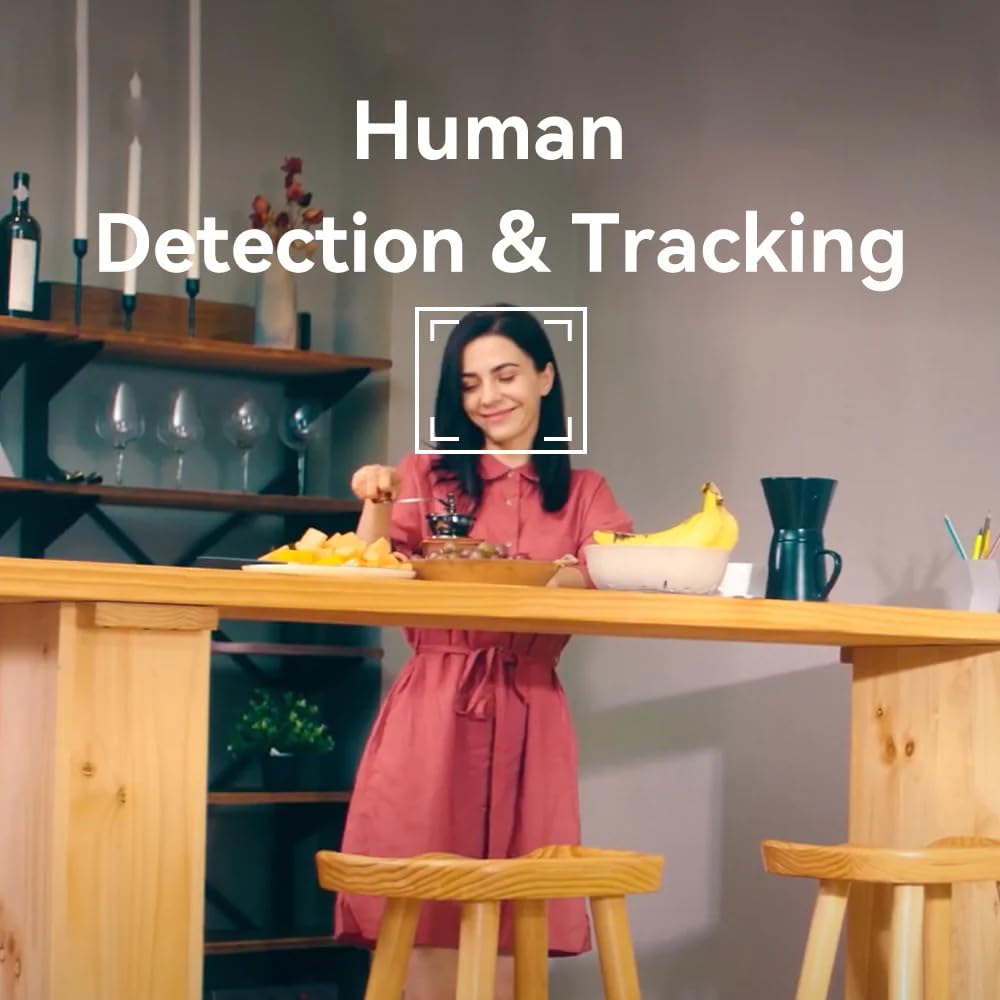
Figure 5.2: Two-Way Video Talk Feature
5.3 Human Detection & Tracking
The C20 Pro can detect human figures and track their movement within its field of view. Enable this feature in the app settings to receive alerts and automatically record relevant events.

Figure 5.3: Human Detection & Tracking in action
5.4 Infrared Night Vision
The camera automatically switches to infrared night vision in low-light conditions, providing clear black-and-white video footage up to a certain distance.
5.5 Video Recording and Storage
The camera supports continuous recording or event-triggered recording. Footage can be stored on a Micro SD card (purchased separately) or via cloud storage services (subscription may be required). The camera provides 2K (3MP) high-resolution video for detailed monitoring.

Figure 5.4: 2K High Resolution Video Quality
6. Maintenance
Regular maintenance ensures the longevity and optimal performance of your camera.
- Cleaning: Gently wipe the camera lens and body with a soft, dry cloth. Avoid using harsh chemicals or abrasive materials that could damage the surface.
- Firmware Updates: Periodically check the IMILAB Home app for available firmware updates. Keeping your camera's firmware up-to-date ensures you have the latest features and security enhancements.
- Environmental Conditions: Ensure the camera is used within its specified operating temperature and humidity ranges. Avoid exposing it to extreme temperatures, direct sunlight, or excessive moisture.
7. Troubleshooting
If you encounter issues with your IMILAB C20 Pro camera, refer to the following common problems and solutions:
| Problem | Possible Cause | Solution |
|---|---|---|
| Camera offline | No power, Wi-Fi disconnected, poor Wi-Fi signal | Check power connection. Restart camera and router. Ensure camera is within Wi-Fi range. |
| Cannot connect to Wi-Fi | Incorrect Wi-Fi password, 5GHz network, camera too far from router | Verify Wi-Fi password. Ensure you are connecting to a 2.4GHz network. Move camera closer to router. Reset camera and try again. |
| Poor video quality | Insufficient bandwidth, dirty lens | Check internet speed. Clean the camera lens. Adjust video resolution in app settings. |
| No audio or two-way talk issues | Microphone/speaker blocked, app settings | Ensure nothing is obstructing the microphone or speaker. Check audio settings in the IMILAB Home app. |
| Micro SD card not recognized | Card not inserted correctly, incompatible card, faulty card | Reinsert the card. Ensure it is a compatible Micro SD card (Class 10 or higher, up to 64GB). Try formatting the card in the app or with a computer. |
If the problem persists after trying these solutions, please contact IMILAB customer support.
8. Specifications
| Feature | Detail |
|---|---|
| Model Name | CMSXJ56B C20 Pro |
| Brand | IMILAB |
| Resolution | 3MP (2K) |
| Connectivity Technology | Wireless (2.4GHz Wi-Fi) |
| Pan/Tilt | 360° Free Rotation |
| Night Vision | Infrared Night Vision |
| Special Features | Human Detection & Tracking, Two-Way Call, Motion & Human Alerts, Sounds Detection, Inverted Installation |
| Storage Options | Cloud Storage, Micro SD Card (up to 64GB) |
| Video Compression | H.265/H.264 |
| Power Source | Corded Electric |
| Recommended Use | Indoor Security |
| Product Dimensions | 50 x 4999.99 x 50 cm; 250 g |
9. Warranty and Support
IMILAB products are designed for reliability and performance. For specific warranty information, please refer to the warranty card included with your product or visit the official IMILAB website. For technical support, frequently asked questions, or to report an issue, please contact IMILAB customer service through their official channels.
Official Website: www.imilab.com
10. Safety Information
- Do not disassemble, repair, or modify the camera.
- Use only the provided power adapter and cable to avoid damage or fire.
- Keep the camera away from water, fire, and extreme temperatures.
- Avoid placing the camera near strong electromagnetic fields.
- Ensure the camera is installed securely to prevent it from falling.
- This product is intended for indoor use only, despite some specifications mentioning 'Outdoor' usage, the primary recommended use is 'Indoor Security'.


