
Introduction
Welcome to the Spovan AtlasX Mate AMOLED Smartwatch user manual. This guide provides essential information for setting up, operating, and maintaining your new smartwatch, ensuring you get the most out of its advanced features.
The AtlasX Mate features a vibrant AMOLED display, Always-On Display (AOD) functionality, and a 2-in-1 voice call chip for seamless communication. It also offers comprehensive health monitoring, including blood pressure, oxygen, pulse, sleep, and stress tracking.
Product Overview
Key Features
- AMOLED Display
- Always-On Display (AOD)
- Blood Pressure, Oxygen, Pulse, Sleep Tracking
- 2-in-1 Voice Call Chip
- Magnetic Strap

The Spovan AtlasX Mate smartwatch features a round AMOLED display and a sleek black design with a magnetic strap.
Setup
Charging the Device
Before first use, fully charge your Spovan AtlasX Mate smartwatch. Connect the magnetic charging cable to the charging port on the back of the watch and plug the USB end into a power adapter (not included) or a computer's USB port.
Pairing with Your Smartphone
- Download the official Spovan companion application from the App Store (iOS) or Google Play Store (Android).
- Ensure Bluetooth is enabled on your smartphone.
- Open the Spovan application and follow the on-screen instructions to search for and connect to your AtlasX Mate smartwatch.
- Confirm the pairing request on both your watch and smartphone.

The watch face of the Spovan AtlasX Mate, illustrating the clear AMOLED display during initial setup.
Operating Instructions
Basic Navigation
The Spovan AtlasX Mate features a full touch screen and a side button for navigation.
Touch Screen Gestures
- Swipe Up: Access notifications.
- Swipe Down: Access quick settings.
- Swipe Left/Right: Navigate through widgets and main functions (e.g., activity tracker, heart rate, weather).
- Tap: Select an item or confirm an action.
Side Button Function
- Short Press: Return to the previous screen or watch face.
- Long Press: Power on/off or access the main menu.
Making and Answering Calls
The AtlasX Mate is equipped with a 2-in-1 voice call chip, allowing you to make and receive calls directly from your wrist when connected to your smartphone via Bluetooth.
- Answering Calls: When a call comes in, tap the green answer icon on the watch screen.
- Making Calls: Access the dialer or contact list through the watch's menu to initiate a call.

The Spovan AtlasX Mate smartwatch comfortably worn on a user's wrist, demonstrating its ergonomic design and call functionality.
Health Monitoring
The smartwatch provides various health tracking features. For accurate readings, ensure the watch is worn snugly on your wrist.
Blood Pressure, Oxygen, Pulse, and Stress Tracking
Navigate to the respective health monitoring function on your watch. Follow the on-screen instructions to initiate a measurement. Readings are for reference only and should not be used for medical diagnosis.
Sleep Tracking
Wear your watch to bed to automatically track your sleep patterns, including deep sleep, light sleep, and wake times. View detailed reports in the companion app.

A close-up of the Spovan AtlasX Mate display, illustrating its ability to show multiple health and activity metrics simultaneously.

The Spovan AtlasX Mate's interface displaying a range of application icons for quick access to features like calls, weather, and health tracking.
Always-On Display (AOD)
The AtlasX Mate supports Always-On Display, allowing the time and essential information to remain visible on the screen without needing to raise your wrist or press a button. This feature can be enabled or disabled in the watch settings to manage battery consumption.
Voice Assistant
The Spovan AtlasX Mate integrates with voice assistants. For iOS, it's compatible with Siri, and for Android, it works with Google Assistant. Activate the voice assistant through the watch's menu or a designated gesture/button press, then speak your commands.

The Spovan AtlasX Mate smartwatch showing the visual representation of its active voice assistant feature.
Stock Tracking
The watch supports tracking stock market data from over 70 countries. Add your preferred stocks in the companion app to view real-time updates directly on your smartwatch.
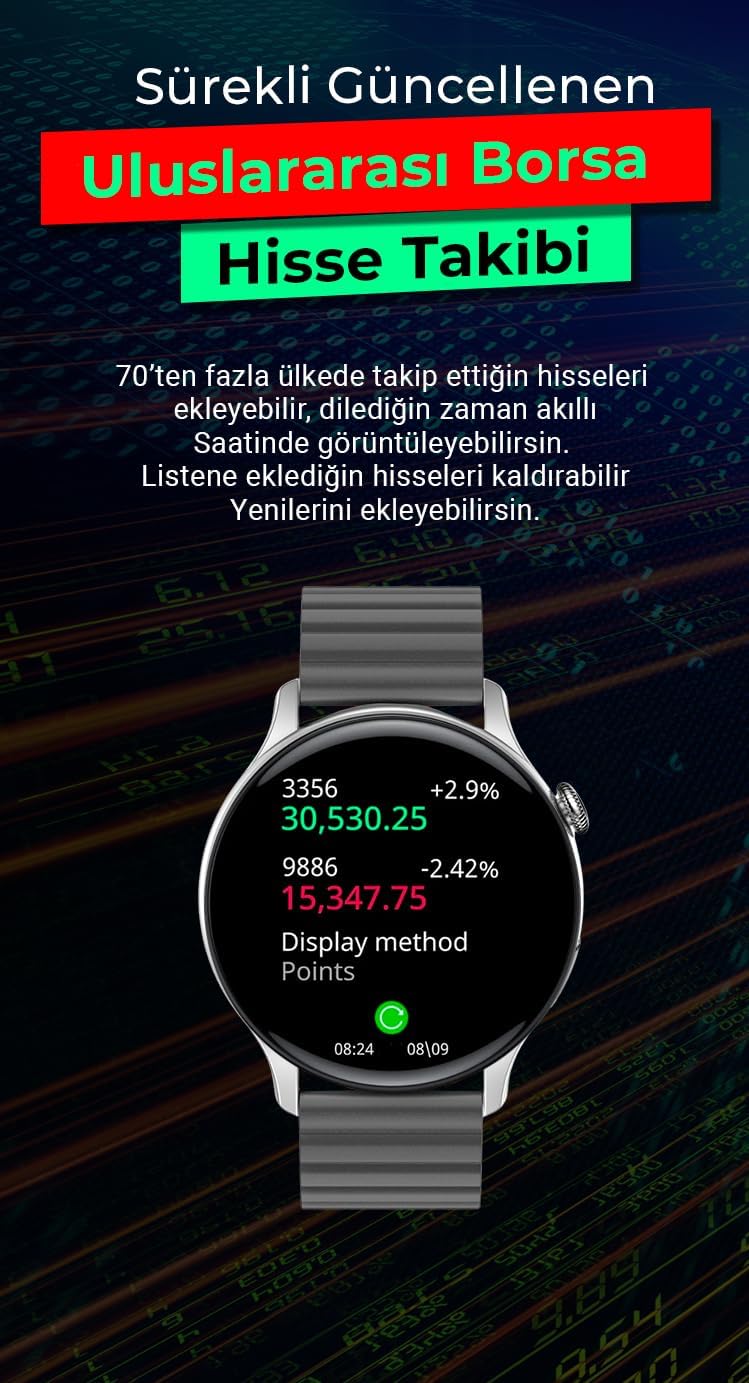
The Spovan AtlasX Mate smartwatch screen showing a stock tracking interface with real-time market data.
Maintenance
Cleaning Your Smartwatch
Regularly clean your smartwatch and strap to prevent skin irritation and maintain its appearance. Use a soft, lint-free cloth. If necessary, slightly dampen the cloth with water. Do not use harsh chemicals or abrasive materials.
Magnetic Strap
The AtlasX Mate features a unique magnetic strap design. While convenient, ensure it is securely fastened during activities to prevent accidental detachment. For replacement, consult the official Spovan support.

A detailed view of the Spovan AtlasX Mate's magnetic strap, highlighting its design.
Troubleshooting
Common Issues and Solutions
Watch Not Turning On
Ensure the watch is fully charged. If the issue persists, try a soft reset by pressing and holding the side button for 10-15 seconds.
Connection Issues
- Verify Bluetooth is enabled on your smartphone and the watch is within range.
- Restart both your smartphone and the smartwatch.
- Re-pair the watch through the companion application.
Inaccurate Health Readings
Ensure the watch is worn snugly on your wrist, not too tight or too loose. Avoid excessive movement during measurements. Remember, these readings are for general wellness and not medical diagnosis.
Display Not Responding
Try restarting the watch. If the screen remains unresponsive, contact customer support.
Specifications
Technical Specifications
| Feature | Detail |
|---|---|
| Brand | Spovan |
| Model | AtlasX Mate |
| Manufacturer Part Number | AtlasXMate |
| Key Features | Always-On Display |
| Screen Size | 46 Millimeters (1.45 inches) |
| Display Type | AMOLED |
| Resolution | 466x466 pixels |
| Shape | Round |
| First Available Date | July 3, 2023 |

The Spovan AtlasX Mate smartwatch screen showcasing its 1.45-inch AMOLED display with 466x466 pixel resolution and touch functionality.
Important Legal Information
Electronic products are not directly covered by the right of withdrawal.
Warranty and Support
Warranty Information
For warranty details and terms, please refer to the documentation provided with your purchase or visit the official Spovan website.
Customer Support
If you encounter any issues or have questions not covered in this manual, please contact Spovan customer support through their official website or the companion application.