
Introduction
Thank you for choosing the FamBrow P802 8.1-inch WiFi Digital Photo Frame. This manual provides detailed instructions for setting up, operating, and maintaining your device. Please read it thoroughly before use to ensure optimal performance and longevity of your photo frame.
Package Contents
- FamBrow P802 Digital Photo Frame
- Power Adapter
- User Manual
- Removable Stand
Setup
1. Powering On
- Connect the power adapter to the photo frame and then to a power outlet.
- The frame will automatically power on. Follow the on-screen prompts for initial setup.
2. Wi-Fi Connection
- On the initial setup screen or in the settings menu, select "Wi-Fi".
- Choose your home Wi-Fi network from the list.
- Enter your Wi-Fi password and tap "Connect".
- Ensure the frame is connected to a stable 2.4GHz Wi-Fi network for optimal performance.
3. App Download and Pairing
To share photos and videos wirelessly, download the free Linklemo application on your mobile phone (available for Android and iOS).
- Search for "Linklemo" in your device's app store.
- Install the application.
- Follow the in-app instructions to pair your mobile device with the FamBrow P802 photo frame. This typically involves scanning a QR code displayed on the photo frame.
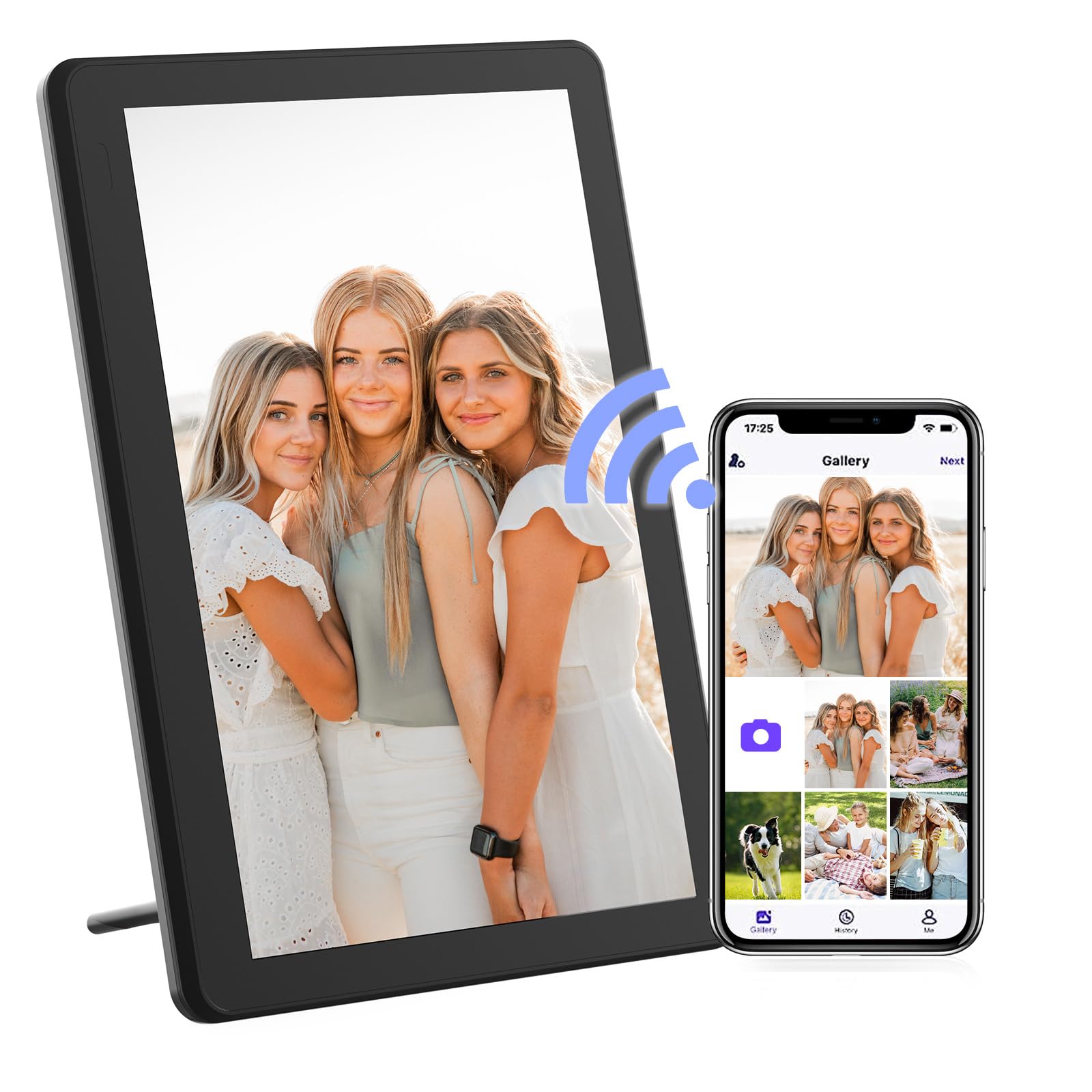
Image: The FamBrow P802 Digital Photo Frame, shown with its removable stand, displaying a vibrant image. This illustrates the device's appearance and how it can be positioned.
Operating Instructions
Touchscreen Navigation
The FamBrow P802 features an 8.1-inch HD IPS touchscreen with a resolution of 1920 x 1080. Navigate the interface by tapping, swiping, and pinching gestures, similar to a smartphone.
- Tap: Select items or open menus.
- Swipe: Browse through photos, navigate menus, or change slideshows.
- Pinch: Zoom in or out on photos (if supported by the software).
Sharing Photos and Videos
Once your frame is connected to Wi-Fi and paired with the Linklemo app, you can instantly share photos and videos (up to 15 seconds in length) from your mobile device to the frame. Open the Linklemo app, select the media you wish to share, and send it to your connected frame.
Automatic Rotation
The frame supports automatic rotation, adjusting the display orientation (landscape or portrait) based on how the frame is positioned. Ensure this feature is enabled in the settings for seamless viewing.
Slideshow Settings
Customize your slideshow experience through the frame's settings menu. Options include:
- Playback Order: Sequential, random.
- Image Scaling: Fit to screen, fill screen.
- Transition Effects: Various visual transitions between photos.
- Display Interval: Duration each photo is displayed.
Storage
The FamBrow P802 comes with 16GB of built-in memory, capable of storing approximately 40,000 photos (at 300KB per photo) or 2 hours of HD video.
Expandable Storage
For additional storage, the frame supports:
- SD Cards: Up to 128GB (not included). Insert the SD card into the designated slot.
- USB Drives: Connect a USB flash drive to the USB port.
You can manage media files from internal memory, SD cards, and USB drives directly through the frame's interface.
Additional Features
The FamBrow P802 includes several practical features to enhance user experience:
- Calendar: View the current date and month.
- Clock: Display the time in various formats.
- Alarm: Set alarms for reminders.
- Adjustable Brightness: Customize screen brightness to suit ambient lighting.
- Sleep Mode: Schedule the frame to automatically turn off/on at specific times to save energy.
- Weather Forecast: Display local weather information when connected to Wi-Fi.
Maintenance
Cleaning the Screen
To clean the touchscreen, gently wipe it with a soft, lint-free cloth. For stubborn smudges, slightly dampen the cloth with water or a screen-cleaning solution. Avoid using harsh chemicals or abrasive materials.
General Care
- Keep the frame away from direct sunlight, heat sources, and moisture.
- Do not expose the frame to extreme temperatures.
- Avoid dropping or subjecting the frame to strong impacts.
- Unplug the power adapter during electrical storms or when not in use for extended periods.
Troubleshooting
| Problem | Solution |
|---|---|
| Frame does not power on. | Ensure the power adapter is securely connected to both the frame and a working power outlet. Try a different outlet. |
| Cannot connect to Wi-Fi. | Verify your Wi-Fi password. Ensure the frame is within range of your router. Restart your router and the photo frame. The frame supports 2.4GHz Wi-Fi networks only. |
| Photos are not displaying. | Check if photos are stored in the correct format (e.g., JPEG, PNG). Ensure the storage device (internal, SD card, USB) is properly inserted and selected as the source. |
| Touchscreen is unresponsive. | Restart the photo frame. Ensure the screen is clean and free of debris. |
| Linklemo app cannot find the frame. | Ensure both your phone and the photo frame are connected to the same Wi-Fi network. Restart both devices and try pairing again. |
Specifications
| Feature | Detail |
|---|---|
| Brand | FamBrow |
| Model Number | P802 |
| Screen Size | 8.1 inches |
| Display Type | HD IPS Touchscreen |
| Resolution | 1920 x 1080 |
| Aspect Ratio | 16:9 |
| Internal Memory | 16 GB |
| Expandable Storage | Supports SD cards up to 128GB, USB drives |
| Connectivity | Wi-Fi (2.4GHz) |
| Human Interface Input | Touchscreen |
| Product Dimensions (L x W x H) | 19.7 x 13.5 x 2.5 cm |
| Product Weight | 740 grams |
Warranty and Support
Information regarding specific warranty terms and customer support contact details is not available in the provided product data. Please refer to the product packaging or the manufacturer's official website for the most current warranty information and support options.
For technical assistance or inquiries, please visit the FamBrow support page or contact their customer service as indicated in your product documentation.