
1. Introduction
This manual provides essential information for the safe and efficient use of your MI 18W Dual Port Charger and MI USB Type-C Cable. Please read this manual thoroughly before using the product and retain it for future reference.
2. Product Overview
2.1 MI 18W Dual Port Charger

Image: The MI 18W Dual Port Charger, a compact black charging adapter with two USB-A output ports.
The MI 18W Dual Port Charger is designed for fast and efficient charging of compatible devices. It features two USB ports, allowing you to charge two devices simultaneously. The charger is BIS certified and includes 380V surge protection for enhanced safety. It is compatible with Qualcomm Quick Charge 3.0 technology, delivering up to 18W of power.

Image: A close-up view of the MI 18W Dual Port Charger, highlighting its two USB-A output ports.
Its universal voltage support (100-240V) and compact design make it suitable for travel and various power outlets.
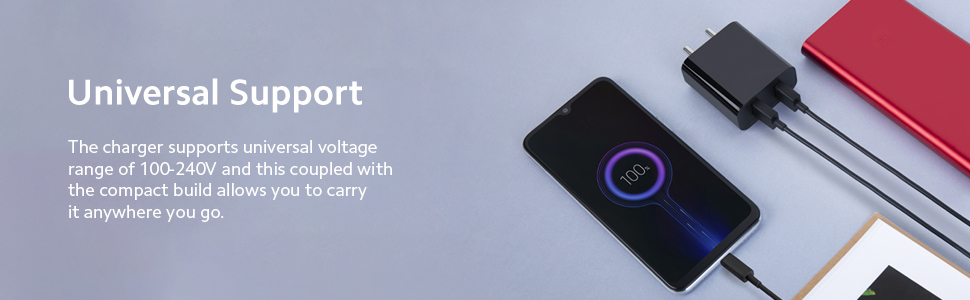
Image: The MI 18W Dual Port Charger plugged into a wall socket, with a USB cable connected to a smartphone displaying a charging icon.
2.2 MI USB Type-C Cable

Image: The MI USB Type-C Cable, showing both the USB-A and USB Type-C connectors.
The MI USB Type-C Cable is a 1-meter long, sturdy, and durable cable designed for both charging and data transfer. It supports up to 3A output for fast charging and data transfer speeds of up to 480 Mbps.

Image: A close-up view of the USB Type-C connector end of the cable, emphasizing its design.
3. Setup Instructions
- Unpack the Product: Carefully remove the MI 18W Dual Port Charger and MI USB Type-C Cable from their packaging.
- Inspect for Damage: Before use, visually inspect both the charger and the cable for any signs of physical damage. Do not use if damaged.
- Connect the Charger: Plug the MI 18W Dual Port Charger into a standard wall power outlet (100-240V AC).
- Connect the Cable: Insert the USB-A end of the MI USB Type-C Cable into one of the USB ports on the charger.
- Connect to Device: Insert the USB Type-C end of the cable into the charging port of your compatible device (e.g., smartphone, tablet).
4. Operating Instructions
- Charging Devices: Once connected as per the setup instructions, your device should begin charging automatically. A charging indicator (usually on your device screen) will confirm this.
- Dual Charging: You can charge two devices simultaneously by connecting a second USB cable (not included, unless specified) to the other USB port on the charger and then to your second device. The total output will be shared, up to 18W.
- Data Transfer: To transfer data, connect the MI USB Type-C Cable from your device to a computer's USB port. Ensure your device is set to data transfer mode if prompted.
- Disconnecting: Always disconnect the cable from your device first, then from the charger, and finally unplug the charger from the wall outlet.
5. Safety Information
- Do not expose the charger or cable to water, moisture, or extreme temperatures.
- Avoid dropping or subjecting the product to strong impacts.
- Do not attempt to disassemble, repair, or modify the product. This will void the warranty.
- Keep out of reach of children.
- Ensure the charger is plugged into a properly grounded and accessible power outlet.
- Unplug the charger during lightning storms or when unused for extended periods.
- The charger features 380V surge protection, but it is still advisable to use it in stable power environments.
6. Maintenance
- Cleaning: Use a soft, dry cloth to clean the charger and cable. Do not use liquid cleaners or aerosols.
- Storage: Store the product in a cool, dry place away from direct sunlight and corrosive materials.
- Cable Care: Avoid bending or twisting the cable excessively, especially near the connectors, to prevent internal damage.
7. Troubleshooting
- Device not charging:
- Ensure the charger is securely plugged into a working power outlet.
- Verify the USB cable is firmly connected to both the charger and your device.
- Try using a different power outlet.
- Test with a different compatible USB cable or device to isolate the issue.
- Slow charging:
- Ensure your device supports fast charging and that the cable is capable of delivering the required current (up to 3A for the MI Type-C cable).
- If charging two devices simultaneously, the 18W output is shared, which may result in slower charging for each device.
- Close background applications on your device that consume significant power.
- Cable not transferring data:
- Ensure the cable is securely connected to both your device and the computer.
- Check your device settings to ensure it is in data transfer mode (e.g., MTP, File Transfer).
- Try a different USB port on your computer.
8. Specifications
| Feature | Specification |
|---|---|
| Brand | MI |
| Model | 18W Dual Port Charger & USB Type-C Cable |
| Charger Wattage | 18 Watts (Max) |
| Charger Ports | Dual USB-A |
| Charger Input Voltage | 100-240 Volts (AC) |
| Charger Special Features | Qualcomm QC 3.0 Compatible, 380V Surge Protection, BIS Certified |
| Cable Type | USB Type-C to USB-A |
| Cable Length | 1 meter |
| Cable Max Current | 3 Amps |
| Cable Data Transfer Rate | Up to 480 Mbps |
| Compatible Devices | Cellular Phones (e.g., Redmi models) |
| Usage Environment | Indoor, Outdoor |
| Color | Black |
9. Warranty and Support
The MI USB Type-C Cable comes with a 6-month warranty from the date of purchase. Please retain your proof of purchase for warranty claims. For support or warranty inquiries, please contact MI customer service through their official website or authorized service centers.
The MI 18W Dual Port Charger's warranty information is typically provided with the product packaging. Please refer to the documentation included with your charger for specific warranty details.