
Introduction
This manual provides essential information for setting up, operating, maintaining, and troubleshooting your Plum iPhone 6s 16GB Unlocked smartphone. The iPhone 6s features a 12-megapixel iSight camera, a 5-megapixel FaceTime camera, 4K video support, and a 4.7-inch touchscreen display. It includes a 3.5mm headphone jack and is compatible with various carriers.
Setup
1. Unboxing and Initial Inspection
Carefully remove all items from the packaging. The box should contain the Plum iPhone 6s, a new charger, a cable, and a headset. Inspect the device for any visible damage.

Image: Front and back view of the Plum iPhone 6s, showing the display and rear camera.
2. Inserting the SIM Card
- Locate the SIM tray on the side of the iPhone.
- Use a SIM ejector tool (or a small paperclip) to open the SIM tray.
- Place your nano-SIM card into the tray with the gold contacts facing down and the notched corner aligned.
- Gently push the SIM tray back into the phone until it is flush.

Image: Side view of the Plum iPhone 6s, illustrating the location of the SIM tray and volume buttons.
3. Initial Power On and Activation
- Press and hold the Power/Sleep button until the Apple logo appears.
- Follow the on-screen instructions to select your language, region, and connect to a Wi-Fi network.
- Set up Touch ID, create a passcode, and restore data from a backup if desired, or set up as a new iPhone.
4. Charging the Device
Connect the provided charging cable to the iPhone's charging port and the other end to the power adapter. Plug the adapter into a wall outlet. A full charge typically takes approximately 3 hours. Ensure the battery has a minimum capacity of 80% for optimal performance.
Operating Instructions
1. Basic Navigation
- Touchscreen: Tap to select, swipe to scroll, pinch to zoom.
- Home Button: Press once to return to the Home screen. Double-press to open the app switcher. Press and hold for Siri.
- 3D Touch: Press firmly on the screen to access quick actions or peek at content.

Image: Front view of the Plum iPhone 6s, showing the display with various application icons.
2. Camera Usage
The iPhone 6s features a 12-megapixel iSight camera on the rear and a 5-megapixel FaceTime camera on the front. Both cameras utilize advanced color filters for improved image quality.
- Taking Photos: Open the Camera app and tap the shutter button.
- Video Recording: Select 'Video' mode in the Camera app. The device supports 4K video recording.
- Panoramic Photos: Select 'Pano' mode to capture wide-angle images up to 63 megapixels.
- Selfies: Switch to the front-facing FaceTime camera for self-portraits, which includes a flash feature.
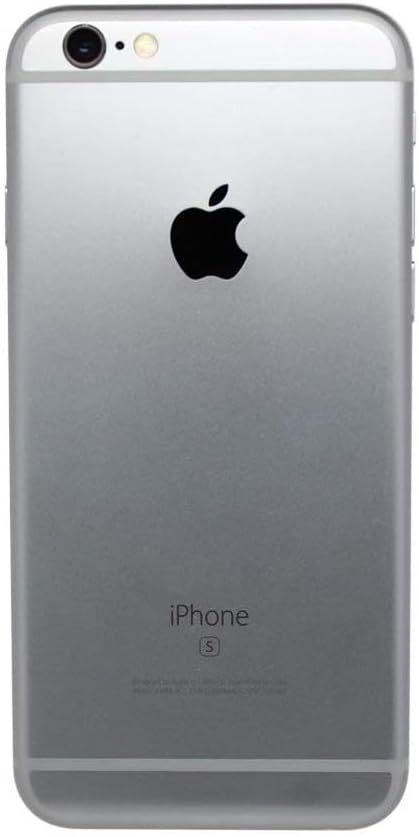
Image: Back view of the Plum iPhone 6s, highlighting the iSight camera and Apple logo.
3. Connectivity
- Cellular: The device supports 4G LTE and is factory unlocked for use with AT&T, T-Mobile, Verizon, Straight Talk, Mint, Boost Mobile, US Mobile, Ting Mobile, Simple Mobile, and other service providers.
- Wi-Fi: Connect to wireless networks via Settings > Wi-Fi.
- Bluetooth: Pair with Bluetooth accessories via Settings > Bluetooth.
- GPS: Integrated GPS for location services.
4. Audio
The iPhone 6s includes a built-in 3.5mm audio jack for connecting headphones or external audio devices.
Maintenance
1. Battery Care
- Avoid extreme temperatures, as they can degrade battery performance.
- For optimal battery longevity, avoid fully discharging the battery frequently.
- The device is tested to have a minimum battery capacity of 80%.
2. Cleaning the Device
Use a soft, lint-free cloth to clean the screen and exterior of the iPhone. Avoid using abrasive materials or harsh chemicals.
3. Software Updates
The device is upgradeable to iOS 15. Regularly check for and install software updates to ensure optimal performance and security. Go to Settings > General > Software Update.
Troubleshooting
1. Device Freezing or Unresponsive
If your iPhone becomes unresponsive, perform a force restart:
- Press and hold both the Home button and the Power/Sleep button simultaneously.
- Continue holding them until the Apple logo appears.
- Release both buttons.
2. Battery Draining Quickly
- Check battery usage in Settings > Battery to identify apps consuming the most power.
- Reduce screen brightness and disable unnecessary background app refresh.
- Ensure the device is not overheating during charging or heavy use.
3. Connectivity Issues
- For Wi-Fi or Bluetooth issues, try toggling the respective settings off and on.
- For cellular network problems, ensure your SIM card is properly inserted and contact your carrier if issues persist.
4. Factory Reset (Last Resort)
If persistent issues occur, you may consider a factory reset. This will erase all data on your device. Back up your data before proceeding. Go to Settings > General > Transfer or Reset iPhone > Erase All Content and Settings.
Specifications
| Feature | Specification |
|---|---|
| Brand | Plum |
| Model Name | IP6S16GRY |
| Operating System | iOS 15 (Upgradeable) |
| Memory Storage Capacity | 16 GB |
| RAM Memory Installed Size | 2 GB |
| Screen Size | 4.7 Inches |
| Resolution | 1334 x 750 pixels |
| CPU Model | Apple A9 |
| Main Camera | 12 Megapixels (iSight) |
| Front Camera | 5 Megapixels (FaceTime) |
| Cellular Technology | 4G LTE |
| Wireless Carrier | Unlocked for All Carriers |
| Connectivity Technologies | Bluetooth, Cellular |
| Audio Jack | 3.5 mm |
| Battery Power Rating | 1800 Milliamp Hours |
| Charging Time | Approximately 3 Hours |
| Item Weight | 7.6 ounces |
| Color | Gray |
| Included Components | Headset, Charger, Cable |
Warranty and Support
This Plum iPhone 6s is a pre-owned device that has been fully inspected and tested to be in good working condition. It is assured to have a minimum battery capacity of 80% and minimal to no cosmetic damage not noticeable at arm's length.
For specific warranty details or technical support, please refer to the documentation provided at the time of purchase or contact the seller directly. Keep your purchase receipt for any warranty claims.


