
Product Overview
The Edifier Hecate G30 II is a wired gaming over-ear headset designed to provide an immersive audio experience with 7.1 virtual surround sound. It features a detachable noise-cancelling microphone for clear communication and dynamic RGB lighting for enhanced aesthetics. The headset is engineered for comfort during extended gaming sessions, offering a lightweight design and soft earcups.
Key features include spatial 7.1 virtual surround sound for precise audio positioning, a 360° omni-directional noise-isolating microphone, and customizable RGB effect lighting. The headset is compatible with PC, PS4, PS5, Mac, Laptops, and Desktops via USB connection.
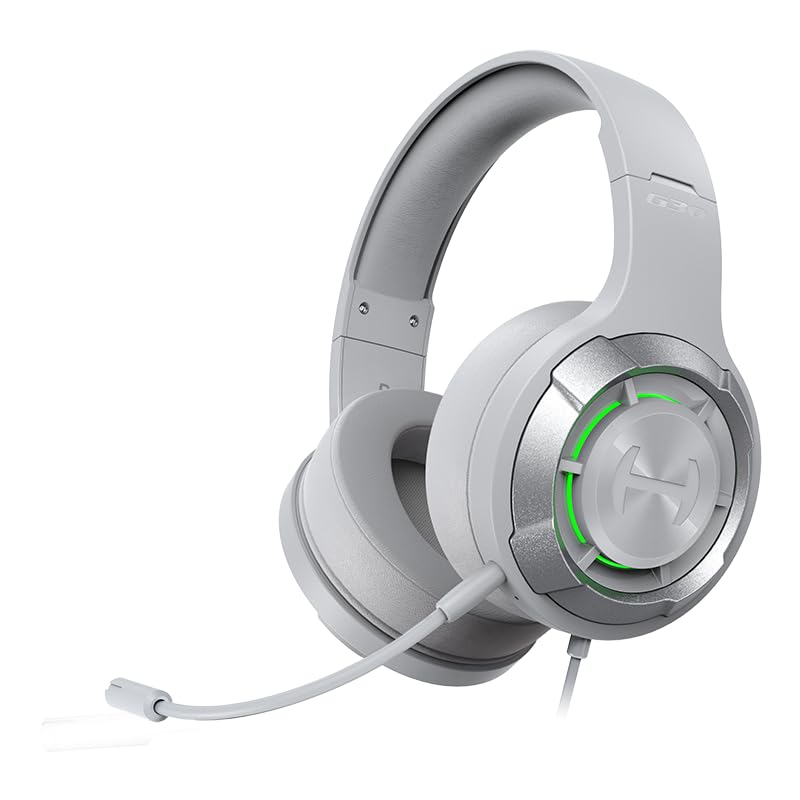
Figure 1: Edifier Hecate G30 II Gaming Headset. This image shows the overall design of the headset in a light grey color with green RGB lighting on the earcups and the detachable microphone attached.
Setup Guide
- Unboxing and Inspection: Carefully remove all components from the packaging. Verify that the headset and detachable microphone are present.
- Attaching the Microphone: Locate the microphone port on the left earcup. Align the microphone's connector with the port and gently push it in until it clicks into place. The microphone is 360° adjustable for optimal positioning.

Figure 2: Attaching the Detachable Microphone. This image illustrates the process of attaching the 360° adjustable, anti-noise microphone to the headset.
- Connecting the Headset: The Edifier Hecate G30 II connects via a USB-A cable. Plug the USB connector into an available USB port on your PC, Mac, PS4, or PS5 console. The headset is not compatible with Xbox.
- Initial System Recognition: Your operating system (Windows, macOS, PlayStation) should automatically detect the headset. Allow a few moments for drivers to install if necessary.
- Software Installation (Optional but Recommended): For full functionality, including 7.1 virtual surround sound customization, EQ settings, and microphone adjustments, it is recommended to install the HECATE Professional gaming sound effect software. Visit the official Edifier Hecate website to download the latest software for your operating system. Follow the on-screen instructions for installation. Note: Some users have reported challenges with software installation on certain Windows versions; ensure your system meets requirements and try running the installer as administrator if issues arise.
Operating Instructions
Audio Controls
- Volume Adjustment: Use the volume scroll wheel located on the rear of the right earcup to increase or decrease the audio output.
- Audio Mute: A dedicated button on the right earcup allows for instant muting of the headset's audio output. Press it once to mute, and again to unmute.

Figure 3: Headset Controls. This image highlights the location of the volume wheel, mute button, and RGB control button on the right earcup.
- 7.1 Virtual Surround Sound: This feature provides immersive sound for accurate enemy location and key clue detection in games. This functionality is best utilized and customized through the HECATE software.

Figure 4: 7.1 Virtual Surround Sound Experience. This image depicts a user wearing the headset, with visual cues indicating the spatial audio effect of 7.1 virtual surround sound.
Microphone Usage
- Microphone Mute: A dedicated button on the right earcup allows you to quickly mute and unmute the microphone. This is essential for privacy during gaming or calls.
- Noise Cancellation: The 360° omni-directional microphone is designed with noise-cancelling capabilities to ensure clear voice transmission by filtering out background noise.
RGB Lighting
- Controlling RGB Effects: The headset features 6 types of dynamic RGB lights on the earcups. A button on the right earcup (often marked 'G') controls the lighting. Press it to cycle through effects or turn the lights on/off. Note: Customization of specific colors or patterns typically requires the HECATE software.

Figure 5: RGB Dynamic Light Effects. This image showcases the headset displaying various RGB lighting effects on its earcups, enhancing its gaming aesthetic.
Maintenance
- Cleaning the Headset: Use a soft, dry cloth to wipe down the earcups and headband. For stubborn dirt, a slightly damp cloth with mild soap can be used, ensuring no liquid enters the internal components. Avoid harsh chemicals or abrasive cleaners.
- Microphone Care: If the microphone becomes dirty, gently wipe it with a soft, dry cloth. Ensure the microphone port is free of dust and debris.
- Storage: Store the headset in a cool, dry place away from direct sunlight and extreme temperatures. Avoid placing heavy objects on the headset to prevent damage to the headband or earcups.
- Cable Management: Avoid sharp bends or kinks in the USB cable to prevent internal wire damage.
Troubleshooting
| Problem | Possible Cause | Solution |
|---|---|---|
| No audio or low volume | Volume wheel set too low; System volume too low; Incorrect audio output device selected; Loose USB connection. |
|
| Microphone not working or unclear | Microphone muted; Microphone not properly attached; Incorrect input device selected; Software settings. |
|
| 7.1 Virtual Surround Sound not active/effective | HECATE software not installed or configured; Game/application does not support surround sound; System audio settings. |
|
| RGB lighting not working or customizable | Lighting turned off; Software not installed or recognized. |
|
| Software installation issues | Corrupted download; Incompatible OS; Permissions issues. |
|
Specifications

Figure 6: 40mm High-Performance Driver. This image provides an exploded view of the headset's 40mm high-performance driver, highlighting its components designed for rich treble and deep bass.
| Feature | Detail |
|---|---|
| Model Number | G30II |
| Brand | Edifier (Hecate) |
| Connectivity | Wired (USB-A) |
| Sound Type | 7.1 Virtual Surround Sound |
| Driver Size | 40mm High-Performance Driver |
| Microphone | Detachable, 360° Omni-directional, Noise-Cancelling |
| Lighting | RGB Effect Lighting (6 dynamic types) |
| Compatibility | PC, MAC, PS4, PS5, Laptop, Desktop (via USB connection) |
| Product Dimensions (LxWxH) | 10.4 x 10.3 x 4.7 cm |
| Item Weight | 522 g |
| Included Components | Headphones, Detachable Microphone |
| Release Date | 26 February 2024 |
Warranty and Support
Warranty Information
The Edifier Hecate G30 II Gaming Headset comes with a 1 Year Warranty from the date of purchase. Please retain your proof of purchase for warranty claims. The warranty covers manufacturing defects and malfunctions under normal use conditions.
Customer Support
For technical assistance, warranty claims, or any product-related inquiries, please contact Edifier customer support:
- Email: care@nikitadistributors.com
- Phone: 18002668571
- Importer/Packer Address: Green Terrace Building, Lane Number 5, South Koregaon Park, Pune 411001, MH, India.
For additional resources and product updates, visit the official Edifier website or the Edifier Store on Amazon.


