1. Product Overview
The Portronics Bubble Pro Wireless Keyboard with Touchpad offers versatile connectivity and an ergonomic design for comfortable use across multiple devices. It features dual wireless connectivity options, a built-in touchpad, and multimedia shortcut keys.

Figure 1: Portronics Bubble Pro Wireless Keyboard with Touchpad.
Key Features:
- Dual Wireless Connectivity: Supports both Bluetooth 5.0 and 2.4 GHz Wireless USB Receiver for flexible connection options.
- Built-in Touchpad: Integrated touchpad with left and right-click buttons, supporting scrolling and zooming functions.
- Multi-Device Connection: Connects up to 2 devices simultaneously, allowing easy switching between them.
- Shortcut Keys: Includes multimedia hotkeys for quick access to functions like mute, pause, volume control, plus a dedicated Indian Rupee symbol key.
- Auto Power-Saving: Automatically enters sleep mode after inactivity to conserve battery life.
- 10 Metres Wireless Range: Provides a stable connection up to 10 meters (33 feet).
- Ergonomic Typing: Features anti-fade keycaps and noiseless key switches for a comfortable typing experience.
- Spill-Resistant Design: Designed to withstand accidental spills for increased durability.
3. Operating Instructions
3.1. Switching Between Connected Devices
The Portronics Bubble Pro keyboard allows connection to up to two devices simultaneously. Use the dedicated keys to switch between them:
- Press the 2.4G Wireless key to switch to the device connected via the USB dongle.
- Press the Bluetooth key to switch to the device connected via Bluetooth.

Figure 4: Keyboard layout highlighting connectivity keys.
3.2. Touchpad Functions
The integrated touchpad provides mouse-like functionality:
- Pointing: Move your finger across the touchpad to control the cursor.
- Left-Click: Press the left-click button below the touchpad or tap once on the touchpad surface.
- Right-Click: Press the right-click button below the touchpad or tap with two fingers on the touchpad surface.
- Scrolling: Use two fingers to scroll up or down on the touchpad.
- Zooming: Pinch in or out with two fingers to zoom.

Figure 5: Touchpad area with indicators for point and scroll functions.
3.3. Shortcut Keys
The keyboard is equipped with multimedia hotkeys and a dedicated Rupee symbol key:
- Multimedia Hotkeys: Access functions like mute, pause, play, volume up/down, etc., typically located on the F-keys (F1-F12) and activated by pressing the 'Fn' key simultaneously.
- Indian Rupee Symbol (₹): A dedicated key is available for typing the Indian Rupee symbol.
3.4. Auto Power-Saving Mode
To conserve battery life, the keyboard automatically enters sleep mode after a period of inactivity. To wake it up, simply press any key or move the touchpad.
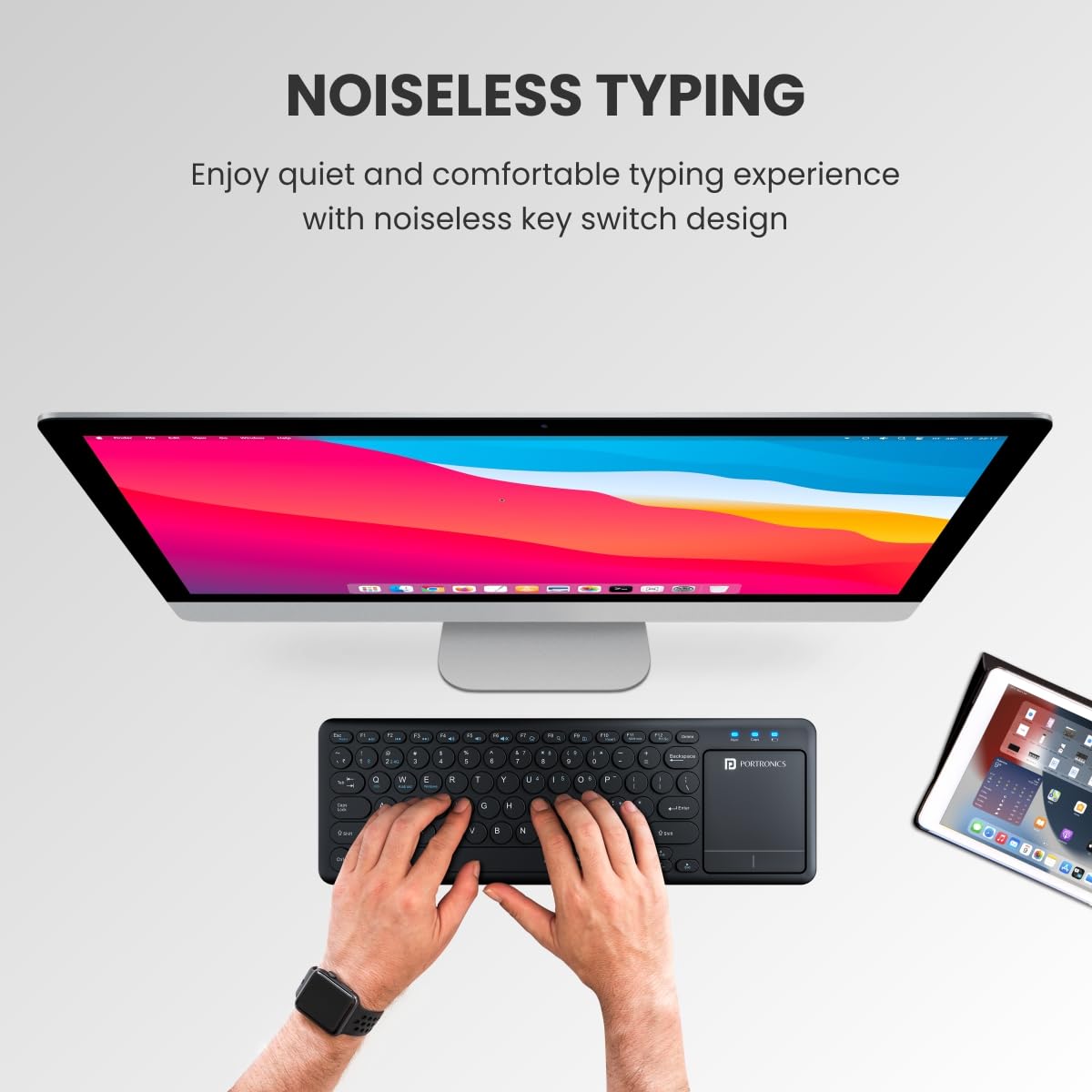
Figure 6: Keyboard demonstrating auto power-saving feature.
4. Maintenance
4.1. Cleaning
- Use a soft, damp cloth to wipe the surface of the keyboard.
- For dust and debris between keys, use compressed air.
- The keyboard features a spill-resistant design, allowing easy cleanup of accidental water splashes. However, avoid submerging the device in liquid.

Figure 7: Keyboard showcasing its spill-resistant design.
4.2. Battery Replacement
When the keyboard's performance degrades or it stops responding, it may be time to replace the AAA batteries. Follow the battery installation steps in Section 2.2.


