
Introduction
This manual provides detailed instructions for the setup, operation, and maintenance of your Sandberg Mechanical Gamer Keyboard, model 640-31. Please read this manual thoroughly before using the product to ensure proper functionality and longevity.
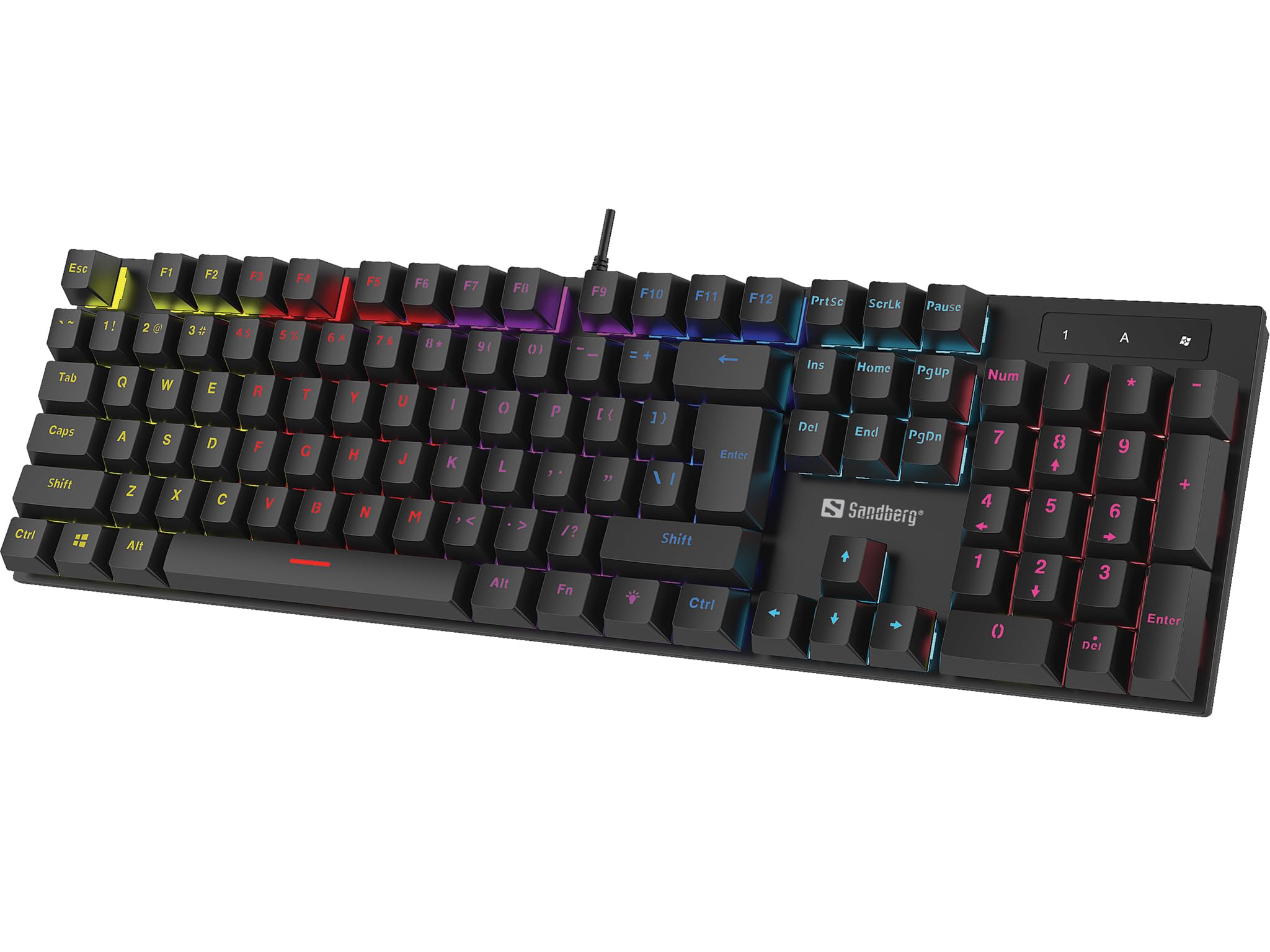
Image: The Sandberg Mechanical Gamer Keyboard 640-31, showcasing its full layout with RGB backlighting.
Package Contents
Ensure all items are present in the package:
- Sandberg Mechanical Gamer Keyboard 640-31 (German Layout)
- User Manual (this document)
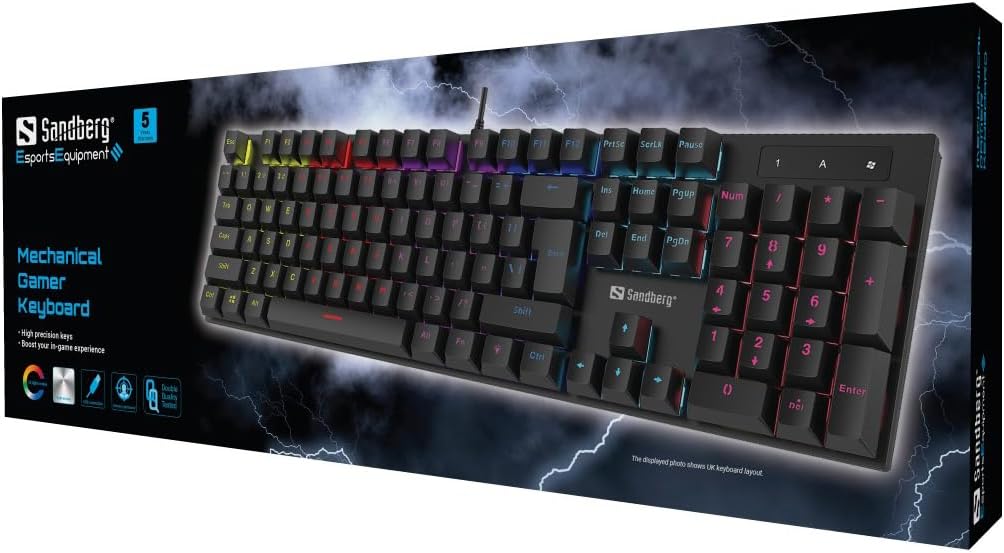
Image: The retail packaging for the Sandberg Mechanical Gamer Keyboard 640-31, displaying the keyboard and key features.
Setup
- Unpacking: Carefully remove the keyboard from its packaging.
- Connection: Locate an available USB port on your computer. Insert the USB connector of the keyboard into the USB port.
- Driver Installation: The keyboard is plug-and-play. Your operating system will automatically detect and install the necessary drivers. No additional software installation is typically required for basic functionality.
- Initial Test: Open a text editor or any application where you can type to verify that all keys are functioning correctly.
Operating Instructions
Basic Keyboard Functions
The Sandberg Mechanical Gamer Keyboard 640-31 features a standard German QWERTZ layout with a full numeric keypad. All standard alphanumeric keys, function keys (F1-F12), navigation keys, and the numeric keypad operate as expected.
Multimedia and Function Keys (Fn Combinations)
Many keys have secondary functions accessible by pressing the Fn key (located near the Alt key) simultaneously with the desired function key. Refer to the keycaps for specific icons indicating these functions.
- Fn + F1-F12: Typically control multimedia playback, volume, and other system functions.
- Fn + Windows Key: Locks/unlocks the Windows key to prevent accidental presses during gaming.
- Fn + Arrow Keys: May control backlight brightness or animation speed.
- Fn + Ins/Home/PgUp/Del/End/PgDn: Often used for backlight mode selection or customization.
Backlight Control
The keyboard features customizable RGB backlighting. Specific key combinations are used to adjust lighting effects:
- Brightness Adjustment: Use Fn + Up Arrow to increase brightness and Fn + Down Arrow to decrease brightness.
- Mode Switching: Press Fn + Ins, Fn + Home, Fn + PgUp, Fn + Del, Fn + End, or Fn + PgDn to cycle through various lighting modes and effects.
- Color Adjustment: Some modes allow color changes using Fn + Left Arrow or Fn + Right Arrow.
- Speed Adjustment: For dynamic lighting modes, Fn + Minus (-) and Fn + Plus (+) keys (on the main keyboard, not numpad) may adjust the effect speed.
Maintenance
Cleaning the Keyboard
- Disconnect: Always disconnect the keyboard from your computer before cleaning.
- Dust Removal: Use a can of compressed air to remove dust and debris from between the keycaps.
- Surface Cleaning: Wipe the keycaps and keyboard surface with a soft, slightly damp, lint-free cloth. Avoid excessive moisture.
- Avoid Harsh Chemicals: Do not use strong cleaning agents, solvents, or abrasive materials, as these can damage the keyboard's finish or keycap legends.
Storage
When not in use for extended periods, store the keyboard in a dry, cool place away from direct sunlight and extreme temperatures.
Troubleshooting
| Problem | Possible Cause | Solution |
|---|---|---|
| Keyboard not responding | Loose USB connection, faulty USB port, driver issue. |
|
| Specific keys not working | Debris under keycap, key switch malfunction. |
|
| Backlight not working or incorrect | Backlight settings, software conflict. |
|
| Keyboard input lag | System performance, USB port issues. |
|
Specifications
- Model: 640-31
- Brand: Sandberg
- Keyboard Layout: German (DE)
- Type: Mechanical Gamer Keyboard
- Number of Buttons: 105
- Connectivity: USB
- Product Dimensions: 2.34 x 6.22 x 2.6 inches
- Item Weight: 6.8 ounces
- Included Components: Mechanical keyboard DE
Warranty and Support
Sandberg products are designed for quality and come with a warranty. For specific warranty terms and conditions, please refer to the warranty information provided with your purchase or visit the official Sandberg website.
For technical support, troubleshooting assistance, or to inquire about replacement parts, please visit the official Sandberg support page or contact their customer service directly. You can find contact information on the Sandberg website: www.sandberg.it


