1. Introduction
This user manual provides detailed instructions for the installation, operation, and maintenance of your Hisense 58A6K 58-inch LED 4K Ultra HD Smart TV. Please read this manual thoroughly before using your TV and retain it for future reference. This television offers a stunning 4K Ultra HD display, smart features powered by VIDAA U6, and advanced technologies for an immersive viewing experience.
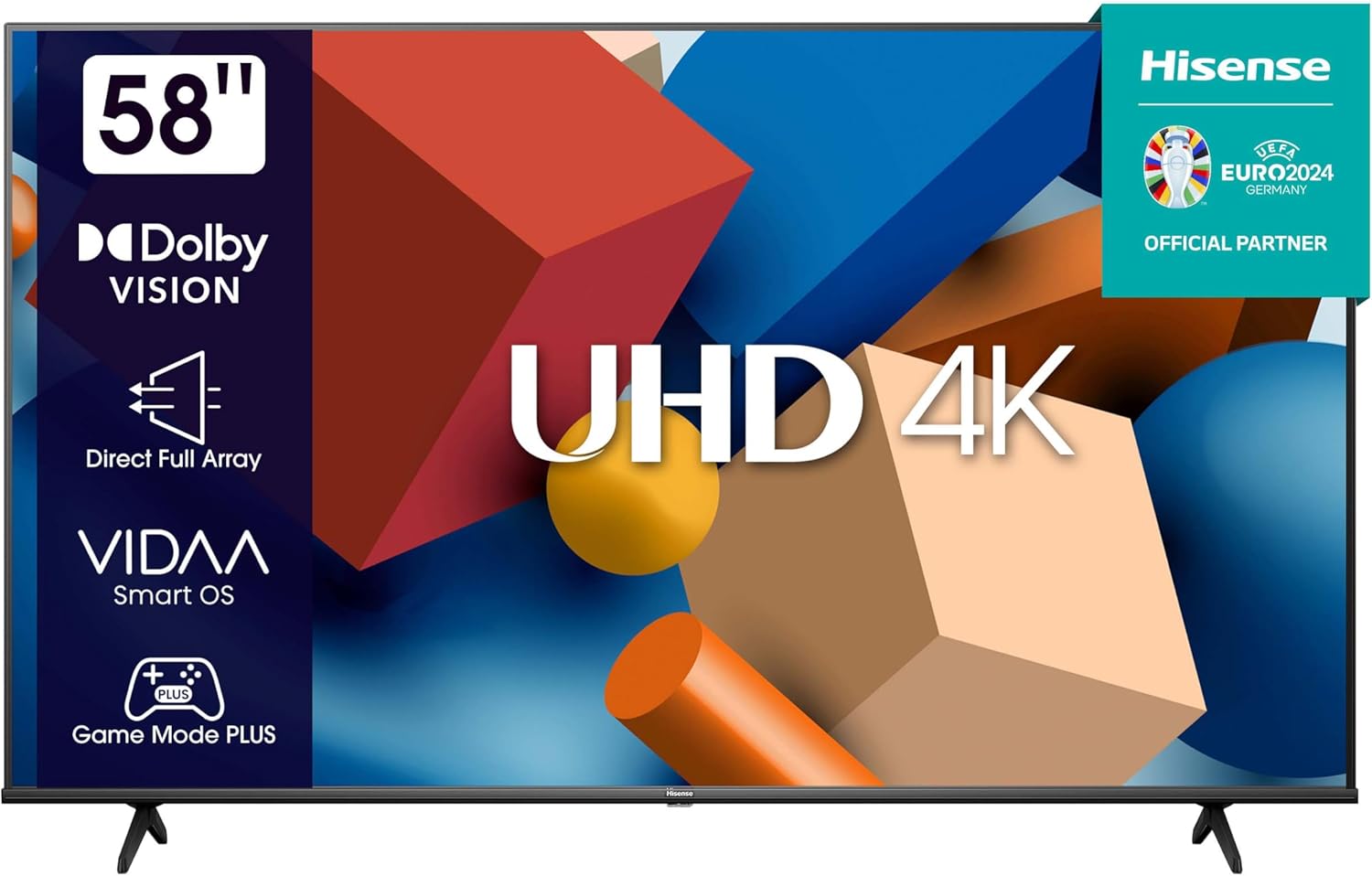
Image: Front view of the Hisense 58A6K 58-inch 4K Smart TV, highlighting its 58-inch screen, Dolby Vision, Direct Full Array, VIDAA Smart OS, and Game Mode Plus features.
2. Safety Information
Always observe the following safety precautions to prevent fire, electric shock, or injury:
- Do not expose the TV to rain or moisture.
- Do not open the TV casing; refer all servicing to qualified personnel.
- Ensure proper ventilation around the TV.
- Place the TV on a stable, level surface or mount it securely to a wall.
- Unplug the power cord during lightning storms or when unused for long periods.
- Keep small parts and batteries out of reach of children.
3. What's in the Box
Carefully unpack your television and ensure all items are present:
- Hisense 58A6K 58" LED 4K Ultra HD Smart TV
- Power Cord
- Remote Control
- Batteries (2 x AAA)
- User Manual (this document)
- Quick Start Page

Image: Diagram showing the dimensions of the Hisense A6K 58" TV with and without its stand, alongside a list of included accessories: Remote, Battery, User Manual, and Quick Start Page.
4. Setup
4.1 Unpacking
Remove the TV from its packaging. It is recommended to have two people for this process due to the size and weight of the television.
4.2 Attaching the Stand or Wall Mounting
Attaching the Stand:
- Place the TV face down on a soft, clean surface to prevent screen damage.
- Align the stand bases with the corresponding slots on the bottom of the TV.
- Secure the stands using the provided screws.
Wall Mounting (Optional):
If you plan to wall mount your TV, ensure you use a VESA-compatible wall mount kit (not included) that supports the TV's weight and size. Refer to the wall mount kit's instructions for proper installation. The TV supports a wall mount with a 100x100 cm pattern.
4.3 Connecting Cables
- Power: Connect the power cord to the TV's power input and then to a wall outlet.
- HDMI Devices: Connect external devices (e.g., Blu-ray player, game console) to the HDMI ports.
- Antenna/Cable: Connect an antenna or cable TV signal to the 'ANT/CABLE IN' port.
- USB Devices: Connect USB drives for media playback to the USB ports (2 available).
- Ethernet: For a wired internet connection, connect an Ethernet cable to the LAN port.
4.4 Initial Power On
After connecting all necessary cables, plug the TV into a power outlet. Press the power button on the remote control or on the TV itself. Follow the on-screen instructions for the initial setup, including language selection, network connection (Wi-Fi or Ethernet), and channel scanning.
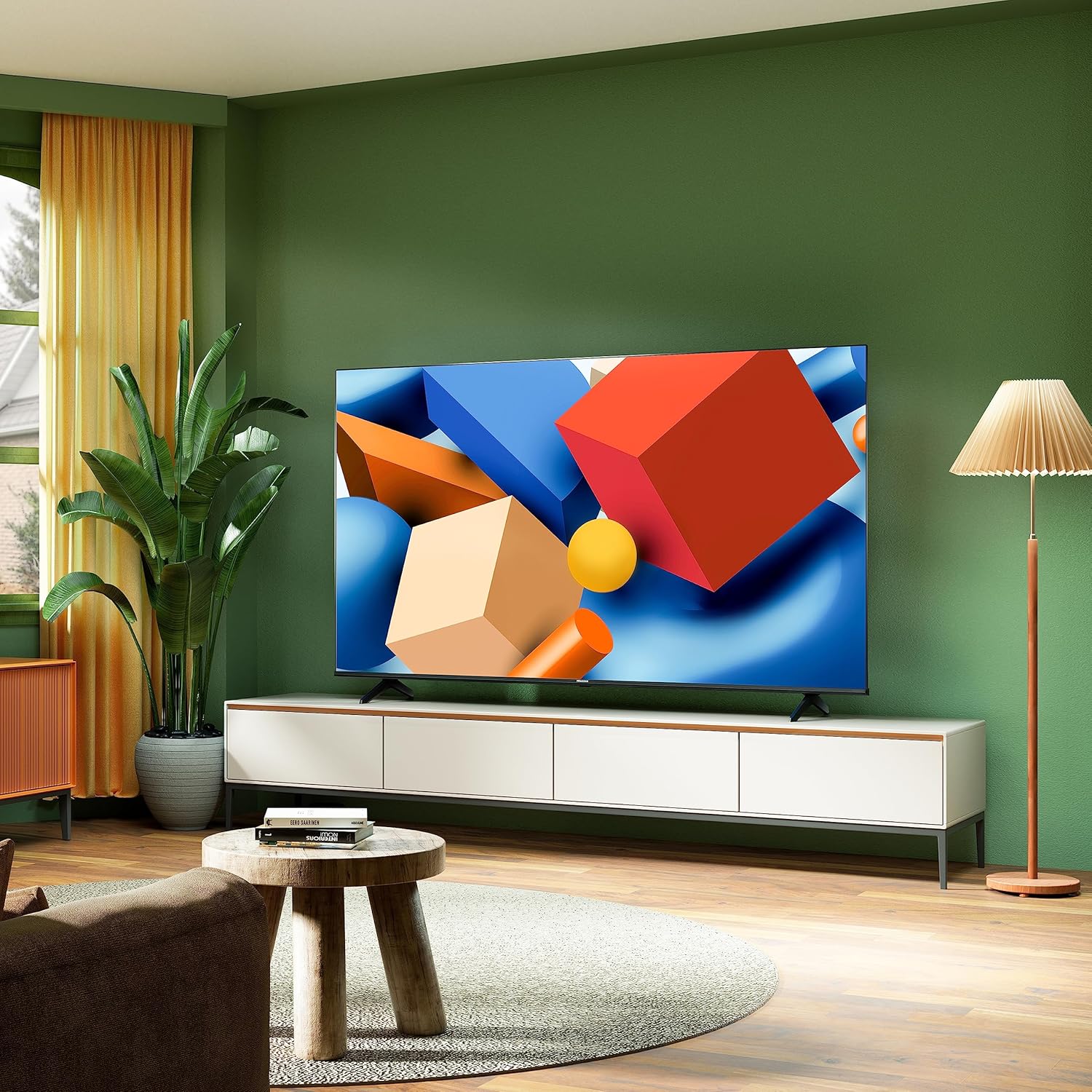
Image: The Hisense 58A6K TV displayed in a modern living room, showcasing its sleek design and large screen, ready for viewing.
5. Operating
5.1 Remote Control Overview
The remote control allows you to navigate the TV's features. It uses either Bluetooth or Infrared technology. Insert the two AAA batteries into the remote control, ensuring correct polarity.
- Power Button: Turns the TV on or off.
- Volume +/-: Adjusts the volume level.
- Channel +/-: Changes TV channels.
- Input: Selects the input source (HDMI, AV, TV).
- Navigation Buttons: Used to move through menus.
- OK Button: Confirms selections.
- Back/Exit: Returns to the previous screen or exits a menu.
- Smart TV Buttons: Dedicated buttons for popular streaming services (e.g., Netflix, Amazon Prime Video).
5.2 Smart TV Features (VIDAA U6)
Your Hisense 58A6K TV runs on the VIDAA U6 Smart OS, providing access to a wide range of applications and internet services. Connect your TV to the internet via Wi-Fi or Ethernet to enjoy streaming content, browsing the web, and more.
5.3 Picture and Sound Settings
Access the TV's settings menu to customize picture and sound. You can adjust brightness, contrast, color, and sharpness for picture, and choose sound modes or adjust equalizer settings for audio.

Image: Visual representation of the Hisense 58A6K TV's key features, including 4K resolution, Pixel Tuning, Game Mode Plus, Dolby Vision, Direct Full Array, and Voice Control.
5.4 Game Mode Plus
Game Mode Plus automatically optimizes your TV settings for gaming, reducing input lag and improving responsiveness for a smoother gaming experience.

Image: Graphic illustrating MEMC (Motion Estimation, Motion Compensation) technology, which provides a smoother picture with no blur, particularly beneficial for fast-moving scenes.
5.5 Pixel Tuning
Pixel Tuning allows for fine-tuning of every pixel, enhancing image clarity and detail. This technology optimizes individual pixels to deliver a more precise and vibrant picture.

Image: A visual concept demonstrating 'Fine-Tuning of Every Pixel' with Pixel Tuning, showing how image quality is improved by optimizing individual pixels.
5.6 Voice Control
Utilize the voice control feature to command your TV using spoken instructions. This allows for hands-free navigation, content search, and setting adjustments.

Image: A large, stylized '4K' graphic, representing the exceptionally detailed 4K quality available for all your favorite content on the Hisense TV.
6. Maintenance
6.1 Cleaning the Screen
To clean the screen, gently wipe it with a soft, lint-free cloth. For stubborn marks, dampen the cloth slightly with water or a specialized screen cleaner. Do not spray cleaner directly onto the screen.
6.2 General Care
- Keep the TV away from direct sunlight and heat sources.
- Avoid placing heavy objects on top of the TV.
- Ensure adequate ventilation to prevent overheating.
- Unplug the TV from the power outlet before cleaning or moving it.
7. Troubleshooting
If you encounter issues with your TV, refer to the following common problems and solutions:
| Problem | Possible Cause | Solution |
|---|---|---|
| No power | Power cord not connected; outlet not working | Ensure power cord is securely plugged in; test outlet with another device. |
| No picture, but sound is present | Incorrect input source selected; external device issue | Press the 'Input' button on the remote to select the correct source; check external device connections. |
| No sound, but picture is present | Volume muted or too low; audio settings incorrect | Press 'Volume +' button; check audio output settings in the TV menu. |
| Remote control not working | Batteries are dead or inserted incorrectly; obstruction between remote and TV | Replace batteries; ensure correct polarity; remove any obstructions. |
| Cannot connect to Wi-Fi | Incorrect password; router issue; TV too far from router | Verify Wi-Fi password; restart router; move TV closer to router or use Ethernet. |
8. Specifications
| Feature | Specification |
|---|---|
| Brand | Hisense |
| Model Name | 58A6K |
| Model Number | M37O0 |
| Screen Size | 58 Inches (147.3 cm) |
| Display Technology | LED, ULED |
| Resolution | 4K Ultra HD (3840 x 2160) |
| Operating System | VIDAA U6 |
| Connectivity | Wi-Fi, Ethernet, 2 x USB Ports, HDMI |
| Remote Control Technology | Bluetooth or Infrared |
| Power Consumption | 170 Watts |
| Voltage | 230 Volts |
| Response Time | 8 Milliseconds |
| Viewing Angle | 178 Degrees |
| Aspect Ratio | 16:9 |
| Memory Capacity | 16 GB |
| Dimensions (with stand) | 1295 x 808 x 274 mm (approx.) |
| Dimensions (without stand) | 1295 x 752 x 70 mm (approx.) |
| Weight | 12.6 kg (approx.) |
| Included Components | Power Cord, Remote Control |
9. Warranty and Support
Your Hisense 58A6K TV comes with a manufacturer's warranty. Please refer to the warranty card included with your product for specific terms and conditions, including the warranty period and coverage details. For technical support, service, or further inquiries, please visit the official Hisense website or contact their customer service department. Keep your purchase receipt as proof of purchase for warranty claims.


