
TESLA 65E635SUS
Tesla 65-inch 4K UHD Smart TV User Manual
Model: 65E635SUS
Introduction
This manual provides essential instructions for setting up, operating, maintaining, and troubleshooting your new Tesla 65-inch 4K UHD Smart TV (Model 65E635SUS). Please read this manual thoroughly before using the television to ensure proper operation and to maximize your viewing experience. Keep this manual for future reference.
Important Safety Information: Always follow basic safety precautions when using this product to reduce the risk of fire, electric shock, and injury. Do not attempt to service this product yourself. Refer all servicing to qualified service personnel.
1. Setup
1.1 Unpacking and Contents Check
Carefully remove the TV from its packaging. Ensure all components are present:
- Tesla 65-inch 4K UHD Smart TV
- Remote Control
- AAA Batteries for Remote Control
- TV Stand (2 pieces)
- Screws for TV Stand
- Power Cord
- User Manual (this document)

Image 1.1: Front view of the Tesla 65-inch Smart TV with its stand.
1.2 Attaching the TV Stand
- Place the TV face down on a soft, flat surface to prevent screen damage.
- Align each stand piece with the corresponding slots on the bottom of the TV.
- Secure each stand piece with the provided screws. Ensure they are tightened firmly.

Image 1.2: Rear view of the TV, illustrating the stand attachment points.
Note: If you plan to wall-mount the TV, refer to the wall-mount kit instructions (sold separately) and skip this step. Ensure proper ventilation when wall-mounting.
1.3 Connecting Power
Connect the power cord to the TV's power input and then to a wall outlet. The TV will enter standby mode.
1.4 Initial Setup
Upon first power-on, the TV will guide you through the initial setup process:
- Language Selection: Choose your preferred language.
- Network Connection: Connect to your Wi-Fi network or use an Ethernet cable for a wired connection.
- Google Account Sign-in: Sign in with your Google account to access Google Play Store, Google Assistant, and other Android TV features.
- Channel Scan: Scan for available TV channels if you are using an antenna or cable connection.
- Privacy Settings: Review and adjust privacy settings as desired.
2. Operating Instructions
2.1 Remote Control Overview
The provided remote control allows you to navigate the TV's features. Insert the AAA batteries into the remote control before use.

Image 2.1: Bluetooth remote control for the Tesla Smart TV.
- Power Button: Turns the TV on or off (standby mode).
- Navigation Pad (Up/Down/Left/Right/OK): Navigates menus and selects items.
- Back Button: Returns to the previous screen.
- Home Button: Accesses the Android TV home screen.
- Volume Up/Down: Adjusts the volume level.
- Mute Button: Mutes or unmutes the sound.
- Google Assistant Button: Activates voice control.
- App Shortcut Buttons: Direct access to popular streaming services (e.g., Netflix, YouTube).
2.2 Android TV 11 Interface Navigation
The Android TV 11 interface provides access to apps, settings, and content. Use the navigation pad on your remote to move through the home screen.
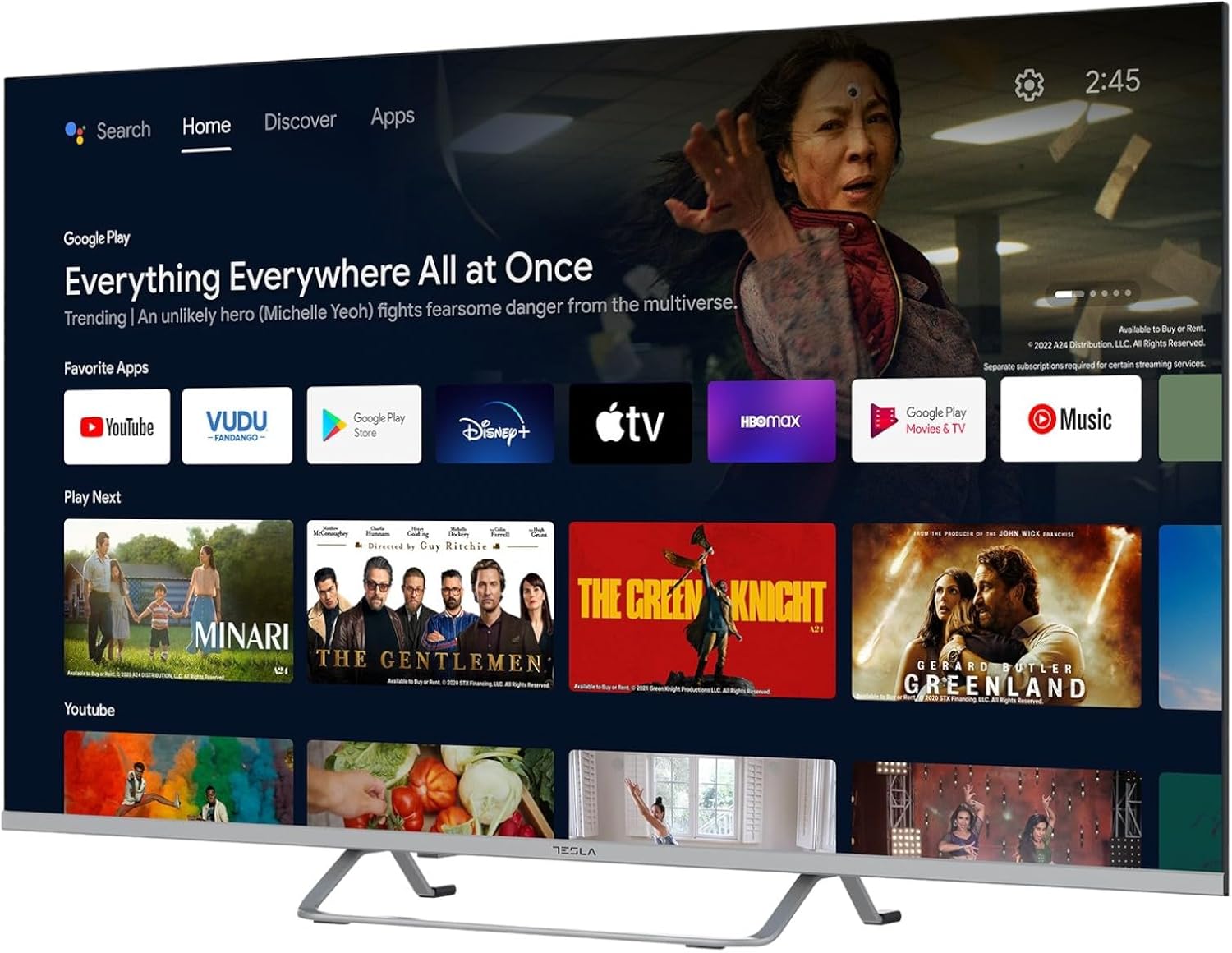
Image 2.2: The Android TV 11 home screen, displaying various applications and content suggestions.
- Home Screen: Displays recommended content, installed apps, and input sources.
- Apps Section: Access all installed applications.
- Settings: Configure TV settings, network, accounts, and device preferences.
2.3 Using Google Assistant
Press the Google Assistant button on your remote and speak into the microphone to control your TV, search for content, get information, and more.
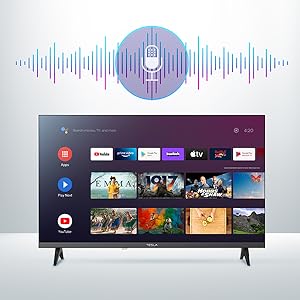
Image 2.3: Visual representation of Google Assistant activation on the TV screen.
Examples of commands:
- "Open Netflix"
- "Search for action movies"
- "What's the weather like?"
- "Turn up the volume"
2.4 Chromecast Built-in
Use Chromecast built-in to cast content from your compatible smartphone, tablet, or computer directly to your TV. Ensure your device is connected to the same Wi-Fi network as the TV.

Image 2.4: A smartphone casting content to the TV via Chromecast.
2.5 Connecting External Devices
Your TV offers multiple connectivity options:
- HDMI Ports (x4): Connect Blu-ray players, game consoles, set-top boxes, etc.
- USB Ports (x2): Connect USB drives for media playback or external keyboards/mice.
- Ethernet (LAN): For a wired internet connection.
- Wi-Fi: For wireless internet connection.
- Bluetooth: Connect wireless headphones, speakers, or other Bluetooth devices.

Image 2.5: Side profile of the TV, highlighting accessible ports.
2.6 Picture and Sound Settings
Access the TV's settings menu to customize picture and sound options.
Image 2.6: Example of the TV's settings menu for customization.
- Picture Modes: Select from Standard, Vivid, Sport, Movie, Game, or User (custom) modes. Adjust brightness, contrast, color, and sharpness.
- HDR10: The TV supports HDR10 for enhanced contrast and color with compatible content.
- Sound Modes: Choose from Standard, Music, Movie, Sport, or User (custom) modes. Use the equalizer to fine-tune audio frequencies.
- Speakers: The TV features 2 x 12W speakers.
3. Maintenance
3.1 Cleaning the TV
- Screen: Gently wipe the screen with a soft, lint-free cloth. For stubborn marks, lightly dampen the cloth with water or a specialized screen cleaner. Never spray cleaner directly onto the screen.
- Body: Wipe the TV body with a soft, dry cloth. Avoid using abrasive cleaners or solvents.
- Always unplug the TV from the power outlet before cleaning.
3.2 Software Updates
Your Tesla Smart TV may receive software updates to improve performance and add new features. Ensure your TV is connected to the internet to receive these updates automatically or check for them manually in the settings menu.
4. Troubleshooting
Before contacting support, try the following solutions for common issues:
| Problem | Possible Solution |
|---|---|
| No power | Check if the power cord is securely connected to the TV and the wall outlet. Ensure the outlet is working. |
| No picture, but sound is present | Ensure the correct input source is selected. Check cable connections to external devices. Try restarting the TV. |
| No sound, but picture is present | Check the volume level and ensure the TV is not muted. Verify audio settings and external speaker connections if applicable. |
| Remote control not working | Replace the batteries. Ensure there are no obstructions between the remote and the TV. Re-pair the Bluetooth remote if necessary (refer to TV settings). |
| Network connection issues | Restart your router and modem. Check Wi-Fi password. Try a wired Ethernet connection if possible. |
| Apps are slow or crashing | Close unused apps. Clear app cache (Settings > Apps > [App Name] > Clear cache). Restart the TV. |
5. Specifications
| Feature | Detail |
|---|---|
| Brand | TESLA |
| Model Number | 65E635SUS |
| Screen Size | 65 Inches (165 cm) |
| Display Technology | LED |
| Resolution | 4K (3840 x 2160) |
| Refresh Rate | 60 Hz |
| Operating System | Android TV 11 |
| Special Features | High Dynamic Range (HDR10), Google Play, Chromecast Built-in, Google Assistant, Personalized Surround Sound |
| Connectivity | Wi-Fi, Bluetooth, Ethernet (LAN) |
| HDMI Ports | 4 |
| USB Ports | 2 |
| Audio Output | 2 x 12W Speakers |
| Product Dimensions (with stand) | 25D x 25W x 144.5H cm (approximate) |
6. Warranty and Support
For warranty information, please refer to the warranty card included with your product or visit the official Tesla website. Keep your proof of purchase for warranty claims.
For technical support or service inquiries, please contact Tesla customer service through their official channels. Contact details can typically be found on the manufacturer's website or in the product packaging.
Related documents65E635SUS


Ask a question about this manual
Ask about setup, troubleshooting, compatibility, parts, safety, or missing instructions. Manuals+ will review the question and use this page’s manual context to help answer it.