
1. Introduction
Thank you for choosing the iDIGMALL G2-Blue Bluetooth 5.3 Open Ear Headset. This manual provides comprehensive instructions to help you set up, operate, maintain, and troubleshoot your new headset, ensuring you get the most out of its features. The iDIGMALL G2-Blue is designed for comfort and situational awareness, featuring an open-ear design, a noise-cancelling microphone, and stable Bluetooth 5.3 connectivity.
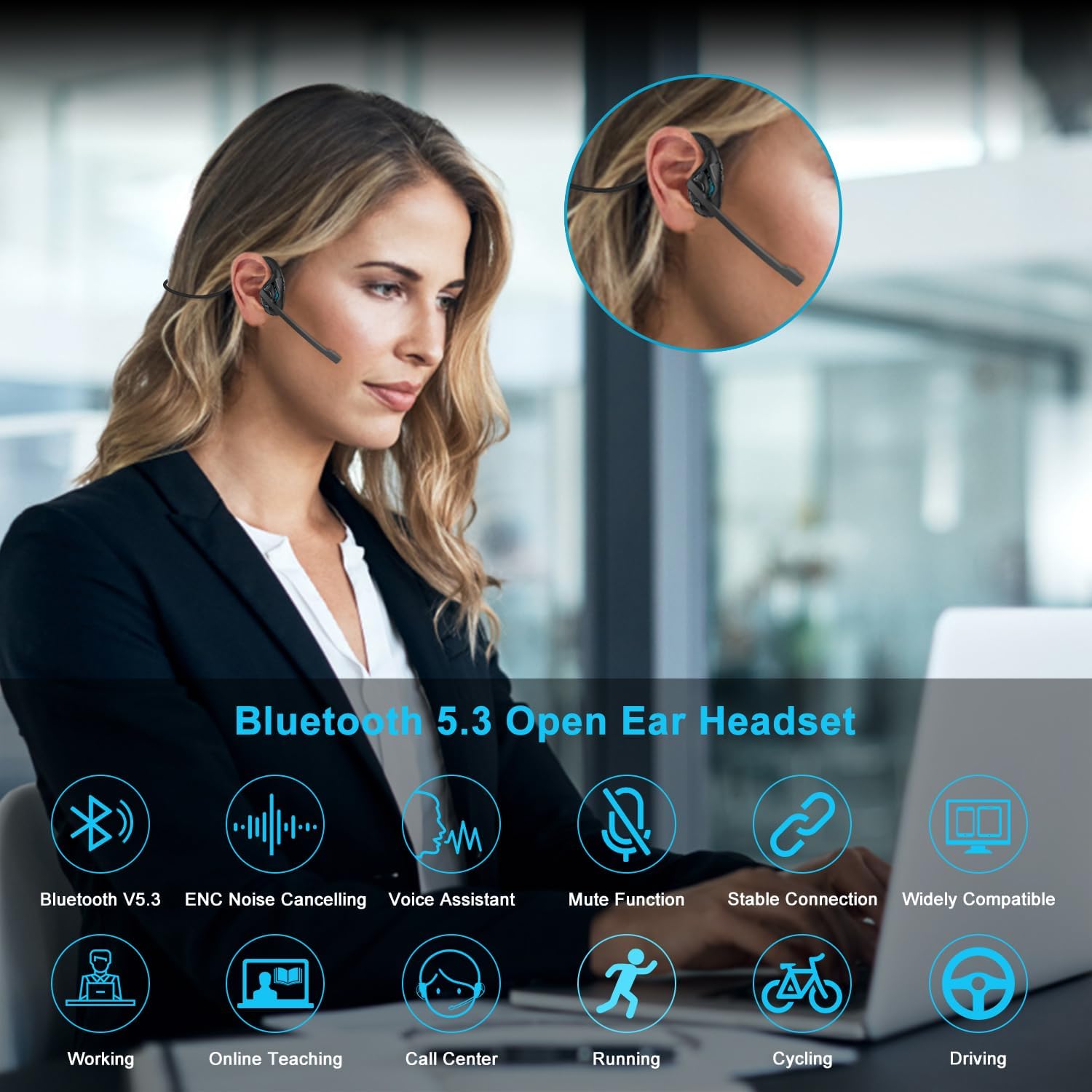
Figure 1: iDIGMALL G2-Blue Headset in use, showcasing its key features.
2. Setup
2.1. Package Contents
Before you begin, please ensure all items are present in the package:
- 1 x G2 Open Ear Headset
- 1 x Type-C Charging Cable
- 1 x User Manual

Figure 2: Package contents of the iDIGMALL G2-Blue Headset.
2.2. Charging the Headset
Fully charge the headset before first use. Connect the provided Type-C charging cable to the headset's charging port and plug the other end into a standard USB power adapter (not included) or a computer's USB port. The indicator light will show charging status.
- Charging Time: Approximately 1.5 hours for a full charge.
- Battery Life: Up to 10 hours of playtime, 200 hours of standby time.
Note: Do not use chargers over 30V. Ensure the charging port is dry before charging to prevent damage.

Figure 3: Charging the headset and battery life overview.
2.3. Bluetooth Pairing
The headset supports Bluetooth 5.3 for stable and fast connections, and can connect to two devices simultaneously.
- Power On: Press and hold the Multi-function Button (MFB) for 3 seconds until the LED indicator flashes red and blue, indicating pairing mode.
- Activate Bluetooth: On your device (phone, PC, laptop), enable Bluetooth and search for available devices.
- Select Headset: Choose "G2" from the list of devices. If prompted for a password, enter "0000" or "1234".
- Connection Confirmation: Once successfully paired, the blue indicator light will flash slowly.

Figure 4: Dual device connection for the iDIGMALL G2-Blue Headset.
3. Operating Instructions
3.1. Controls Overview
The headset features a multifunction button (MFB) and volume controls for easy management of audio and calls.

Figure 5: Headset controls and functions.
- Play/Pause Music: Short press MFB.
- Previous Song: Long press "-" button for 1 second.
- Next Song: Long press "+" button for 1 second.
- Answer Call: Short press MFB.
- Reject Call: Long press MFB for 2 seconds.
- Hang Up Call: Short press MFB.
- Mode Switch (Music/Game): Click MFB 3 times. Indicator light flashes red and blue in game mode.
- Activate Voice Assistant: Long press MFB for 2 seconds.
3.2. Microphone Usage
The headset features a 270° rotating boom microphone with noise-cancelling capabilities to enhance call clarity.
- Adjust the flexible boom mic to the optimal position for clear voice pickup.
- The noise-cancelling feature helps filter ambient sound, ensuring your voice is heard clearly by others.

Figure 6: 270° Rotated Microphone.

Figure 7: Noise Cancelling Microphone in action.
3.3. Open Ear Design Benefits
The open-ear design allows sound to be transmitted precisely while keeping your ears open to your surroundings. This ensures maximum situational awareness and safety, especially during outdoor activities or in busy environments.

Figure 8: Benefits of Open Ear Design.
3.4. Wearing and Comfort
The iDIGMALL G2-Blue headset is lightweight (only 28g) and made with skin-friendly, soft silicone for all-day comfort. The memory titanium alloy band allows for 360° bending without breaking, ensuring a perfect fit. The sink design of the hooks prevents falling off during movement.

Figure 9: Open Ear Design for All-Day Comfort.
3.5. Usage Scenarios
The iDIGMALL G2-Blue headset is versatile and suitable for various activities:
- Work/Office: Ideal for calls, online meetings, and maintaining awareness of your surroundings.
- Driving: Stay connected while remaining aware of traffic.
- Outdoor Sports: Perfect for running, cycling, and other activities where situational awareness is crucial.
- Online Study: Clear audio for lectures and discussions.

Figure 10: Ergonomic Wearing Anywhere Anytime.
4. Maintenance
To ensure the longevity and optimal performance of your iDIGMALL G2-Blue headset, follow these maintenance guidelines:
- Cleaning: Wipe the headset with a soft, dry cloth. Avoid using harsh chemicals or abrasive materials.
- Storage: Store the headset in a cool, dry place away from direct sunlight and extreme temperatures.
- Charging Port: Always ensure the Type-C charging port is dry and free of debris before connecting the charging cable. Moisture or sweat can damage the port.
- Battery Care: For long-term storage, charge the headset to about 50% every few months to preserve battery health.
5. Troubleshooting
If you encounter issues with your headset, please refer to the following common solutions:
| Problem | Possible Cause | Solution |
|---|---|---|
| Headset won't turn on | Low battery | Charge the headset fully. |
| Cannot pair with device | Headset not in pairing mode; Bluetooth off on device; Device too far | Ensure headset is in pairing mode (flashing red/blue). Turn on device Bluetooth. Move headset closer to device (within 33 ft). |
| No sound or poor sound quality | Volume too low; Headset not connected; Interference | Increase volume on headset and device. Reconnect headset. Move away from other wireless devices. |
| Microphone not working | Microphone muted; Incorrect audio input selected on device | Check if microphone is muted (if applicable). Select the headset as the input device in your computer/phone settings. |
| Charging light goes out quickly | Loose connection; Charging port issue | Ensure cable is securely connected. Try a different USB port or charger. Ensure charging port is dry. |
If the problem persists after trying these solutions, please contact customer support.
6. Specifications
- Model Name: G2-Blue-Open Ear Headset
- Connectivity Technology: Wireless (Bluetooth 5.3)
- Wireless Communication Technology: Bluetooth
- Headphones Jack: Wireless Bluetooth Audio
- Noise Control: Active Noise Cancellation (for mic)
- Ear Placement: Open Ear
- Form Factor: Open Ear
- Microphone: 270° Rotating Boom Microphone
- Battery Life: 10 Hours (Playtime)
- Charging Time: 1.5 Hours
- Standby Time: 5 Months (approx. 200 hours)
- Bluetooth Range: 33 Feet
- Audio Latency: 70 Milliseconds (in gaming mode)
- Item Weight: 0.353 ounces (approx. 10 grams)
- Material: Plastic, Soft Silicone, Memory Titanium Alloy
- Control Type: Voice Control, Touch (MFB)
- Frequency Range: 20 Hz - 20,000 Hz
- Impedance: 33 Ohm
- Product Dimensions: 0.35 x 0.2 x 0.08 inches
7. Warranty and Support
iDIGMALL products are manufactured to high quality standards. For any product-related inquiries, technical support, or warranty claims, please contact our customer service team. We are committed to providing you with the best possible experience.
Customer Support Email: sales_gvgi@hotmail.com
Please include your product model (G2-Blue) and a detailed description of your issue when contacting support for faster assistance.
