
1. Introduction
This manual provides essential instructions for the proper use and maintenance of your Pristar TZe-MQE31 compatible label tape. Designed for use with various Brother P-Touch label makers, this tape offers a reliable solution for your labeling needs. Please read this manual thoroughly to ensure optimal performance and longevity of your label tape.
2. Product Overview
The Pristar TZe-MQE31 label tape is a 12mm (0.47 inch) wide laminated tape featuring black text on a pastel pink background. It is supplied in a 3-pack, with each cassette containing 8 meters (26.2 feet) of tape. This tape is engineered for durability and clear printing, suitable for a wide range of applications.
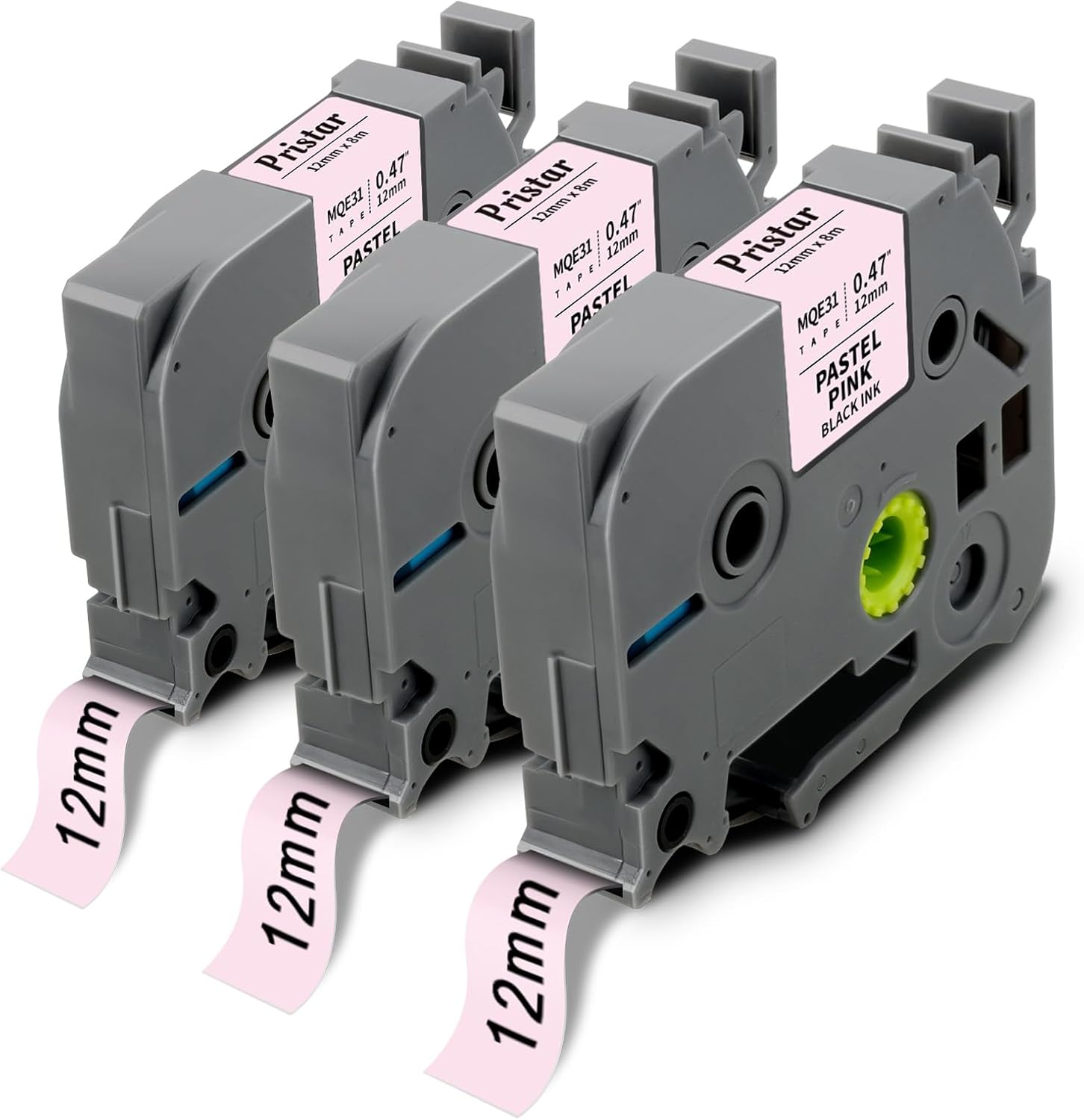
Image 2.1: Three Pristar TZe-MQE31 label tape cassettes, showing the pastel pink tape with black text.

Image 2.2: A diagram illustrating the dimensions of the label tape, indicating a width of 1/2 inch (12mm) and a length of 26.2 feet (8m).
3. Key Features
Pristar TZe-MQE31 label tapes are designed with multiple layers to ensure high performance and longevity:
- Laminated Construction: Features a protective PET film layer for enhanced durability.
- Strong Adhesion: Ensures labels stick firmly to various surfaces.
- Water Resistant: Withstands exposure to moisture without smudging or peeling.
- Abrasion Resistant: Maintains legibility even with frequent handling.
- Temperature Resistant: Performs reliably in a range of temperatures.
- Chemical Resistant: Resists damage from common chemicals.
- Fade Resistant: Prevents text and color from fading over time, even with UV exposure.
- Easy to Peel: Split-back design allows for simple removal of the backing.

Image 3.1: A cross-section diagram illustrating the multi-layered construction of the standard durable lamination label tape, including PET protective film, ribbon, adhesive, base band film, and backing paper.

Image 3.2: Icons visually representing the key features of Pristar label tape, such as strong adhesive, temperature resistance, water resistance, chemical resistance, lamination, abrasion resistance, fade resistance, and easy peeling.
4. Compatibility
This Pristar TZe-MQE31 label tape is compatible with a wide range of Brother P-Touch label makers, including but not limited to the following models:
- PT-D210, PT-D220, PT-H100, PT-H110, PT-D200, PT-P300BT, PT-D200G, PT-H101GB, PT-H101C, PT-H100R, PT-H101LB, PT-H75, PT-H105, PT-H107, PT-H107B, PT-H108, PT-H200
- PT-900, PT-1000, PT-1005, PT-1080, PT-1010, PT-1250, PT-D400, PT-E100, PT-E110, PT-GL200
- PT-P700, PT-P750W, PT-1090, PT-1230, PT-1250, PT-1290, PT-2100, PT-2430PC, PT-E100VP, PT-105WB
- PT-H300, PT-H300LI, PT-H500LI, PT-1190, PT-11Q, PT-1230PC, PT-1880C, PT-1880SC, PT-1880W, PT-1890C, PT-1890SC, PT-1890W, PT-2430PC
- PT-6100, PT-D200, PT-D200G, PT-D210, PT-D400, PT-D400AD, PT-D400VP, PT-D450, PT-D600, PT-D600VP, PT-D800W
5. Setup and Installation
Follow these general steps to install the label tape cassette into your compatible Brother P-Touch label maker. Refer to your label maker's specific manual for detailed instructions if needed.
- Power Off: Ensure your label maker is turned off before installing or removing tape cassettes.
- Open Cover: Locate and open the tape cassette compartment cover on your label maker.
- Insert Cassette: Insert the Pristar TZe-MQE31 cassette into the compartment, ensuring it clicks firmly into place. The tape should feed smoothly into the printer mechanism.
- Close Cover: Close the tape cassette compartment cover securely.
- Initial Feed (Optional): Some label makers may require an initial tape feed to ensure proper alignment. Consult your label maker's manual.

Image 5.1: A close-up view of a label tape cassette correctly inserted into a compatible label maker, showing the internal components and tape path.
6. Operating Instructions
Once the tape cassette is installed, you can begin creating labels. The process typically involves these steps:
- Design Label: Use your label maker's keyboard and display to input text, select fonts, sizes, frames, and other design elements.
- Print: Press the print button on your label maker. The label will be printed and dispensed.
- Cut: Manually or automatically cut the label from the tape roll, depending on your label maker model.
- Peel Backing: Utilize the split-back design to easily peel off the protective backing from the label.
- Apply: Adhere the label to your desired clean, dry surface.
The versatility of these labels makes them suitable for various applications:

Image 6.1: Labels applied to spice jars, demonstrating organization in a kitchen setting.

Image 6.2: Labels used on wrapped gifts, indicating recipients for personal organization.

Image 6.3: Labels applied to clear food storage containers in a pantry, showcasing effective organization for dry goods.
7. Maintenance
To ensure the best performance and longevity of your Pristar label tape, consider the following maintenance tips:
- Storage: Store unused tape cassettes in a cool, dry place away from direct sunlight and extreme temperatures.
- Handling: Avoid touching the adhesive side of the tape or the print head of your label maker.
- Cleaning: Periodically clean the print head and tape path of your label maker according to its manufacturer's instructions to prevent residue buildup.
- Avoid Contamination: Keep tape cassettes free from dust, dirt, and liquids.
8. Troubleshooting
If you encounter issues while using your Pristar label tape, refer to the following common problems and solutions:
| Problem | Possible Cause | Solution |
|---|---|---|
| Label not printing clearly or text is faded. | Low battery in label maker, dirty print head, incorrect tape installation. | Replace batteries, clean print head (refer to label maker manual), re-install tape cassette ensuring it's seated correctly. |
| Tape jams or does not feed smoothly. | Incorrect tape installation, tape twisted, debris in tape path. | Re-install tape cassette, ensure tape is not twisted, clean tape path. |
| Difficulty peeling the backing from the label. | Improper peeling technique, very small labels. | Bend the label slightly along its length to separate the backing from the printed label. For very small labels, use a sharp, thin object (like tweezers) to gently lift a corner of the backing. |
| Labels do not adhere well. | Surface is dirty, oily, or textured; tape stored improperly. | Ensure surface is clean, dry, and smooth before application. Store tape in recommended conditions. |
9. Specifications
| Attribute | Detail |
|---|---|
| Brand | Pristar |
| Model Number | PRUS-TZe-MQE31-3PK (TZe-MQE31) |
| Tape Width | 12mm (0.47 inches) |
| Tape Length | 8m (26.2 feet) per cassette |
| Color | Black text on Pastel Pink background |
| Material Type | Vinyl, Laminated |
| Package Quantity | 3 cassettes |
| Durability Features | Water, abrasion, temperature, chemical, and fade resistant |
10. Warranty and Support
Pristar is committed to providing high-quality products. For any questions, concerns, or support regarding your Pristar TZe-MQE31 label tape, please contact Pristar customer service through the retailer where the product was purchased or visit the official Pristar brand store online. Please retain your proof of purchase for any warranty claims.