
1. Introduction
This manual provides comprehensive instructions for the installation, operation, and maintenance of your XTRONS QXA22UCMPA12Q5L 12.3-inch HD Car Stereo GPS Tablet. This unit is specifically designed for Audi Q5 models manufactured between 2009 and 2017, provided the vehicle is equipped with the original Audi Concert or Symphony radio system.
The XTRONS QXA22UCMPA12Q5L operates on Android 12, featuring an Octa-Core processor, 8GB RAM, and 128GB ROM. It integrates advanced functionalities such as GPS navigation, Bluetooth connectivity, Apple CarPlay, Android Auto, dual Wi-Fi, and 4G support. Please read this manual thoroughly before installation and use to ensure proper functionality and to prevent damage.
2. Safety Information
- Professional Installation Recommended: Due to the complexity of vehicle electronics, professional installation by a qualified technician is strongly recommended. Incorrect installation can lead to damage to the unit or the vehicle's electrical system.
- Vehicle Compatibility: Ensure this unit is compatible with your specific Audi Q5 model (2009-2017) and original radio system (Concert or Symphony).
- Power Supply: Connect the unit only to a 12V DC power supply with a negative ground.
- Avoid Distractions: Do not operate the unit or adjust settings while driving. Always prioritize road safety.
- Temperature: Avoid exposing the unit to extreme temperatures or direct sunlight for prolonged periods.
- Moisture: Keep the unit away from water and excessive moisture.
3. Package Contents
Verify that all components listed below are included in your package. If any items are missing or damaged, contact your retailer.

Figure 3.1: Overview of included accessories and the main unit.
- XTRONS QXA22UCMPA12Q5L Main Unit (12.3-inch display)
- Vehicle-Specific Wiring Harnesses
- GPS Antenna
- USB Cables
- SIM Card Reader
- External Microphone Input Cable (microphone not included)
- User Manual
- Mounting Frame and Brackets
4. Installation Guide
Installation of this car stereo requires technical knowledge and experience with car audio systems. It is highly recommended to have the unit installed by a certified professional to avoid damage to the unit or your vehicle.
4.1. Pre-Installation Checks
- Disconnect the vehicle's battery before starting any installation work.
- Confirm the unit's dimensions match your vehicle's dashboard opening.

Figure 4.1: Unit and Frame Dimensions.
4.2. Wiring Connections
Carefully follow the wiring diagram provided with your unit. Ensure all connections are secure and correctly matched to the vehicle's wiring harness. The unit includes a SIM card reader for 4G connectivity and supports external microphone input.
4.3. Mounting the Unit
Secure the unit into the dashboard opening using the provided mounting frame and brackets. Ensure the unit is firmly seated and does not obstruct any vehicle controls or vents.
5. Initial Setup
After successful installation and reconnecting the battery, power on the unit for the first time.
- Language Selection: Follow the on-screen prompts to select your preferred language. The unit supports a multilingual menu.
- Wi-Fi Connection: Connect to a stable Wi-Fi network to download updates and access online features. Go to Settings > Network & Internet > Wi-Fi.
- Google Account: Sign in with your Google account to access the Google Play Store and synchronize your data.
- Date and Time: Set the correct date and time, or enable automatic synchronization via GPS/network.
6. Operating Instructions
6.1. Home Screen and Navigation
The home screen provides quick access to essential functions like Navigation, Bluetooth, and Music. Swipe left or right to access additional applications.

Figure 6.1: Main interface with Navigation, Bluetooth, and Music.
6.2. GPS Navigation
The unit comes with integrated GPS. Access the Navigation app from the home screen to use pre-installed maps or download your preferred navigation applications from the Google Play Store.

Figure 6.2: GPS Navigation interface.
6.3. Bluetooth Connectivity
Pair your smartphone via Bluetooth for hands-free calling, audio streaming, and contact synchronization. Go to Settings > Connected devices > Bluetooth to manage connections.
6.4. Apple CarPlay & Android Auto
Connect your smartphone via USB or wirelessly (if supported by your phone and the unit) to use Apple CarPlay or Android Auto for a seamless integration of your phone's features.

Figure 6.3: Apple CarPlay interface.
6.5. Multimedia Playback
Play audio and video files from USB drives (up to 128GB) or SD cards (up to 64GB) inserted into the designated slots. Access these through the 'Music' or 'Video' applications.
6.6. Steering Wheel Controls & Canbus Integration
The unit supports your vehicle's original steering wheel controls and integrates with the dual-channel Canbus system. This allows for the display of original vehicle information on the unit's screen, such as door status, climate control, and other dashboard data.

Figure 6.4: Unit displaying integrated vehicle information.
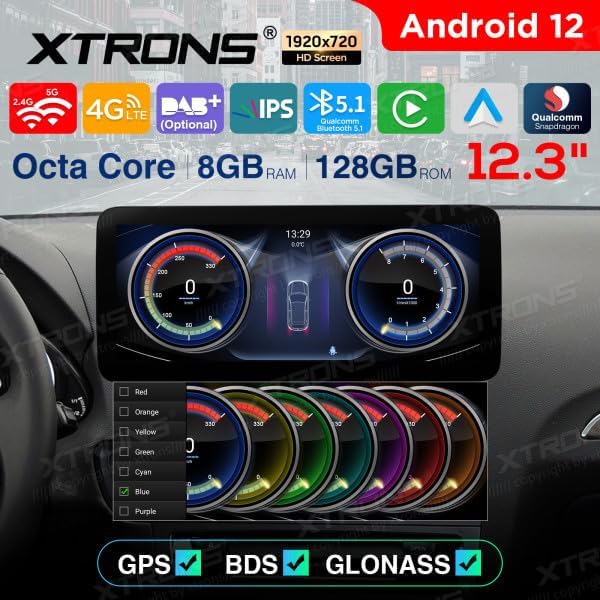
Figure 6.5: Customizable dashboard display.

Figure 6.6: Various integrated functions display.
6.7. Split Screen Function
Utilize the split-screen feature to run two applications simultaneously, such as navigation and music playback.
6.8. 4G Internet Connection
Insert a compatible SIM card into the provided reader to enable 4G internet connectivity directly on the unit.
7. Maintenance
- Cleaning: Use a soft, dry cloth to clean the screen and unit exterior. Avoid abrasive cleaners or solvents.
- Software Updates: Periodically check for software updates via the unit's settings menu (Settings > System > System update) to ensure optimal performance and access to new features.
- Data Backup: Regularly back up important data to an external storage device.
8. Troubleshooting
If you encounter issues with your unit, refer to the following common problems and solutions:
- No Power: Check all power connections and the vehicle's fuse box. Ensure the battery is properly connected.
- No Sound: Verify speaker connections, volume settings, and audio source selection. Check if the mute function is active.
- GPS Signal Issues: Ensure the GPS antenna is correctly installed and has a clear view of the sky. Check GPS settings in the unit.
- Touch Screen Unresponsive: Try restarting the unit. If the issue persists, a factory reset might be necessary (note: this will erase all user data).
- Bluetooth Connection Problems: Ensure Bluetooth is enabled on both the unit and your phone. Delete previous pairings and try reconnecting.
- Canbus Data Not Displaying: Verify Canbus wiring connections and ensure the unit's Canbus settings are correctly configured for your Audi Q5 model.
For persistent issues, contact XTRONS customer support or your installer.
9. Technical Specifications
| Brand | XTRONS |
| Model Name | QXA22UCMPA12Q5L |
| Operating System | Android 12 |
| Screen Size | 12.3 Inches |
| Processor | Octa-Core |
| RAM | 8 GB |
| Storage Capacity | 128 GB |
| Connectivity Technology | Wi-Fi, 4G (SIM card reader included) |
| Special Features | Bluetooth, Android Auto, Apple CarPlay, Split Screen, Canbus Integration, DAB+ Ready (box not included), OBD2 Ready (box not included), DVR Ready (camera not included), TPMS Support (kit not included) |
| Supported Navigation System | GPS |
| Control Method | Touch |
| Compatible Vehicle Type | Audi Q5 (2009-2017) with original Audi Concert or Symphony radio |
10. Warranty and Support
XTRONS products are covered by a manufacturer's warranty. Please refer to the warranty card included in your package or visit the official XTRONS website for detailed warranty terms and conditions.
For technical support, troubleshooting assistance, or inquiries regarding spare parts, please contact XTRONS customer service through their official website or the contact information provided with your purchase. When contacting support, please have your model number (QXA22UCMPA12Q5L) and purchase details readily available.


