
USHINING T180 4G
USHINING 4G Senior Mobile Phone User Manual
Model: T180 4G

The USHINING T180 4G senior mobile phone, shown here with its charging dock, is designed for ease of use with large buttons and a clear display.
Introduction
The USHINING T180 4G Senior Mobile Phone is designed for simplicity and reliability, catering to the needs of elderly users. It features large buttons, a clear display, loud volume, and essential functions like an SOS emergency button and a convenient USB-C charging dock. This manual provides comprehensive instructions to help you get started and make the most of your new phone.
Components Overview
Familiarize yourself with the main components of your USHINING T180 4G phone:
- Display Screen: Shows information, menus, and contacts.
- Large Keypad: Easy-to-press buttons for dialing and navigation.
- Navigation Buttons: Up, Down, Left, Right, and OK buttons for menu navigation.
- Call/End Buttons: Green button to answer/make calls, Red button to end calls/power off.
- SOS Button: Located on the back, for emergency calls.
- Volume Buttons: Located on the side for adjusting call and ringtone volume.
- USB-C Charging Port: Located at the bottom for direct charging.
- Charging Contacts: Located at the bottom for use with the charging dock.
- Flashlight: Integrated light for convenience.

This image highlights the phone's large buttons, clear large font display, and loud volume capability, all designed for user convenience.
Setup
1. SIM Card and Battery Installation
Before using your phone, you need to install a compatible 4G SIM card and the battery.
- Carefully remove the back cover of the phone.
- Insert your 4G SIM card into the designated SIM slot. Ensure the gold contacts face downwards and the card is correctly oriented as per the diagram inside the phone.
- Insert the battery into the battery compartment, aligning the gold contacts with the phone's terminals.
- Replace the back cover until it clicks securely into place.
2. Initial Charging
It is recommended to fully charge the phone before first use.
- Using the Charging Dock: Place the phone into the charging dock, ensuring the charging contacts align. The charging indicator on the phone screen will activate.
- Direct USB-C Charging: Connect the provided USB-C cable to the phone's USB-C port and the other end to a compatible USB power adapter.

The phone supports both direct USB-C cable charging and convenient charging via the included dock, making it easy for seniors to keep their device powered.
Operating Instructions
1. Power On/Off
- To Power On: Press and hold the Green Call Button until the screen lights up.
- To Power Off: Press and hold the Red End Call Button until the power off option appears, then confirm.
2. Making and Receiving Calls
- To Make a Call: Dial the phone number using the keypad and press the Green Call Button.
- To Answer a Call: When the phone rings, press the Green Call Button.
- To End a Call: Press the Red End Call Button.
3. Sending and Receiving Messages
Navigate to the "Message" menu using the navigation buttons. From there, you can compose new messages or read incoming ones.

The user-friendly interface provides clear icons for various functions, including messaging, call logs, and contacts.
4. SOS Emergency Function
The SOS button is a critical safety feature. You can set up to 5 emergency contacts.
- Setting SOS Contacts: Go to Settings > SOS Settings > SOS Numbers to add or edit up to 5 emergency contacts.
- Using SOS: In an emergency, press and hold the SOS button on the back of the phone. The phone will automatically dial the emergency contacts in sequence until one answers. It will also send an emergency SMS to these contacts.
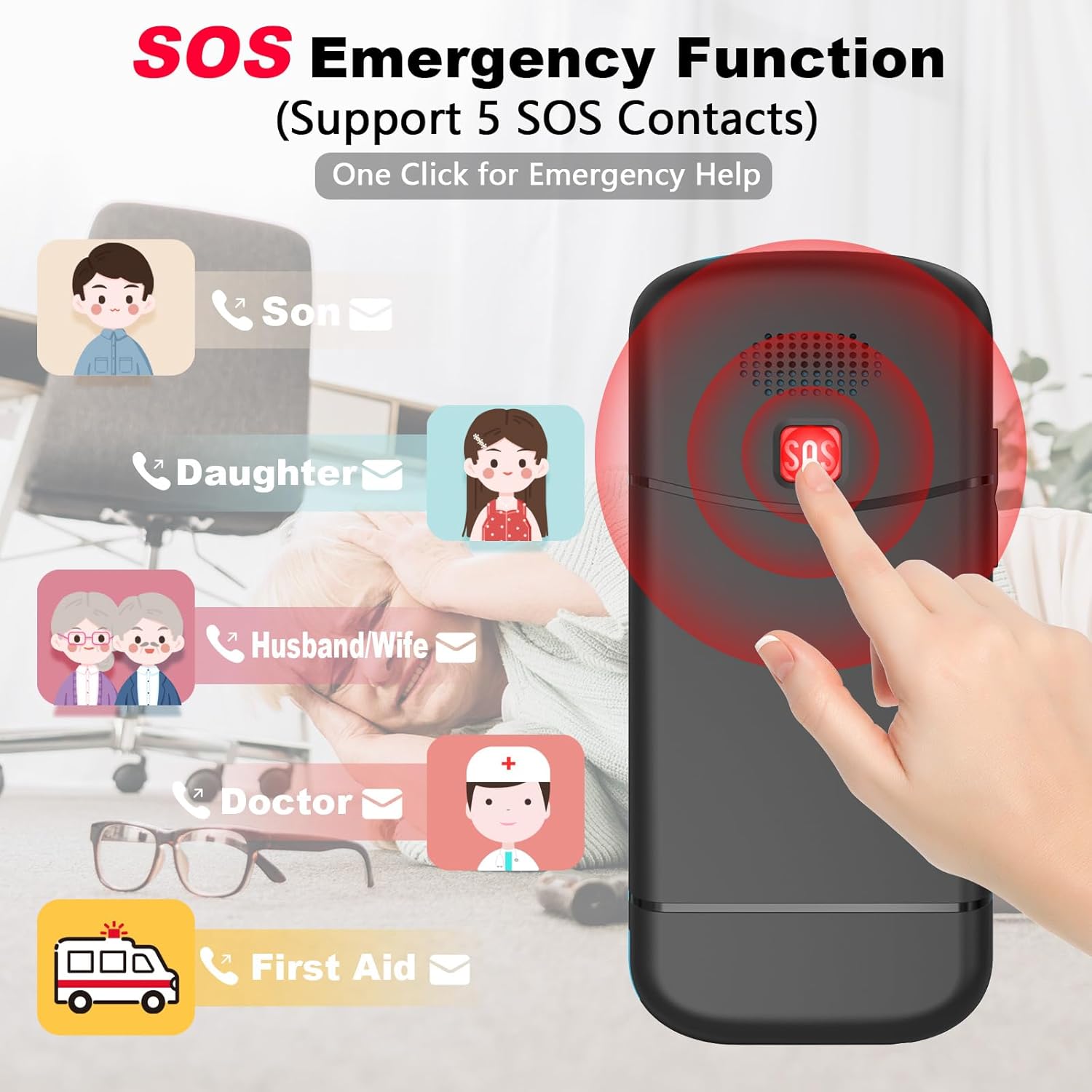
The dedicated SOS button provides immediate assistance by contacting pre-set emergency numbers and sending alerts.
5. Speed Dial Function
Assign frequently called numbers to keys 2-9 for quick dialing.
- Go to Settings > Speed Dial.
- Select a number key (2-9) and assign a contact from your phonebook.
- To use, simply press and hold the assigned number key.
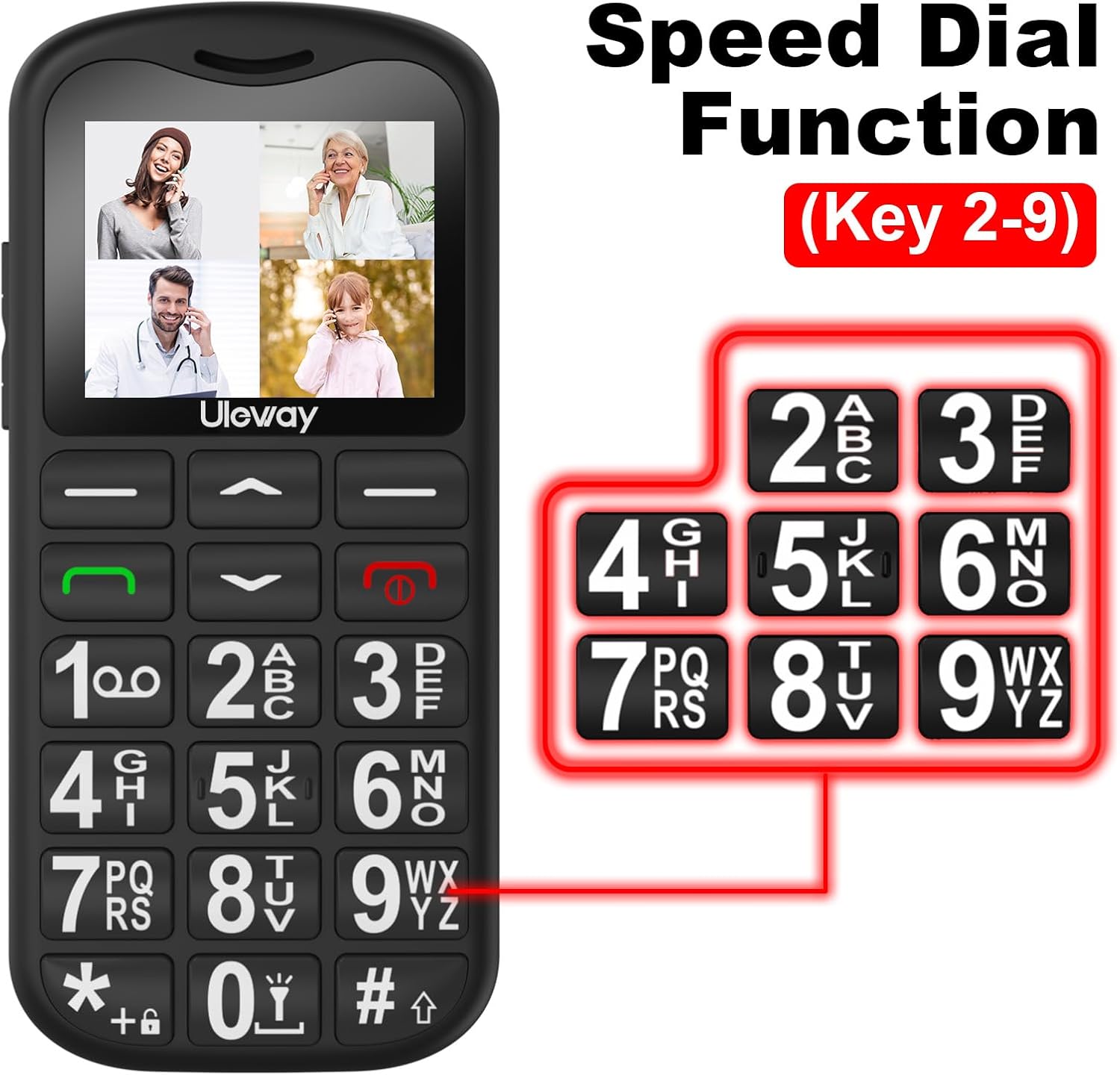
The speed dial feature allows users to quickly call important contacts by simply holding down a pre-assigned number key.
6. Flashlight Function
The phone includes a built-in flashlight for convenience.
- To Turn On/Off: Press and hold the '0' key on the keypad.

The integrated flashlight is easily activated by holding the '0' key, providing illumination when needed.
7. FM Radio
Enjoy your favorite radio stations on the go. Navigate to the "FM Radio" application from the main menu.
8. Alarm Clock
Set alarms for reminders or wake-up calls. Access the "Alarm" function through the main menu.
9. Contacts Management
The phone supports storing up to 500 contacts. Navigate to the "Contacts" menu to add, edit, or delete entries.
10. Volume Adjustment
Adjust the call volume during a conversation or the ringtone volume using the dedicated volume buttons on the side of the phone.
Maintenance
- Cleaning: Use a soft, dry cloth to clean the phone's surface. Avoid liquid cleaners or abrasive materials.
- Battery Care: To prolong battery life, avoid extreme temperatures. Do not leave the phone fully discharged for extended periods.
- Storage: Store the phone in a cool, dry place away from direct sunlight and moisture when not in use.
Troubleshooting
If you encounter issues with your phone, refer to the table below for common problems and their solutions.
| Problem | Possible Cause | Solution |
|---|---|---|
| Phone does not power on. | Low battery; Battery not installed correctly; Power button not pressed long enough. | Charge the phone; Reinstall battery; Press and hold the power button for several seconds. |
| Cannot make or receive calls. | No SIM card; SIM card not activated; Out of network coverage; Incorrect network settings. | Ensure SIM card is inserted and activated; Check network signal; Contact your service provider. |
| Poor call quality. | Weak network signal; Obstructions; Speaker/microphone issues. | Move to an area with better signal; Ensure nothing is blocking speaker/microphone; Adjust volume. |
| SOS function not working. | SOS numbers not set; No credit/signal; Emergency contact not answering. | Verify SOS numbers in settings; Ensure phone has signal and credit; Inform contacts about SOS function. |
| Phone not charging. | Charger/cable faulty; Charging port dirty; Phone not seated correctly in dock. | Try a different charger/cable; Clean charging port gently; Ensure phone is properly seated in the dock. |
Specifications
Key technical specifications for the USHINING T180 4G Senior Mobile Phone:
| Feature | Detail |
|---|---|
| Model Number | T180 4G |
| Brand | USHINING |
| Operating System | KaiOS |
| Cellular Technology | 4G |
| Screen Size | 1.77 Inches |
| Battery Capacity | 1000mAh Lithium-ion |
| Charging Port | USB Type C |
| Memory Storage Capacity | 32 GB (Internal, likely for contacts/messages, not expandable storage) |
| Special Features | SOS Emergency Button, Speed Dial, FM Radio, Flashlight, Large Buttons, Loud Volume, Charging Dock |

The phone's compact dimensions are approximately 112mm in height and 53mm in width, making it comfortable to hold.
Warranty and Support
For warranty information and technical support, please refer to the documentation included with your purchase or visit the official USHINING website. Keep your proof of purchase for warranty claims.
If you have further questions or require assistance, please contact USHINING customer service.
Ask a question about this manual
Ask about setup, troubleshooting, compatibility, parts, safety, or missing instructions. Manuals+ will review the question and use this page’s manual context to help answer it.