
Introduction
This user manual provides detailed instructions for the setup, operation, maintenance, and troubleshooting of your DAREU A950 Wireless Gaming Mouse. Please read this manual carefully to ensure optimal performance and longevity of your device. The DAREU A950 is designed for high-performance gaming and productivity, featuring tri-mode connectivity, a precise sensor, and a lightweight, ergonomic design.
1. Setup
1.1 Unboxing and Package Contents
Upon opening the package, ensure all components are present:
- DAREU A950 Wireless Gaming Mouse
- RGB Charging Dock
- USB-C Cable
- Wireless 2.4G Receiver
- User Manual (this document)
1.2 Initial Charging
Before first use, it is recommended to fully charge the mouse. The DAREU A950 features a convenient RGB charging dock for easy power replenishment.

The DAREU A950 mouse resting on its RGB charging dock. The dock features magnetic suction for secure and quick pairing, and its RGB lighting is customizable. A 10-minute charge provides up to 10 hours of gameplay.
- Connect the USB-C cable to the RGB Charging Dock and a power source (e.g., computer USB port, USB wall adapter).
- Place the DAREU A950 mouse onto the charging dock. The magnetic suction will align the mouse correctly.
- The RGB lighting on the dock will indicate charging status. A full charge provides extended playtime.
1.3 Connectivity Options (Tri-Mode)
The DAREU A950 supports three connection modes: 2.4G Wireless, Bluetooth (BT 5.0), and Wired (Type-C).

Illustration of the DAREU A950's tri-mode connectivity, showing connections via Bluetooth 5.0, 2.4G wireless, and Type-C cable to a laptop, desktop PC, and tablet. The mouse is compatible with Windows, Android, and iOS operating systems.
1.3.1 2.4G Wireless Mode
- Locate the 2.4G wireless receiver, typically stored in a compartment on the underside of the mouse.
- Plug the receiver into an available USB port on your computer.
- Switch the mode selector on the mouse to 2.4G. The mouse should automatically connect.
1.3.2 Bluetooth (BT 5.0) Mode
- Switch the mode selector on the mouse to Bluetooth.
- On your device (PC, Mac, iPad, etc.), go to Bluetooth settings and enable Bluetooth.
- Search for new devices and select "DAREU A950" from the list to pair.
1.3.3 Wired (Type-C) Mode
- Connect the USB-C cable directly from the mouse to your computer's USB port.
- The mouse will function immediately in wired mode and will also charge simultaneously.
2. Operating the Mouse
2.1 Basic Functions
The DAREU A950 features standard mouse buttons and additional programmable keys:
- Left Click: Primary action.
- Right Click: Context menu.
- Scroll Wheel: Scroll up/down, middle click.
- DPI Cycle Button: Located below the scroll wheel, this button allows you to cycle through preset DPI (sensitivity) levels. The A950 supports up to 12000 DPI.
- Side Buttons: Typically configured as Forward/Backward in web browsers. These are among the six programmable keys.
2.2 Advanced Features
2.2.1 AIM-WL Sensor Technology
The DAREU A950 incorporates DAREU's patented AIM-WL sensor, specifically designed for professional gaming. This sensor provides 1:1 precise tracking and stable performance with low power consumption.
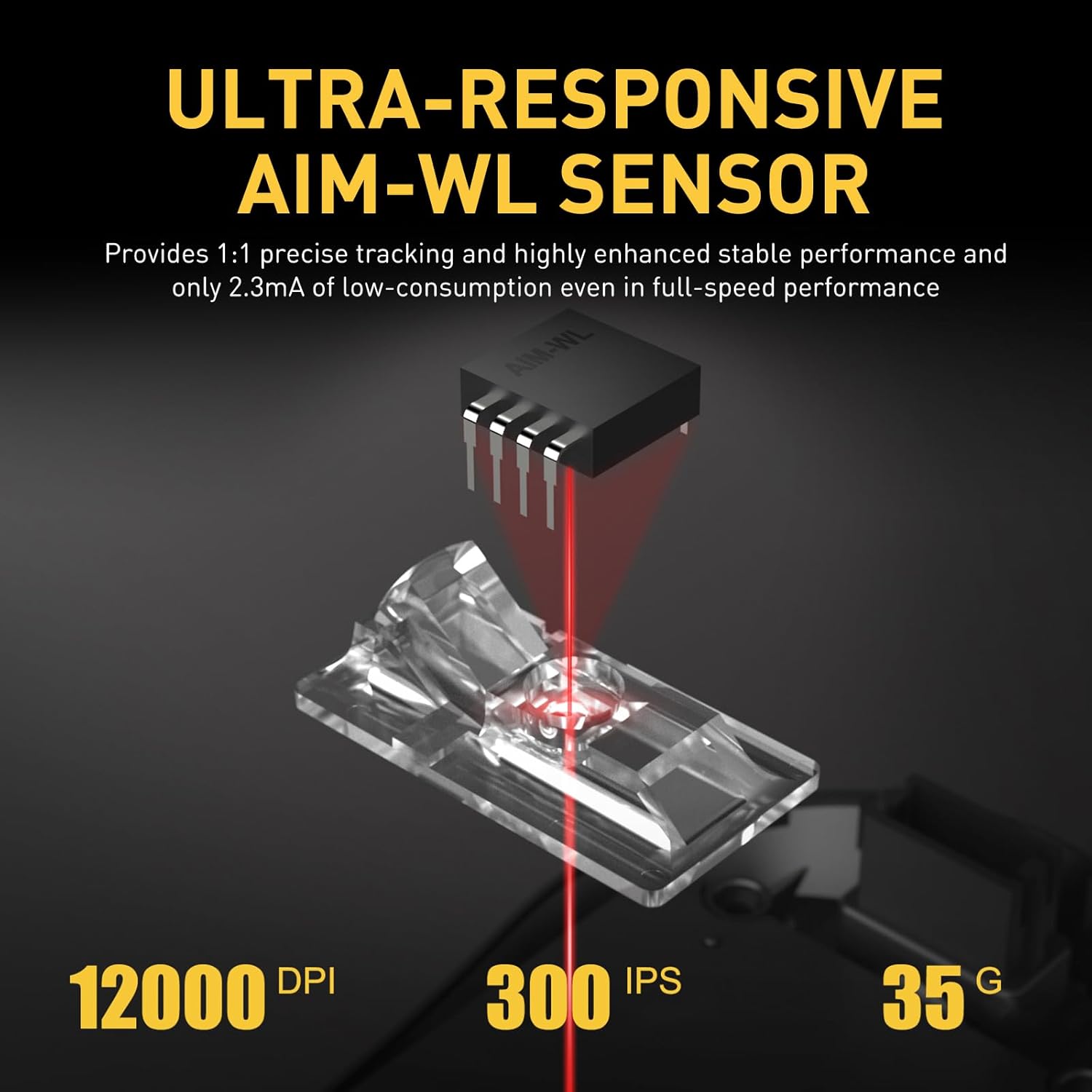
An illustration highlighting the DAREU AIM-WL sensor, indicating its capabilities of up to 12000 DPI, 300 IPS (Inches Per Second) tracking speed, and 35G acceleration. This sensor is optimized for precise tracking and low power consumption.
It consumes only 2.3mA at full speed, saving up to 70% power compared to ordinary wireless mice. The 1000Hz polling rate ensures a minimal delay of only 1ms, crucial for responsive gaming.
2.2.2 KBS II Key Technology
DAREU's exclusive KBS II Button technology is designed to prevent debouncing delays and unintended misclicks, providing a consistent and reliable click experience.
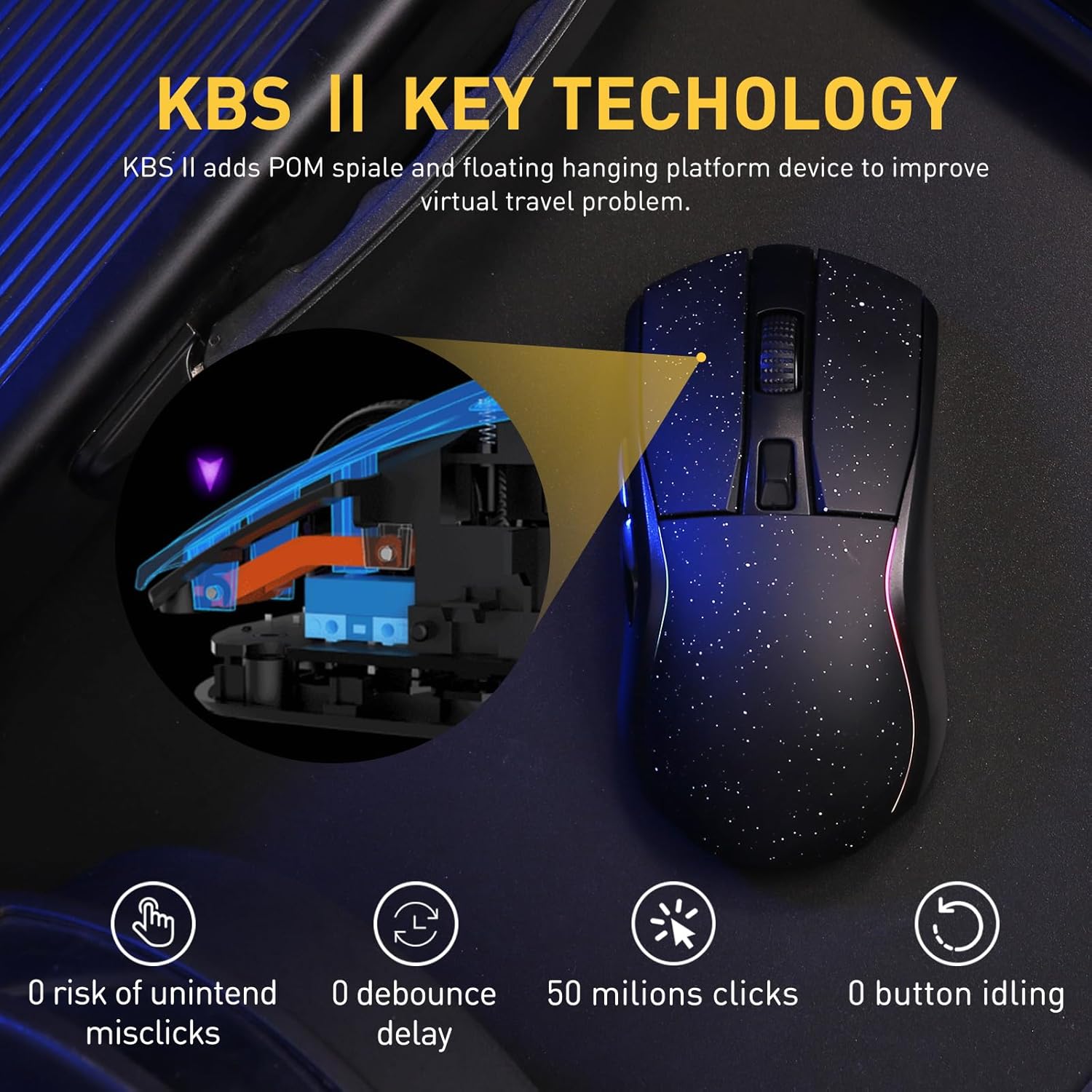
A cutaway diagram illustrating the KBS II Key Technology, which incorporates a POM spiale and floating hanging platform device to improve virtual travel and prevent unintended misclicks. This technology ensures 0 debounce delay, 50 million click durability, and 0 button idling.
2.2.3 Lightweight Design
Weighing only 88g, the DAREU A950 is an ultra-lightweight mouse, allowing for swift movements during intense gaming sessions and reducing fatigue during prolonged use.

An exploded view of the DAREU A950 mouse, demonstrating its internal structure and components that contribute to its 88g ultra-lightweight design, ensuring agile movement and reduced hand fatigue.
2.2.4 Ergonomic Design & Mimic Skin Surface
The mouse features a durable ambidextrous design with a symmetric ergonomic shape, providing a comfortable fit for various hand sizes and grip styles. The skin-like surface enhances grip and comfort during extended use.

Three images showing different hand positions and grip styles (palm, claw, fingertip) on the DAREU A950 mouse, highlighting its ergonomic design and mimic skin surface for comfortable and stable control.
2.3 Software Customization
The DAREU A950 comes with dedicated programming software that allows you to customize various settings to suit your preferences and gaming style.

A screenshot of the DAREU mouse customization software, showing options for key settings, including programmable buttons (1-6), DPI adjustment, macro creation, and RGB lighting customization.
Through the software, you can:
- Assign functions to the six programmable keys.
- Adjust DPI levels and create custom profiles.
- Create and manage macros for complex commands.
- Customize the RGB lighting effects on the mouse and charging dock.
Please refer to the software's built-in help or the DAREU official website for detailed instructions on using the customization software.
3. Maintenance
3.1 Cleaning
Regular cleaning helps maintain the performance and appearance of your mouse:
- Use a soft, lint-free cloth slightly dampened with water or a mild cleaning solution to wipe the surface of the mouse and charging dock.
- Avoid using harsh chemicals, abrasive cleaners, or solvents.
- Use a can of compressed air to clear dust and debris from around the buttons and sensor area.
- Ensure the mouse and dock are completely dry before use or charging.
3.2 Battery Management
The DAREU A950 is equipped with an in-built battery designed for long playtime.

A graphic indicating the 930mAh battery capacity of the DAREU A950 mouse. It shows approximate playtime of about 12 days in 2.4G mode and about 30 days in BT mode, based on continuous 4 hours of playtime per day.
- The mouse offers up to 120 hours of playtime on a full charge.
- A quick 10-minute charge on the dedicated dock can provide up to 10 hours of uninterrupted gameplay.
- To preserve battery life, turn off the mouse when not in use for extended periods.
4. Troubleshooting
If you encounter issues with your DAREU A950 mouse, refer to the following common problems and solutions:
| Problem | Possible Cause | Solution |
|---|---|---|
| Mouse not responding in wireless mode. | Low battery, incorrect mode selected, receiver not connected, pairing issue. |
|
| Cursor movement is erratic or slow. | Sensor obstruction, incorrect DPI setting, surface issue. |
|
| RGB lights not working or stuck. | Software settings, power saving mode. |
|
| Buttons not responding or double-clicking. | Software issue, physical damage. |
|
5. Specifications
| Feature | Detail |
|---|---|
| Product Dimensions | 2.52 x 4.84 x 1.54 inches |
| Item Weight | 3.1 ounces (88g) |
| Item Model Number | A950-BK |
| Batteries | 1 AAA battery required (included) |
| Connectivity Technology | Bluetooth (BT), Wired (Type-C), 2.4G Wireless |
| Special Features | Charging dock, Tri-mode connection, 88g Lightweight, RGB lighting, Programmable buttons |
| Movement Detection Technology | Optical (AIM-WL Sensor) |
| Manufacturer | DAREU |
| Country of Origin | China |
6. Warranty and Support
For warranty information and customer support, please refer to the official DAREU website or the retailer from whom you purchased the product. Keep your proof of purchase for warranty claims.
You can visit the official DAREU store for more information and support: DAREU Official Store


