
FERMAX 9320

FERMAX Audio Duox Plus Veo Guard Unit Monitor 9320
Instruction Manual
1. Product Overview
The FERMAX Audio Duox Plus Veo Guard Unit Monitor 9320 is an advanced audio and video intercom system designed for security and communication within residential or commercial buildings. This unit serves as a central guard station monitor, enabling clear audio-visual communication with visitors and residents, and providing control over access points. Its intuitive touch and button controls ensure ease of use for security personnel.
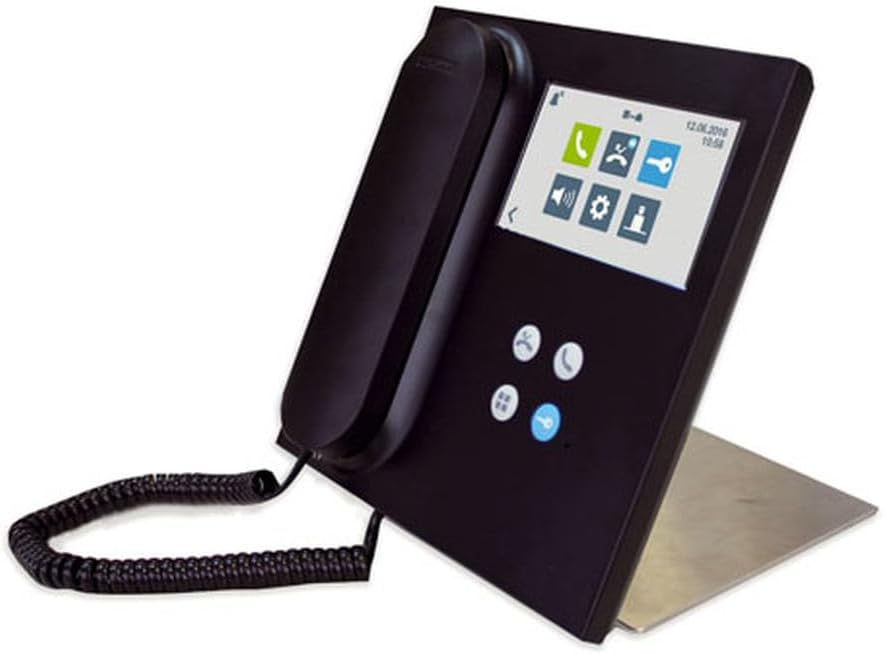
Figure 1: FERMAX Audio Duox Plus Veo Guard Unit Monitor 9320, showing the handset, screen, and control buttons.
2. Setup and Installation
2.1 Unpacking the Unit
Carefully remove all components from the packaging. Verify that all items listed in the packing list are present and undamaged. Retain the original packaging for future transport or storage.
2.2 Mounting Options
The Veo Guard Unit Monitor 9320 supports both Door Mount and Outside Mount configurations. Choose a stable, flat surface for installation, ensuring adequate space for ventilation and cable management.
- Door Mount: Ideal for integration into existing door entry panels or custom enclosures.
- Outside Mount: Suitable for surface mounting on a desk or wall using the provided stand or mounting bracket.
2.3 Wiring and Connections
Connect the unit to the FERMAX Duox Plus system using the appropriate wiring diagrams provided in the separate installation guide. Ensure all connections are secure and correctly polarized to prevent damage. Power should only be applied after all connections are verified.
- Connect the Duox Plus bus lines (data and power).
- Connect the audio lines (if applicable for external speakers/microphones).
- Connect the power supply unit to a suitable electrical outlet.
2.4 Initial Power-Up
Once all connections are made, plug in the power supply. The unit will perform a self-test and display the FERMAX logo, followed by the main interface. Allow a few moments for the system to initialize fully.
3. Operating Instructions
3.1 User Interface Navigation
The monitor features a combination of Touch screen and physical Button controls. The main screen displays various icons for different functions.
- Touch Screen: Tap icons or swipe to navigate menus and select options.
- Physical Buttons: Use the dedicated buttons for common actions such as answering calls, opening doors, or navigating back.
3.2 Making and Receiving Calls
To initiate a call, select the desired resident or apartment from the directory on the screen and press the call button. When a call is received, the monitor will ring and display the caller's video (if available). Lift the handset or press the answer button to establish communication.
3.3 Door Release Function
During an active call, press the dedicated door release button (often marked with a key icon) to unlock the connected entrance. Ensure the identity of the visitor is confirmed before releasing the door.
3.4 System Settings
Access the settings menu via the gear icon on the main screen. Here you can adjust volume, screen brightness, language, and other system preferences. Refer to the detailed system manual for advanced configuration options.
4. Maintenance
4.1 Cleaning the Unit
To clean the monitor screen and casing, use a soft, lint-free cloth slightly dampened with water or a mild, non-abrasive cleaning solution. Avoid using harsh chemicals, solvents, or abrasive materials, as these can damage the surface. Ensure the unit is powered off before cleaning.
4.2 General Care
- Keep the unit away from direct sunlight, excessive heat, and moisture.
- Do not block ventilation openings.
- Avoid dropping or subjecting the unit to strong impacts.
- Regularly check cable connections for looseness or damage.
5. Troubleshooting
This section addresses common issues you might encounter with your FERMAX Audio Duox Plus Veo Guard Unit Monitor 9320.
| Problem | Possible Cause | Solution |
|---|---|---|
| No power/Screen is blank | Power cable disconnected; Power supply failure; System fault. | Check power cable connection. Ensure power outlet is functional. Contact technical support if issue persists. |
| No audio during calls | Volume too low; Handset not properly seated; Wiring issue. | Adjust volume in settings. Ensure handset is correctly placed. Verify audio wiring connections. |
| Cannot open door | Door release not activated; Wiring issue to door lock; Lock malfunction. | Ensure call is active and door release button is pressed. Check wiring to the door lock. Consult a qualified technician for lock issues. |
| Touch screen unresponsive | Temporary software glitch; Screen damage. | Restart the unit by disconnecting and reconnecting power. If unresponsive, contact support. |
For issues not listed here or if troubleshooting steps do not resolve the problem, please contact FERMAX technical support.
6. Technical Specifications
| Feature | Detail |
|---|---|
| Model | 9320 |
| Brand | FERMAX |
| Control Method | Touch, Button |
| Mounting Type | Door Mount, Outside Mount |
| Speaker Type | Computer, Outdoor |
| Unit Count | 1.0 Count |
| Package Dimensions | 10.71 x 9.41 x 2.56 inches |
| Waterproof | FALSE |
| ASIN | B0C9K2RW3B |
| Date First Available | June 27, 2023 |
7. Warranty and Support
7.1 Product Warranty
The FERMAX Audio Duox Plus Veo Guard Unit Monitor 9320 is covered by a standard manufacturer's warranty. Please refer to the warranty card included with your product or visit the official FERMAX website for detailed terms and conditions regarding warranty coverage and duration.
7.2 Technical Support
For technical assistance, installation queries, or advanced troubleshooting, please contact FERMAX customer support. You can find contact information, FAQs, and additional resources on the official FERMAX website:
When contacting support, please have your product model (9320) and ASIN (B0C9K2RW3B) readily available.
Related documents9320


Ask a question about this manual
Ask about setup, troubleshooting, compatibility, parts, safety, or missing instructions. Manuals+ will review the question and use this page’s manual context to help answer it.