
Introduction
This manual provides essential information and instructions for the safe and efficient use of your OPPO A98 5G smartphone. Please read this manual thoroughly before using your device to ensure optimal performance and longevity. Keep this manual for future reference.
Package Contents
Upon opening your OPPO A98 5G package, please verify that all the following items are included:
- OPPO A98 5G Smartphone
- USB Type-C Cable
- Power Adapter (67W SuperVOOC)
- SIM Ejector Tool
- Quick Start Guide
- Safety Guide
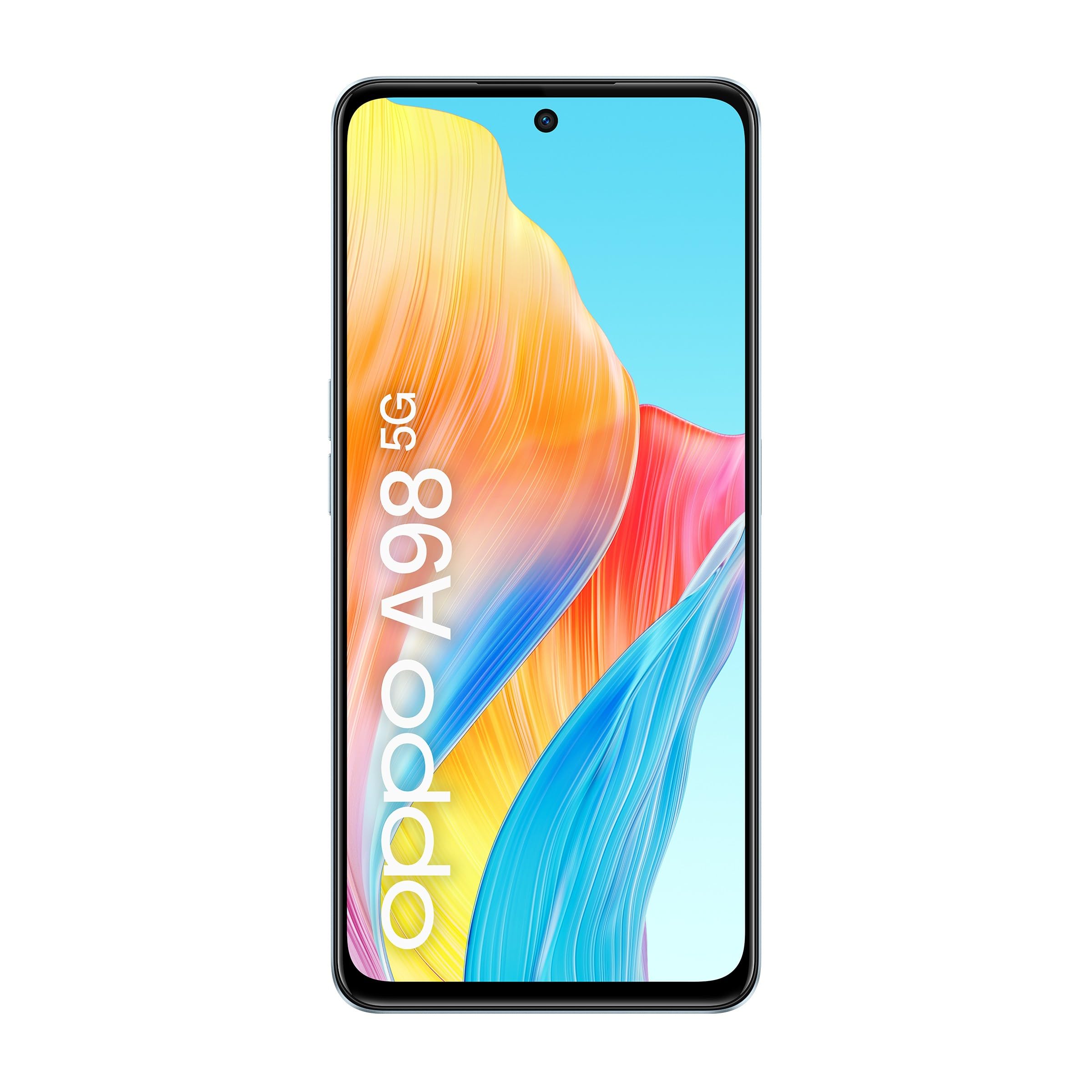
This image displays the OPPO A98 5G smartphone, highlighting its rear camera module and the vibrant display. A magnetic car mount accessory is also shown.
Device Overview
Familiarize yourself with the physical components of your OPPO A98 5G.
Front View
- Display: 6.72-inch screen with 2400 x 1080 resolution and 120 Hz refresh rate.
- Front Camera: For selfies and video calls.
- Earpiece: For audio during calls.
Rear View
- Rear Camera Module: Main camera and auxiliary lenses.
- Flash: For low-light photography.
Sides and Ports
- Power Button: Located on the side, used to turn the device on/off or wake/sleep the screen.
- Volume Buttons: Adjust media and call volume.
- USB Type-C Port: For charging and data transfer.
- SIM Card Tray: For inserting SIM cards.
- Speaker: For audio output.
Setup
1. SIM Card Installation
- Locate the SIM card tray on the side of your device.
- Insert the SIM ejector tool into the small hole next to the tray and press gently until the tray pops out.
- Place your Nano-SIM card(s) into the tray with the gold contacts facing down. Ensure proper orientation.
- Carefully reinsert the tray into the device until it clicks into place.
2. Initial Power On
- Press and hold the Power button until the OPPO logo appears on the screen.
- Follow the on-screen prompts to complete the initial setup, including language selection, Wi-Fi connection, and Google account sign-in.
Operating Instructions
Charging the Device
Connect the USB Type-C cable to the phone's charging port and the other end to the 67W SuperVOOC power adapter. Plug the adapter into a power outlet. The device supports fast charging, reaching 50% charge in approximately 18 minutes and a full charge in about 44 minutes.
Display and Navigation
- Touch Gestures: Swipe, tap, pinch-to-zoom for navigation and interaction.
- Home Screen: Customize with widgets and app shortcuts.
- Notifications: Swipe down from the top of the screen to access notifications and quick settings.
Camera Usage
Open the Camera app to capture photos and videos. Tap the shutter button to take a picture. Swipe left or right to switch between modes like Photo, Video, Portrait, and Night. Adjust settings such as flash, timer, and aspect ratio from the camera interface.
Connectivity
- 5G Network: The device supports 5G connectivity for faster mobile data speeds. Ensure your SIM card and plan support 5G.
- Wi-Fi: Go to Settings > Wi-Fi to connect to available wireless networks.
- Bluetooth: Go to Settings > Bluetooth to pair with Bluetooth devices like headphones or speakers.
Storage Management
The OPPO A98 5G comes with 256GB of internal storage. You can manage your storage by going to Settings > Storage. Regularly clear unnecessary files and cache to maintain optimal performance. The device also supports RAM Expansion, utilizing storage as virtual RAM for smoother multitasking.
Maintenance
Software Updates
Regularly check for and install software updates to ensure your device has the latest features, security patches, and performance improvements. Go to Settings > About device > Up to date to check for updates.
Cleaning
Use a soft, lint-free cloth to clean the screen and body of your phone. Avoid using harsh chemicals or abrasive materials. For stubborn smudges, slightly dampen the cloth with water or a screen cleaner designed for electronics.
Battery Care
The OPPO A98 5G features a 5000 mAh battery with OPPO's patented Battery Health Engine, designed to double the battery's lifespan to four years or more. To maximize battery life, avoid extreme temperatures, use the original charger, and avoid fully discharging the battery frequently.
Troubleshooting
Device Not Turning On
- Ensure the battery is charged. Connect the device to the charger for at least 10 minutes before attempting to power it on.
- Press and hold the Power button for 10-15 seconds to perform a forced restart.
Charging Issues
- Verify that the charging cable and adapter are securely connected and undamaged.
- Try using a different power outlet.
- Clean the USB Type-C port on your phone gently with a soft brush to remove any debris.
Network Connectivity Problems
- No Signal/Weak Signal: Check if your SIM card is properly inserted. Try restarting the device. Ensure you are in an area with network coverage.
- Wi-Fi Connection Issues: Restart your Wi-Fi router. Forget the network on your phone and reconnect.
Specifications
| Model Name | OPPO A98 5G |
| Operating System | Android 13.0 |
| Display Size | 17.1 cm (6.72 inches) |
| Display Resolution | 2400 x 1080 |
| Refresh Rate | 120 Hz |
| Processor | Qualcomm Snapdragon 5G SoC |
| RAM | 8 GB (expandable up to 16 GB with RAM Expansion) |
| Internal Storage | 256 GB |
| Battery Capacity | 5000 mAh |
| Charging | 67W SuperVOOC Fast Charging |
| Rear Camera | 16 MP effective resolution (main camera) |
| Connectivity | 5G, USB Type-C, Wi-Fi, Bluetooth |
| SIM Type | Dual SIM |
Warranty and Support
Warranty Information
Your OPPO A98 5G smartphone comes with a 3-year warranty against factory defects. Please retain your proof of purchase for warranty claims. This warranty covers manufacturing defects and does not cover damage caused by misuse, accidents, unauthorized modifications, or normal wear and tear.
Customer Support
For further assistance, technical support, or warranty inquiries, please visit the official OPPO website or contact their customer service. Refer to the packaging or the official OPPO website for specific contact details in your region.


