
1. Introduction
This manual provides detailed instructions for the installation, operation, and maintenance of your Junsun 7-inch Android Car Radio Stereo. This device integrates advanced features such as Wireless/Wired CarPlay, Android Auto, GPS navigation, Bluetooth connectivity, FM/AM radio, and steering wheel control compatibility, designed to enhance your in-car entertainment and navigation experience. Please read this manual thoroughly before use to ensure proper functionality and safety.
2. Compatible Vehicle Models
The Junsun 7-inch Android Car Radio Stereo is designed to fit a range of Ford vehicles. Please verify your vehicle's make, model, and year against the list below to ensure compatibility:
- Ford F150: 2004-2008
- Ford F250/F350: 2006-2014
- Ford E250/E350: 2009-2014
- Ford Edge: 2007-2010
- Ford Taurus/Sable: 2008-2009
- Ford Fusion/Milan: 2006-2009
- Ford Focus/Montego/Freestyle: 2005-2007
- Ford Explorer (U251): 2006-2010
- Ford Escape: 2008-2012
- Ford Expedition: 2007-2014
- Ford MKX: 2007-2009
- Ford Mark LT: 2006-2008
- Ford Mustang: 2005-2009

Figure 2.1: Compatible Ford vehicle models and their respective model years.
3. Product Features
The Junsun Android Car Radio Stereo offers a variety of features for an enhanced driving experience:
- 7-inch IPS HD Touchscreen: High-definition display (1280x720 pixels) for clear visuals and responsive interaction.
- Operating System: Android OS.
- Memory: 2GB RAM and 32GB ROM for smooth operation and storage.
- Wireless/Wired CarPlay & Android Auto: Seamless integration with iPhone and Android devices for navigation, music, and communication.
- Screen Mirroring: Project content from your smartphone directly onto the car radio screen.
- Advanced GPS Navigation: Built-in software supporting online navigation with precise location tracking and real-time traffic updates.
- Steering Wheel Control (SWC): Retains original steering wheel control functionality for track switching and volume adjustment.
- Bluetooth 5.4: Hands-free calling, contact syncing, and music streaming with an external microphone for clear calls.
- FM/AM Radio: High-quality radio reception with RDS for station information and traffic updates.
- Digital Signal Processing (DSP): Enhanced audio output and sound customization.
- Rear Camera Input: Supports connection to a factory or aftermarket rear camera for parking assistance.
- Wi-Fi Connectivity: For online services and software updates.
4. Setup and Installation
Installation of the Junsun Android Car Radio Stereo requires careful attention to wiring. It is recommended that installation be performed by a qualified professional. Ensure the vehicle's power is disconnected before beginning installation.
4.1 Wiring Connections
Refer to the wiring diagram below for proper connections. The unit is designed for plug-and-play functionality with compatible vehicles, but specific connections for accessories like backup cameras and external audio may be required.

Figure 4.1: Wiring Diagram. This diagram illustrates the connections for the factory backup camera (10-pin cable), Canbus, RCA AUX L/R OUT, POWER cable AUX L/R, and Factory USB. It also shows distinctions for low and high configuration wiring (orange cable).
- Camera Cable (10 pin): Connects to the factory backup camera.
- Canbus: For integrating with vehicle's existing systems, such as steering wheel controls and reverse trigger.
- RCA AUX L/R OUT: For external audio output.
- POWER cable AUX L/R: For power supply.
- Factory USB: Connects to the vehicle's existing USB port.
- Configuration Check: Confirm if your car is a low or high configuration model and connect the orange cable accordingly. Incorrect wiring may prevent the device from powering on.
4.2 Steering Wheel Control Learning
After installation, steering wheel controls may require a learning procedure to function correctly. Access the "Steering Wheel Control" settings within the unit's interface to map your vehicle's steering wheel buttons to the corresponding functions on the radio.
5. Operating Instructions
5.1 Wireless/Wired CarPlay and Android Auto
Connect your smartphone for seamless access to navigation, music, and communication apps.
- Wireless CarPlay:
- Enable Bluetooth on your iPhone and pair it with the car radio.
- Open the "Car Link" application on the car radio.
- Wired Android Auto:
- Ensure the "Android Auto" app is installed on your Android phone.
- Connect your phone to the car radio via the original USB cable.
- Screen Mirroring: Use the dedicated function to project your phone's screen onto the unit for movies, games, and other content.

Figure 5.1: Wireless CarPlay, Android Auto, and GPS Navigation interfaces on the Junsun car radio.
5.2 GPS Navigation
The unit includes built-in navigation software. Access it from the main menu. It supports online navigation for real-time traffic updates and precise location tracking.

Figure 5.2: GPS Navigation icon.
5.3 Bluetooth Connectivity
Pair your phone via Bluetooth for hands-free calling and audio streaming. The external microphone ensures clear call quality.
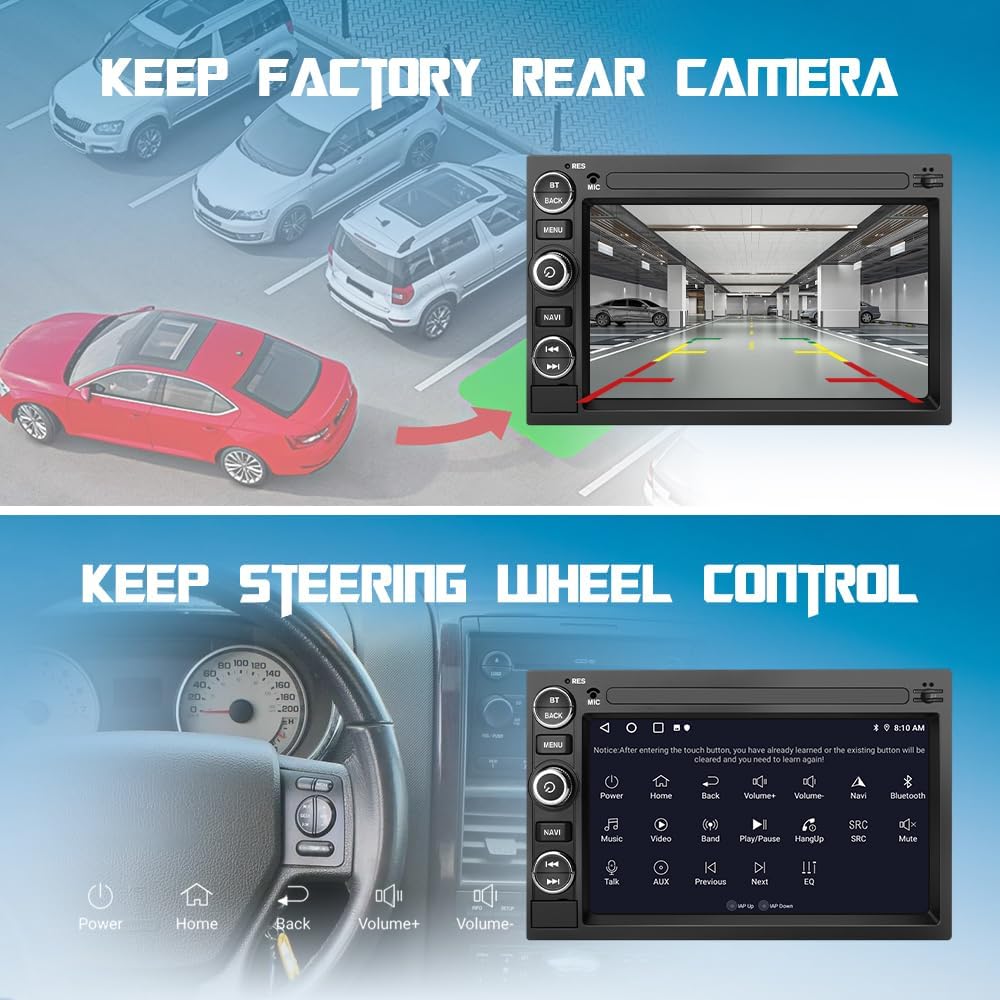
Figure 5.3: Bluetooth call interface on the Junsun car radio.
5.4 FM/AM Radio
Tune into your favorite radio stations. The unit supports RDS (Radio Data System) for displaying station information and traffic updates.

Figure 5.4: FM/AM Radio interface with frequency display.
5.5 Digital Signal Processing (DSP)
Access the DSP settings to customize your audio experience with various equalizer presets and sound adjustments.

Figure 5.5: DSP icon.
5.6 Split Screen Functionality
Utilize the split-screen feature to run two applications simultaneously, such as navigation and music playback.

Figure 5.6: Split Screen icon.
5.7 Rear Camera Display
If a compatible rear camera is connected, the display will automatically switch to the camera view when the vehicle is in reverse, aiding in parking and maneuvering.

Figure 5.7: Rear Camera icon.
6. Maintenance
6.1 General Care
- Keep the screen clean using a soft, lint-free cloth. Avoid abrasive cleaners.
- Ensure all connections are secure and free from debris.
- Avoid exposing the unit to extreme temperatures or direct sunlight for prolonged periods.
6.2 Software Updates
The unit supports wireless software updates to address bugs and improve security. Access the system settings to check for and install available updates. Note that these updates enhance software usability and do not upgrade the Android version.
7. Troubleshooting
This section addresses common issues you might encounter with your Junsun Android Car Radio Stereo.
- Unit does not power on:
- Verify all power connections are secure.
- Ensure the correct wiring configuration (low/high) is used as per the wiring diagram.
- Check vehicle fuses related to the car radio.
- Slow charging via USB ports:
- The USB ports may supply limited current (~300mA). For faster charging, consider using a dedicated car charger or wireless charging solutions.
- Wireless Android Auto connection issues:
- Wireless Android Auto may take time to connect (up to 45 seconds).
- Connection may fail if the phone is already connected to another Wi-Fi network (e.g., home Wi-Fi). Disconnect from other Wi-Fi networks before attempting to connect to Android Auto.
- Steering Wheel Controls not working:
- Perform the steering wheel control learning procedure in the unit's settings.
- Ensure the Canbus connection is correctly installed.
- No sound or poor sound quality:
- Check speaker wiring connections.
- Adjust DSP settings and equalizer.
- Ensure volume is not muted on the unit or your connected device.
8. Specifications
| Brand | Junsun |
| Model | 7-inch Android Car Radio Stereo (2G+32G) |
| Screen Size | 7 Inches |
| Resolution | 1280 x 720 pixels (HD Touchscreen) |
| Operating System | Android |
| Memory (RAM) | 2 GB |
| Storage (ROM) | 32 GB |
| Connectivity Technology | Bluetooth 5.4, Wi-Fi, Cellular |
| Supported Navigation | GPS |
| Audio Output Mode | Stereo, DSP |
| Human-Interface Input | Microphone, Touchscreen |
| Item Weight | 1.33 Kilograms |
9. Warranty and Support
Junsun provides professional after-sales support. If you encounter any issues or have questions regarding your product, please contact the dedicated support team. They are available to assist with inquiries and ensure quick responses.
For specific warranty details, please refer to the documentation included with your purchase or contact Junsun customer service directly.


