
1. Introduction
Thank you for choosing the LeadJoy M1 iPhone Mobile Game Controller. This manual provides essential information for setting up, operating, and maintaining your controller to ensure an optimal gaming experience. The LeadJoy M1 is designed for iPhone users running iOS 13, 14, 15, or 16, offering ultra-low latency and precise control for a wide range of mobile games and cloud gaming services.
2. Product Overview
The LeadJoy M1 controller enhances your mobile gaming with advanced features and ergonomic design.
Key Features:
- Hall Effect Joysticks: Utilizes non-contact magnetic sensors for precise positioning and movement, preventing stick drift and ensuring durability up to 5 million cycles.
- Hall Effect Analog Triggers: Provides smooth and consistent trigger feedback with 0.1mm accuracy.
- Cooling Conduction Plate Compatibility: Features a movable cooling conduction plate on the back, allowing for attachment of compatible smartphone coolers (sold separately) to maintain optimal phone temperature during extended gaming sessions.
- Pass-Through Charging: Supports charging your iPhone while playing, ensuring uninterrupted gaming.
- Non-Slip Grip: Laser-textured surface on the grips provides enhanced comfort and prevents slippage due to sweat.
- Direct Lightning Connection: Ensures ultra-low latency and eliminates wireless signal delays.

Image: LeadJoy M1 controller with an attached cooling fan, illustrating the cooling mechanism. This feature helps maintain your iPhone's temperature during intense gaming.

Image: Diagram illustrating the internal mechanism of the Hall Effect analog joystick, highlighting its non-contact magnetic sensing for precise control and zero dead zones.

Image: Close-up view of the laser-textured non-slip grip on the controller, designed for comfortable and secure handling during gameplay.
3. Setup Instructions
- Remove Phone Case: Before attaching your iPhone to the LeadJoy M1, ensure that any phone case is removed. This ensures a secure and proper connection to the Lightning port.
- Connect iPhone: Gently slide your iPhone into the controller, aligning the iPhone's Lightning port with the controller's Lightning connector. Ensure a firm connection.
- Power On: The controller draws power directly from your iPhone. No separate charging or pairing is required for initial use.
Important Note: The LeadJoy M1 connects via a Lightning port. It is not compatible with iPhone 15 models or newer iPhones that use USB-C ports.
4. Operating Instructions
Game Compatibility:
The LeadJoy M1 supports a wide array of MFi (Made for iPhone) games, cloud gaming services, and remote play options. This includes:
- Popular iOS games such as Genshin Impact, Diablo Immortal, and Call of Duty Mobile.
- Cloud gaming platforms like Xbox Cloud Gaming (Beta) and Amazon Luna.
- Remote play services including Xbox Remote Play and Steam Link.
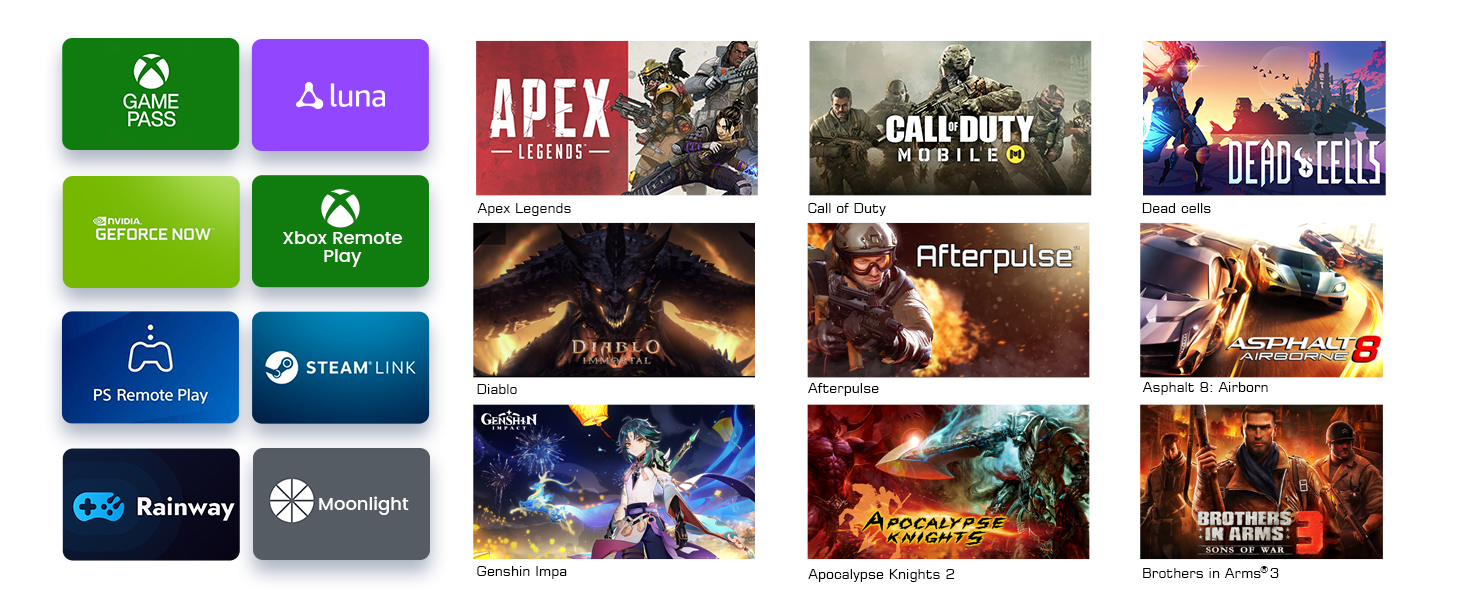
Image: A collage of logos representing various games and streaming services compatible with the LeadJoy M1 controller, including Xbox Game Pass, Luna, Apex Legends, Call of Duty, Genshin Impact, and Steam Link.
Pass-Through Charging:
To charge your iPhone while using the controller, connect a Lightning charging cable to the pass-through port on the LeadJoy M1. This allows for extended gaming sessions without draining your phone's battery.
5. Compatibility
The LeadJoy M1 is specifically designed for iPhones with a Lightning port, supporting iOS versions 13, 14, 15, and 16. Compatible iPhone models include, but are not limited to, iPhone 12, iPhone 13, and iPhone 14 series.
The controller is not compatible with iPhones featuring a USB-C port, such as the iPhone 15 series and later models.
6. Maintenance
- Cleaning: Use a soft, dry cloth to clean the controller. Avoid using abrasive cleaners or solvents.
- Storage: Store the controller in a cool, dry place away from direct sunlight and extreme temperatures.
- Cooling Plate (if applicable): If using a separate cooling fan with the conduction plate, ensure the fan is kept clean and free of dust for optimal performance.
7. Troubleshooting
| Issue | Possible Cause | Solution |
|---|---|---|
| Controller not recognized by iPhone | Phone case obstructing connection; Loose Lightning connection; Incompatible iOS version. | Remove phone case. Ensure the Lightning connector is firmly seated. Verify your iPhone is running iOS 13, 14, 15, or 16. (Note: iOS 17.5.1 and later may not be supported). |
| Input lag or unresponsiveness | Rare, but could be due to phone performance or specific game optimization. | Close background apps on your iPhone. Restart your iPhone and the game. Ensure your game is updated. |
| iPhone not charging via pass-through port | Faulty charging cable; Insufficient power source. | Try a different Lightning charging cable. Ensure your power adapter provides sufficient wattage. |
| Buttons or joysticks not responding correctly | Software glitch; Physical obstruction. | Restart your iPhone. Ensure no debris is obstructing the buttons or joysticks. If issues persist, contact customer support. |
8. Specifications
| Feature | Detail |
|---|---|
| Brand | LeadJoy |
| Model | M1 |
| Controller Type | Game Pad |
| Hardware Platform | iOS (Lightning Port) |
| Supported iOS Versions | iOS 13, 14, 15, 16 |
| Special Features | Hall Effect Joysticks, Hall Effect Triggers, Motion Sensor, Cooling Conduction Plate Compatibility, Pass-Through Charging |
| Number of Buttons | 13 |
| Item Weight | 12.8 ounces (approx. 363 grams) |
| Product Dimensions | 19.4 x 9.5 x 3.5 cm (approx. 7.6 x 3.7 x 1.4 inches) |
9. Warranty and Support
The LeadJoy M1 iPhone Mobile Game Controller comes with a 1-year manufacturer warranty from the date of purchase. This warranty covers defects in materials and workmanship under normal use.
For technical support, warranty claims, or any questions not addressed in this manual, please contact LeadJoy customer service through their official website or the retailer where the product was purchased. Please have your proof of purchase and product model number (M1) ready when contacting support.