
1. Introduction
The Sameo Micro Genius 8-Bit HDMI Gaming Console offers a classic gaming experience with 800 built-in HD games. Designed for ease of use, this plug-and-play system connects directly to your TV via HDMI, providing entertainment for children and adults alike. It features wireless controllers for comfortable gameplay and supports both single-player and two-player modes.
2. Safety Information
- Always read the instructions carefully before using the product.
- Ensure a proper balance between play and rest to avoid eye strain or fatigue.
- This product is suitable for children aged 5 years and above. Adult supervision is recommended for younger users.
- Keep the console and accessories away from water, heat sources, and direct sunlight.
- Do not attempt to open or repair the console or controllers yourself. Refer to qualified service personnel.
3. Package Contents
Please verify that all items listed below are included in your package:
- 1 x Sameo Micro Genius Game Stick (Console)
- 2 x Wireless Game Controllers (Joysticks)
- 1 x HDMI Cable
- 1 x USB Power Cable
- 1 x User Manual (This document)
- 1 x Warranty Card

Image: The Sameo Micro Genius game stick, two wireless controllers, and the HDMI dongle, illustrating the main components included in the package.
4. Setup Instructions
Follow these steps to set up your Sameo Micro Genius Gaming Console:
- Connect the Game Stick: Plug the Sameo Micro Genius Game Stick directly into an available HDMI input port on your television or monitor. Ensure your TV has an HDMI input interface.
- Connect Power: Connect the USB Power Cable to the Game Stick and then plug the other end into a USB power source (e.g., a USB port on your TV or a USB wall adapter).
- Prepare Controllers: Insert 2 AAA batteries (not included) into each wireless controller. Ensure correct polarity.
- Select HDMI Input: Turn on your TV and use its remote control to select the correct HDMI input source to which the Game Stick is connected.
- Power On: The console should power on automatically once connected to power and the TV input is selected. The main game menu will appear on your screen.
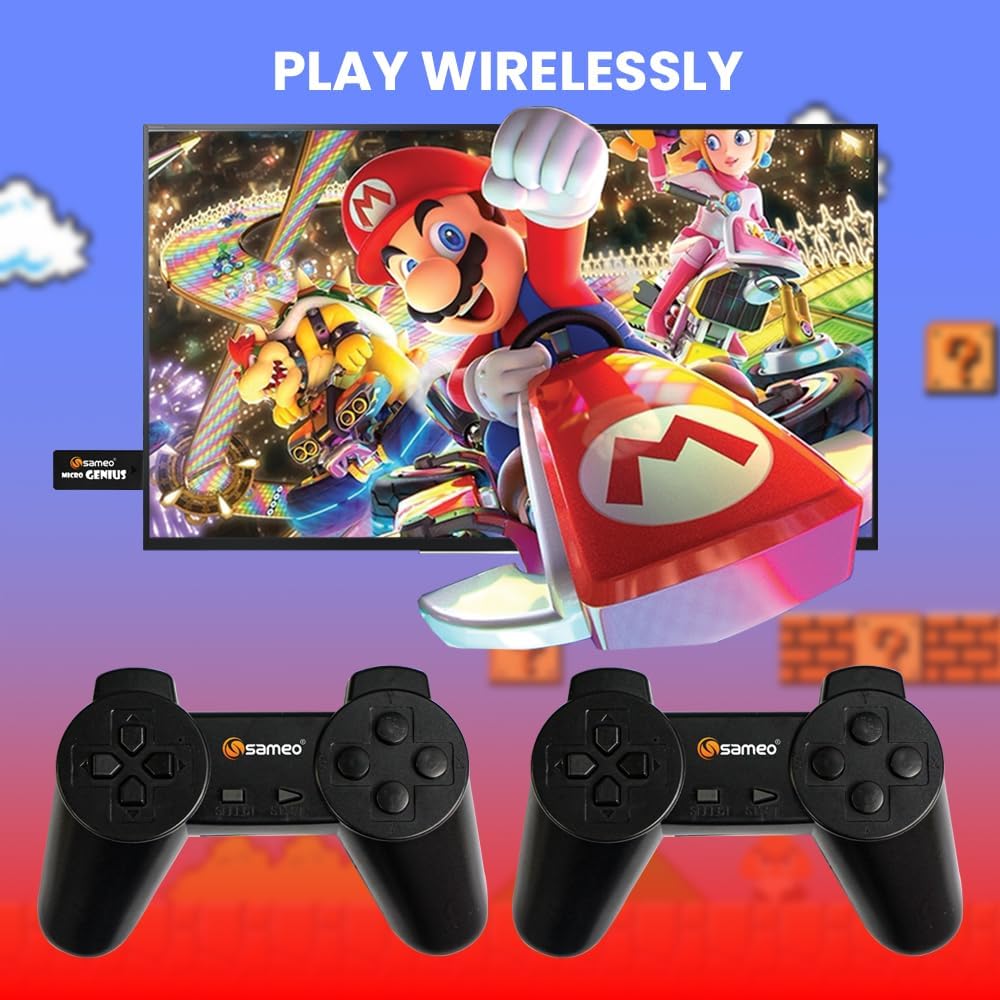
Image: A visual representation of the Sameo Micro Genius game stick plugged into a television, with two wireless controllers ready for use, demonstrating the wireless play feature.
5. Operating Instructions
Once the console is set up, you can begin playing the built-in games:
- Navigation: Use the directional pad (D-pad) on the wireless controllers to navigate through the game menu.
- Select Game: Press the 'A' button (or equivalent action button) on the controller to select a game from the list.
- Start Game: After selecting a game, press the 'Start' button to begin playing.
- Pause/Menu: During gameplay, pressing the 'Start' button typically pauses the game or brings up an in-game menu.
- Exiting a Game: To return to the main game menu, you may need to hold down a specific button combination (e.g., 'Select' + 'Start' simultaneously) or select an 'Exit' option from the in-game menu. Refer to individual game instructions if available.
- Two-Player Mode: Many games support two players. Ensure both controllers are powered on and connected. The game will typically prompt for player selection.
6. Maintenance
Proper care will extend the life of your gaming console:
- Cleaning: Use a soft, dry cloth to clean the console and controllers. Do not use liquid cleaners or abrasive materials.
- Storage: When not in use, store the console and controllers in a cool, dry place, away from dust and extreme temperatures.
- Battery Care: Remove batteries from the wireless controllers if they will not be used for an extended period to prevent leakage.
7. Troubleshooting
If you encounter issues with your Sameo Micro Genius console, refer to the following common solutions:
- No Power/No Display:
- Ensure the USB power cable is securely connected to both the Game Stick and a working power source.
- Verify that your TV is turned on and set to the correct HDMI input channel.
- Try a different HDMI port on your TV or a different USB power source.
- Controllers Not Responding:
- Check if the batteries in the controllers are correctly inserted and have sufficient charge. Replace batteries if necessary.
- Ensure the controllers are within range of the Game Stick (typically within 5-7 meters).
- Restart the console by unplugging and re-plugging the USB power cable.
- No Sound:
- Check your TV's volume settings and ensure it is not muted.
- Verify that the HDMI cable is securely connected.
- Try a different HDMI port or cable.
- Game Freezes or Crashes:
- Restart the console by disconnecting and reconnecting the power.
- Ensure the console is not overheating. Provide adequate ventilation.
- Only One Game Opens:
- Ensure you are correctly navigating the menu and selecting games. Some games may require specific button presses to exit.
- If the issue persists, try restarting the console.
8. Specifications
| Feature | Specification |
|---|---|
| Model Number | Micro Genius |
| Hardware Interface | HDMI |
| Number of Built-in Games | 800 |
| Controller Type | Wireless Joystick (2.4GHz) |
| Number of Players | 1 or 2 |
| Power Source | USB Powered |
| Material | Plastic |
| Product Dimensions (Console) | Approximately 15 x 12 x 5 cm |
| Item Weight | Approximately 400 g |
| Recommended Age | 5 years and up |
9. Warranty and Support
Your Sameo Micro Genius Gaming Console comes with a warranty card. Please refer to the card for specific warranty terms and conditions. The manufacturer offers a 30-day unconditional return guarantee from the date of purchase.
For any questions, technical support, or service inquiries, please contact Sameo customer service. We are committed to providing satisfactory after-sales service.
Contact Information: Please refer to the contact details provided on your warranty card or product packaging for the most up-to-date support information.