
1. Introduction
This manual provides detailed instructions for the installation, operation, and programming of the TAXNELE THC30A Digital Programmable Timer Switch. This device is designed for automatic control of various electrical appliances based on user-defined daily and weekly schedules.

Figure 1: TAXNELE THC30A Digital Programmable Timer Switch
2. Key Features
- 7-Day Digital Programmable Timer: Supports daily and weekly programs with a full time range from 1 minute to 168 hours.
- Multiple ON/OFF Settings: Up to 20 ON and 20 OFF settings for precise control.
- Automatic Control: Automatically switches power to connected devices according to programmed schedules.
- User-Friendly Interface: Large LCD screen and clear buttons (D+, H+, M+) for easy operation.
- High Precision: Equipped with an industrial-grade chip for accurate timing.
- Power-Off Memory: Built-in high-performance battery retains timing, display, and data for up to 3 years during power outages.
- High Load Capacity: Features a 30A relay for handling significant electrical loads.
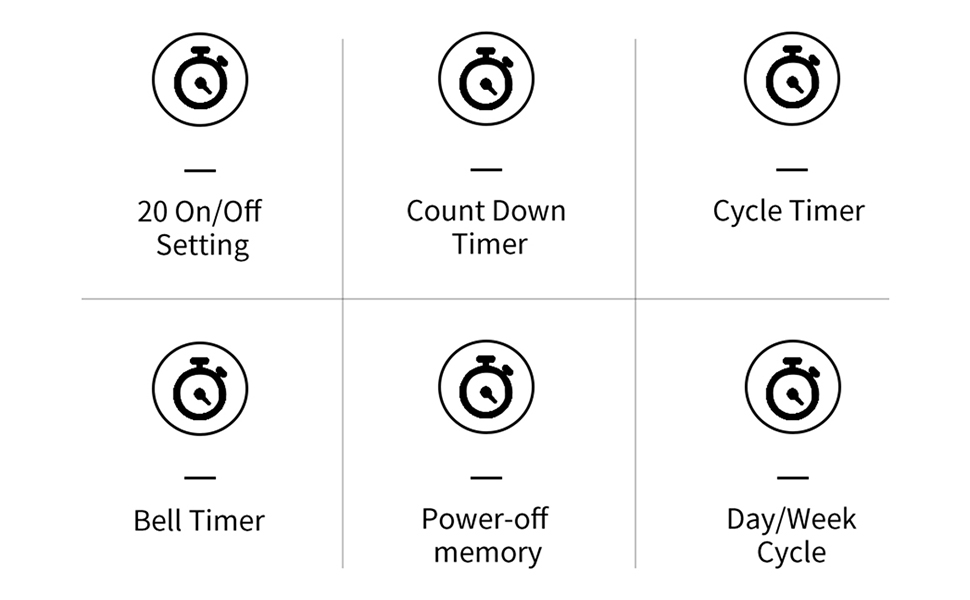
Figure 2: Overview of THC30A Timer Switch Features
3. Specifications
| Model | THC30A |
| Voltage | 230VAC |
| Load Capacity | 30A |
| Time Range | 1 minute to 168 hours |
| Programs | 20 ON/20 OFF settings |
| Power-Off Memory | Yes, with built-in CR2032 battery (up to 3 years) |
| Installation | 35mm DIN Rail Mounted |
| Dimensions | Approx. 87mm (H) x 36mm (W) x 65mm (D) |

Figure 3: THC30A Timer Switch Dimensions
4. Installation
4.1 Safety Precautions
- Ensure power is disconnected before installation to prevent electric shock.
- Installation should be performed by a qualified electrician or knowledgeable individual.
- Verify the voltage and current ratings of your circuit match the timer's specifications.
4.2 Mounting
The THC30A timer switch is designed for 35mm DIN rail mounting. Securely attach the timer to the DIN rail in your electrical panel or enclosure.

Figure 4: THC30A Mounted on a DIN Rail
4.3 Wiring Diagram
Connect the timer according to the wiring diagram below. Ensure correct polarity for input (IN) and output (OUT) terminals. The input terminals are typically labeled 'N' (Neutral) and 'L' (Live), and the output terminals are also 'N' and 'L' for connecting to the load.

Figure 5: Simplified Wiring Diagram for THC30A
Connect the incoming power supply to the 'IN' terminals (N and L). Connect the device to be controlled to the 'OUT' terminals (N and L).
5. Operating Instructions
5.1 Initial Setup and Reset
Upon first use or after a prolonged power-off, the display may be blank. Press the Reset button (often recessed, may require a pointed object) to initialize the timer. The LCD will display the current time (e.g., 0:00) and "AUTO".

Figure 6: Front Panel with Buttons and LCD Screen
- Working Indicator: LED light indicating operation status.
- LCD Screen: Displays time, day, and program status.
- Timer Button: Used to enter programming mode.
- Clock Button: Used to set current time and day.
- D+ Button: Adjusts the day of the week.
- H+ Button: Adjusts the hour.
- M+ Button: Adjusts the minute.
- ON/AUTO/OFF Button (Manual): Cycles through ON, AUTO, and OFF modes.
- Reset Button: Clears all settings and resets the timer.
5.2 Setting Current Time and Day
- Press and hold the Clock button.
- While holding Clock, press D+ to set the current day of the week (MON, TUE, WED, THU, FRI, SAT, SUN).
- While holding Clock, press H+ to set the current hour (0-23).
- While holding Clock, press M+ to set the current minute (0-59).
- Release the Clock button. The current time and day are now set.
5.3 Manual Override (ON/AUTO/OFF)
Press the Manual button (often labeled ON/AUTO/OFF) to cycle through the following modes:
- ON: The timer output is continuously ON, overriding all programmed schedules.
- OFF: The timer output is continuously OFF, overriding all programmed schedules.
- AUTO: The timer operates according to the programmed ON/OFF schedules. This is the standard operating mode for automatic control.
6. Programming ON/OFF Schedules
The THC30A supports up to 20 ON and 20 OFF programs. Follow these steps to set your desired schedules:
- Press the Timer button once. The display will show "1 ON" (or the next available program number).
- Press D+ to select the day(s) for this "ON" program. You can choose individual days, weekdays, weekends, or all 7 days.
- Press H+ to set the hour for the "ON" time.
- Press M+ to set the minute for the "ON" time.
- Press the Timer button again. The display will show "1 OFF".
- Repeat steps 2-4 to set the day(s), hour, and minute for the corresponding "OFF" time.
- Continue pressing the Timer button to cycle through "2 ON", "2 OFF", and so on, up to "20 ON" and "20 OFF". Repeat steps 2-6 for each program.
- After setting all desired programs, press the Clock button to exit programming mode and return to the current time display. Ensure the timer is in AUTO mode for programs to execute.
To clear a specific program, navigate to that program (e.g., "5 ON") and press the Reset button. This will clear both the ON and OFF times for that program number.
7. Maintenance
The THC30A timer switch requires minimal maintenance.
- Cleaning: Wipe the exterior with a soft, dry cloth. Do not use abrasive cleaners or solvents.
- Battery: The internal CR2032 battery provides power-off memory. If the timer frequently loses settings during power outages, the battery may need replacement. This typically requires professional service.
- Environment: Ensure the timer is installed in a dry, well-ventilated area, away from direct sunlight, extreme temperatures, and corrosive environments.

Figure 7: Power-Off Memory Function with Internal Battery
8. Troubleshooting
| Problem | Possible Cause | Solution |
|---|---|---|
| Display is blank. | No power supply; Timer needs initialization. | Check power connections. Press the Reset button. |
| Timer does not switch ON/OFF at programmed times. | Timer is not in AUTO mode; Incorrect program settings; Overlapping programs. | Press Manual until "AUTO" is displayed. Review and correct program settings. Ensure ON/OFF times do not conflict. |
| Settings are lost after a power outage. | Internal battery is low or depleted. | The internal battery may need replacement. Contact customer support if this issue persists. |
| Output is always ON or always OFF. | Timer is in manual ON or OFF mode. | Press Manual until "AUTO" is displayed. |
9. Warranty and Support
This product comes with a standard manufacturer's warranty. For specific warranty details, please refer to the product packaging or contact your retailer. For technical support or inquiries, please reach out to TAXNELE customer service through your purchase platform or the official TAXNELE website.
